






Themes
🎨 You can edit the color and font themes of your eTailPet website by going to Themes. Read on to se
 Jul 14, 2026
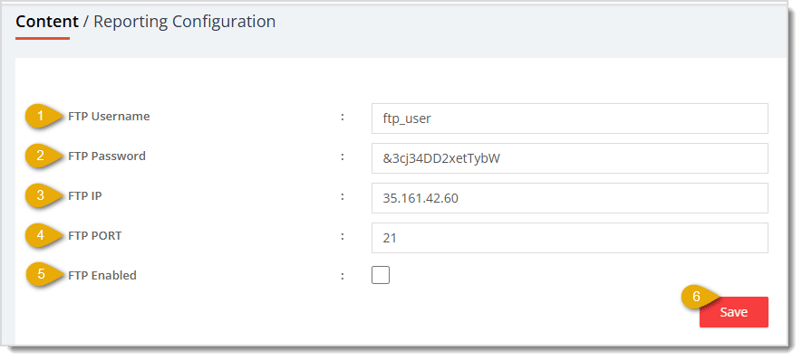
The Reporting Configuration page of the Content area in the eTailPet system allows you to set up automatic delivery of your store's reports to an external FTP server. This article shows you how to configure the settings on this page. Get your reports flowing automatically!

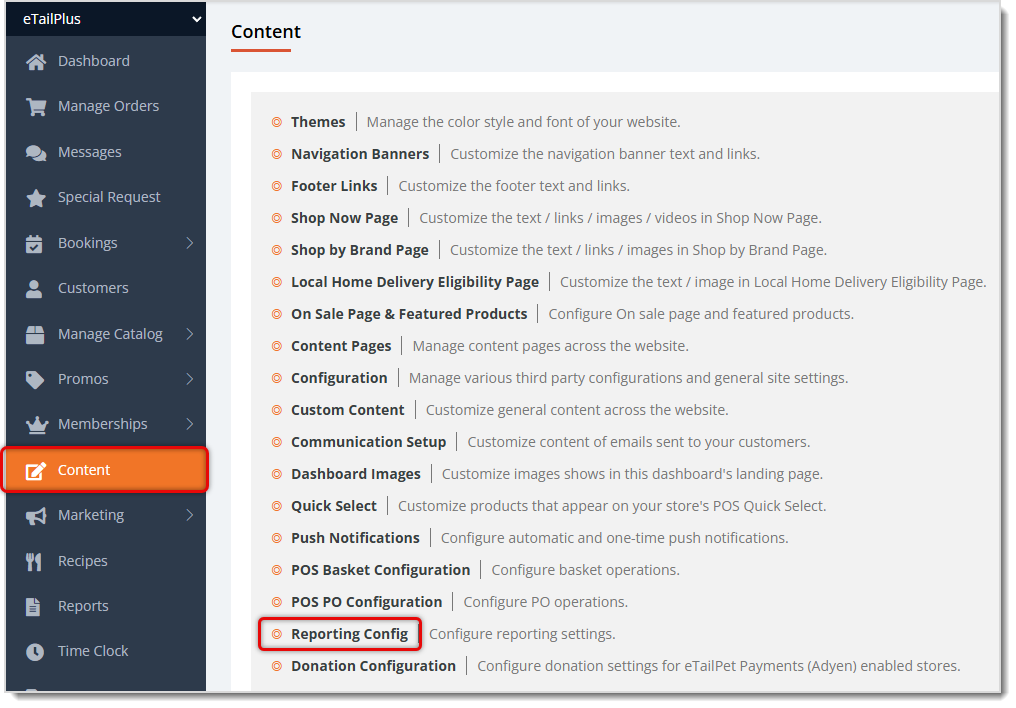
To get to this area, in the main system menu on the left, click on Content, then on the Content page, click on Reporting Configuration.
Here is how to work with the settings on this page:
Q: Who should have access to the FTP Username and FTP Password fields?
A: Only people who need to manage your FTP report delivery should have access to these credentials, since they authenticate a connection to your FTP server. Only users with Admin accounts have access to the Configuration and Settings areas of the system.
Q: Do I need to fill in all four FTP fields before enabling FTP Enabled?
A: Yes. Enter your FTP Username, FTP Password, FTP IP, and FTP Port correctly before you check FTP Enabled, so the system can successfully connect and deliver your reports.
Q: I have a question, but I can't find my answer here. How do I get more assistance?
A: You can ask any question at the number listed here. Contact our support team at (323) 370-0738 for the U.S. and (888) 370-2363 for Canada.
Is this page helpful?
×Help us improve our articles