The Advanced Page version of the Shop Now Page of the Content area of the eTailPet system allows you to build out the visual layout of your storefront's shop-now landing page, including the image/video carousel, featured brands, promotional banner images, featured products, and favorite categories. This article shows you how to configure the settings on this page. Take a look at what you can do!
Shop Now Page, Advanced Page Setup
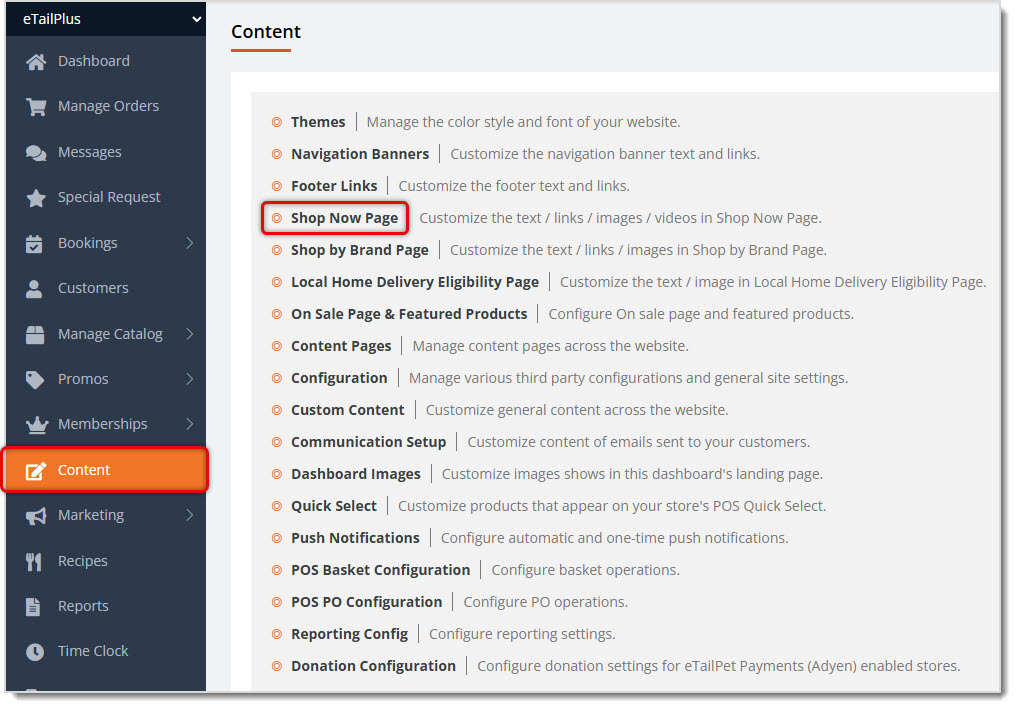
To get to this area, in the main system menu on the left, click on Content, then on the Content page, click on Shop Now Page.
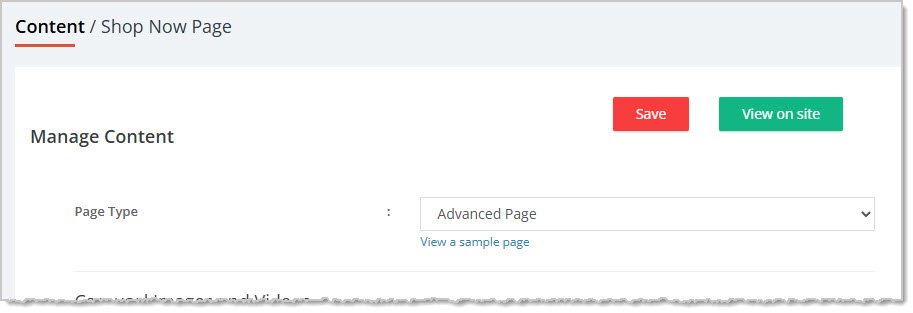
Near the top of the page, the Page Type default is Advanced Page, and that is what this article is about. To learn more about the Simple Page version of Shop Now, click here to view the article. You can click the View on Site button to see what the currently configured page will look like on the website, and you can do this before you save (and publish) the page using the Save button. There is also a link to View a Sample Page that shows a small image of the Advanced Page layout.
The Advanced Page has five major areas you can configure. Here is what they are and an example of what each area looks like on an example storefront website:
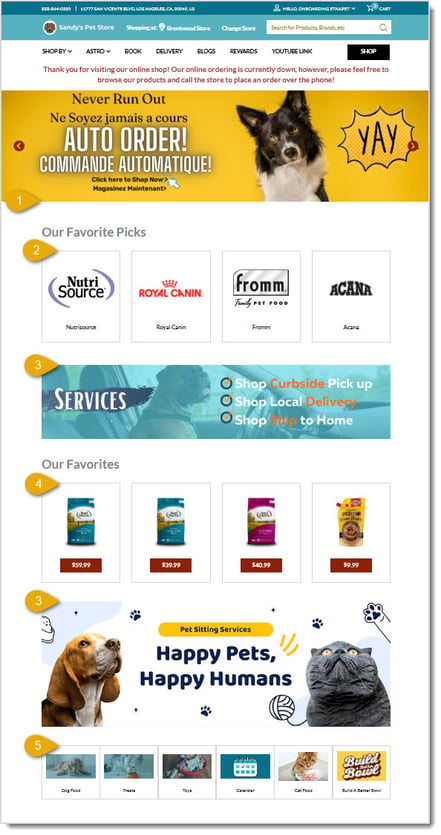
- Carousel Image and Videos
- Brands
- Banner Image 1 and Banner Image 2
- Products
- Favorite Categories
Carousel Images and Videos
Use this section to build the rotating image and video carousel shown at the top of your storefront's Shop Now page. This is just a display area, so there is no need to add a title. You can load as many media files in this area as you like, but as a general tip, your visitors won't sit through very many of them. Most visitors will see three to five of these images before going somewhere else. Here is how to configure this area:
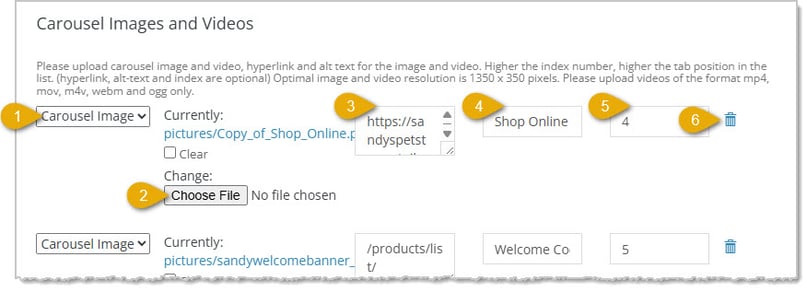
- Media Type — Select Carousel Image or Carousel Video from the drop-list to set the type of media for the item.
- Media File — Click the Choose File button to upload a new image or video file, depending on the Media Type you chose. Use an image/video resolution of 1350 x 350 pixels for the best fit. Accepted video formats are MP4, MOV, M4V, WEBM, and OGG. For images, JPG or PNG are recommended. If a file is loaded here, you can click on the file URL to preview it. You can check the Clear checkbox to remove the currently uploaded file.
- Hyperlink — Enter the URL you want customers to be directed to when they click this carousel item. This field is optional but recommended. The Carousel can be a great way to get your visitors from the Shop Now page to wherever you want them to go.
- Alt Text for Media File — Enter descriptive Alternative Text for the image or video. This field is optional but strongly recommended. Search engines will better understand and index this page for search relevancy if you enter Alt Text here. Also, vision-challenged visitors will hear or read more than the media file name when their web page readers describe the page for them.
- Index — Enter a number to set the display order. Higher numbers appear later in the carousel. This field is optional.
- Delete — Click the Trashcan Icon to remove the line item. Please note, there is no confirmation pop up when you use this function, so if you accidentally delete an item you didn't mean to remove, you will need to recreate it from scratch.
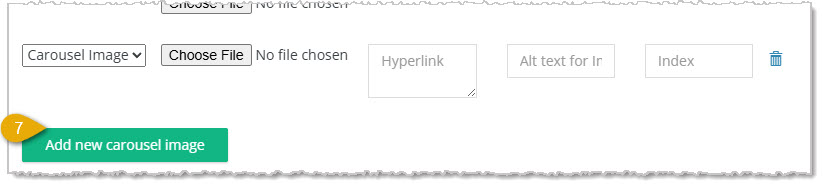
- Add New Carousel Image — Click this button to add more line-item rows. By default, there will always be a single blank line for you, but if you are creating multiple items, you can click this as many times as you need so you'll have enough.
Brands
Use this section to feature up to four Brands you wish to feature on the Advanced version of your Shop Now page. Each brand you choose will display its logo as a thumbnail. Here is how to configure this area:
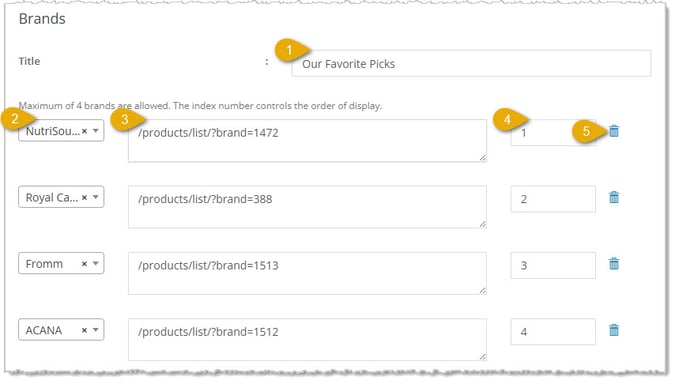
image needs alt text
- Title — Enter the heading you want to display above your brand selections, such as "Our Favorite Picks" or "Featured Brands."
- Brand — Select a brand from the drop-list for each row you plan to use. You can select a maximum of four brands. It is recommended not to select the same brand more than once, even if you really like it.
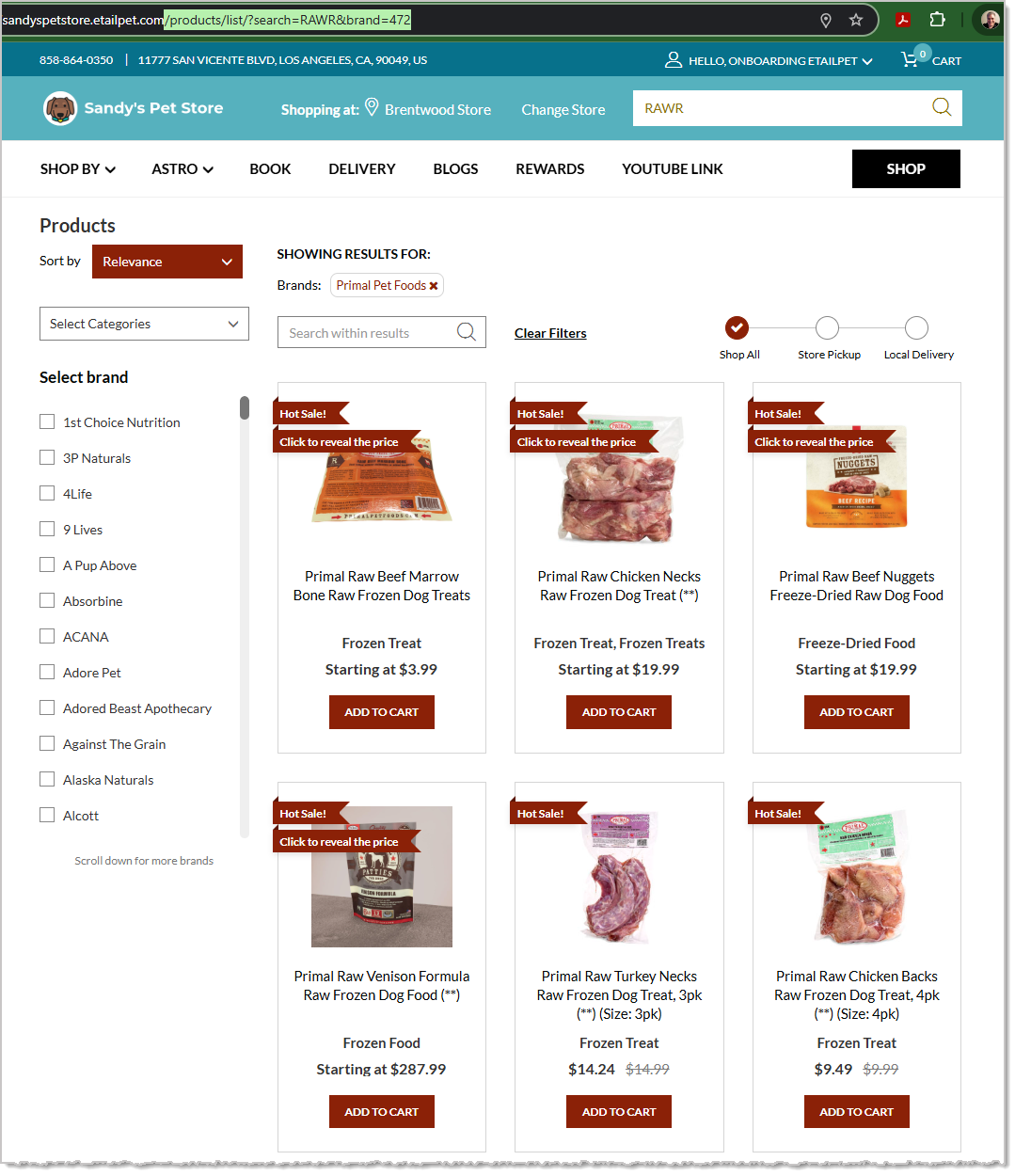
- URL — For this area, you will want to go to your storefront website, find the Brand page for the brand you want, and copy the URL from the browser, as pictured below (copy everything after the .com, starting with the forward slash). Paste the link into the URL field so your visitors will go there when they click the logo thumbnail.
- Index — Enter a number to control the display order of your brands, displaying from left to right and from lowest to highest.
- Delete — Click the Trashcan Icon to remove the line item. Please note, there is no confirmation pop up when you use this function, so if you accidentally delete an item you didn't mean to remove, you will need to recreate it from scratch.
Banner Image 1 and Banner Image 2
Use these two identical sections to add promotional Banner Images to your Shop Now page. The first Banner Image will display between Brands and Products, and the second one will display below Products and above Favorite Categories. Configuration for each has controls as described below:
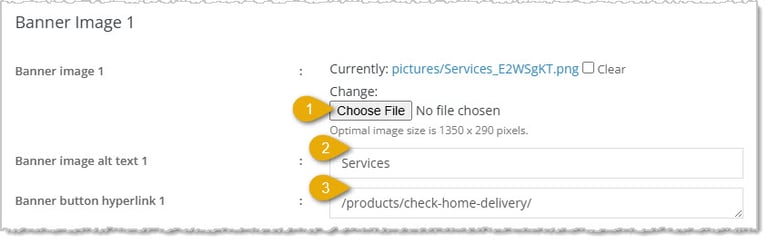
- Banner Image — Click the Choose File button to upload a new image file. Use an image resolution of 1350 x 290 pixels for the best fit. Accepted image formats include most web image files, but JPG or PNG are recommended. If a file is loaded here, you can click on the file URL to preview it. You can check the Clear checkbox to remove the currently uploaded file.
- Banner Image Alt Text — Enter descriptive Alternative Text for the image. This field is optional but strongly recommended. Search engines will better understand and index this page for search relevancy if you enter Alt Text here. Also, vision-challenged visitors will hear or read more than the media file name when their web page readers describe the page for them.
- Banner Button Hyperlink — Enter the URL you want the banner to direct customers to when they click on it. When viewing your storefront website, you can either copy the entire URL or just everything after the .com starting with the forward slash, and paste it here.
Products
Use this section to feature up to eight specific Products on your Shop Now page.
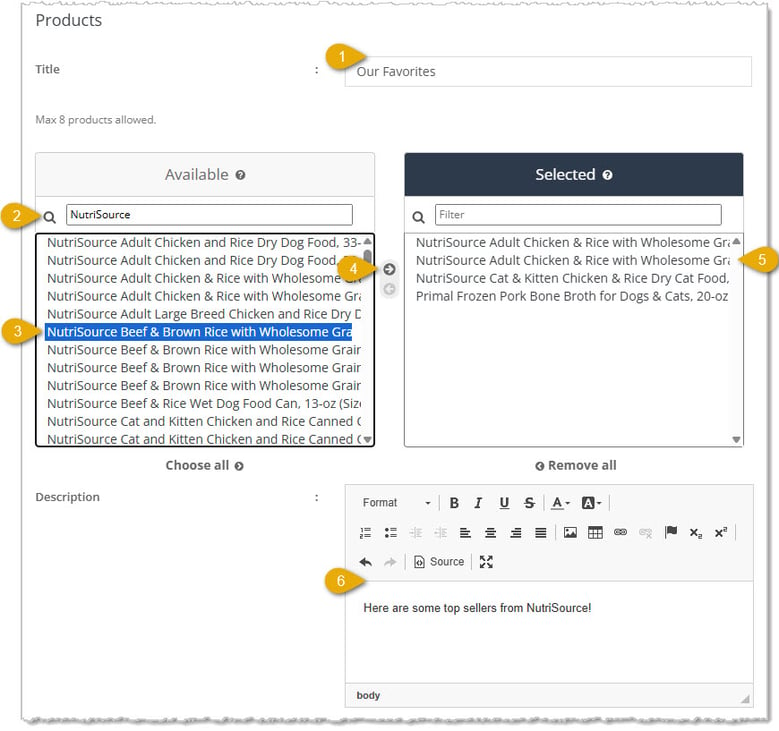
- Title — Enter the heading you want displayed above your featured products, such as "Our Favorites."
- Available Filter — Use the Filter field to search for products from among all storefront website products in your system.
- Item Selection — Click to select an item you want to feature. Please note, if you click Choose All below the list, the system will only be able to add a total of 8 items to the Selected area.
- Move Buttons — With an item selected in the Available area, the upper Move button becomes active, as pictured above. Click on the Move button to move the item to the Selected list on the right. It will no longer display in the Available area. Similarly, if you select an item in the Selected list, the lower Move button will allow you to remove it from that list and place it in the Available list.
- Selected Items — You can have up to eight items in this area. If you have more than four, they will display in two rows on the web page. If you need to change them all out, the Remove All function below the list will allow you to do so without having to use a Move button.
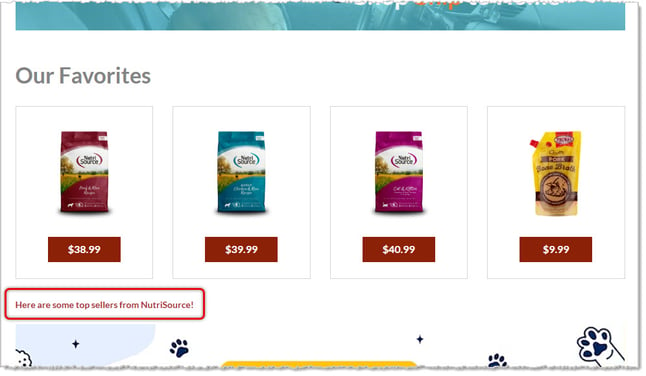
- Description — Enter descriptive text you want displayed below your featured products, as in the example pictured below.
Favorite Categories
Use this section to highlight up to twelve product Categories on your Shop Now page.
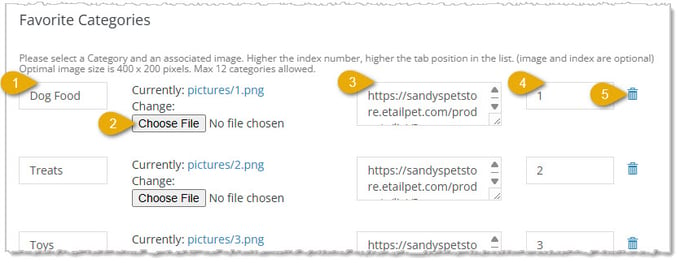
- Category Name — Enter the name of the Category you want to feature.
- Choose File — Click the Choose File button to search your device and upload an image to represent the Category. Use an image size of 400 x 200 pixels for the best fit. JPG or PNG images are best. This field is optional but highly recommended.
- Hyperlink — Go to your storefront website to find the Category page you want, then copy and paste the URL here. You can either use the entire URL or just everything after your .com, starting with the forward slash.
- Index — Enter a number to control the display order of your categories, with items appearing in numbered order from left to right, top row to bottom row (if you have more than four items). This field is optional.
- Delete icon — Click the Trashcan Icon to remove the line item. Please note, there is no confirmation pop up when you use this function, so if you accidentally delete an item you didn't mean to remove, you will need to recreate it from scratch.
Once you have finished making your changes, click the Save button at the top or bottom of the page.

Related Topics
Shop Now Page - Simple Page Setup
Shop by Brand Page
On Sale Page and Featured Products
Frequently Asked Questions
Q: What is the difference between the Advanced Page and Simple Page options for Page Types?
A: The Simple Page has four basic areas you can configure, while the Advanced Page has five detailed areas.
Q: How many carousel images and videos can I add?
A: There's no fixed limit, but as a general guideline, we recommend four or five.
Q: Is there a limit to how many brands, products, or categories I can feature?
A: Yes. You can feature up to 4 brands, up to 8 products, and up to 12 favorite categories.
Q: What image sizes should I use for banners, carousel media, and category images?
A: Use 1350 x 350 pixels for carousel images and videos, 1350 x 290 pixels for Banner Image 1 and Banner Image 2, and 400 x 200 pixels for Favorite Categories images.
Q: How do I move products between the Available and Selected lists?
A: Use the Filter field to search for a product, click on the item you want to move, and then use the active Move arrow button to move it between lists.
Q: I have a question, but I can't find my answer here. How do I get more assistance?
A: You can ask any question at the number listed here. Contact our support team at (323) 370-0738 for the U.S. and (888) 370-2363 for Canada.







 Jul 13, 2026
Is this page helpful?
×Help us improve our articles