Shop Now Page - Simple Page Setup

Jun 30, 2026
In your eTailPet system storefront website, you're able to configure the Shop Now page at whatever level of detail you want. You can do a simple page that displays promotional images for whatever you have going on, or you can do an advanced page with more robust content options. This article will walk you through how to work with the Simple page style for your Shop Now page. Take a look!
The Simple Shop Now Page
Here is what an example of a Simple Shop Now page looks like. There are four images you can load and change out as needed:
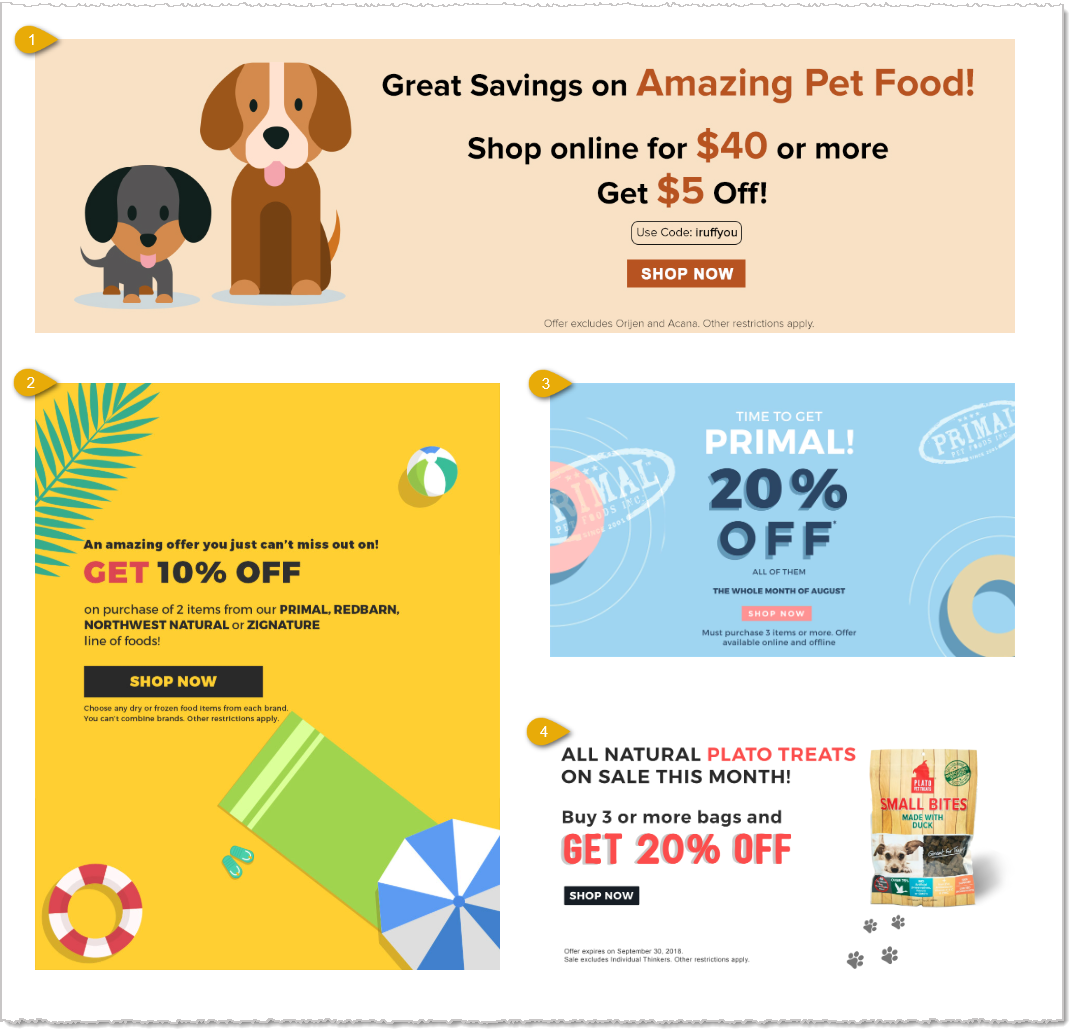
- Banner — The main image for the page goes across the page width and is called the Top Wide Rectangle in the configuration area.
- Left Portrait — The tall image on the left is in portrait orientation and is called the Left Long Rectangle in the configuration area.
- Right Upper Landscape — The wide image in the upper middle on the right is in landscape orientation and is called the Top Smaller Rectangle in the configuration area.
- Right Lower Landscape — The wide image in the lower right is in landscape orientation and is called the Bottom Smaller Rectangle in the configuration area.
You can use free resources such as Canva.com to create your images and use them as promotions on your Shop Now page. Use whatever image creation resources you like, and follow the instructions below for loading the images into your Shop Now page.
Configure Your Simple Shop Now Page
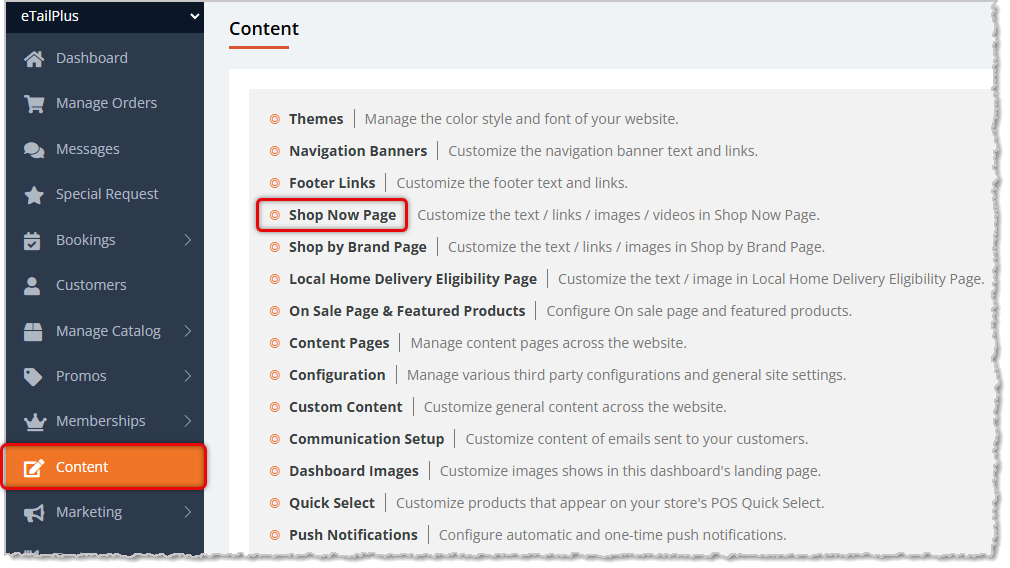
On the Shop Now page, follow these steps to load the images you want. Use the steps below for each of the four image areas (the controls are identical for each):
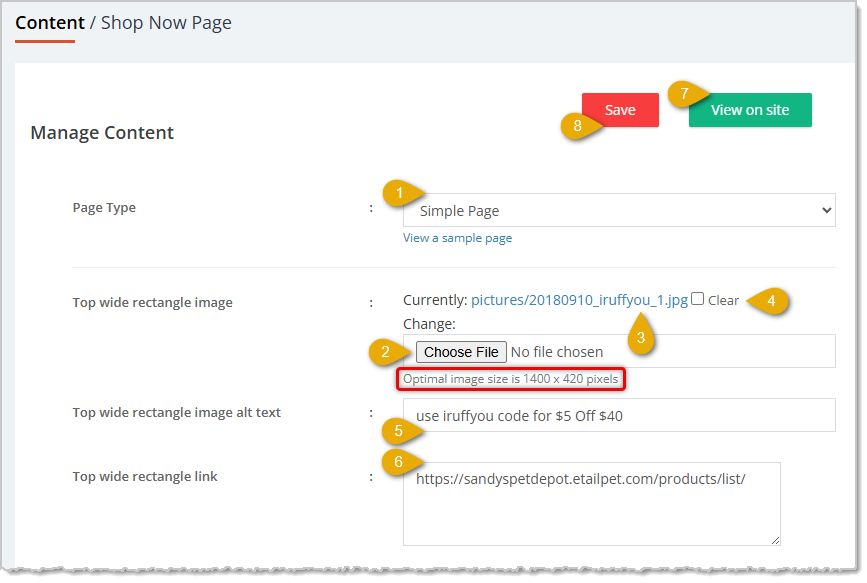
- Page Type — By default this will be set to Simple, which is the focus of this article. Click here for details on how to work with the Advanced version of the Shop Now page.
- Choose File — Click the Choose File button to search your device for the image you want. JPG or PNG images are best. Below the button, you'll see the ideal pixel dimensions for the image.
- For the Top Wide Rectangle, images should ideally be 1400 x 420 pixels (width x height).
- For the Left Long Rectangle, images should ideally be 900 x 1085 pixels.
- For the Top Smaller Rectangle and the Bottom Smaller Rectangle, images should ideally be 1200 x 658 pixels.
- Image Preview Link — If there is an image loaded into the area, you'll see the image file name here. It is recommended that if you want to preview the image, right-click on this link and open it in a new browser tab.
- Clear — If you no longer want to have an image in one of the areas, you can check the box to Clear it. When you save, it will no longer be empty. If you want a different image in the spot, just click the Choose File button and replace it.
- Image Alternative Text — It is highly recommended for best SEO (search engine optimization) and page relevancy that you enter Alt Text for all of your images. This allows the browser to 'see' what the image is about and it allows vision-challenged visitors to use audio page readers to understand what the image is about. Not having descriptive text here counts against you in your search results for shoppers searching for topics related to this image.
- Image Website Link — You can link each of the images on the Simple page so visitors can click on them to go to whatever webpage they feature. Go to your storefront website, find the page the image should link to, and copy the full URL from the browser address bar, then paste it here.
- View on Site — Click this button to see what your Simple Shop Now page will look like on the storefront website. The preview will open in a new browser tab for you.
- Save — When you have finished configuring the image areas on this page, click the Save button to save your changes to the website.
That's it, you're all set!
Related Topics
Content Pages
Navigation Banners
Shop Now Page - Advanced Page Setup
Frequently Asked Questions
Q: I have a question, but I can't find my answer here. How do I get more assistance?
A: You can ask any question at the number listed here. Contact our support team at (323) 370-0738 for the U.S. and (888) 370-2363 for Canada.
🎨 You can edit the color and font themes of your eTailPet website by going to Themes. Read on to se
🔗 You can add navigation links near the top of your eTailPet online store, which customers can clic
🏡 The Local Home Delivery Eligibility Page is where customers can check if their address is eligibl







Is this page helpful?
×Help us improve our articles