At the bottom of your storefront website is an area where you can add any links you want for your customers to use. It's called the Quick Links area and this article shows you how to set up those links. Take a look at how simple it can be!
The Quick Links Footer Area
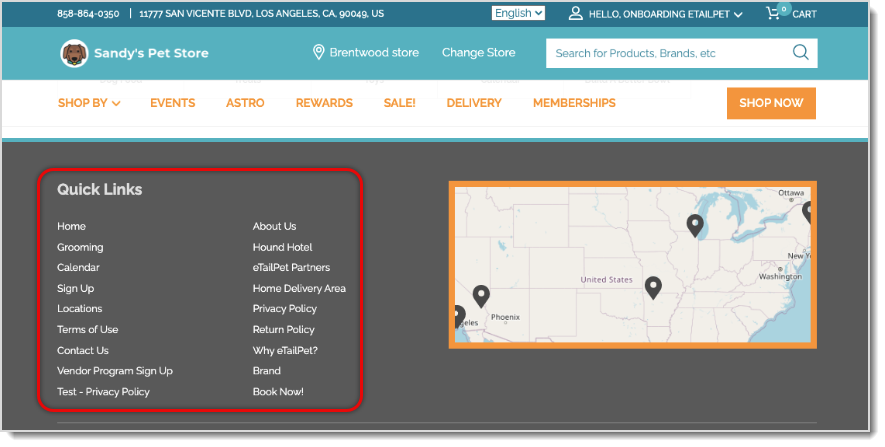
Here is what an example of a Quick Links area looks like at the bottom of a storefront website:
Managing Your Quick Links
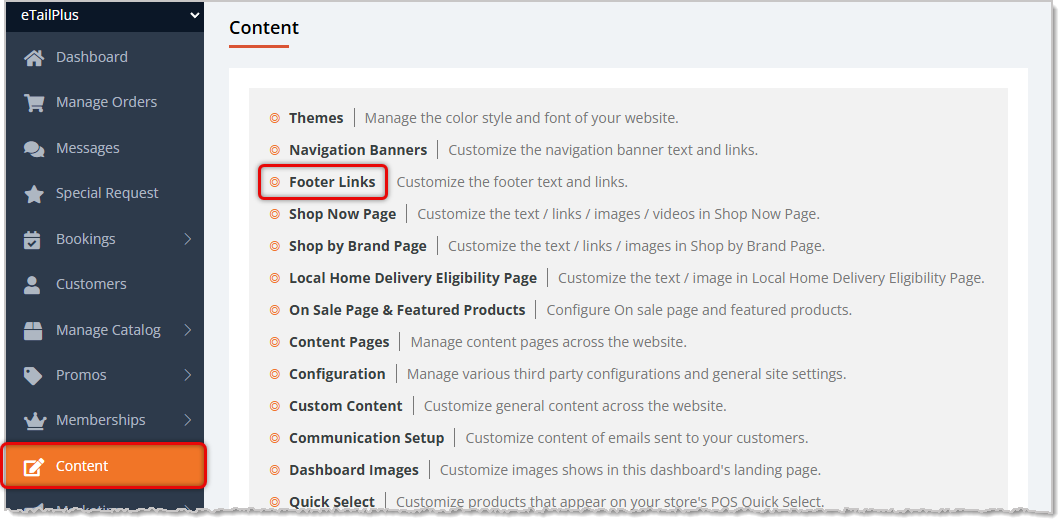
To get to this area, in the Main Menu on the left click on Content, and on the Content page, click on Footer Links. On the Footer Links page, follow these steps to create or edit your Quick Links:
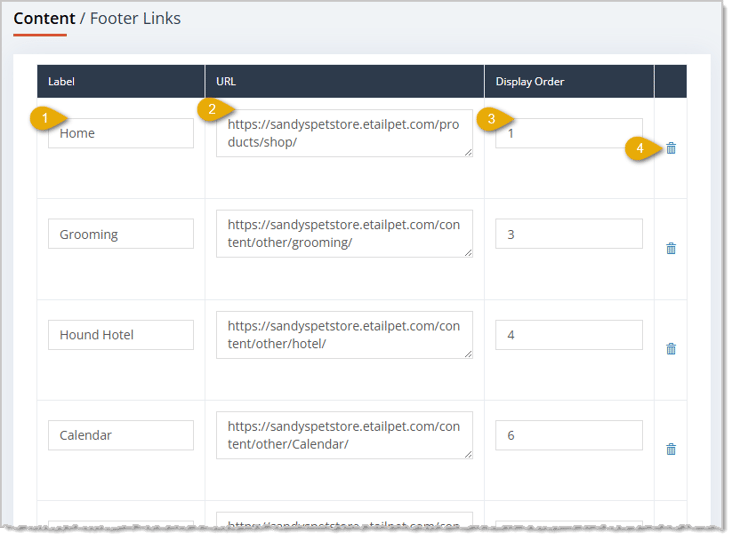
- Label — This is the title of the link, enter it the way you want it to appear to your website visitors.
- URL — Enter the web address you want to use for the link. For all URLs, there should be no spaces, instead, you should enter hyphens where spaces would be (examples below). You can enter the URL in one of two ways:
- Full URL — Enter everything in the URL, including the 'protocol' at the front, here is what that will include: Protocol - (https://), Domain Name - (websitedomainname.com), and Page Address - (/page-area/page-name/). Example: https://andysaviary.com/pages/about/
This style of URL is especially useful if you have external links that aren't on your website you want to provide. For on-site page links, the style below is best.
- Relative URL — Enter only what comes after your Domain Name, starting with the forward slash. So basically, from our example above, you would only need to add the Page Address area. Example: /home/
You can find your on-site page paths as you created them in the Content Pages area of Content in the URL column. For system-managed pages, such as your Shop Now page, the Relative URL will always be what you see on the website, which for Shop Now would be /products/shop/. Those URLs do not contain the starting slash you will need here, as in the example below. On the Content Pages listing, the URL for an About Us page is about-us/. In the Quick Links URL it would be /about-us/.
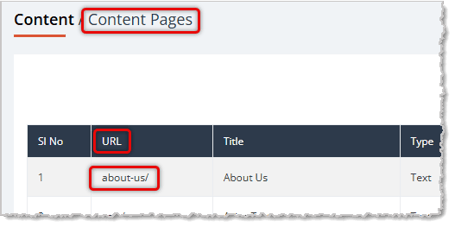
- Please see the section below about Setting Up Page Paths for more details on how to plan your URLs.
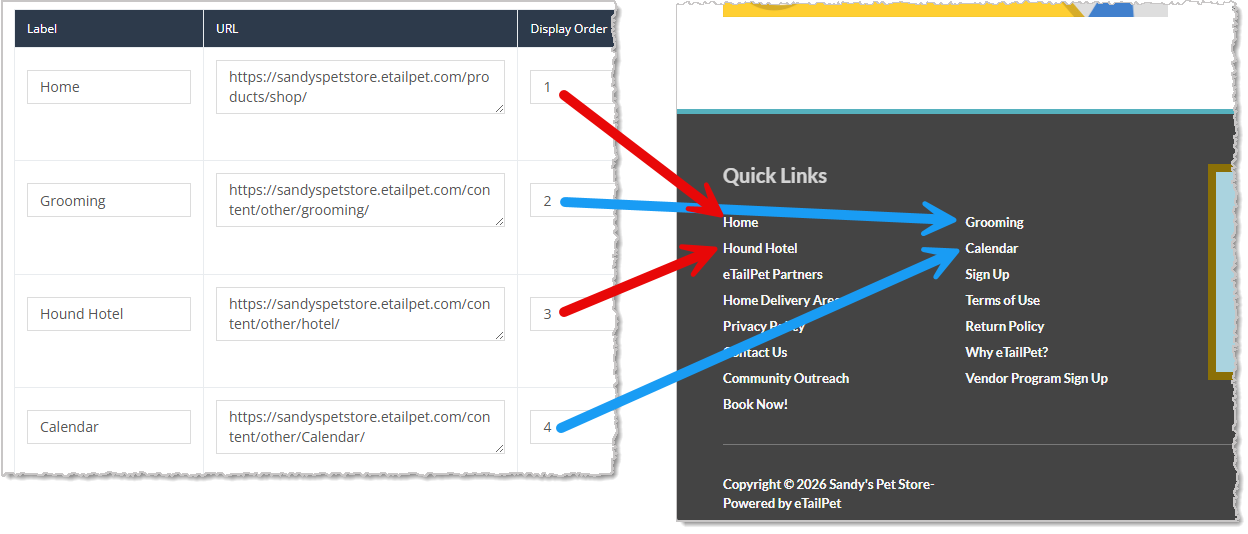
- Display Order — The Quick Links are a simple list that displays in two columns. As you enter links, enter sequential numbers in this area and they will populate on the website like this: Link 1 will be at the top of the first column, link 2 will be at the top of the second column, link 3 will be below link 1 in the first column, link 4 will be below link 2 in the second column, and so on. So odd-numbered Footer Links will be in the first column, and even-numbered ones will be in the second, as shown below.
- Delete Link — You can click the Trashcan Icon to delete any of the links in this list. This action only removes the link from the Footer Links area and does not delete the page, of course. There is no confirmation, so be careful with this function. If you accidentally delete something you needed, you will need to create it again.
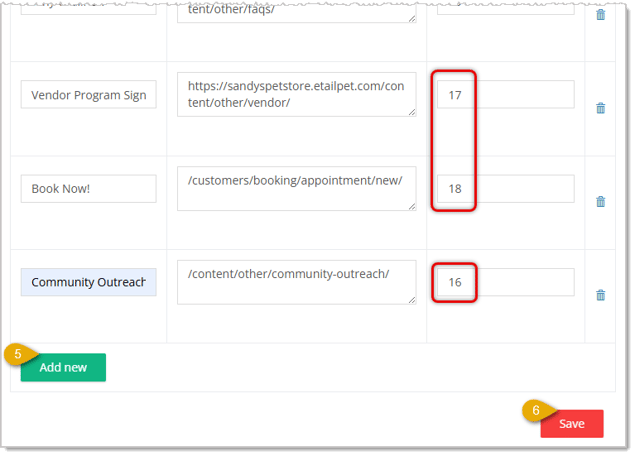
- Add New — The system will always give you a blank link line at the bottom of the page, but if you are adding more than one you can click this button to create as many blank link-entry lines as you need.
- Save — There is no validation that you have formatted everything correctly, so the system will save what you have entered when you click the Save button. But anything not formatted correctly, for example, if there are any spaces in your URL field, will not link to the desired page in the Quick Links area.
Setting Up Page Paths
For your storefront website page paths, you are able to structure them however you like. For all paths, you'll use hyphens instead of spaces, as demonstrated above. There are two approaches:
- Simple Page Paths — These paths are just the name of the page. For example, if you are creating a Privacy Policy page, the simple page path would be: /privacy-policy/
If you don't plan to add many manually-created pages from the Content Pages area, this path style is best.
- Categorical Page Paths — These paths have a theme or category of pages before the page name. For example, if you wanted to differentiate your informational pages from your policy pages, you might do page paths like this:
- About Us — /info/about-us/
- Return Policy — /policy/return-policy/
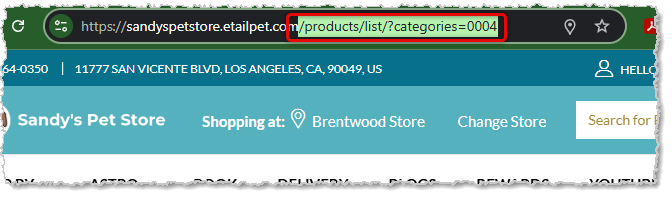
The system uses some categories like those above for some of the pages it manages. For example, your main shopping page for your storefront uses /products/list/ as its path. You can find paths for web store Categories and link to them by going to the Category page on the website and copying the Relative URL. For example, if I go to the storefront and click the Select Categories drop-list in the upper left of the main shopping page, I can select a category such as Cat.
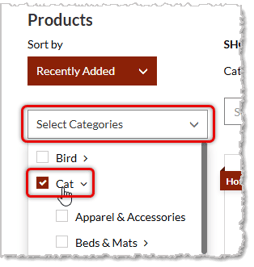
In the browser Address Bar, the URL of the page contains a path you can copy and link to in your Quick Links area if you wanted a Quick Link to your Cats category. So you would copy everything after the .com, starting with the slash and going tto the end of the line, and use this for the URL column of the Footer Link: /products/list/?categories=0004
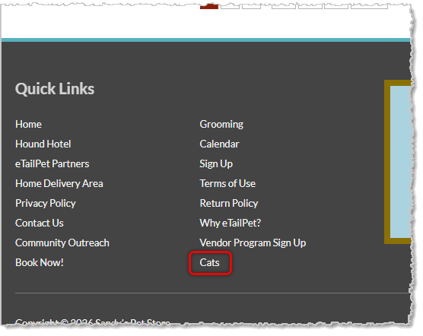
After saving the new Footer Link, it will display in the Quick Links area in whatever order you saved, as pictured below.
It might be best to avoid paths the system uses and make unique paths if you're doing Categorical URLs. Some other areas the system uses for paths include the following:
/stores/ - For managing multiple store locations through the storefront website.
/content/ - For some automated pages such as Contact Us.
/customers/ - For customer account and service pages.
/cart/ and /checkout/ - For shopping cart management and checkout pages.
/coupon/ and /subscription/ - For coupon and subscription management pages.
Related Topics
Content Pages
Navigation Banners
Shop Now Page
Frequently Asked Questions
Q: I have a question, but I can't find my answer here. How do I get more assistance?
A: You can ask any question at the number listed here. Contact our support team at (323) 370-0738 for the U.S. and (888) 370-2363 for Canada.







 Jun 30, 2026
Is this page helpful?
×Help us improve our articles