





Settings: Details Tab

Aug 06, 2026Aug 06, 2026

The Details tab of the eTailPet Settings page allows you to view your store's core profile information, including your logo, contact information, payment gateway links, and social media URLs. From here, you can also open the Edit page to update these details. This article covers everything shown on the Details tab and the fields available when you edit them. Take a look at what you can do!
maurice - settings details tab

Working With the Details Tab of Settings

To get to this page, click the User icon in the top right of the system, then click Settings.
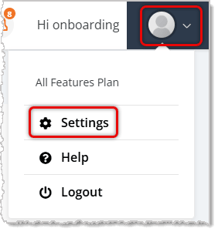
Image of the User menu with the Settings area highlighted in the eTailPet system.

On the Settings page, click the Details tab.
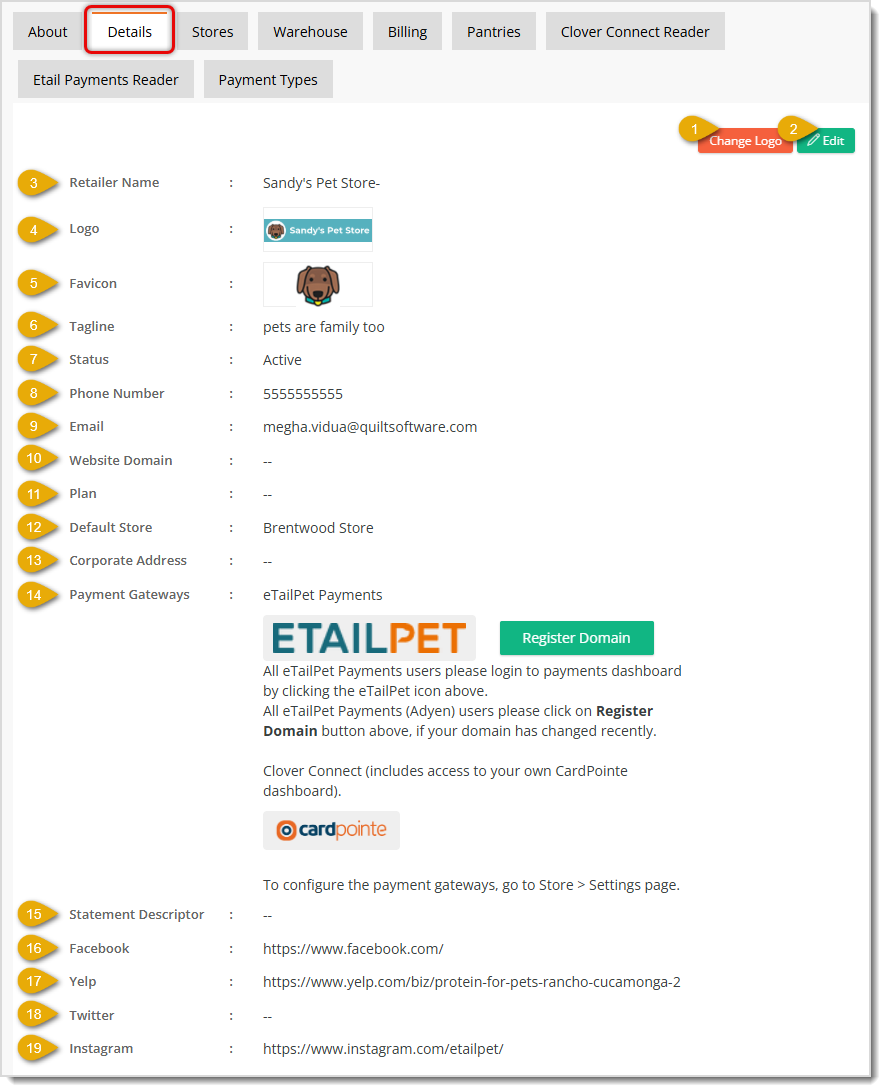
Image showing the Details tab of Settings with key features highlighted in the eTailPet system.

Here is how to work with your company Details:

  1. Change Logo — Click this button to quickly upload a new logo image for your store without opening the full edit page.
  2. Edit — Click this button to open the edit page and update any of your company Details. 
  3. Retailer Name — This field displays the Name of your store as it's set up in the system.
  4. Logo — This field displays the Logo image currently used for your store.
  5. Favicon — This field displays the small Favicon image that appears next to your page's title in browser tabs.
  6. Tagline — This field displays the Tagline associated with your store.
  7. Status — This field shows whether your store is Active or inactive in the system.
  8. Phone Number — This field displays the Phone number on file for your store.
  9. Email — This field displays the Email address on file for your store.
  10. Website Domain — This field displays the Domain associated with your storefront website, if one has been set.
  11. Plan — This field displays the Plan your store is subscribed to, if applicable.
  12. Default Store — This field displays which of your Store locations is set as the default.
  13. Corporate Address — This field displays the Corporate Address on file for your store, if one has been entered.
  14. Payment Gateways — This section lists the Payment Gateways connected to your store. Click the eTailPet Payments icon to log in to your payments dashboard. Click the Register Domain button if your domain has changed recently and you use eTailPet Payments (Adyen). Click the CardPointe icon to access your Clover Connect dashboard. To configure these gateways, go to the Store > Settings page instead.
  15. Statement Descriptor — This field displays the text that appears on the customer's credit card statement for orders placed with your store.
  16. Facebook — This field displays the URL linked to your store's Facebook page.
  17. Yelp — This field displays the URL linked to your store's Yelp page.
  18. Twitter — This field displays the URL linked to your store's Twitter page.
  19. Instagram — This field displays the URL linked to your store's Instagram page.


Related Topics

Settings: About User Tab

Settings: Stores Tab

Settings: Adding and Editing Stores


Frequently Asked Questions

Q: How do I change my store's logo?

A: Click the Change Logo button on the Details tab to quickly upload a new logo, or click Edit and use the Logo field on the edit page.


Q: Why can't I edit the Status, Website Domain, or Plan fields?

A: These fields are informational only and are not available on the edit page. Contact support if you need to update these details.


Q: How do I update my social media links?

A: Click Edit on the Details tab, then update the Facebook URL, Yelp URL, Twitter URL, or Instagram URL fields and click Save.


Q: What is a Statement Descriptor and why does it matter?

A: The Statement Descriptor is the text that appears on a customer's credit card statement for their order. It must be between 5 and 22 characters, contain at least one letter, and cannot use the special characters <, >, ', " or *.


Q: How do I access my eTailPet Payments or CardPointe dashboard?

A: On the Details tab, click the eTailPet Payments icon to log in to your payments dashboard, or click the CardPointe icon to access your Clover Connect dashboard.


Q: I have a question, but I can't find my answer here. How do I get more assistance?

A: You can ask any question at the number listed here. Contact our support team at (323) 370-0738 for the U.S. and (888) 370-2363 for Canada.

Need Help?

Can't quite find the answer you're looking for? Our support team is just a call away.