🔀The Transfers area in the eTailPet system allows you to move inventory between different stores. Keep reading to learn how to create and finish transfers yourself!

The Transfers Area
Whenever you physically move products across stores, you'll also need to update your eTailPet system inventory so everything is up-to-date.
To begin and manage transfers, go to Manage Catalog > Transfers.
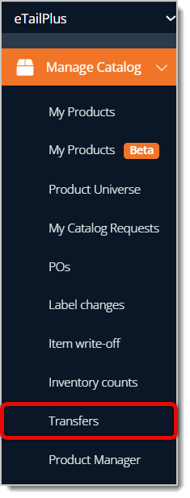
In the Transfers area, you can filter transfer results by date, stores, and status. Here is everything you can use in the area to narrow down your results or create a new Transfer:
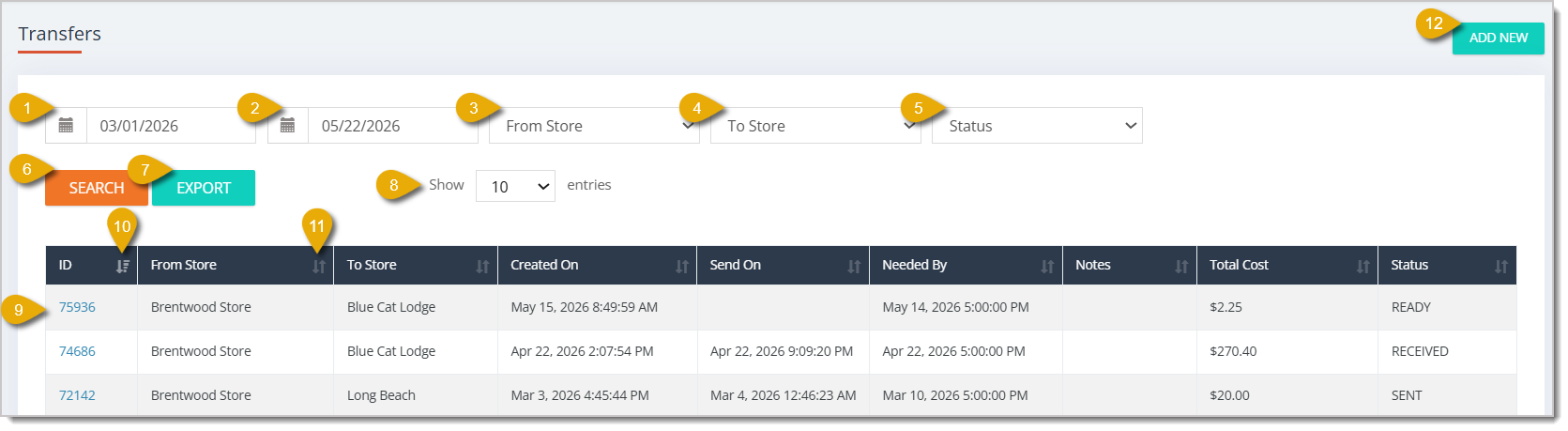
- Start Date — To find transfers from a certain time period, enter a Start Date here.
- End Date — To find transfers from a certain time period, enter an End Date here.
- From Store — To find transfers that came from a specific store, select the From Store from the drop-list.
- To Store — To find transfers that went to a specific store, select the To Store from the drop-list.
- Status — To find transfers of a certain status, select the Status from the drop-list. Each Status is explained more in the Status section below.
- Search Button — After entering your filters, click on the Search button to pull results.
- Export Button — Click on Export to download a spreadsheet of the displayed Transfers.
- Show Number of Entries — You can adjust the number of results that display per page by selecting from this drop-list. You can select from 10, 25, 50, and 100.
- Transfer ID — Click on a Transfer ID to open the Transfer's full details.
- Sort by ID — The data table is sorted by ID by default. Click on the Arrow icon next to the ID column name to reverse the sort.
- Sort by Column — To sort the data according to another column, click on the Arrow icon next to the column name. Click again to reverse the sort.
- Add New — To add a new Transfer, click on the Add New button in the upper right. This is explained more in the Create a New Transfer section below.
Transfer Status
The Status indicates where in the process a Transfer is. Each Status, the action that triggers it, and its results are explained in the table below:
|
STATUS
|
ACTION
|
RESULT
|
|
Ready
|
A crew member clicked Add New button to create a new transfer.
|
You can add products to or edit the Transfer.
|
|
Sent
|
A crew member clicked Save and Send.
|
The transfer has been initiated. You need to arrange the pickup or delivery of products.
|
|
Received
|
A crew member clicked Received.
|
The new location has received the items, and you must change the Status to Received so the inventory will be moved in the eTailPet system.
|
Creating and Receiving Transfers
To add a new Transfer in the eTailPet system, follow these steps:
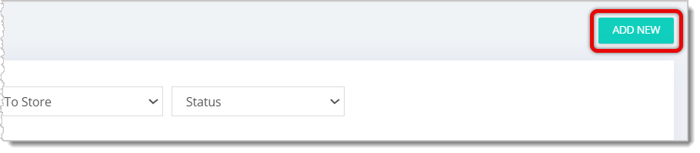
- Click on the Add New button in the upper right, as highlighted in the image below.
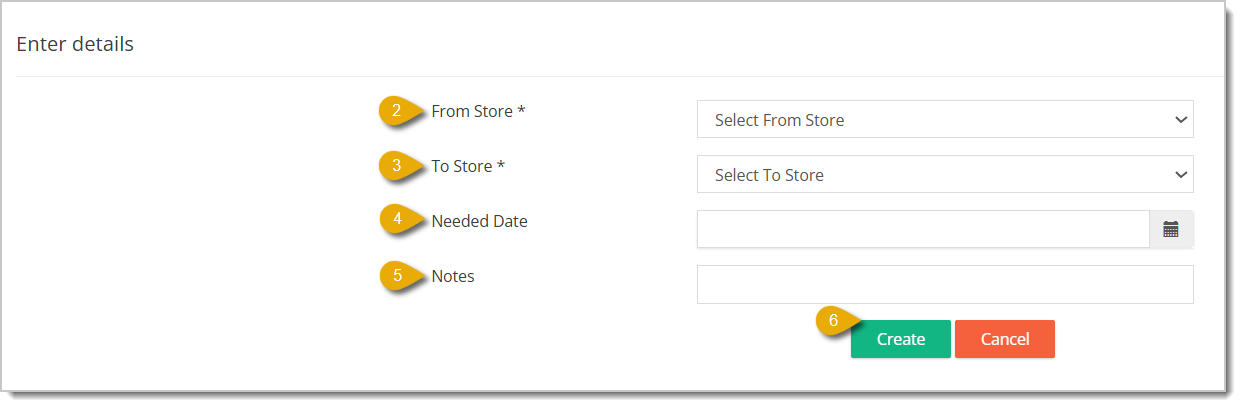
- In From Store, select from the drop-list the store from which the items are coming. This field is required to create the Transfer.
- In To Store, select from the drop-list the store that is receiving the items. This field is required to create the Transfer.
- In the Needed Date field, you can enter the deadline for the items to arrive at the To Store.
- Enter Notes, if needed.
- Click on the Create button to make the new Transfer, as highlighted in the image above. This will direct you to another page where you can add items to the Transfer.
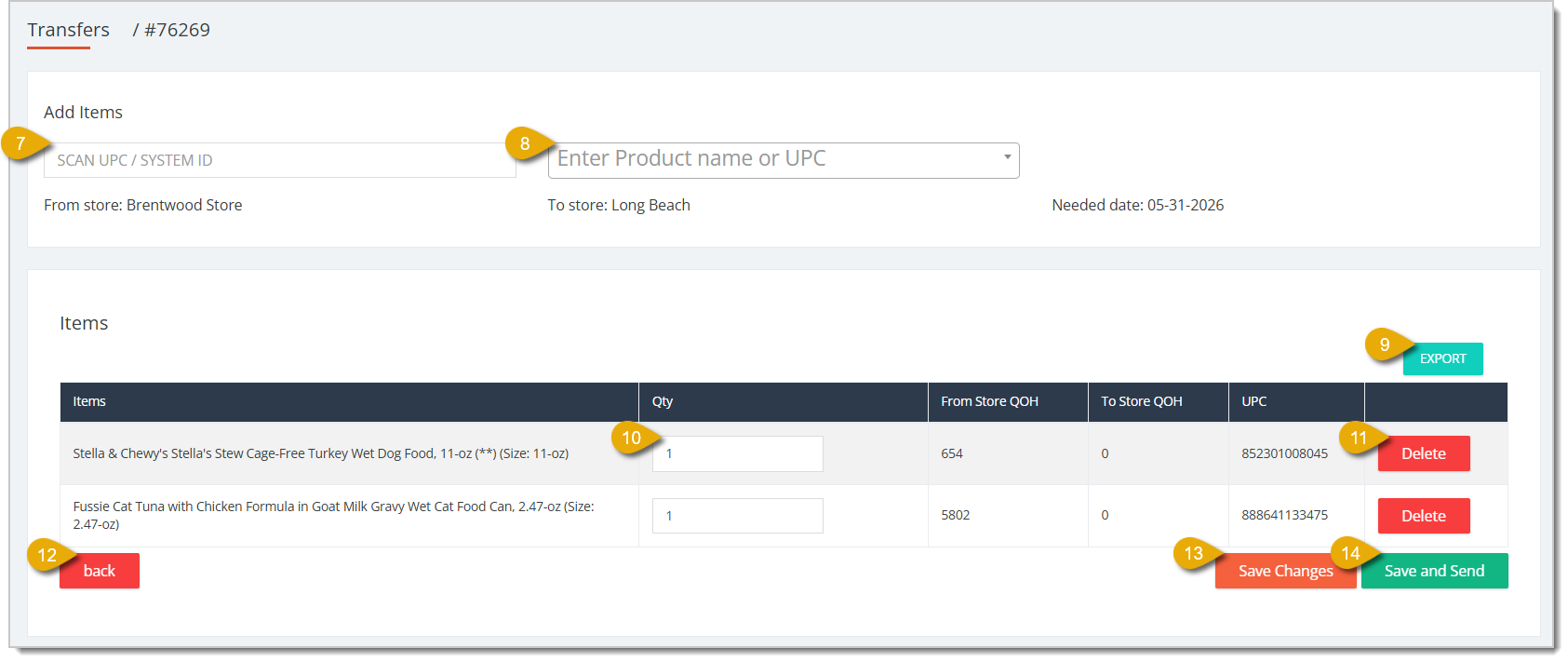
- Scan the barcode of the item or enter its UPC in the field that reads Scan UPC / System ID.
- Enter the Product Name or its UPC. The item will be automatically added to the data table under Items below that.
- After you've added items to the Transfer, you can click on the Export button to download a spreadsheet of the items being transferred for your reference.
- Under the Quantity column, enter the amount of units per product that will be sent to the new location.
- Click on the Delete button on the right of a product's entry to remove it from the Transfer.
- You can click on the Back button to go back to the previous page.
- Click on Save Changes to save the Transfer, but not send it, so you can edit it later.
- Click on Save and Send to initiate the Transfer.

- The receiving location will have to open the Transfer from the Transfers page by clicking on its ID. On the details page for the Transfer, click on the Received button to finalize it, as pictured above.
- You can click on Print Transfers to print out a page listing out the items in the Transfer.
- Enter Notes about the Transfer, if needed.
- Click on Update Notes to save notes you've written.
Related Topics
Product Manager
Purchase Orders
Inventory Quantity on Hand
Stock Days
Change or Remove Products
Adding and Importing Products
Convert Products
Product Universe
Frequently Asked Questions
Q: When does inventory actually move between stores — when I send it or when it's received?
A: Not until it's received. The inventory stays counted at the From Store until someone at the To Store marks the Transfer as Received.
Q: Can I still edit a Transfer after I click Save and Send?
A: No. Save and Send moves the Transfer to Sent status. If you're not ready to finalize it, use Save Changes instead so you can keep editing later.
Q: What happens if I remove a product from a Transfer by mistake?
A: Just scan or search for it again to add it back, as long as the Transfer is still in Ready status.
Q: Can I print a list of what's in a Transfer?
A: Yes. Use the Export button for a spreadsheet, or Print Transfers on the details page for a printable list.
Q: I have a question, but I can't find my answer here. How do I get more assistance?
A: You can ask any question at the number listed here. Contact our support team at (323) 370-0738 for the U.S. and (888) 370-2363 for Canada.







 May 21, 2026
Is this page helpful?
×Help us improve our articles