Your Inventory Reports category includes several tools for tracking Purchase Order activity from the time you place an order through the moment it is received and reconciled. This article covers all of your PO reporting. See how these reports keep you informed about your Purchase Order workflow!
You can get to your Inventory Reports by logging into the admin dashboard and clicking on Reports in the main menu. On the Reports page, scroll down to the Inventory section, as pictured below.
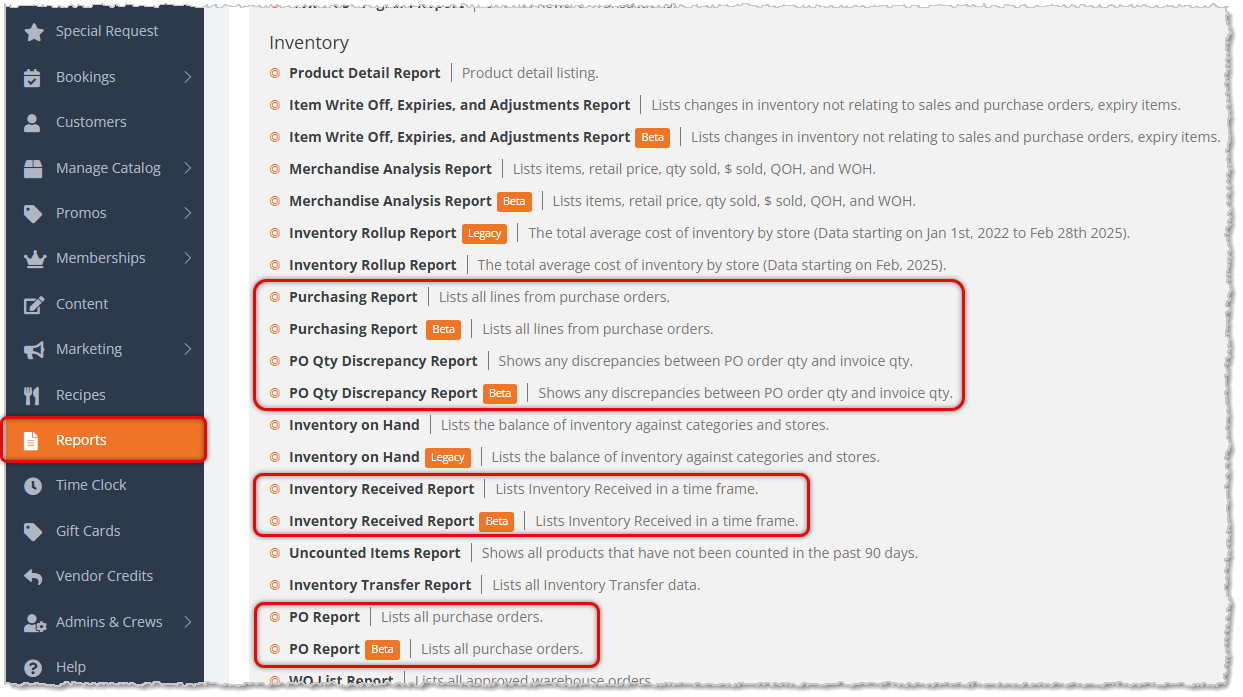
This article has instructions on the following reports:
The Purchasing Report
The Purchasing Report lists every product from your Purchase Orders, giving you item-level visibility into what you have ordered, received, what was damaged, and what was invoiced across your stores and vendors.
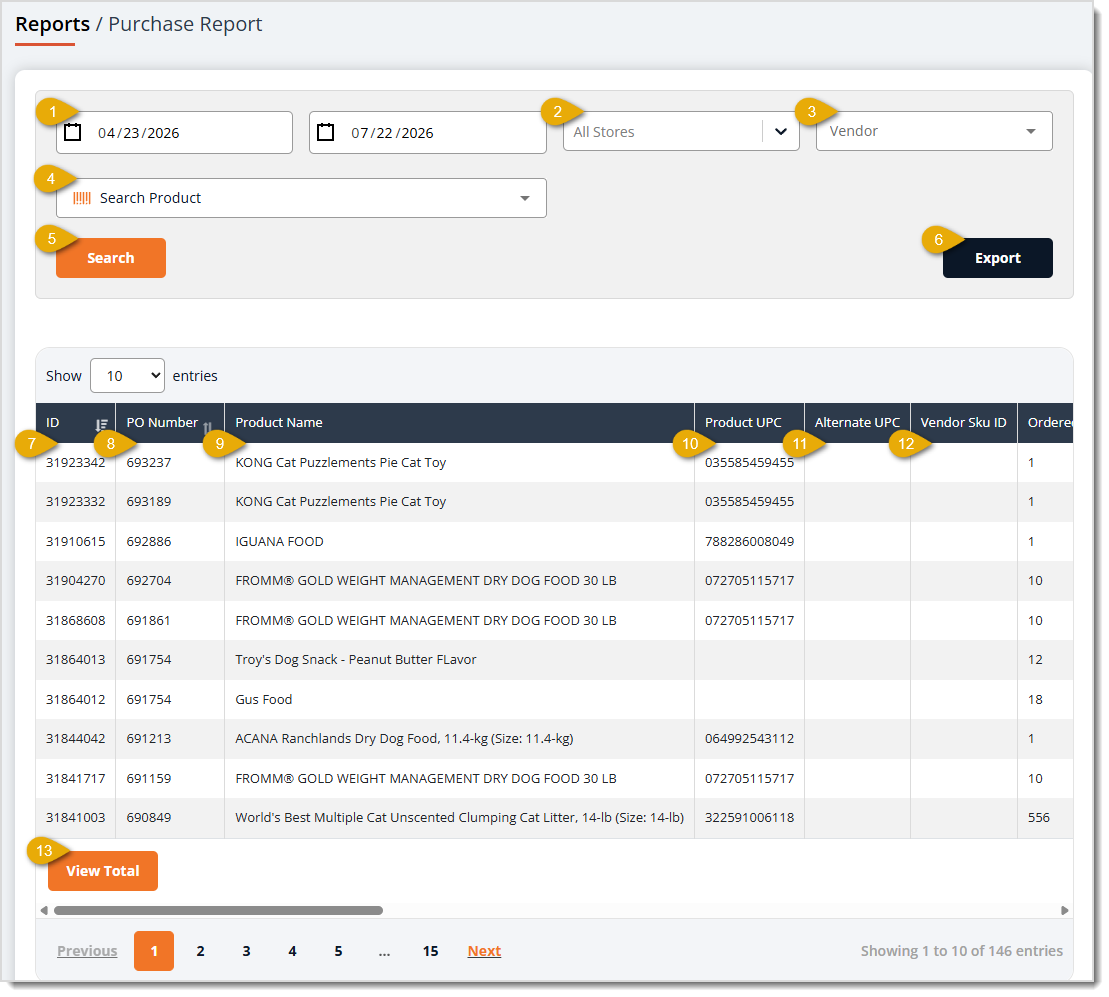
The Purchasing Report has the following functions:
- Date Range — These fields default to displaying Purchase Order data for the current day. Click the Start Date and End Date fields to set a custom range.
- Store — This field defaults to All Stores, but you can click and select a store to narrow results down to a single location.
- Vendor — This field defaults to All Vendors, but you can select a Vendor from the drop-list to filter the report down to Purchase Order data for just that Vendor.
- Search Product — You can enter search text into this field to look up a specific product.
- Search — Click the Search button to refresh the data table using the filters or text search you chose.
- Export — Click the Export button to download the report's current results as an Excel spreadsheet file.
- ID — This column displays the internal record identifier assigned to that purchase order line. Click on the header once to sort the table by this column, and click again to reverse the sort.
- PO Number — This column shows the Purchase Order Number for each item. Click on the header once to sort the table by this column, and click again to reverse the sort.
- Product Name — This column lists the Name of each product you ordered.
- Product UPC — This column displays each product's UPC code.
- Alternate UPC — This column shows the Alternate UPC code for each product, if any.
- Vendor SKU ID — This column lists the Vendor SKU they need you to use on POs for each product.
- View Total — You can click this button to see Totals for columns that have numeric quantity and dollar amounts across the data table.
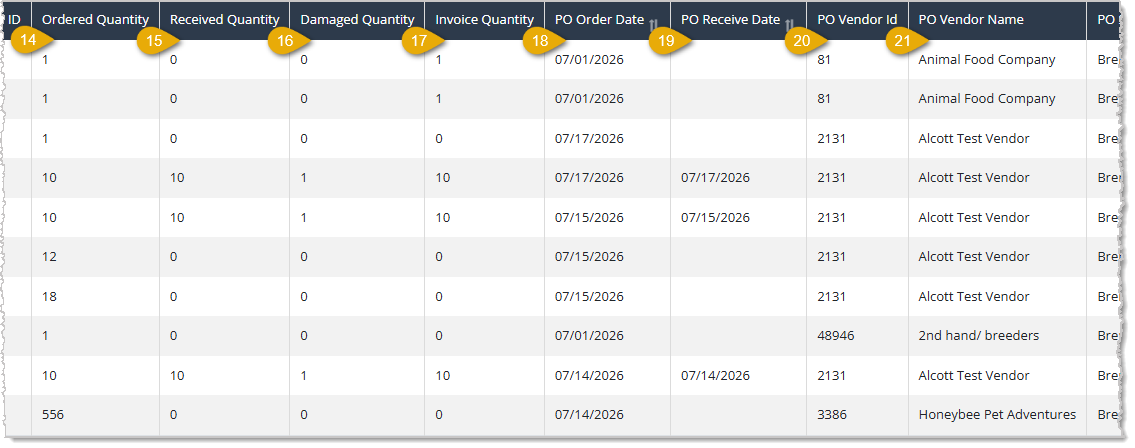
- Ordered Quantity — This column displays the Quantity of each product you Ordered.
- Received Quantity — This column shows the Quantity of each product actually Received.
- Damaged Quantity — This column lists the Quantity of each item you received that was Damaged.
- Invoice Quantity — This column displays the Quantity on the vendor's Invoice.
- PO Order Date — This column shows the Date you placed each Purchase Order. Click on the header once to sort the table by this column, and click again to reverse the sort.
- PO Receive Date — This column lists the Date you received each Purchase Order. Click on the header once to sort the table by this column, and click again to reverse the sort.
- PO Vendor ID — This column displays the system Vendor ID of each Purchase Order.
- PO Vendor Name — This column shows the Name of the Vendor on each Purchase Order.
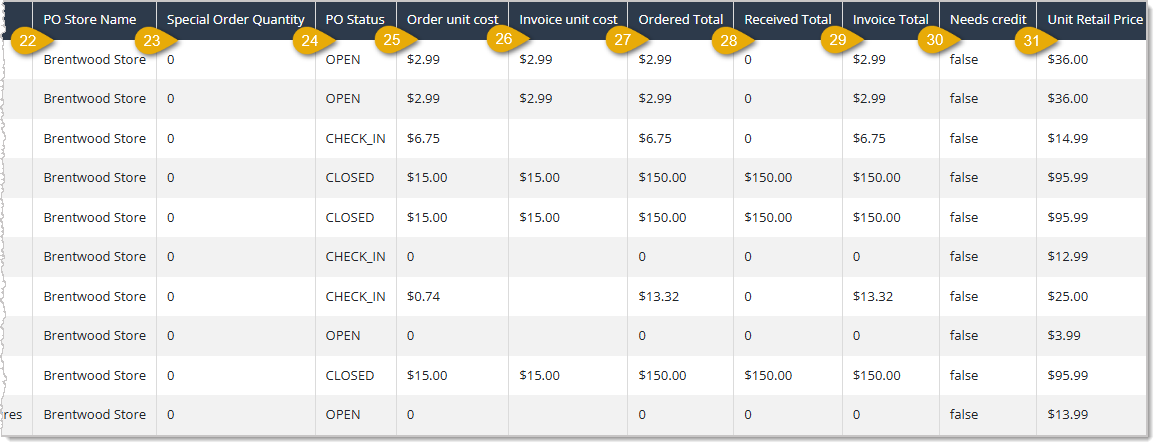
- PO Store Name — This column lists the Store where the inventory for each Purchase Order will be shipped.
- Special Order Quantity — This column displays any Special Order Quantity for each item.
- PO Status — This column shows the current Status of each Purchase Order, such as Open, Pending, or Closed.
- Order Unit Cost — This column lists the Cost per Unit for each item at the time the order was placed.
- Invoice Unit Cost — This column displays the Cost per Unit on the vendor's Invoice for each item.
- Ordered Total — This column shows the Total Cost of the entire ordered Quantity for each item.
- Received Total — This column lists the Total Cost of the entire received Quantity for each item.
- Invoice Total — This column displays the Total Cost of each item on the Invoice.
- Needs Credit — This column shows whether or not each item needs a Vendor Credit.
- Unit Retail Price — This column lists each product's current Retail Price per unit.
The PO Report
The PO Report lists all of your Purchase Orders at the order level, summarizing ordered, received, and invoiced totals for each one.
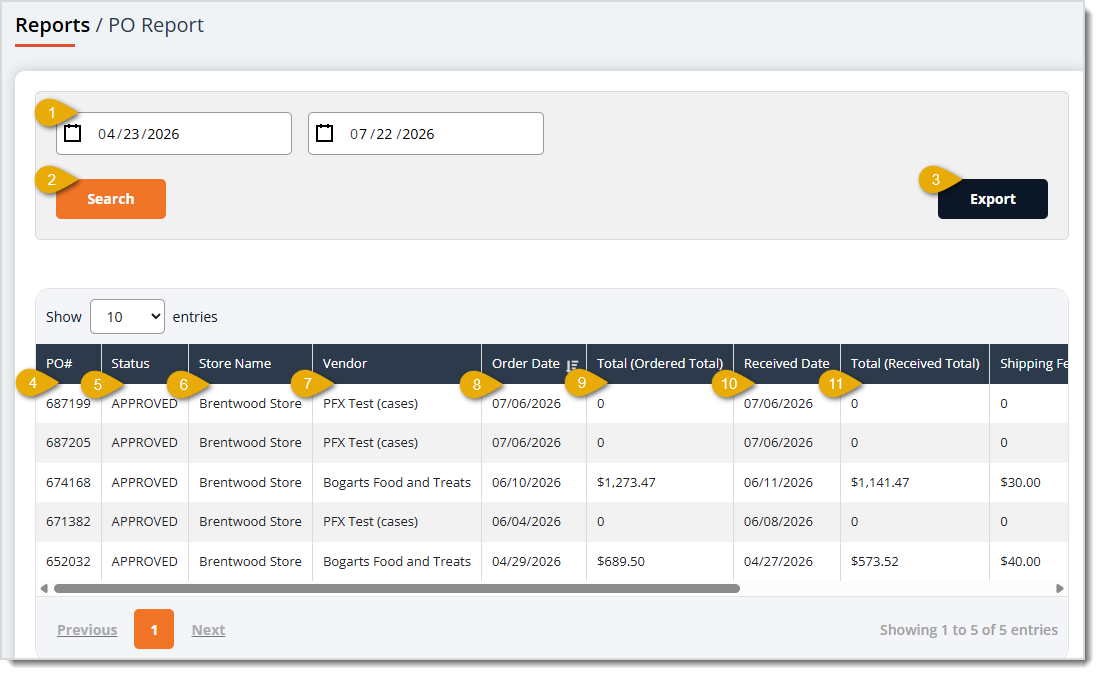
The PO Report has the following functions:
- Date Range — These fields display POs for the current day by default. Click the Start Date and End Date fields to set a custom range.
- Search — Click the Search button to refresh the table using your selected date range.
- Export — Click the Export button to download the report's current data in an Excel spreadsheet file.
- PO Number — This column displays the system's Purchase Order Number.
- Status — This column shows the current Status of each Purchase Order.
- Store Name — This column lists the Store Name where each Purchase Order's inventory will be shipped.
- Vendor — This column displays the Name of the Vendor for each Purchase Order.
- Order Date — This column shows the Date each Purchase Order was placed. Click on the header once to sort the table by this column, and click again to reverse the sort.
- Total (Ordered Total) — This column lists the Total Cost of the Ordered Inventory for each PO.
- Received Date — This column displays the Date each Purchase Order was received.
- Total (Received Total) — This column shows the Total Cost of the received Inventory for each Purchase Order.
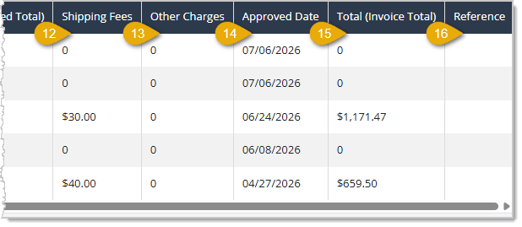
- Shipping Fees — This column lists the Shipping Fees for each Purchase Order.
- Other Charges — This column displays any additional charges for each PO.
- Approved Date — This column shows the Date the Purchase Order was approved.
- Total (Invoice Total) — This column lists the Total Cost of the inventory in each Invoice.
- Reference — This column displays any Notes attached to each Purchase Order.
The Purchase Order Quantity Discrepancy Report
The PO Quantity Discrepancy Report shows any discrepancies between item Quantities on your Purchase Orders and the final Invoice Quantity. This can help you catch receiving errors and short shipments at the line level.
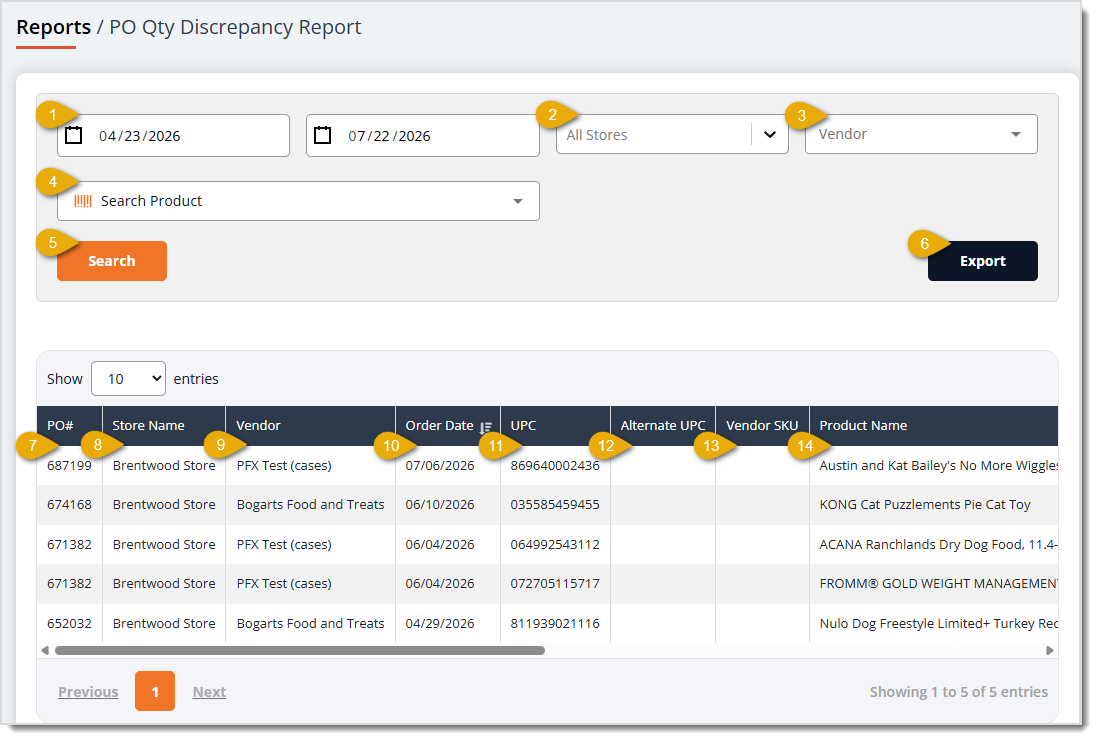
The PO Qty Discrepancy Report has the following functions:
- Date Range — These fields display relevant PO items for the current day by default. Click the Start Date and End Date fields to set a custom range.
- Store — This field defaults to All Stores. You can click on the drop-list to narrow results down to a single location.
- Vendor — This field defaults to All Vendors. You can click on the drop-list to filter the report down to discrepancies from one specific vendor.
- Search Product — Enter text to filter the data table to the PO Items you want.
- Search — Click the Search button to refresh the table using your filters.
- Export — Click the Export button to download the report's current results as an Excel spreadsheet file.
- PO# — This column displays each Purchase Order Number.
- Store Name — This column shows the Name of the Store for each Purchase Order item.
- Vendor — This column lists the Vendor on each Purchase Order.
- Order Date — This column displays the Date each Purchase Order was placed. Click on the header once to sort the table by this column, and click again to reverse the sort.
- UPC — This column shows the product's UPC code.
- Alternate UPC — This column lists any Alternate UPC code saved for the product.
- Vendor SKU — This column displays the Vendor SKU code for the product.
- Product Name — This column shows the Name of each product.
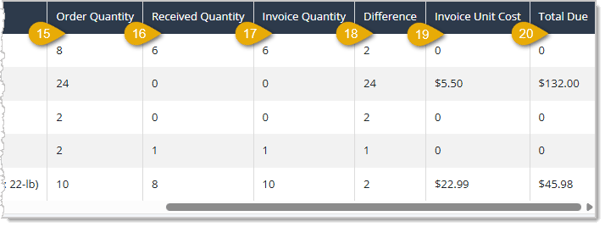
- Order Quantity — This column lists the Quantity of each product you ordered.
- Received Quantity — This column displays the Quantity of each product you actually received.
- Invoice Quantity — This column shows the Quantity of each product on the Invoice.
- Difference — This column lists the difference between the ordered Quantity and the received and Invoice quantities.
- Invoice Unit Cost — This column displays the Cost per Unit from each item's Invoice.
- Total Due — This column shows the Total Amount Due to the store in Vendor Credits based on the discrepancy Quantity and the Unit Cost.
The Inventory Received Report
The Inventory Received Report lists inventory received within a chosen time frame, showing order, receiving, damage, and invoice detail for each purchase order along with its current status.
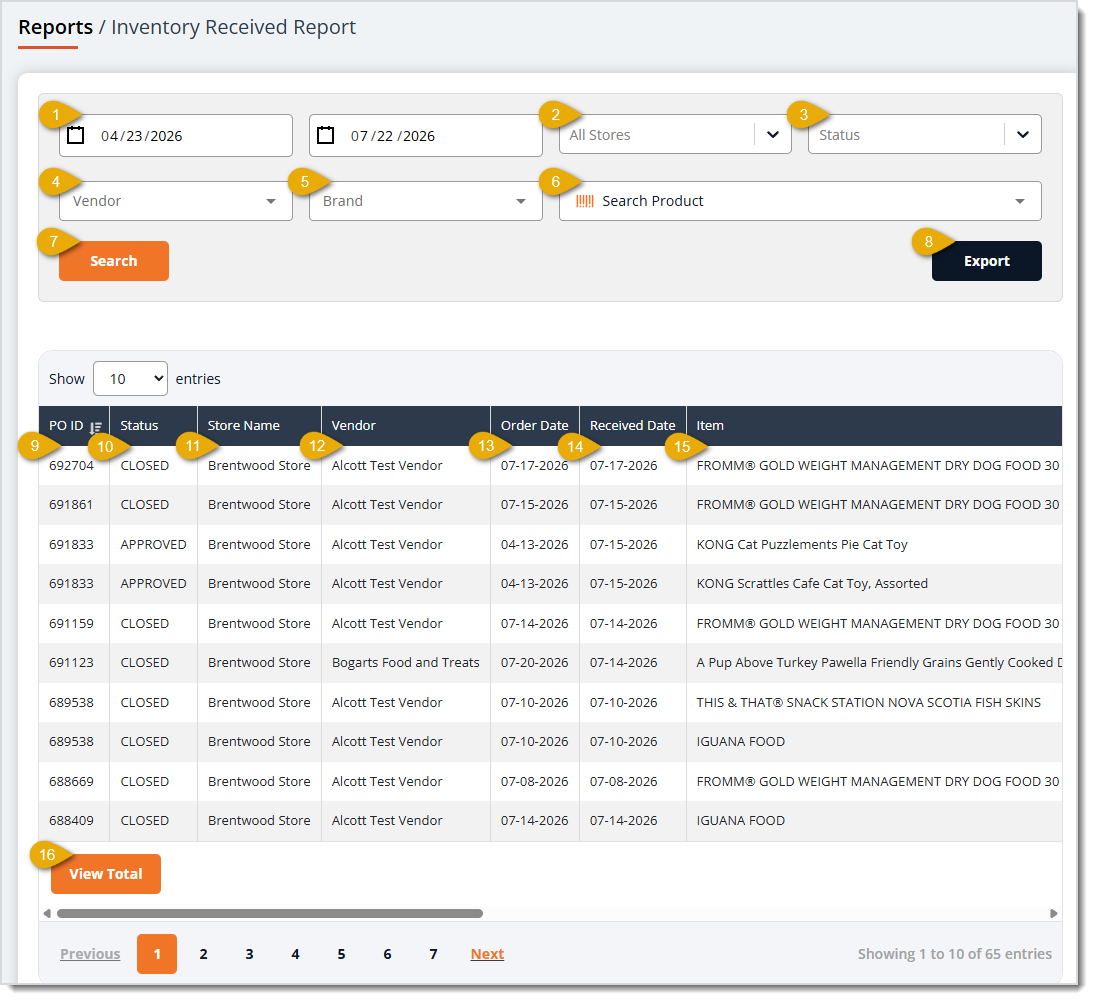
The Inventory Received Report has the following functions:
- Date Range — These fields display relevant PO items for the current day by default. Click the Start Date and End Date fields to set a custom range.
- Store — This field defaults to All Stores. You can click on the drop-list to narrow results down to a single location.
- Status — This field defaults to showing All Statuses. You can click on the drop-list to filter results to Finished, Closed, or Approved Purchase Orders.
- Vendor — The report defaults to showing data for all Vendors. To filter results down to inventory received from a single Vendor, you can click in the Vendor field, enter at least 3 characters, and select a Vendor from the matching results in the drop-list.
- Brand — This field defaults to All Brands. To filter received inventory down to a single product brand, you can click on the drop-list, enter at least 3 characters, and select a Brand from the matching results in the drop-list.
- Search Field — Enter text to filter the data table to the PO Items you want.
- Search — Click the Search button to refresh the table using your selected filters.
- Export — Click the Export button to download the report's current results as an Excel spreadsheet file.
- PO ID — This column displays the internal Purchase Order ID number for each item's Purchase Order. Click on the header once to sort the table by this column, and click again to reverse the sort.
- Status — This column shows the current Status of each item's Purchase Order, such as Closed or Approved.
- Store Name — This column lists the Name of the Store where each item was shipped.
- Vendor — This column displays the name of the Vendor on each item's Purchase Order.
- Order Date — This column shows the date each item's Purchase Order was placed.
- Received Date — This column lists the date each item's inventory was received.
- Item — This column displays the Name of each product received.
- View Total — Click this button to see a Grand Total of the Invoice Cost Total column at the bottom. The grand total includes data across all pages of the data table.
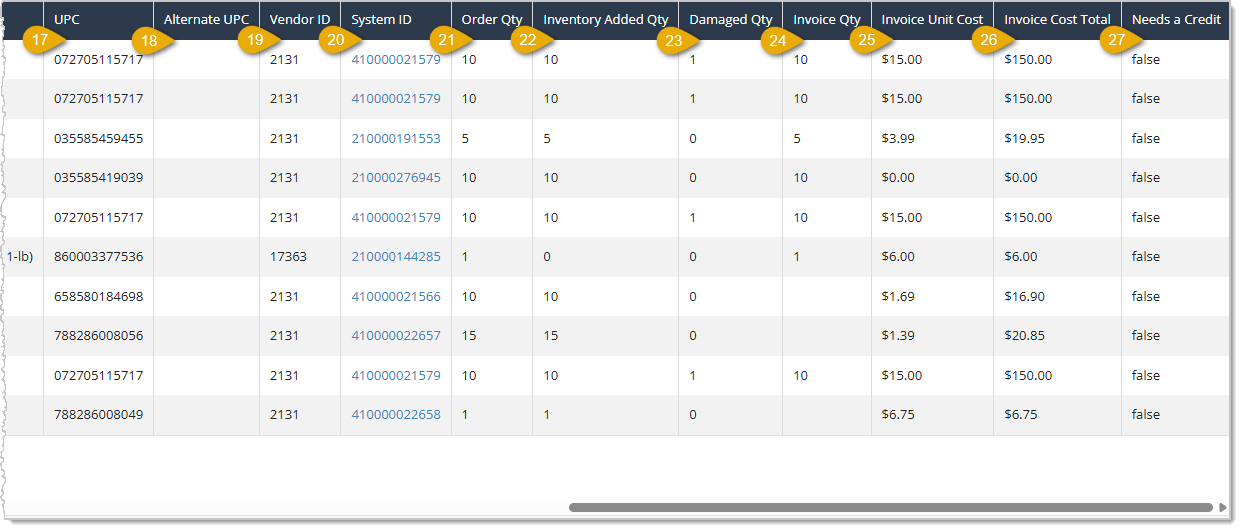
- UPC — This column shows the product's UPC code.
- Alternate UPC — This column lists any Alternate UPC code recorded for the product.
- Vendor ID — This column displays the internal Vendor ID number.
- System ID — This column shows the internal System ID for each product. You can click on a System ID to open the product's Details page.
- Order Quantity — This column lists the Quantity you ordered of each product.
- Inventory Added Quantity — This column displays the Quantity of each product you added to inventory upon receiving.
- Damaged Quantity — This column shows the Quantity of each item you received in damaged condition.
- Invoice Quantity — This column lists the Quantity of each item on its vendor's Invoice.
- Invoice Unit Cost — This column displays the Cost per Unit for each product on the Invoice.
- Invoice Cost Total — This column shows the Total Cost for each product on the Invoice.
- Needs a Credit — This column lists whether or not each product has been flagged as needing a Vendor Credit.
 Boss Quote
Make sure your human understands that if they don't check their Purchase Order reporting regularly, they can miss out on Vendor Credits, fail to approve orders in a timely fashion, and suffer from orphaned or lost inventory. Even a kitten knows that. Inform them I'm ready for my glowy-dot hunting time.
— Adrian, Wenatchee, WA
Related Topics
Reports Overview
Inventory Reports 1
Inventory Reports 3
Frequently Asked Questions
Q: Can I look up a single product's purchase order history in the Purchasing Report?
A: Yes. Use the Search Product field to narrow the Purchasing Report down to just the purchase order lines for that product.
Q: How do I know if a purchase order line still needs a vendor credit?
A: Check the Needs Credit column in the Purchasing Report, which shows whether that line has been flagged as needing a credit from the vendor.
Q: Does the PO Report show item-level detail like which products were ordered?
A: No. The PO Report summarizes each purchase order as a single row with order, receiving, and invoice totals; for item-level detail, use the Purchasing Report instead.
Q: How can I tell whether a purchase order had a shipping or receiving discrepancy?
A: Check the Difference column on the PO Qty Discrepancy Report, which lists the gap between Order Quantity, Received Quantity, and Invoice Quantity for each line.
Q: How can I see the total dollar amount received across all filtered purchase orders?
A: On the Inventory Received Report, click View Total to add a Totals row summarizing columns such as Invoice Cost Total across your currently filtered results.
Q: I have a question, but I can't find my answer here. How do I get more assistance?
A: You can ask any question at the number listed here. Contact our support team at (323) 370-0738 for the U.S. and (888) 370-2363 for Canada.







 Jul 17, 2026
Is this page helpful?
×Help us improve our articles