The Inventory category of Reports gives you visibility into your stock levels, valuation, and inventory adjustments across every store. This article covers seven reports that relate to Inventory Value and Workflow, listed for you below. Explore these reports to keep a close eye on what's on your shelves and what it's worth!
You can get to your Inventory Reports by logging into the admin dashboard and clicking on Reports in the main menu. On the Reports page, scroll down to the Inventory section, as pictured below.
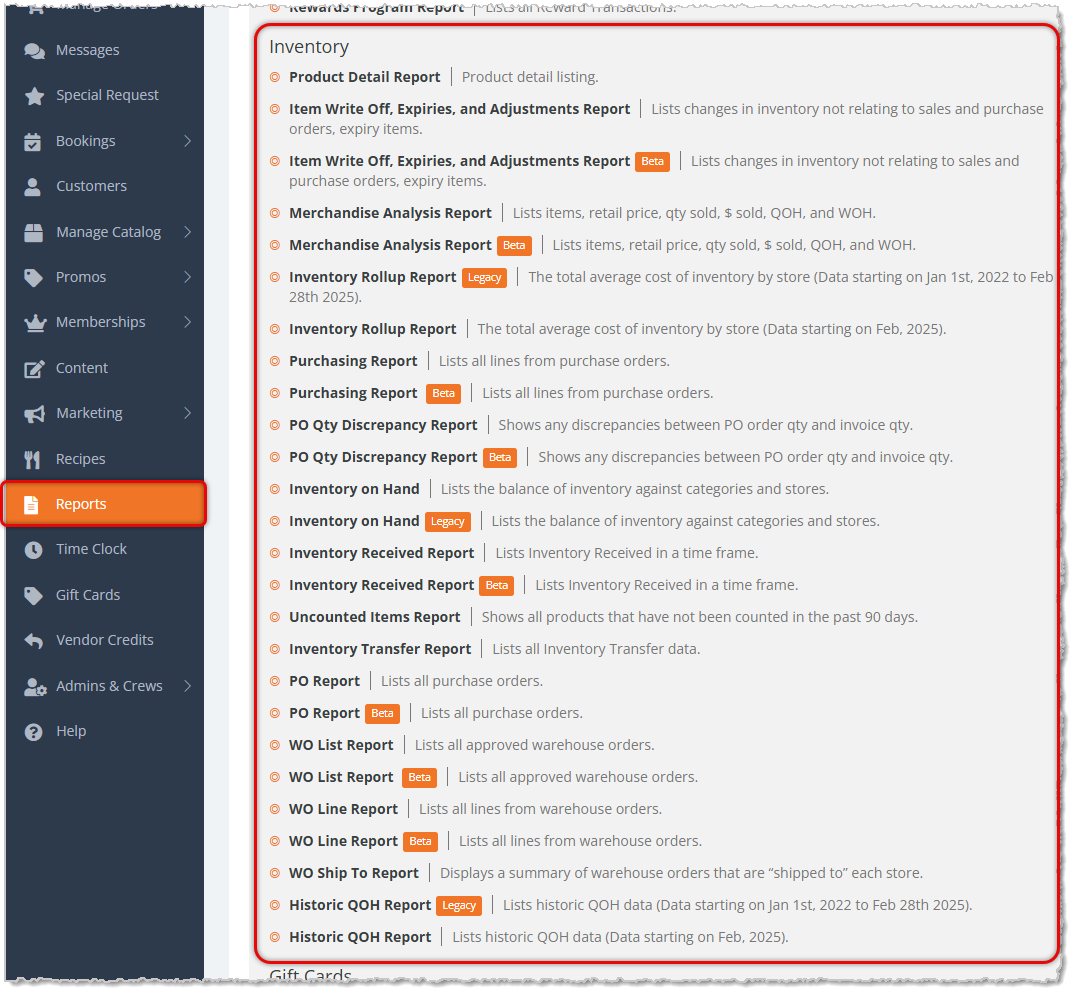
This article has instructions on the following reports:
The Product Detail Report
This report gives you a full catalog listing of every item in your inventory, along with its pricing, vendor, and stock details. The Product Detail Report has the following functions:
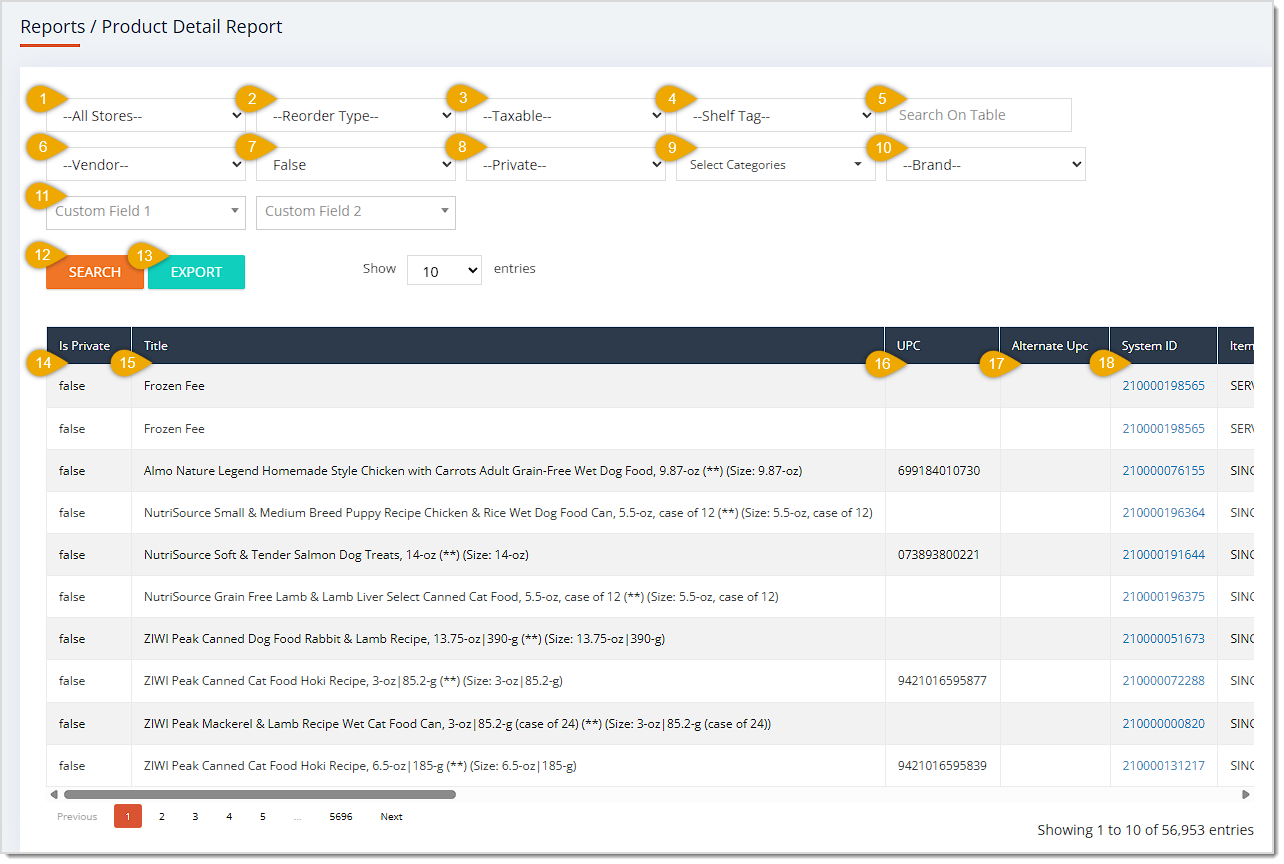
- Store — Use the Store drop-list to filter items down to a specific location. It defaults to All Stores, which includes every location.
- Reorder Type — Use the Reorder Type drop-list to filter items by Smart Order, Desired Inventory Level, or Do Not Order. It defaults to blank, which includes every reorder type.
- Taxable — Use the Taxable drop-list to filter items by Yes, No, or Other. It defaults to blank, which includes items regardless of taxable status.
- Shelf Tag — Use the Shelf Tag drop-list to filter items by True or False. It defaults to blank, which includes items of both shelf tag statuses.
- Search On Table — Use the Search On Table field to search the loaded results for a specific item by keyword.
- Vendor — Use the Vendor drop-list to filter items down to a specific vendor. It defaults to blank, which includes every vendor.
- Archived — Use the Archived drop-list to filter items by True or False. It defaults to False, which excludes archived items from the results.
- Private — Use the Private drop-list to filter items by True or False. It defaults to blank, which includes both private and non-private items.
- Categories — Use the Categories field to filter items down to one or more specific categories.
- Brand — Use the Brand drop-list to filter items down to a specific brand. It defaults to blank, which includes every brand.
- Custom Fields — Use the Custom Field 1 and Custom Field 2 fields to filter items by a value stored in that custom field.
- Search — Click the Search button to load the table using your selected filters.
- Export — Click the Export button to download the report.
- Is Private — This column displays whether each item is marked as a Private item.
- Title — This column shows each item's Title.
- UPC — This column lists each item's UPC code.
- Alternate UPC — This column displays each item's Alternate UPC code, if any.
- System ID — This column shows each item's internal System ID. Click on a System ID to open the item's full details.
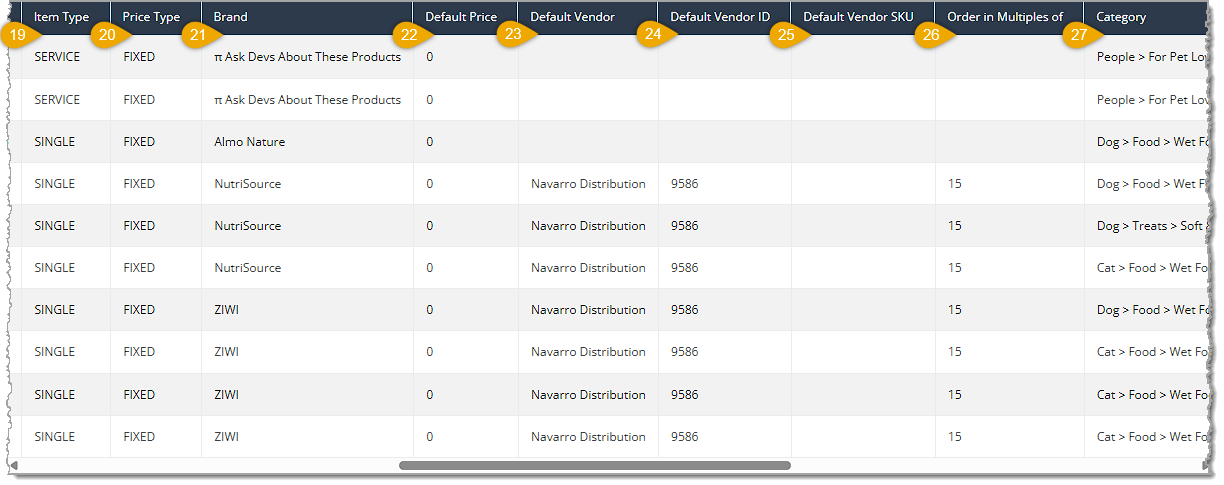
- Item Type — This column lists each item's Item Type.
- Price Type — This column displays each item's Price Type.
- Brand — This column shows each item's Brand.
- Default Price — This column lists each item's Default Price.
- Default Vendor — This column displays each item's Default Vendor.
- Default Vendor ID — This column shows each Default Vendor's ID number.
- Default Vendor SKU — This column lists each item's Default Vendor SKU.
- Order in Multiples of — This column displays the quantity multiple you must use when ordering each item.
- Category — This column shows each item's Category.
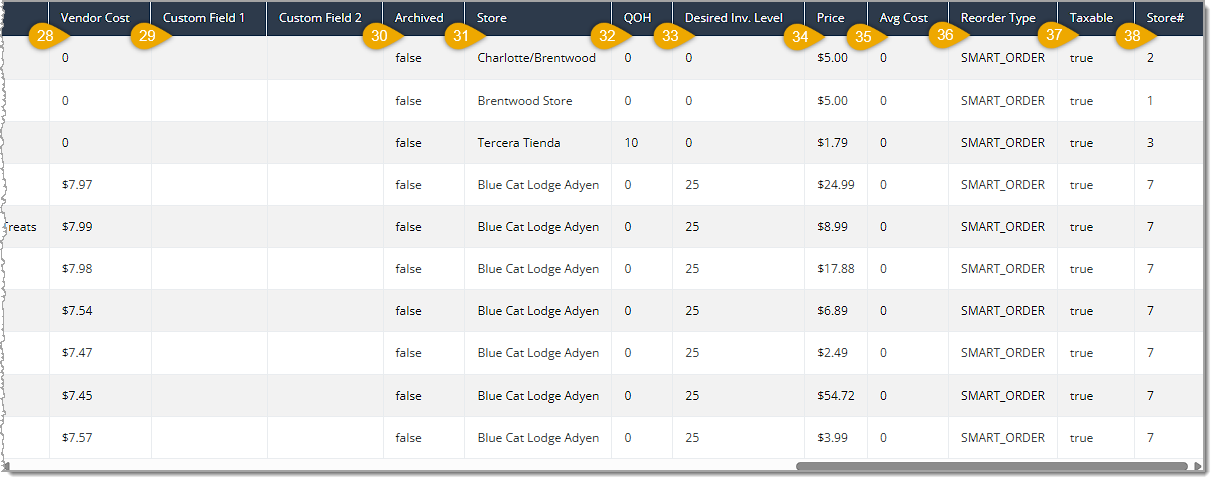
- Vendor Cost — This column lists each item's Vendor Cost.
- Custom Field 1 — This column displays the value stored in each item's Custom Field 1.
- Custom Field 2 — This column shows the value stored in each item's Custom Field 2.
- Archived — This column lists whether each item is Archived.
- Store — This column displays the Store to which the row's stock details apply.
- QOH — This column shows each item's QOH (quantity on hand) at that store.
- Desired Inventory Level — This column lists each item's Desired Inventory Level at that store.
- Price — This column displays each item's current selling Price.
- Average Cost — This column shows each item's Average Cost.
- Reorder Type — This column lists each item's Reorder Type.
- Taxable — This column displays whether each item is Taxable.
- Store# — This column shows the Store Number associated with each row.
The Item Write Off, Expiries, and Adjustments Report
This report gives you every inventory change that didn't come from a sale or purchase order, such as Write-Offs, Expiry items, and Manual Adjustments, within the date range you choose. The Item Write Off, Expiries, and Adjustments Report has the following functions:
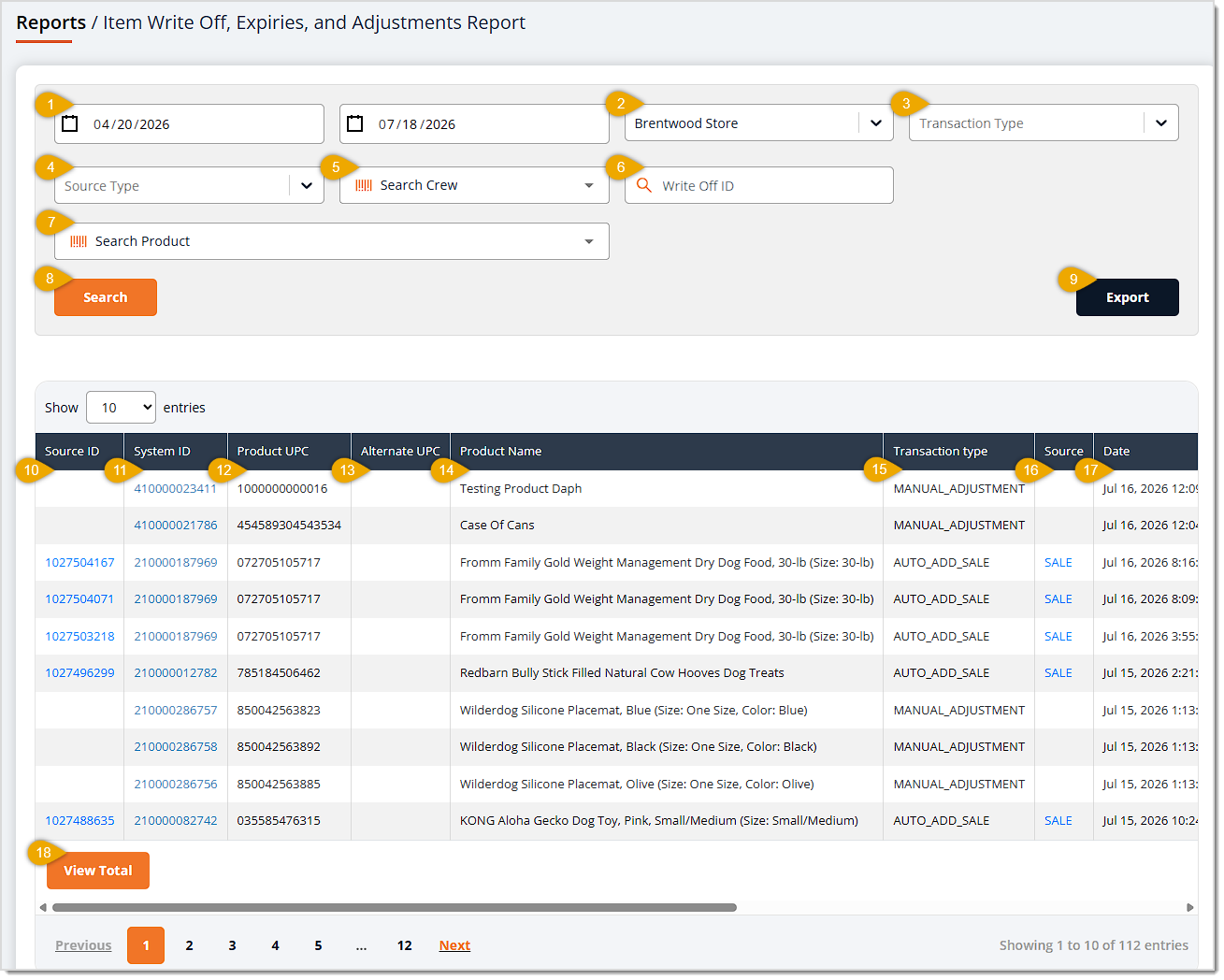
some of these don't match the image's number pointers
- Date Range — Enter or select the date range you want to search using the Start Date and End Date fields. These fields default to today's date for the Start Date and the following day's date for the End Date.
- Store — Use the Store drop-list to filter transactions down to a specific location. It defaults to All Stores, which includes every location.
- this is transaction type Brand — Use the Brand drop-list to filter transactions down to a specific brand. It defaults to All Brands, which includes every brand.
- this is source type in the image above Crew Member — Use the All Crew Members drop-list to filter transactions down to a specific staff member. It defaults to All Crew Members, which includes every employee.
- this is Search Crew Transaction Type — Use the Transaction Type drop-list to filter transactions by type. It defaults to blank, which includes every transaction type. The available options are:
- Added by Reconciling Count — Quantity added back after a physical Inventory Count.
- Auto Add PO — Quantity automatically added upon receiving a Purchase Order.
- Auto Add Sale — Quantity automatically added back from a completed Auto-Add sale after reversal.
- Expiry Add — Quantity added for a newly tracked Expiry batch.
- Expiry Out — Quantity removed as a batch neared its Expiry date.
- Expiry Write Off — Quantity removed because the item expired.
- Manually Adjusted Quantity — Quantity changed directly by a staff member.
- Removed by Reconciling Count — Quantity removed after a physical Inventory Count.
- Removed by Transfer — Quantity removed as part of an inventory Transfer.
- Received from Transfer — Quantity added as part of an inventory Transfer.
- Write Off — Quantity removed as a general Write-Off.
- this is write-off ID Source — Use the Source drop-list to filter transactions by originating system. It defaults to blank, which includes every source. The available options are EXPIRY, INVENTORY_COUNT, INVENTORY_TRANSFER, PURCHASE_ORDER, SALE, VENDOR_RETURN, WAREHOUSE_ORDER, and WRITE_OFF.
- Search by Write-off ID (should this be Product?) — Use the Search by Write-off ID field to filter the table down to a specific write-off transaction.
- Search — Click the Search button to load the table using your selected filters.
- Export — Click the Export button to download the report.
Dynamic Cost (not pictured) — This area shows the combined dynamic cost of every transaction matching your selected filters. Please Note: This data point is not in the Beta version of this report.
- Source ID — This column displays the Source ID of each transaction. You can click on a Source ID to open the transaction's details.
- System ID — This column shows each item's System ID. You can click on a System ID to open the item's details.
- Product UPC — This column lists each item's Product UPC.
- Alternate UPC — This column displays each item's Alternate UPC, if any.
- Product Name — This column shows each item's Product Name.
- Transaction Type — This column lists the Transaction Type of the row.
- Source — This column displays the Source system of each transaction. explain what clicking on a link in this column does
- Date — This column shows the time and date each transaction occurred.
- Add a description of View Total button
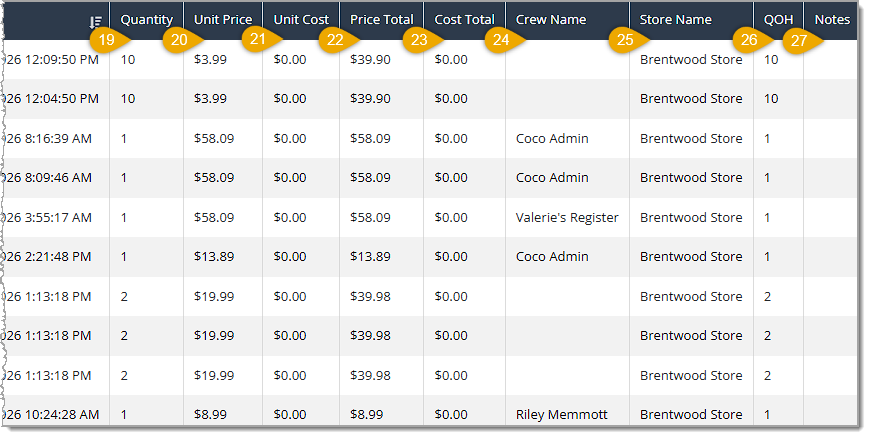
- Quantity — This column lists the Quantity affected by each transaction.
- Unit Price — This column displays the item's Unit Price at the time of each transaction.
- Unit Cost — This column shows the item's Unit Cost at the time of each transaction.
- Price Total — This column lists the Price Total for each transaction.
- Cost Total — This column displays the Cost Total for each transaction.
- Crew Name — This column shows the Crew Name of the staff member tied to each transaction, if any.
- Store Name — This column lists the Store Name where each transaction occurred.
- QOH — This column displays the item's resulting QOH after each transaction.
- Notes — This column shows any Notes recorded with each transaction.
The Merchandise Analysis Report
This report gives you item-level retail price, quantity sold, dollars sold, quantity on hand, and weeks on hand for a single store within the date range you choose. The Merchandise Analysis Report has the following functions:
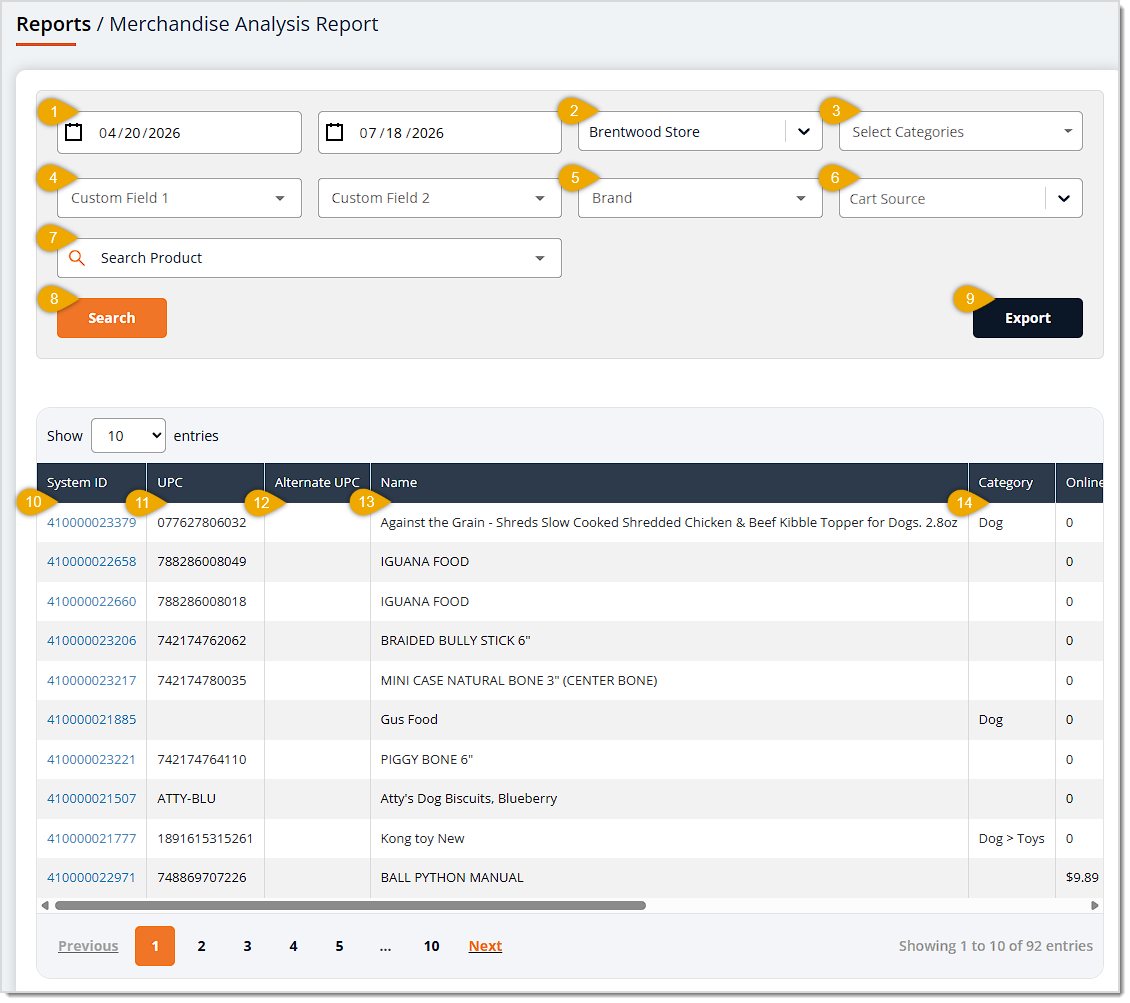
- Date Range — Enter or select the date range you want to search using the Start Date and End Date fields. This field defaults to seven days ago for the Start Date and tomorrow's date for the End Date.
- Store — Use the Store drop-list to choose which store's merchandise data to display. It defaults to the first store in the list, since this report can only display one store's data at a time.
- Select Categories — Use the Select Categories field to filter items down to one or more specific categories.
- Custom Fields — Use the Custom Field 1 and Custom Field 2 areas to filter items by a value you've stored in your custom fields.
- Brand — Use the Brand drop-list to filter items down to a specific brand. It defaults to blank, which includes every brand.
- Cart Source — You can use this filter to choose either In-Store or Online as the Cart Source and only show the source you want.
- Search Product — Use this search field to enter text to search for products you want.
- Search — Click the Search button to load the table using your selected filters.
- Export — Click the Export button to download the report for the selected store only.
Export All Stores (not pictured) — (This function is in the older version of this report.) Click the Export All Stores button to download the report for every store at once.
- System ID — This column displays each item's System ID.
- UPC — This column shows each item's UPC.
- Alternate UPC — This column lists each item's Alternate UPC, if any.
- Name — This column displays each item's Name.
- Category — This column shows each item's Category.
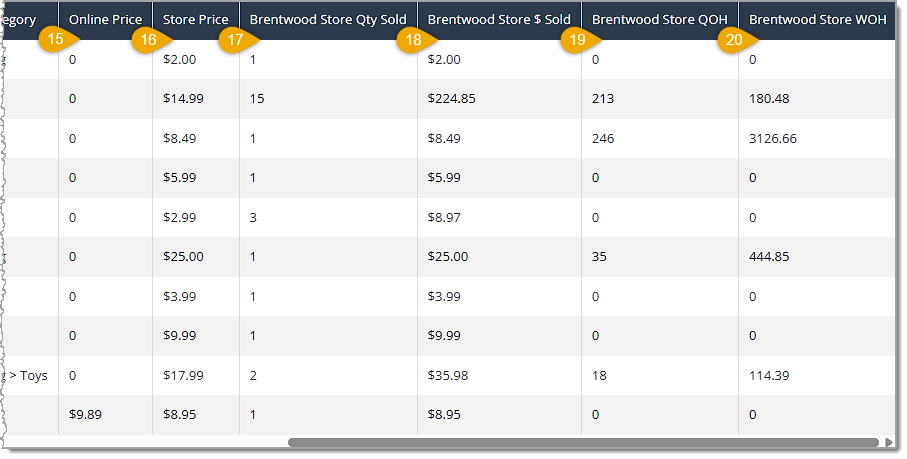
- Online Price — This column lists each item's Online Price.
- Store Price — This column lists each item's Retail Price.
- Quantity Sold — This column displays each item's Quantity Sold at the selected store within the date range.
- Dollar Amount Sold — This column shows each item's Dollar Amount Sold ($ Sold) at the selected store within the date range.
- Quantity on Hand — This column lists each item's Quantity on Hand (QOH) at the selected store.
- Weeks on Hand — This column displays each item's WOH (weeks on hand) at the selected store.
The Inventory Rollup Report
This report gives you the total average cost of your inventory at each store as of the date you choose. The Inventory Rollup Report has the following functions:
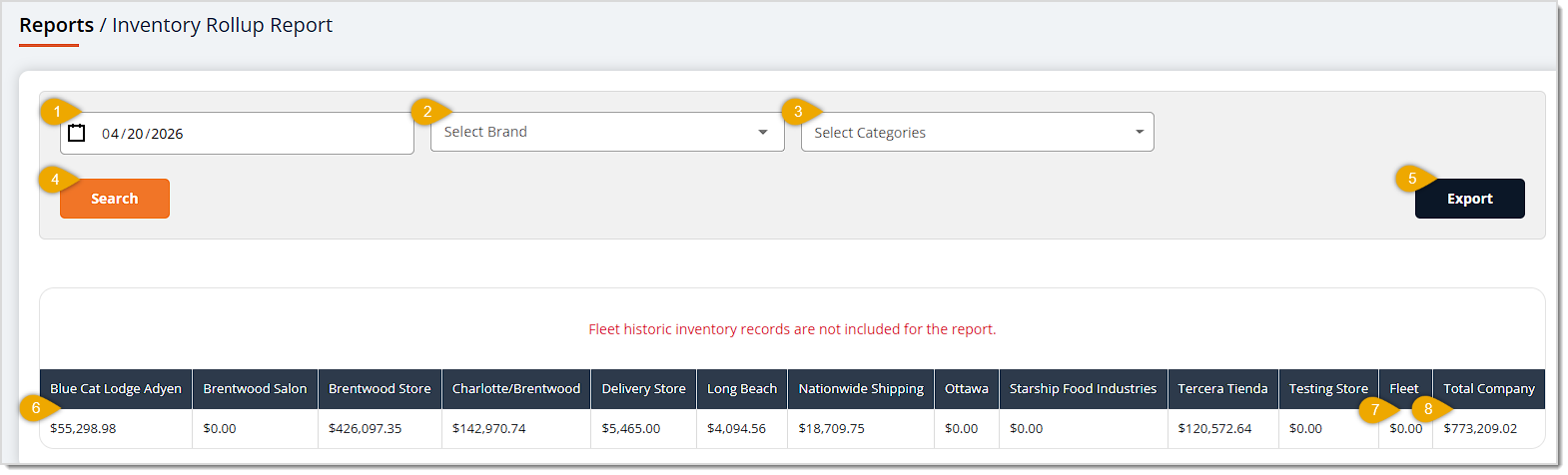
- Date — Enter or select the Date for which you want to check inventory value. This field defaults to today's date.
- Select Brand — Use the Select Brand field to filter results down to a specific brand.
- Select Categories — Use the Select Categories field to filter results down to one or more specific categories.
- Search — Click the Search button to load the table using your selected filters. Fleet historic inventory records are not included in this report.
- Export — Click the Export button to download the report.
- Store Names — The first columns in the data table display the total average cost of inventory on hand at each of your store locations as of the selected Date.
- Fleet — This column displays the total average cost of inventory in transfer between stores as of the selected Date.
- Total Company — This column displays the total average cost of inventory on hand at that store (do you mean all stores?) as of the selected Date.
The Inventory on Hand Report
This report gives you the dollar balance of your inventory broken out by category and store. The Inventory on Hand Report has the following functions:
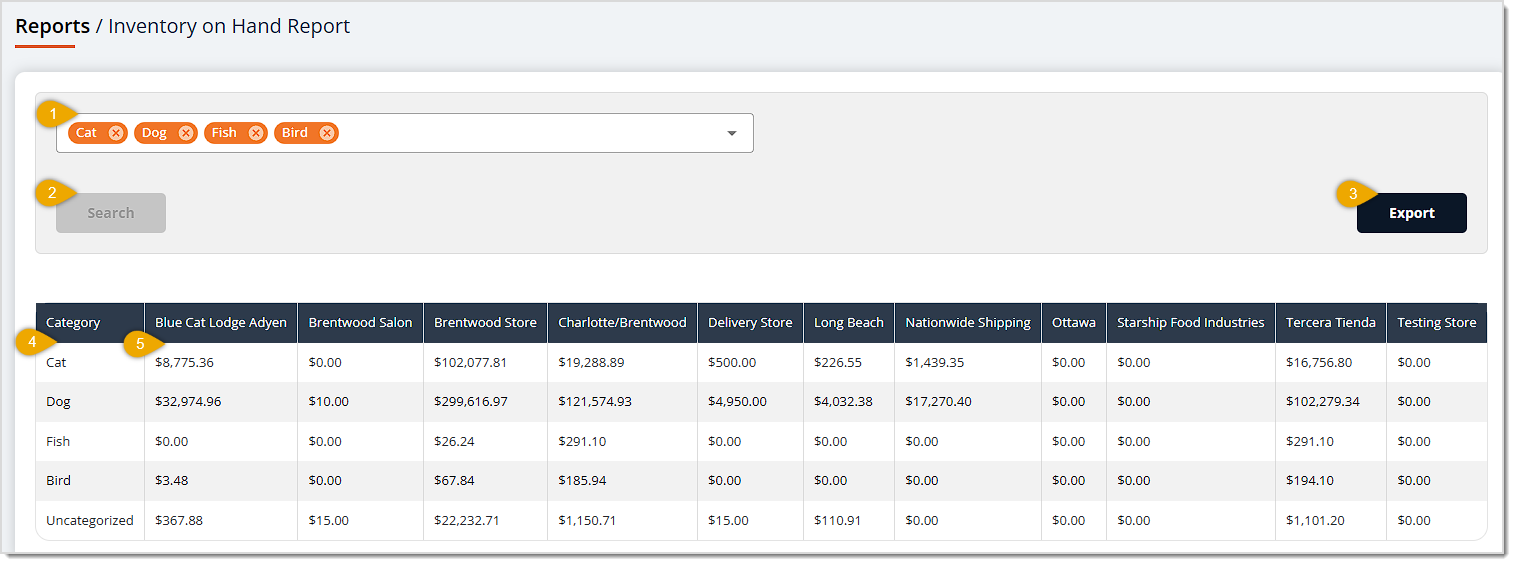
- Select Categories — Use the Select Categories field to choose which categories to include. You must choose at least one category before you can load the table, and you can choose as many as you like.
- Search — Click the Search button to load the table using your selected categories.
- Export — Click the Export button to download the report.
- Category — This column displays the Category to which the row's inventory balance belongs.
- Store — This column shows the dollar balance of inventory on hand for each category at the store. A separate column like this appears for every active store.
The Uncounted Items Report
This report gives you every item that hasn't had a physical inventory count within the date range you choose. The Uncounted Items Report has the following functions:
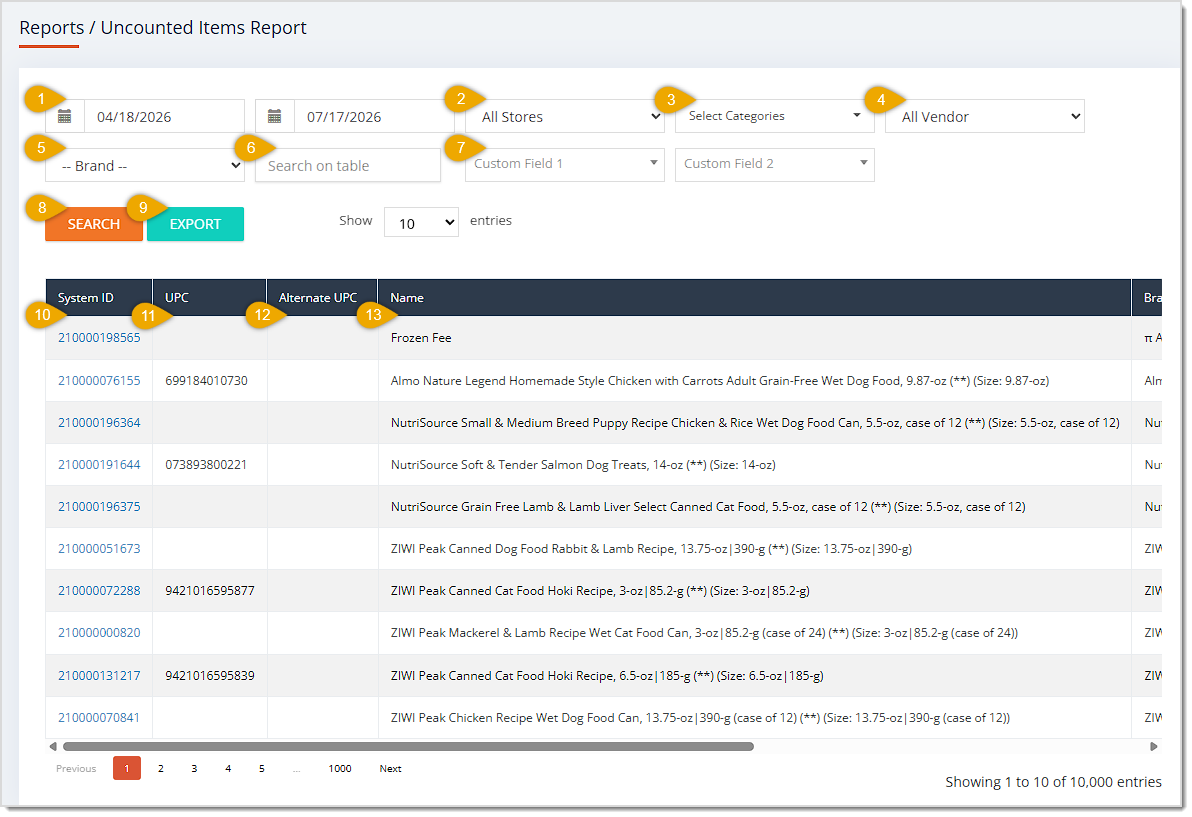
- Date Range — Enter or select the date range you want to search using the Start Date and End Date fields. This field defaults to 90 days ago for the Start Date and today's date for the End Date.
- Store — Use the Store drop-list to filter items down to a specific location. It defaults to All Stores, which includes every location.
- Select Categories — Use the Select Categories field to filter items down to one or more specific categories.
- Vendor — Use the All Vendor drop-list to filter items down to a specific vendor. It defaults to All Vendor, which includes every vendor.
- Brand — Use the Brand drop-list to filter items down to a specific brand. It defaults to blank, which includes every brand.
- Search on Table — Use the Search on table field to search the loaded results for a specific item by keyword.
- Custom Fields — Use the Custom Field 1 and Custom Field 2 areas to filter items by a value you've stored in your custom fields.
- Search — Click the Search button to load the table using your selected filters.
- Export — Click the Export button to download the report.
- System ID — This column displays each item's System ID. explain what clicking on one does
- UPC — This column shows each item's UPC.
- Alternate UPC — This column lists each item's Alternate UPC, if any.
- Name — This column displays each item's Name.
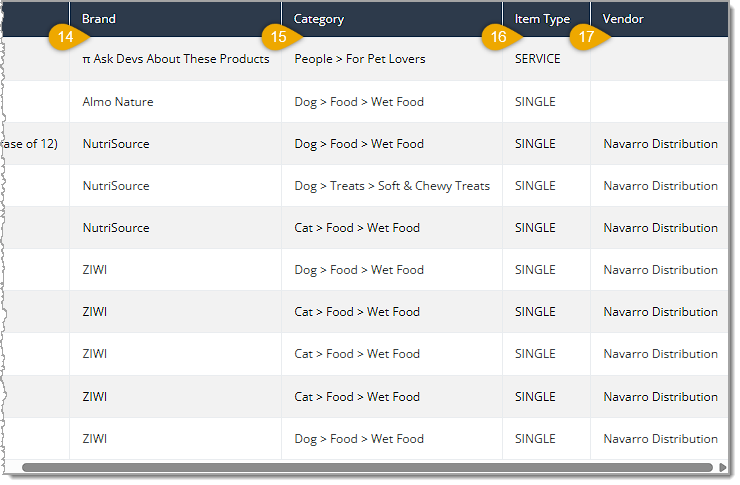
- Brand — This column shows each item's Brand.
- Category — This column lists each item's Category.
- Item Type — This column displays each item's Item Type.
- Vendor — This column shows each item's Vendor.
The Historic Quantity on Hand Report
This report gives you a store's historic quantity on hand, average cost, and total cost details as of the date you choose. The Historic QOH Report has the following functions:
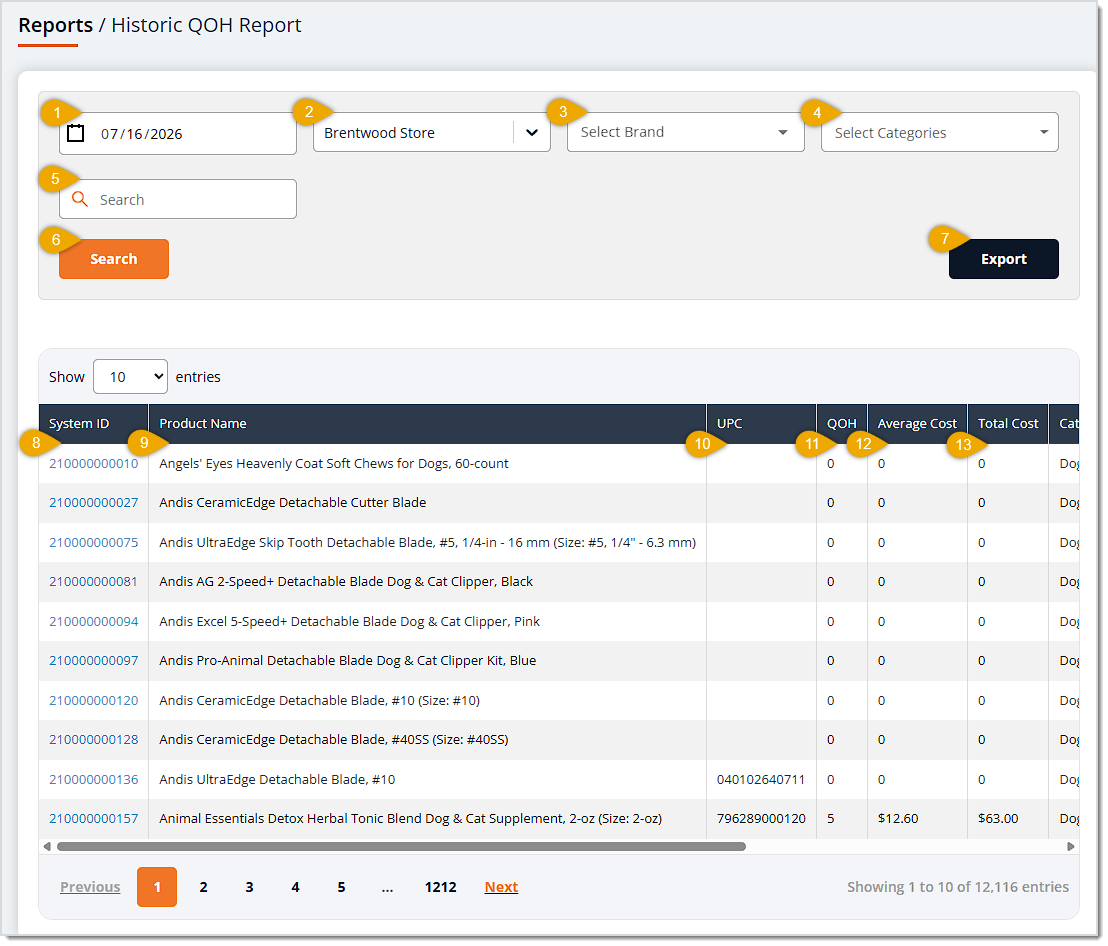
- Date — Enter or select the Date you want historic quantity on hand data for. This field defaults to yesterday's date.
- Store — Use the Store drop-list to choose which store's historic data to display. It defaults to your currently selected store. This report can only display one store's data at a time.
- Select Brand — Use the Select Brand field to filter results down to a specific brand.
- Select Categories — Use the Select Categories field to filter results down to one or more specific categories.
- Search — Use the Search field to search the loaded results for a specific item by keyword.
- Search is there another name we could give this, like search button — Click the Search button to load the table using your selected filters.
- Export — Click the Export button to download the report.
- System ID — This column displays each item's internal System ID. explain what clicking on one does
- Product Name — This column shows each item's Product Name.
- UPC — This column lists each item's UPC.
- QOH — This column displays each item's historic Quantity on Hand as of the selected Date.
- Average Cost — This column shows each item's Average Cost as of the selected Date.
- Total Cost — This column lists each item's Total Cost as of the selected Date.
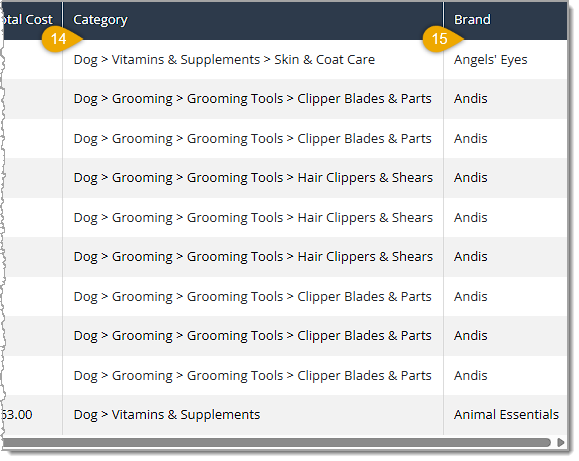
- Category — This column displays each item's Category.
- Brand — This column shows each item's Brand.
 Boss Quote
Instruct your human that good inventory management requires daily checks in reporting. The inventory workflow reports in Inventory Reports 1 are the heart of that reporting. Humans can be so lazy. I still haven't had my paw-rub for this morning.
— Felicity, Scranton, PA
Related Topics
Reports Overview
Inventory Reports 2
Inventory Reports 3
Frequently Asked Questions
Q: How do I include archived items in the Product Detail Report?
A: The Archived drop-list defaults to False, which excludes archived items. Select True to see only archived items, or leave the field blank to include both archived and active items.
Q: Where can I see the total dollar impact of my write-offs and adjustments?
A: The Dynamic Cost area at the bottom of the Item Write Off, Expiries, and Adjustments Report (older version) shows the combined dynamic cost of every transaction matching your selected filters.
Q: How can I pull Merchandise Analysis Report data for every store instead of just one?
A: In the older version of the report, you can click the Export All Stores button instead of Export. The Store drop-list only supports a single location at a time for the report page, so this button is the only way to get every store's data in one download.
Q: Why do I have to pick a category before I can search the Inventory on Hand Report?
A: The Select Categories field is required on this report. You must choose at least one category before the Search button will load the table.
I think this doesn't really answer the question
Q: Can I check for items that haven't been counted in more than 90 days on the Uncounted Items Report?
A: Yes. The Start Date field defaults to 90 days back, but you can change it to any earlier date to widen the search.
Q: Can the Historic QOH Report show more than one store at once?
A: No. The Store drop-list only supports a single location at a time, so you'll need to run the report separately for each store you want to review.
Q: Why does the Merchandise Analysis Report only show one store at a time?
A: The Store drop-list on the Merchandise Analysis Report only supports a single selection. If you need data across every location at once, click Export All Stores instead of Export. isn't this true for just the older version?
Q: I have a question, but I can't find my answer here. How do I get more assistance?
A: You can ask any question at the number listed here. Contact our support team at (323) 370-0738 for the U.S. and (888) 370-2363 for Canada.







 Jul 17, 2026
Is this page helpful?
×Help us improve our articles