Your Inventory Reports category includes a set of tools for tracking inventory movement from your warehouse and transfers between your stores. This article covers those reports and shows you how to use them. See how you can follow a warehouse order or transfer, from creation through fulfillment!

Please Note: You will not need these reports if you have only a single store location. Also, if you don't have a Warehouse location, you won't need the Warehouse Order (WO) reports.
You can get to your Inventory Reports by logging into the admin dashboard and clicking on Reports in the main menu. On the Reports page, scroll down to the Inventory section. The reports covered in this article are highlighted below.
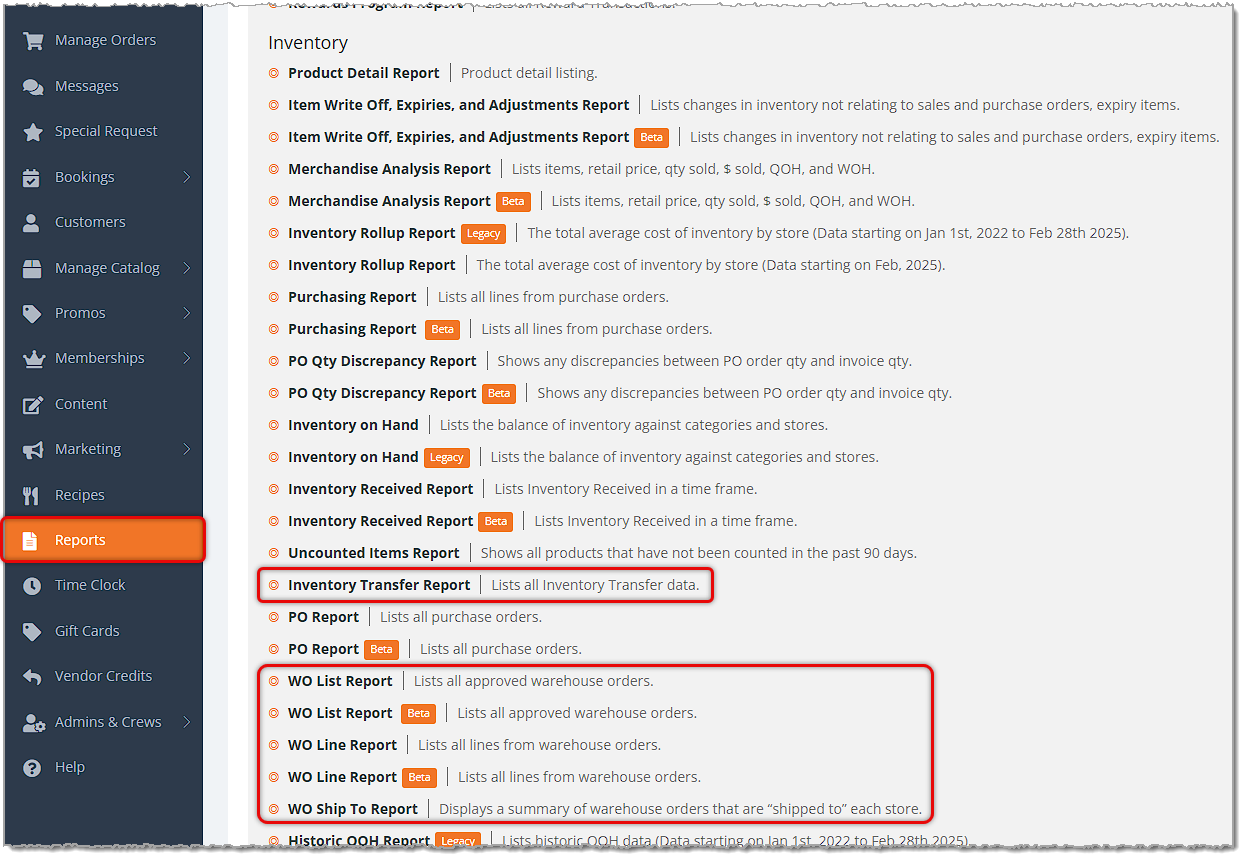
This section of the listings for your Inventory Reports has the following reports:
The Warehouse Order List Report
The WO List Report lists all approved Warehouse Orders, summarizing each order's totals, dates, and other data at the order level.
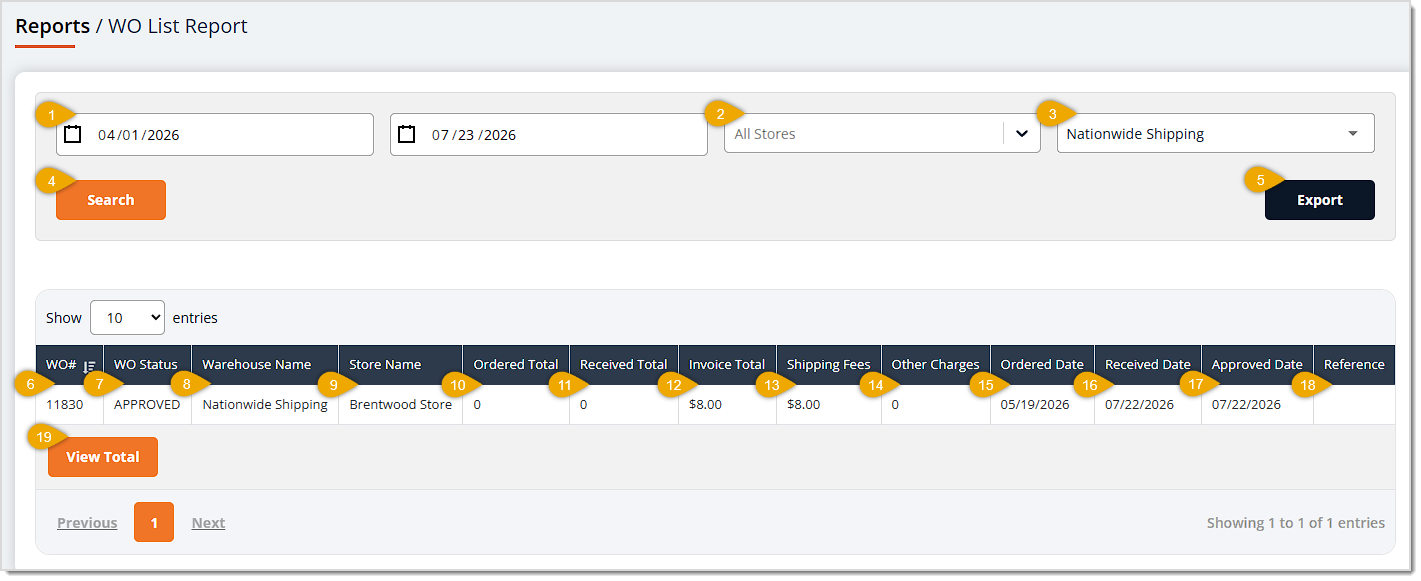
The WO List Report has the following functions:
- Date Range — These fields default to displaying Warehouse Orders for the current day. Click in the Start Date and End Date fields to set a custom range.
- Store — This field defaults to All Stores. You can click the drop-list to narrow results down to a single location.
- Warehouse — This field defaults to no warehouse selected. If you have multiple Warehouse locations, you can search in this field to filter results down to a single warehouse.
- Search — Click the Search button to refresh the table with results matching the filters you've set.
- Export — Click the Export button to download the report's current results as an Excel spreadsheet file.
- WO# — This column displays the internal system Warehouse Order Number. Click once on the header to sort the table according to this column, or click twice to reverse the sort.
- WO Status — This column shows the Status of the WO. Only orders in the Approved status will display in this report.
- Warehouse Name — This column lists the Name of the warehouse for the WO. Click once on the header to sort the table according to this column, or click twice to reverse the sort.
- Store Name — This column displays the Store Name for which the Warehouse Order was placed. Click once on the header to sort the table according to this column, or click twice to reverse the sort.
- Ordered Total — This column shows the Total Cost of the inventory in the original WO. Click once on the header to sort the table according to this column, or click twice to reverse the sort.
- Received Total — This column lists the Total Cost of the received inventory. Click once on the header to sort the table according to this column, or click twice to reverse the sort.
- Invoice Total — This column displays the Total Cost of the inventory on the Invoice.
- Shipping Fees — This column shows any Shipping Fees for the WO. Click once on the header to sort the table according to this column, or click twice to reverse the sort.
- Other Charges — This column lists any Other Charges for the Warehouse Order. Click once on the header to sort the table according to this column, or click twice to reverse the sort.
- Ordered Date — This column displays the Date you placed the Warehouse Order.
- Received Date — This column shows the Date you received the Warehouse Order.
- Approved Date — This column lists the Date you approved the Warehouse Order.
- Reference — This column displays any reference Notes you added to the WO. Click once on the header to sort the table according to this column, or click twice to reverse the sort.
- View Total — You can click this button to see the Total Amounts for the Ordered Total, Received Total, Invoice Total, Shipping Fees, and Other Charges columns.
The Warehouse Order Line Report
The WO Line Report lists all lines from warehouse orders, giving you item-level detail on what was ordered, received, and invoiced on each warehouse order.
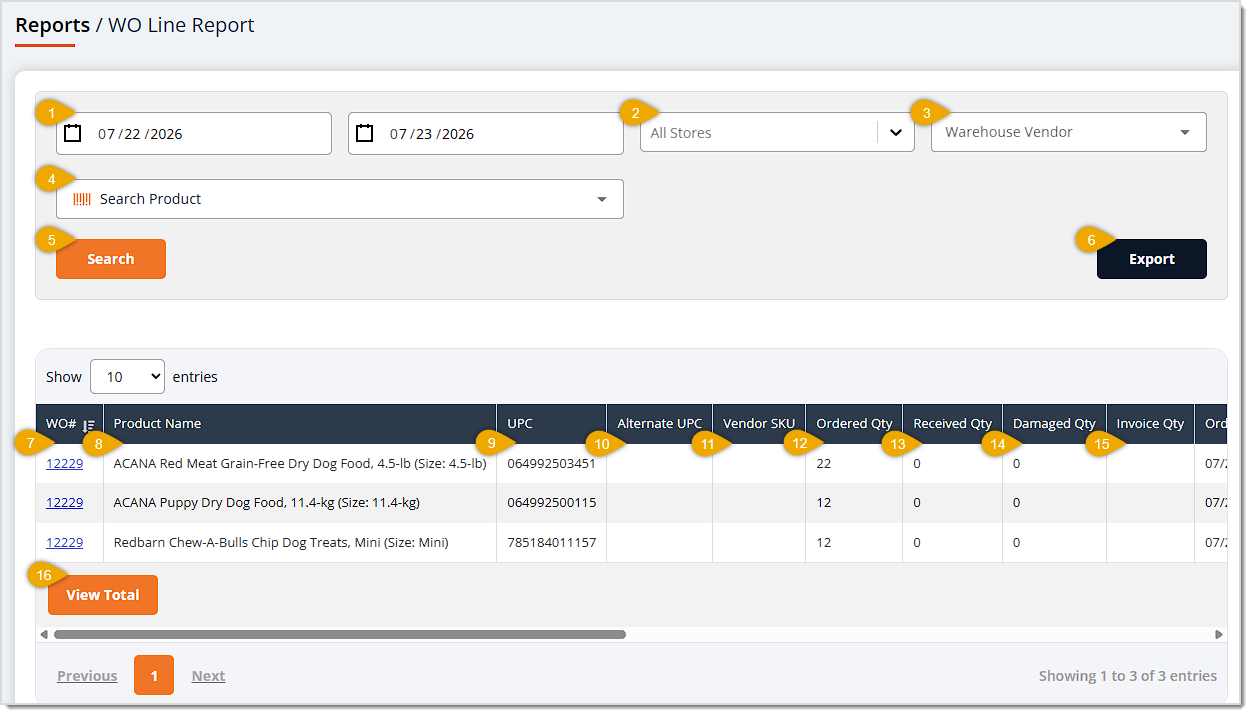
The WO Line Report has the following functions:
- Date Range — These fields default to displaying Warehouse Orders for the current day. Click into the Start Date and End Date fields to set a custom range.
- Store — This field defaults to All Stores. You can click the drop-list to narrow results down to a single location.
- Warehouse Vendor — This field defaults to no Vendor selected. You can search in this field, enter at least 3 characters, and select a Vendor from the drop-list to filter results down to a single Vendor. I checked this, and it was by vendors, not warehouse. I don't know why they named it Warehouse Vendor then.
- Search Product — Enter search text here to filter the table down to matching items.
- Search — Click the Search button to refresh the table with results matching the filters you've set.
- Export — Click the Export button to download the report's current results as an Excel spreadsheet file.
- WO# — This column displays the internal system Warehouse Order Number. You can click on an Order Number to open a page showing the full warehouse order's details. You can also click on the header to sort the table according to this column by numerical order, or click twice to reverse the sort.
- Product Name — This column shows the Name of each product.
- UPC — This column lists the product's UPC code.
- Alternate UPC — This column displays the Alternate UPC code recorded for each product, if any.
- Vendor SKU — This column shows the Vendor SKU for each product.
- Ordered Quantity — This column lists the original Quantity you ordered for each product.
- Received Quantity — This column displays the actual Quantity you received for each product.
- Damaged Quantity — This column shows the Quantity you received in damaged condition for each product.
- Invoice Quantity — This column lists the Quantity on the Invoice for each product.
- View Total — You can click this button to see the Total Amounts for the Ordered Total, Received Total, and Invoice Total columns.

- Ordered Date — This column displays the Date you placed the Warehouse Order. Click once on the header to sort the table according to this column, or click twice to reverse the sort.
- Received Date — This column shows the Date you received the items.
- WO Status — This column lists the current Status of each item's Warehouse Order, Ordered or Approved.
- Warehouse Name — This column displays the Name of the Warehouse location where you placed the WO.
- Store Name — This column shows the Name of the Store where the inventory will be shipped.
- Order Unit Cost — This column lists the Cost per Unit of each item at the time you placed the WO.
- Invoice Unit Cost — This column displays the Cost per Unit of each item on the Invoice.
- Ordered Total — This column shows the Total Cost of all inventory for each item on the WO.
- Received Total — This column lists the Total Cost of the inventory you received for each item.
- Invoice Total — This column displays the Total Cost for the inventory for each item on the Invoice.
- Unit Retail Price — This column shows each product's current Retail Price per Unit.
The Warehouse Order Ship To Report
The WO Ship To Report displays a summary of warehouse orders that are shipped to each store, rolling up order, receiving, and shipping quantities and totals by store rather than by individual WO.
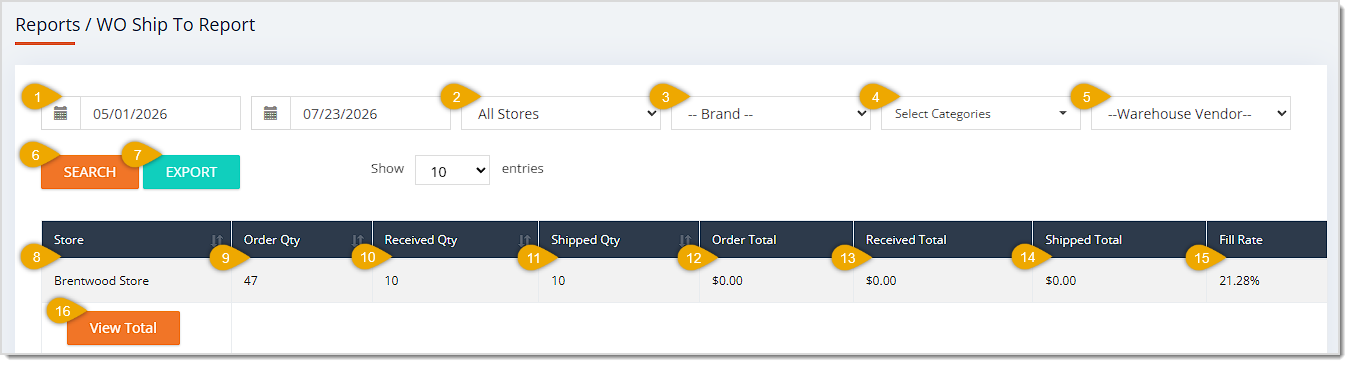
The WO Ship To Report has the following functions:
- Date Range — These fields default to displaying Warehouse Orders for the current day. Click into the Start Date and End Date fields to set a custom range.
- Store — This field defaults to All Stores. You can click the drop-list to narrow results down to a single location.
- Brand — By default you'll see totals for your stores for All Brands. You can click this drop-list to filter results down to a single brand.
- Categories — This field defaults to All Categories. You can click this drop-list to select as many Categories as you like to filter the data table to just those Categories.
- Warehouse Vendor — This field defaults to no warehouse selected. If you have multiple Warehouse locations, you can search in this field to filter results down to a single warehouse. Unlike the other report, this IS by warehouse. This makes no sense.
- Search — Click the Search button to refresh the table using the filters you've set.
- Export — Click the Export button to download the report's current results in an Excel spreadsheet file.
- Store — This column displays the Store Name for the warehouse orders. Click on the header once to sort the table according to this column, or click twice to reverse the sort.
- Order Quantity — This column shows the total Quantity you Ordered for each store. Click on the header once to sort the table according to this column, or click twice to reverse the sort.
- Received Quantity — This column lists the total Quantity you Received for each store. Click on the header once to sort the table according to this column, or click twice to reverse the sort.
- Shipped Quantity — This column displays the total Quantity Shipped to each store. Click on the header once to sort the table according to this column, or click twice to reverse the sort.
- Order Total — This column shows the Total Cost of the ordered inventory for each store.
- Received Total — This column lists the Total Cost of the received inventory for each store.
- Shipped Total — This column displays the Total Cost of the shipped inventory for each store.
- Fill Rate — This column shows the percentage of ordered quantity that was actually shipped to each store.
- View Total — You can click this button to see the Total Amounts for all Quantity and Dollar Amount columns, and an average of the Fill Rate column.
The Inventory Transfer Report
The Inventory Transfer Report lists all inventory transfer data between your stores. Unlike the other reports in this article, it does not use a single Store filter; instead, it splits location filtering into a From Store field and a To Store field so you can track transfers moving in a specific direction.
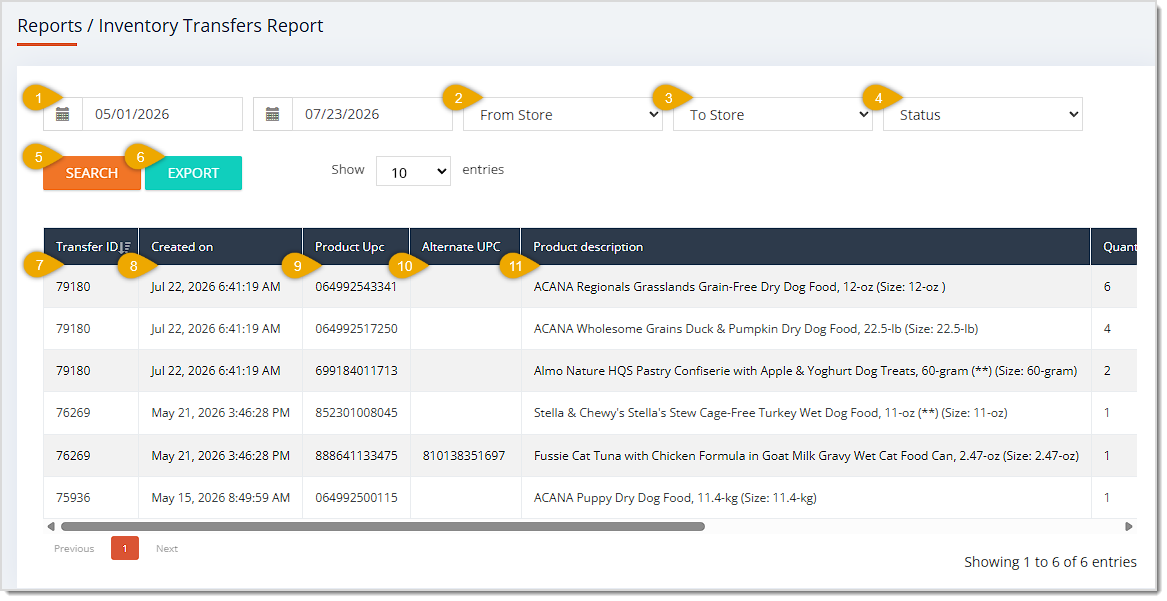
The Inventory Transfer Report has the following functions:
- Date Range — These fields default to displaying items in Transfers for the current day. Click into the Start Date and End Date fields to set a custom range.
- From Store — By default this field will show Transfers coming from All Stores, but you can click the drop-list to select a store and narrow results down to transfers originating from just that store.
- To Store — By default this field will show Transfers going to All Stores, but you can click the drop-list to select a store and narrow results down to transfers going to just that store.
- Status — By default you'll see Transfers of All Statuses, but you can use this drop-list to narrow results down to Ready, Sent, or Received transfers.
- Search — Click the Search button to refresh the table using the filters you selected.
- Export — Click the Export button to download the report's current results as a CSV spreadsheet file.
- Transfer ID — This column displays the internal Transfer ID number for each transfer. Click on the header once to sort the table according to this column, or click twice to reverse the sort.
- Created On — This column shows the Date you created each item's Transfer.
- Product UPC — This column lists each product's UPC code.
- Alternate UPC — This column displays the Alternate UPC code, if any, for each product.
- Product Description — This column shows the Name / Description of each product.
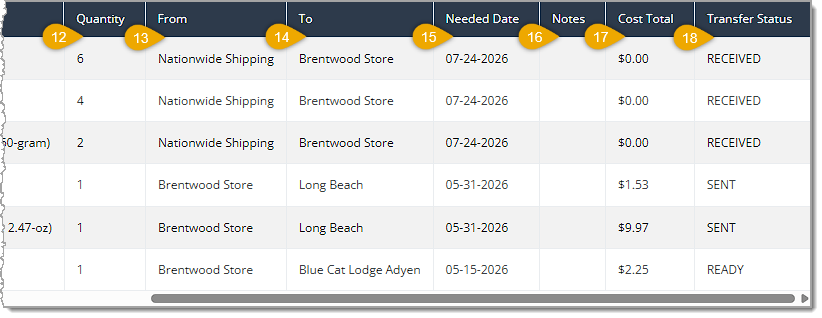
- Quantity — This column lists the Quantity of each product you're transferring.
- From — This column displays the Store from which you sent the Transfer.
- To — This column shows the Store to which you sent the Transfer.
- Needed Date — This column lists the Date by which you need the Transfer received.
- Notes — This column displays any Notes you made for the Transfer.
- Cost Total — This column shows the Total Cost of the inventory you transferred.
- Transfer Status — This column lists the current Status of each item's Transfer.
 Boss Quote
It's important that you keep a lookout for inventory in transit, whether it's in a Warehouse Order or a Transfer. If you leave them sitting too long, you'll have inventory at the store the system thinks is on the way. Keep your eyes open. Also, if you have any mice in your warehouse, let me know, I can take care of that for you.
— Oliver, Dubuque, IA
Related Topics
Reports Overview
Inventory Reports 1
Inventory Reports 2
Warehouse Orders
Transfers
Frequently Asked Questions
Q: What's the difference between the WO List Report and the WO Line Report?
A: The WO List Report summarizes each warehouse order as a single row with order, receiving, and invoice totals, while the WO Line Report breaks the same warehouse orders down into individual product lines.
Q: How do I find warehouse orders for a specific warehouse?
A: Use the Warehouse field on the WO List Report or WO Line Report, which defaults to no warehouse selected and can be set to a specific warehouse such as Nationwide Shipping.
Q: How can I tell how well a store's warehouse orders are being fulfilled?
A: Check the Fill Rate column on the WO Ship To Report, which shows the percentage of ordered quantity that was ultimately shipped to that store.
Q: Can I filter the WO Ship To Report down to specific product categories?
A: Yes. The Select Categories field defaults to no categories selected and lets you narrow results down to one or more specific product categories.
Q: Why does the Inventory Transfer Report have From Store and To Store fields instead of one Store filter?
A: Because a transfer always moves inventory between two stores, the report splits location filtering into a From Store field and a To Store field so you can track transfers moving in a specific direction.
Q: How do I see only transfers that have already arrived?
A: Use the Status field on the Inventory Transfer Report and select Received to narrow the table down to completed transfers.
Q: I have a question, but I can't find my answer here. How do I get more assistance?
A: You can ask any question at the number listed here. Contact our support team at (323) 370-0738 for the U.S. and (888) 370-2363 for Canada.







 Jul 17, 2026
Is this page helpful?
×Help us improve our articles