For the area of Time Clock Reports in the eTailPet system, we have tools that let you review the hours your crew members have worked and audit every change made to their time clock entries. This article will show you what the reports can do and how to use them. See how these reports can help you keep your labor records accurate!
You can get to your Time Clock Reports by logging into the Admin Dashboard and clicking on Reports in the main menu. On the Reports page, scroll down to the Time Clock section, as pictured below.
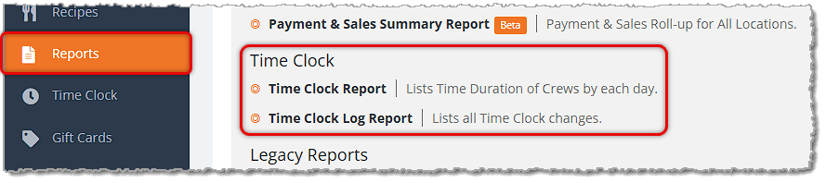
This section of your Reports listings has the following reports:
The Time Clock Report
The Time Clock Report shows you the hours each crew member worked, broken down by day and store. You can view every entry individually or combine them by employee to see total hours at a glance.
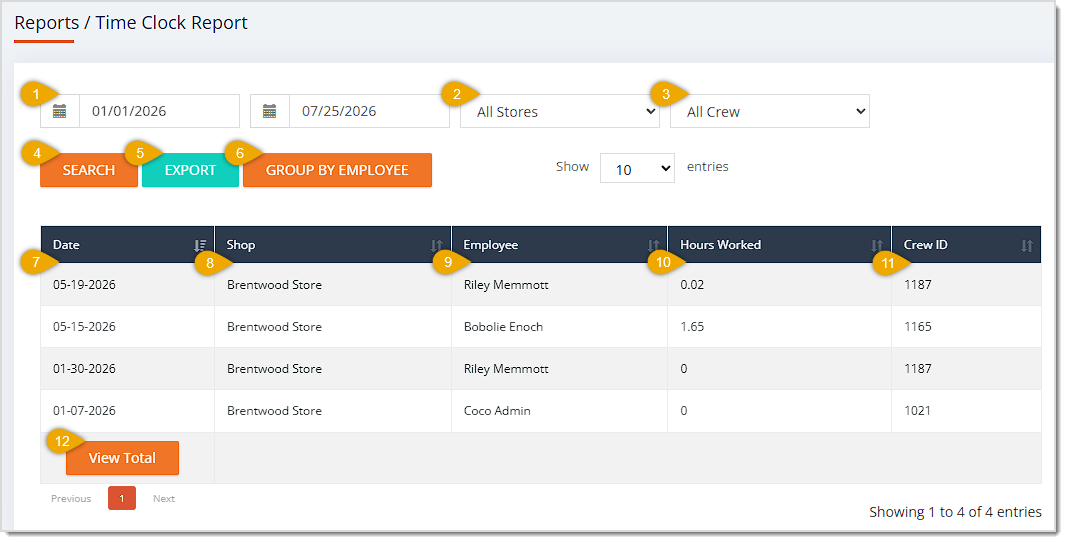
The Time Clock Report has the following functions:
- Date Range — Enter or select the Start Date and End Date of the range you want to search. This area defaults to the current day, showing entries from today's date through tomorrow's date.
- Store — Use this drop-list to filter the table to a specific store location. This field defaults to All Stores.
- Crew — Use this drop-list to filter the table to a specific employee. This field defaults to All Crew.
- Search — Click the Search button after adjusting your filters to narrow down the table's records.
- Export — Click the Export button to download the table's data across all pages as a CSV file.
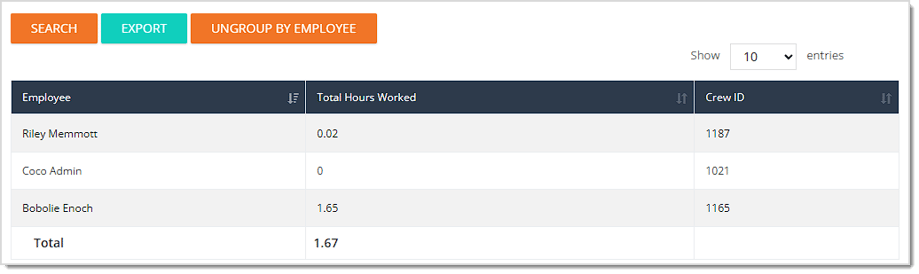
- Group by Employee — Click this button to combine the table's rows by employee. Your filters will remain, and you'll see columns for Employee, Total Hours Worked, and Crew ID. The report automatically adds a Total row at the bottom of the table, as pictured below, giving you the Total Hours Worked for all employees with your filtered selections. You can click the Ungroup by Employee button to return to the original table view.
Note: For each of the columns described below, you can click once on the header of each to sort the data according to that column, or click twice to reverse the sort.
- Date — This column displays the Date on which each time clock entry occurred.
- Shop — This column shows the Store Name where each employee clocked in or out.
- Employee — This column lists the Name of the crew member associated with each time clock entry.
- Hours Worked — This column displays the total number of hours logged for each entry.
- Crew ID — This column shows the identification number of the crew member listed in the Employee column.
- View Total — Click this button to see the sum of the Hours Worked column across data (all pages combined) at the bottom of the table, similar to how it's pictured above.
The Time Clock Log Report
The Time Clock Log Report shows you a history of changes made to your crew members' time clock entries, such as when a punch card is opened or closed, or when a start time, end time, or date is edited. Unlike the Time Clock Report, this report does not include a Group by Employee button or a View Total button, since it's focused on individual log entries rather than summed totals.
The Time Clock Log Report has the following functions:
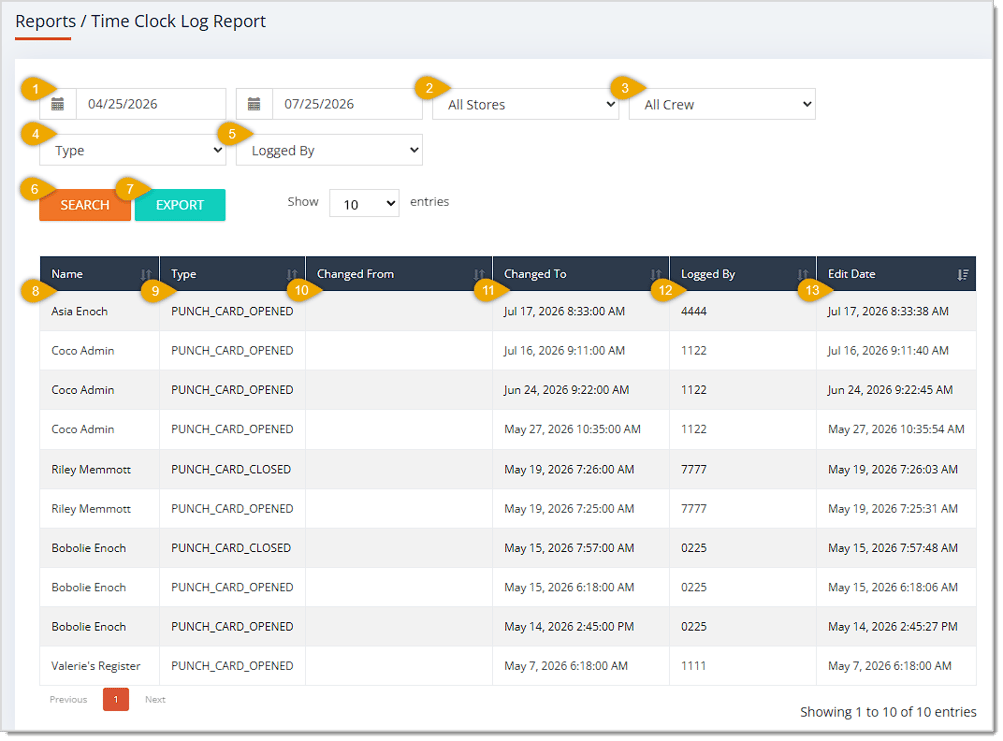
- Date Range — Enter or select the Start Date and End Date of the range you want to search. This field defaults to the current day, showing entries from today's date through tomorrow's date.
- Store — Use this drop-list to filter the table to a specific Store location. This field defaults to All Stores.
- Crew — Use this drop-list to filter the table to a specific Employee. This field defaults to All Crew.
- Type — Use this drop-list to filter the table to a specific kind of change, such as Date Changed, End Time Changed, Punch Card Closed, Punch Card Opened, or Start Time Changed. This field defaults to showing all types of log entries.
- Logged By — Use this drop-list to filter the table to entries logged under a specific Employee PIN or Admin Login. This field defaults to showing entries logged by anyone.
- Search — Click the Search button after entering your filters to narrow down the table's records.
- Export — Click the Export button to download the table's records as a CSV file.
Note: For each of the columns described below, you can click once on the header to sort the data according to that column, or click twice to reverse the sort.
- Name — This column displays the Name of the crew member whose time clock entry was logged.
- Type — This column shows the kind of change that occurred, such as Punch Card Opened or Punch Card Closed.
- Changed From — This column lists the entry's original value before the change, if a change to a logged event was made.
- Changed To — This column displays the entry's new value after the change.
- Logged By — This column shows the Employee PIN or Admin Login used to log the change.
- Edit Date — This column lists the Date and Time the change was recorded.
Related Topics
Reports Overview
Admins and Crews
Employee Timesheet
Time Clock
Frequently Asked Questions
Q: Does the Time Clock Report show data for all my stores at once?
A: Yes. The Store field defaults to All Stores, so the table shows entries from every location unless you select a specific store from the drop-list.
Q: What happens when I click Group by Employee on the Time Clock Report?
A: The table's rows combine by employee, replacing the individual Date, Shop, Employee, Hours Worked, and Crew ID columns with Employee, Total Hours Worked, and Crew ID columns, plus an automatic Total row. Click the same button, now labeled Ungroup by Employee, to return to the original view.
Q: Can I see the total hours worked across every page of results on the Time Clock Report?
A: Yes. Click the View Total button to add a Total row showing the sum of the Hours Worked column across all pages of the table.
Q: What kinds of changes can I filter for in the Time Clock Log Report?
A: Use the Type drop-list to filter for Date Changed, End Time Changed, Punch Card Closed, Punch Card Opened, or Start Time Changed events.
Q: Why does the Changed From column appear blank for some rows in the Time Clock Log Report?
A: The Changed From column only shows a value when the entry had a prior value to change, such as an edited start or end time. Events like Punch Card Opened or Punch Card Closed have no prior value, so this column stays blank for those.
Q: Can I group the Time Clock Log Report by employee like I can with the Time Clock Report?
A: No. The Time Clock Log Report does not include a Group by Employee or View Total button, since it's designed to show individual log entries rather than summarized totals.
Q: I have a question, but I can't find my answer here. How do I get more assistance?
A: You can ask any question at the number listed here. Contact our support team at (323) 370-0738 for the U.S. and (888) 370-2363 for Canada.







 Jul 24, 2026
Is this page helpful?
×Help us improve our articles