🕒The Time Clock area of the eTailPet system allows you to track the times your staff clock in and out of their shifts. You can review each crew member's start and end times, hours worked, and store location. Also use this page to manually clock someone out, correct a time card's time or date, add a new time card, and archive entries you no longer need. Take a look at everything you can do!

The Time Clock Page
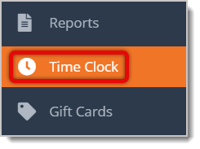
To get to this page, click on Time Clock in the main menu.
Here is how to work with Time Clock page:
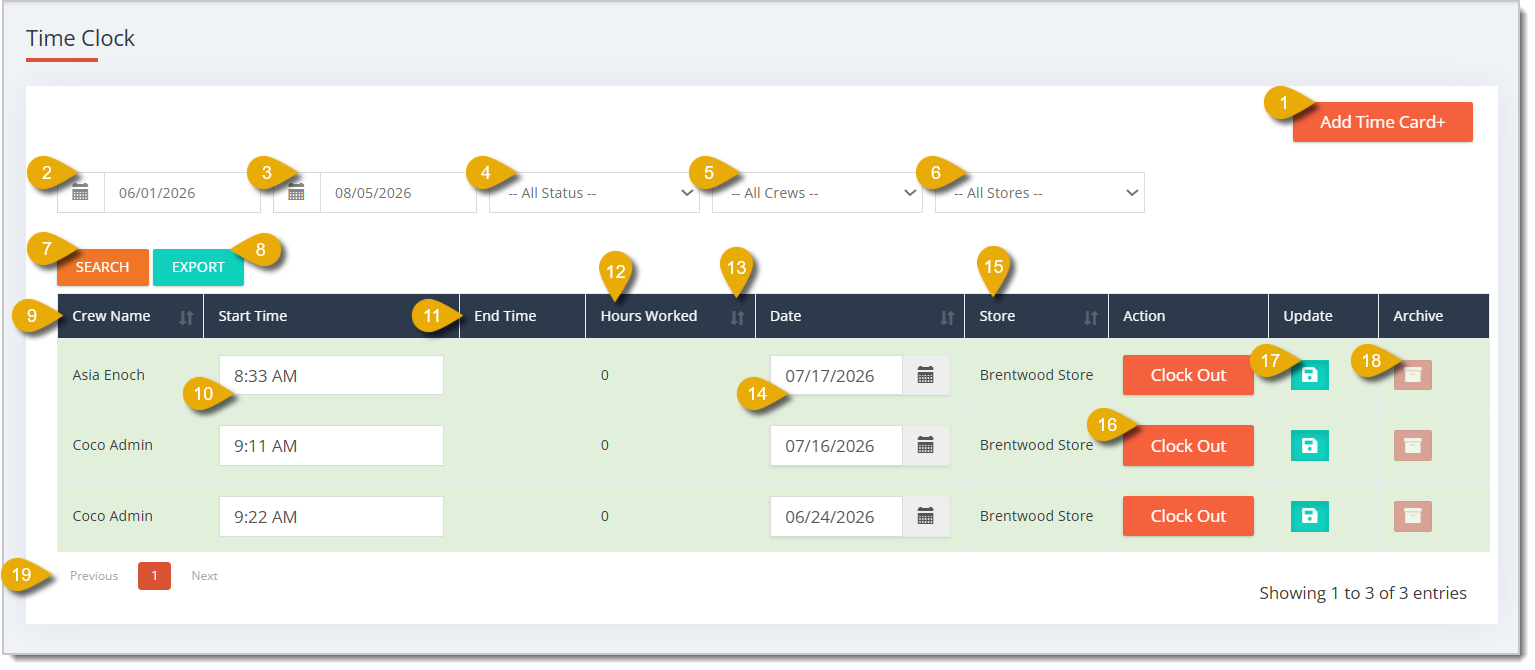
- Add Time Card — Click this button to manually create a new time card for a crew member. See the section Add a Time Card below for details about this window.
- Start Date — By default, the report will show data for the current day. To see a different time period, enter or select the beginning date of the period here.
- End Date — If you want to view a different time period, enter or select the end date of the period here.
- Status Filter — Select Active or Closed from the drop-list to filter the data to time cards of a certain status. Time cards that are still open are Active, and ones that have already been clocked out are Closed.
- Crew Filter — Select a crew member from the drop-list to filter the list to only that person's time cards.
- Store Filter — Select a store from the drop-list to filter the list to time cards recorded at that location.
- Search — Click this button to pull data that matches the date range and filters you've selected.
- Export — Click this button to download the current time card list as a CSV file.
- Crew Name — This column displays the Name of the crew member for each time card.
- Start Time — Under this column, you can enter a time or update it for a crew member's time card. Whenever you change a time card's start time, remember to click on the Update button in the same row.
- End Time — This column displays the time the crew member clocked out if they already have.
- Hours Worked — This column displays the total number of hours calculated between the start and end times.
- Sort — Click the sort icon in the column headings for Hours Worked, Date, or Store to sort the list by that value.
- Date — Under this column, you can enter or update the date of a time card. You can also click the calendar icon to select one. Whenever you change a time card's date, remember to click on the Update button in the same row.
- Store — This column displays the store location where the crew member clocked into their shift.
- Clock Out — Click this button to manually clock the crew member out and record the current time as their end time.
- Update — Click this icon in the same row of a time card after you change its Start Time or Date to save it.
- Archive — Click this icon to archive the time card so it no longer displays as active on the list.
- Page Navigation — Click on Previous or Next, or click on a page number, to navigate between pages if your report spans more than one page.
Add a Time Card
Here is how to create a new Time Card:
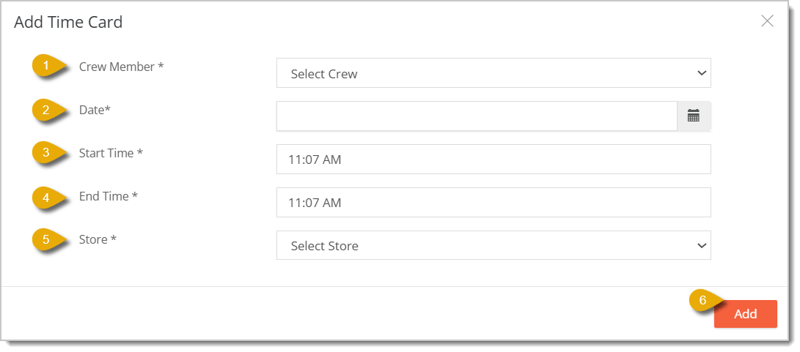
- Crew Member — Select the crew member you want to create a time card for from the drop-list.
- Date* — Enter the date for this time card, or click the Calendar Icon to select one.
- Start Time* — Enter the time the crew member started their shift.
- End Time* — Enter the time the crew member ended their shift.
- Store* — Select the store location this shift took place at from the drop-list.
- Add — Click this button after entering the time card details to create the new time card.
* Required Field
Your new time card will now appear in the list on the Time Clock page.
Related Topics
Employees Report
Admins and Crews
Sales by Employee
Frequently Asked Questions
Q: How do I clock a crew member out if they forgot to do it themselves?
A: Find their time card on the Time Clock page and click Clock Out next to it. This records the current time as their end time.
Q: I need to fix a time card because the crew member clocked in at the wrong time. How do I do that?
A: Edit the Start Time or Date field in the same row as the time card, then click the Update icon to save the change.
Q: Can I add a time card for a shift that already happened without using the Clock Out button?
A: Yes. Click Add Time Card and enter the crew member, date, start time, end time, and store to manually add the time card.
Q: How do I get a copy of the time card data for payroll?
A: Set your date range and any other filters you want, then click EXPORT to download the list as a CSV file.
Q: What happens when I click the Archive icon on a time card?
A: The time card is archived so it no longer displays as active on the Time Clock list.
Q: I have a question, but I can't find my answer here. How do I get more assistance?
A: You can ask any question at the number listed here. Contact our support team at (323) 370-0738 for the U.S. and (888) 370-2363 for Canada.







 Feb 20, 2026
Is this page helpful?
×Help us improve our articles