Sales by Employee

Aug 03, 2026
📈 The Sales by Employee Report of the eTailPet system allows you to see how much each of your employees has sold over a given period of time. You can filter sales results by date range, store, and cart source, then review each employee's totals or export the data as an external file. Take a look at what you can view in this report!

Employee Sales Report Page
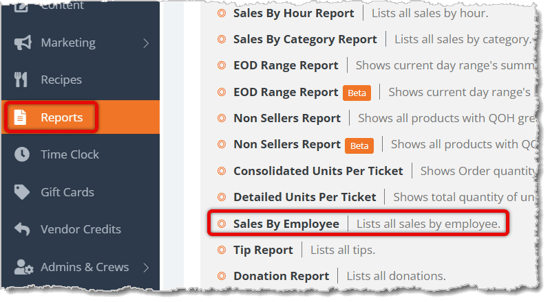
To get to this page, go to Reports > Employee Sales Report, as highlighted in the image below.
Here is how to work with your Employee Sales Report:
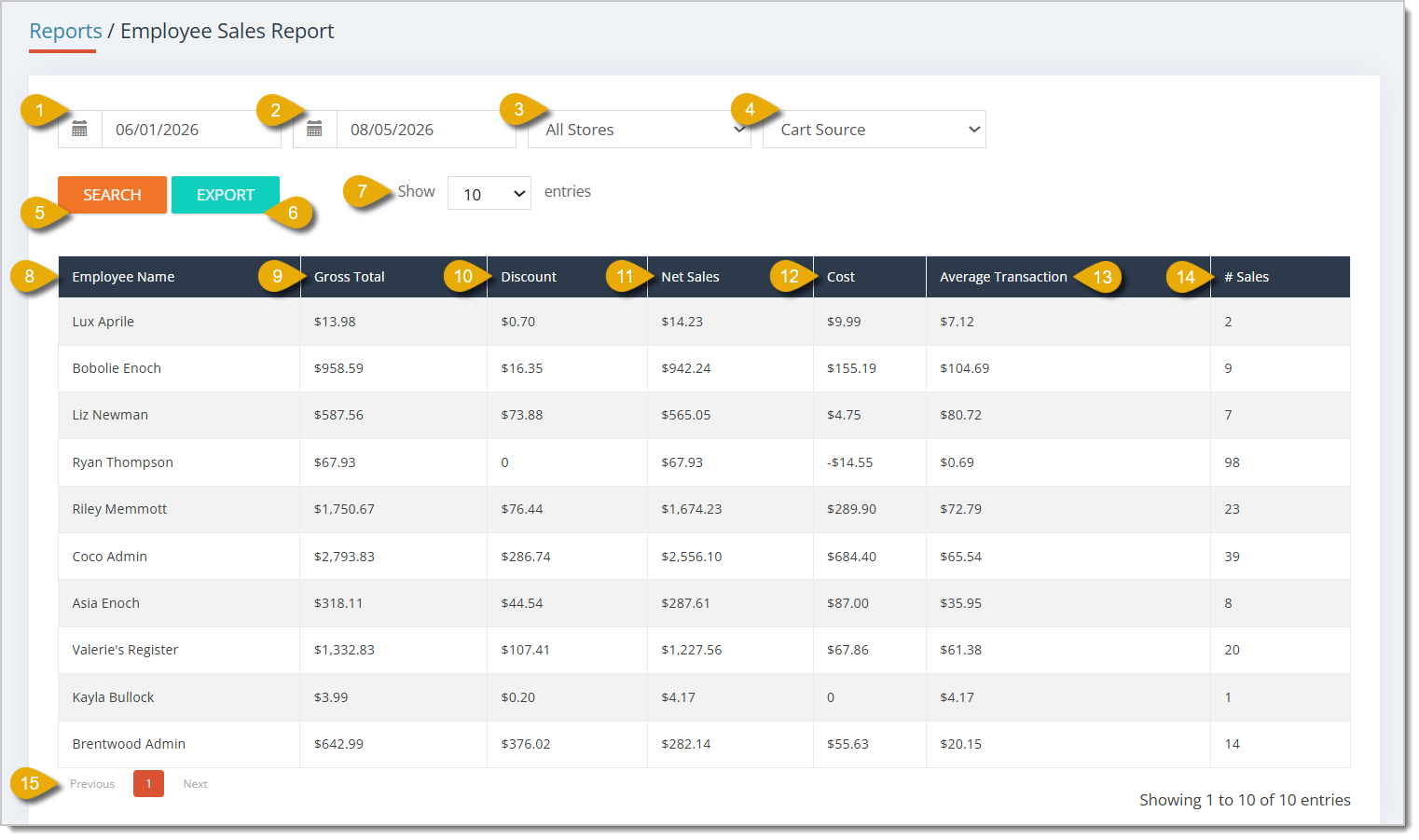
- Start Date — The data will be for the current day by default. To change the time period, enter the first date you want data for in this field.
- End Date — Enter the last date of the time period you want data for in this field.
- Store — Select a store from the drop-list to filter the report to that location, or leave it set to All Stores to include every location.
- Cart Source — Select Online or Instore from the drop-list to filter the report to sales from that source, or leave it blank to include both.
- Search — Click this button to run the report using the date range and filters you selected above.
- Export — Click this button to download the report results as a CSV file.
- Show entries — Select 10, 25, 50, or 100 from the drop-list to set how many rows display per page in the results table.
- Employee Name — This column displays the Name of each employee that had sales in the selected time period.
- Gross Total — This column displays the total sales amount from each employee before any discounts during the time period.
- Discount — This column displays the total discount amount applied to each employee's sales during the time period.
- Net Sales — This column displays each employee's sales total after discounts during the time period.
- Cost — This column displays the total cost of the items each employee sold during the time period.
- Average Transaction — This column displays each employee's average transaction amount from the time period.
- Number of Sales — This column displays the number of transactions each employee completed during the time period.
- Page Navigation — If your employees report spans more than one page, you can click on Previous or Next to move between pages.
Related Topics
Reports Overview
Sales and Refund Reports 1
Sales and Refund Reports 2
Sales and Refund Reports 3
Employees Report
Frequently Asked Questions
Q: Why don't I see any employees in this report?
A: Check that your Start Date and End Date cover a period when sales occurred, and that your Store and Cart Source filters aren't excluding the results you're looking for.
Q: What is the difference between Gross Total and Net Sales?
A: Gross Total shows an employee's sales before any discounts, while Net Sales shows their sales after discounts are applied.
Q: I have a question, but I can't find my answer here. How do I get more assistance?
A: You can ask any question at the number listed here. Contact our support team at (323) 370-0738 for the U.S. and (888) 370-2363 for Canada.
If the need to change the bank account that your payouts are deposited in a new bank account can be
eTailPet Payments card terminals and POS software are cloud-based. A stable internet connection is r
The Roles area of the eTailPet system allows you to control what each of your admin users can see an







Is this page helpful?
×Help us improve our articles