The Roles area of the eTailPet system allows you to control what each of your admin users can see and do within the system. From here you can create a new Role with its own name and set of permissions, view the permissions assigned to an existing role, and update those permissions at any time. Let's get your team set up!

Role List Page
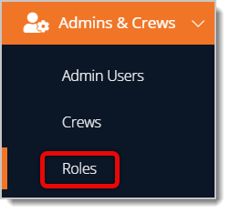
To get to this page, use the main menu on the left to go to Admins & Crews > Roles.
Here is how to work with your Roles:
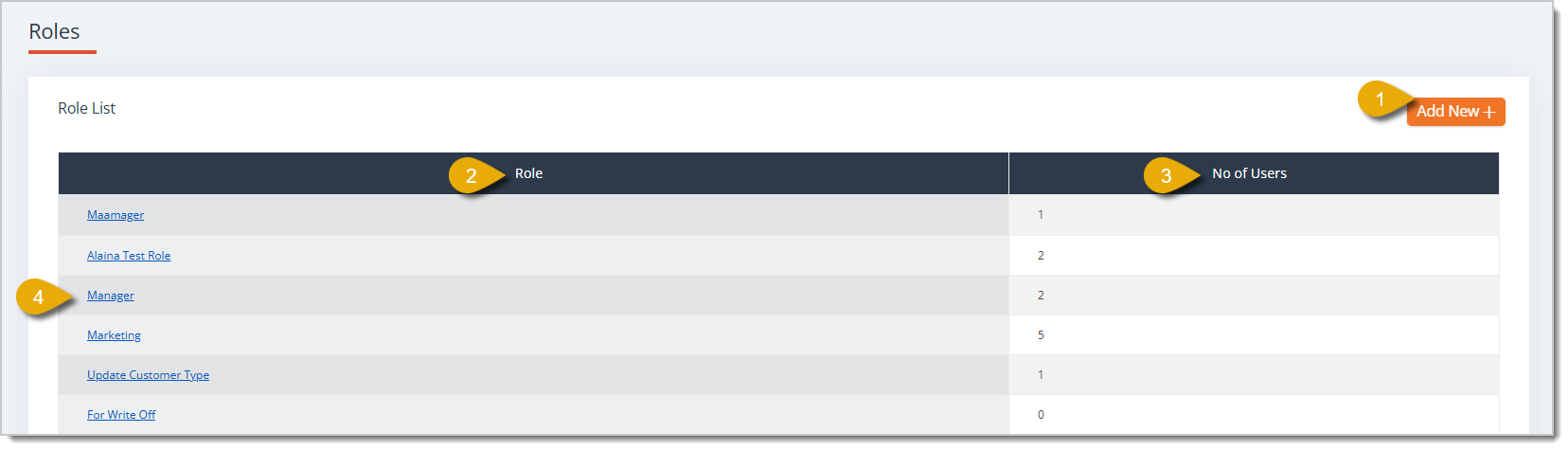
- Add New — Click this button to create a new role. See the Add a New Role section below for more details.
- Role — This column displays the Name of each role.
- Number of Users — This column displays the number of admin users currently assigned to that role.
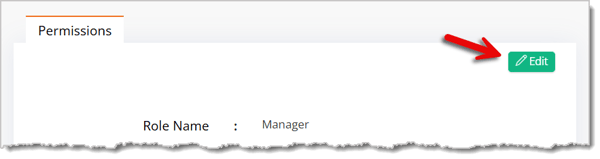
- Open Role — Click a role's name to open its detail page, where you can review its enabled permissions. On that page, click Edit to update the role's name and permissions. Each field in this page is explained in the Add a New Role section below.
Add a New Role
This section covers creating a new Role and explains what each permission allows. Check the box for each permission you want to grant to the role.
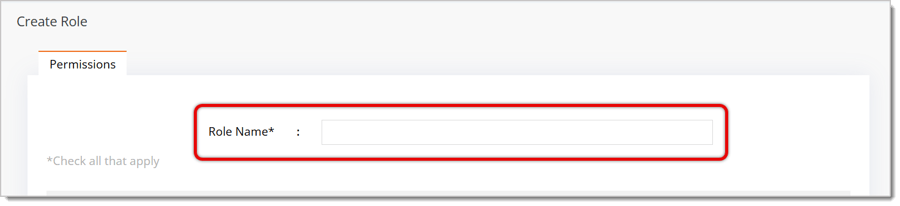
Role Name — Enter the Name you want to use to identify this role. This field is required to save the role.
Here is how to set permissions for a Role:
Admin
- Access Settings — This permission lets the user view and modify the store's system and account configuration.
- Create Retailer Admins — This permission lets the user add new Administrator accounts for the store.
- Define Permissions and Privileges — This permission lets the user set up and edit role-based permissions for other users.
- Dashboard Insights — This permission grants the role access to summary analytics shown on the Admin Dashboard.
Inventory
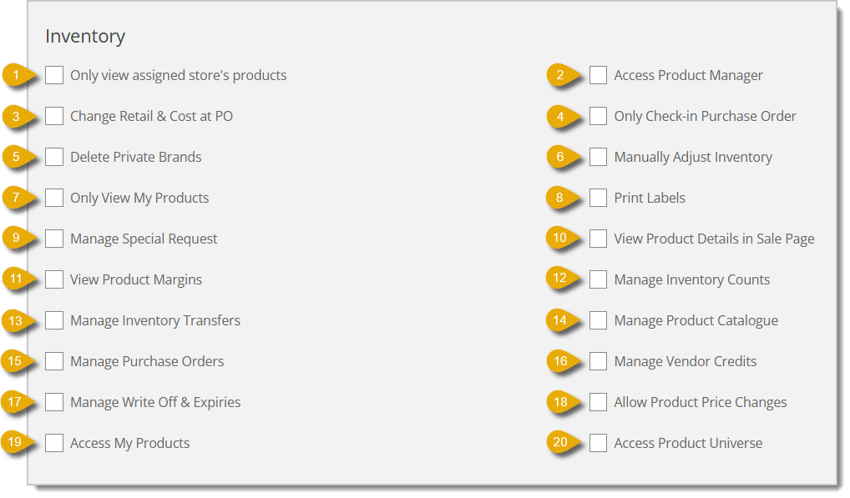
- Only View Assigned Store's Products — This limits product visibility to items at the role's assigned store.
- Access Product Manager — This grants access to the Product Manager area for managing product listings.
- Change Retail & Cost at PO — This allows the role to edit retail and cost prices while processing purchase orders.
- Only Check-in Purchase Order — This limits the role to checking in received purchase orders only.
- Delete Private Brands — This allows the role to remove private-label brands from the system.
- Manually Adjust Inventory — This allows the role to manually change stock quantities outside normal sales or receiving purchase orders.
- Only View My Products — This limits the role to just viewing products assigned to them.
- Print Labels — This allows the role to print shelf tags or barcode labels for products.
- Manage Special Request — This allows the role to handle special order requests.
- View Product Details in Sale Page — This allows the role to view full product details from the New Sale screen.
- View Product Margins — This allows the role to see profit margin data on products throughout the system.
- Manage Inventory Counts — This allows the role to conduct and record physical inventory counts.
- Manage Inventory Transfers — This allows the role to move stock between store locations.
- Manage Product Catalogue — This allows the role to edit and organize the product catalog.
- Manage Purchase Orders — This allows the role to create, edit, and process purchase orders.
- Manage Vendor Credits — This allows the role to record and manage credits issued by vendors.
- Manage Write Off & Expiries — This allows the role to write off damaged, lost, or expired inventory.
- Allow Product Price Changes — This allows the role to change the prices of products.
- Access My Products — This allows the role to view their own assigned products.
- Access Product Universe — This allows the role to access the full master product list across the system.
Marketing
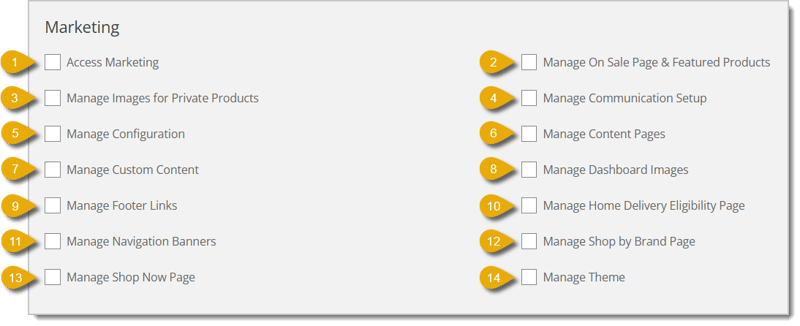
- Access Marketing — This grants general access to the Marketing tools section.
- Manage On Sale Page & Featured Products — This allows the role to edit which products appear on the Sale and Featured pages.
- Manage Images for Private Products — This allows the role to upload and edit images for private products.
- Manage Communication Setup — This allows the role to configure customer communication channels (e.g. email, SMS).
- Manage Configuration — This allows the role to edit general marketing configuration settings.
- Manage Content Pages — This allows the role to create and edit website content pages.
- Manage Custom Content — This allows the role to edit custom content on the store's e-commerce website.
- Manage Dashboard Images — This allows the role to update images that appear on the admin dashboard.
- Manage Footer Links — This allows the role to edit the links in the online store's website footer.
- Manage Home Delivery Eligibility Page — This allows the role to edit the page that shows delivery eligibility rules.
- Manage Navigation Banners — This allows the role to edit the banners that help customers navigate the online store, as shown below.

- Manage Shop by Brand Page — This allows the role to edit the page where customers browse products by brand on your store's e-commerce website.
- Manage Shop Now Page — This allows the role to edit the "Shop Now" landing page of your e-commerce website.
- Manage Theme — This allows the role to change the storefront's visual appearance.
Reports
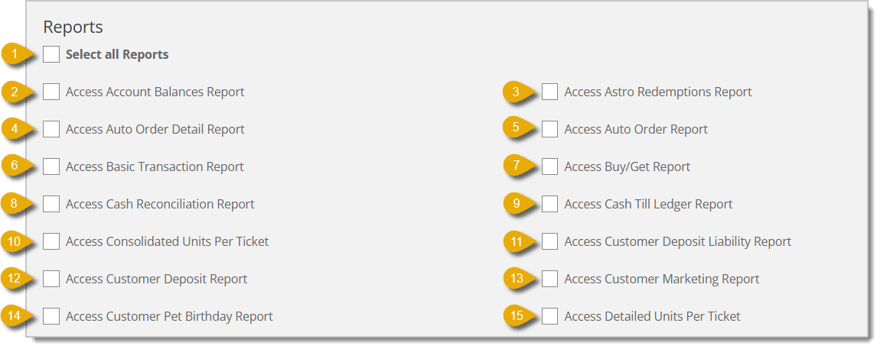
- Select All Reports — Check this box to select every report permission in the Reports section at once.
- Access Account Balances Report — This allows the role to view outstanding customer account balances.
- Access Astro Redemptions Report — This allows the role to view redemptions made through the Astro loyalty program.
- Access Auto Order Detail Report — This allows the role to view line-item detail for recurring auto orders.
- Access Auto Order Report — This allows the role to view a summary of recurring auto orders.
- Access Basic Transaction Report — This allows the role to view a summary of the store's sales transactions.
- Access Buy/Get Report — This allows the role to view performance of buy-one-get-one style promotions.
- Access Cash Reconciliation Report — This allows the role to view cash drawer reconciliation totals.
- Access Cash Till Ledger Report — This allows the role to view a ledger of Register cash activity.
- Access Consolidated Units Per Ticket — This allows the role to view average units sold per transaction, consolidated across stores.
- Access Customer Deposit Liability Report — This allows the role to view outstanding customer deposit liabilities.
- Access Customer Deposit Report — This allows the role to view customer deposits received.
- Access Customer Marketing Report — This allows the role to view customer marketing data.
- Access Customer Pet Birthday Report — This allows the role to view the birthdays of customers' pets for marketing use.
- Access Detailed Units Per Ticket — This allows the role to view detailed unit-per-transaction data.
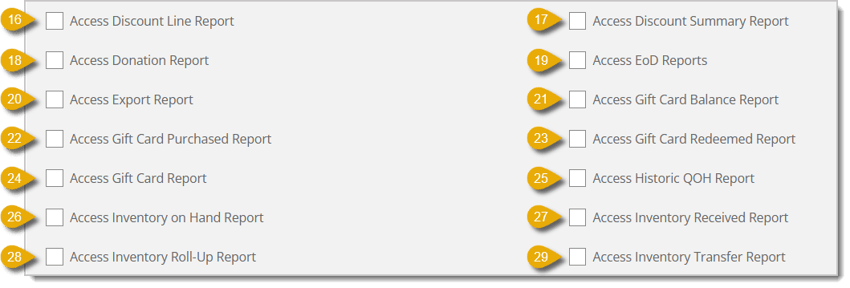
- Access Discount Line Report — This allows the role to view discounts applied at the line-item level.
- Access Discount Summary Report — This allows the role to view a summary of all discounts applied.
- Access Donation Report — This allows the role to view a summary of donations collected at checkout.
- Access EoD Reports — This allows the role to view End-of-Day sales and closing reports.
- Access Export Report — This allows the role to export report data from the system.
- Access Gift Card Balance Report — This allows the role to view the balances of issued gift cards.
- Access Gift Card Purchased Report — This allows the role to view data on gift cards that have been purchased.
- Access Gift Card Redeemed Report — This allows the role to view data on gift cards that have been used to pay for transactions.
- Access Gift Card Report — This allows the role to view overall gift card activity.
- Access Historic QOH Report — This allows the role to view historical quantity-on-hand inventory levels.
- Access Inventory on Hand Report — This allows the role to view current inventory quantities on hand.
- Access Inventory Received Report — This allows the role to view inventory received.
- Access Inventory Roll-Up Report — This allows the role to view consolidated inventory data across locations.
- Access Inventory Transfer Report — This allows the role to view data on inventory transfers between stores.
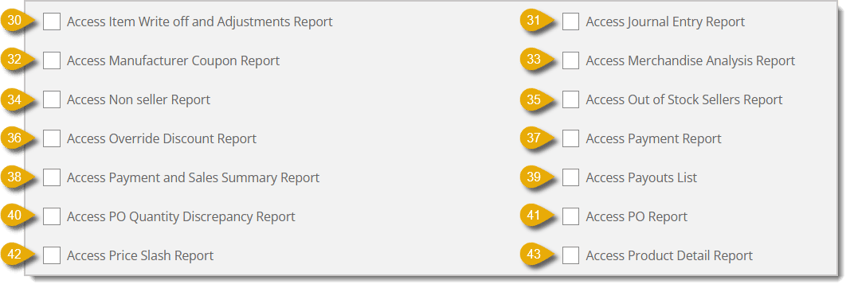
- Access Item Write-Off and Adjustments Report — This allows the role to view a report on inventory write-offs and adjustments.
- Access Journal Entry Report — This allows the role to view data on accounting journal entries from transactions.
- Access Manufacturer Coupon Report — This allows the role to view a report of manufacturer-issued coupons redeemed.
- Access Merchandise Analysis Report — This allows the role to view analysis of merchandise sales performance.
- Access Non Seller Report — This allows the role to view a report of products that haven't sold within a given period.
- Access Out of Stock Sellers Report — This allows the role to view a report of best-selling products currently out of stock.
- Access Override Discount Report — This allows the role to view a report of discounts that were manually overridden by staff.
- Access Payment Report — This allows the role to view a report on payments collected across transactions.
- Access Payment and Sales Summary Report — This allows the role to view a combined summary of payments and sales.
- Access Payouts List — This allows the role to view a list of payouts made to the business.
- Access PO Quantity Discrepancy Report — This allows the role to view data on differences between ordered and received PO quantities.
- Access PO Report — This allows the role to view purchase order activity.
- Access Price Slash Report — This allows the role to view data on products that have had price reductions applied.
- Access Product Detail Report — This allows the role to view detailed information about individual products.
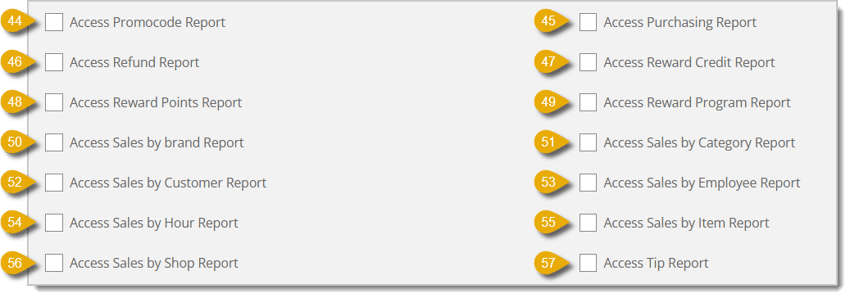
- Access Promocode Report — This allows the role to view data on the usage of promotional codes.
- Access Purchasing Report — This allows the role to view data on overall purchasing activity.
- Access Refund Report — This allows the role to view data on refunds issued to customers.
- Access Reward Credit Report — This allows the role to view data on reward credits issued to customers.
- Access Reward Points Report — This allows the role to view customer loyalty reward points activity.
- Access Reward Program Report — This allows the role to view overall performance of the rewards program.
- Access Sales by Brand Report — This allows the role to view a sales report broken down by product brand.
- Access Sales by Category Report — This allows the role to view a sales report broken down by product category.
- Access Sales by Customer Report — This allows the role to view a sales report broken down by individual customer.
- Access Sales by Employee Report — This allows the role to view a sales report broken down by employee.
- Access Sales by Hour Report — This allows the role to view a sales report broken down by hour of day.
- Access Sales by Item Report — This allows the role to view a sales report broken down by individual item.
- Access Sales by Shop Report — This allows the role to view a sales report broken down by store location.
- Access Tip Report — This allows the role to view a report on tips collected by staff.
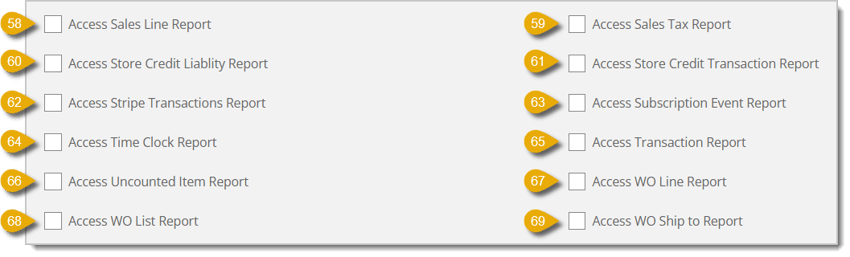
- Access Sales Line Report — This allows the role to view line-item level sales detail.
- Access Sales Tax Report — This allows the role to view data on sales tax collected.
- Access Store Credit Liability Report — This allows the role to view outstanding store credit liabilities.
- Access Store Credit Transaction Report — This allows the role to view a report of transactions that used store credit.
- Access Stripe Transactions Report — This allows the role to view a report of payment transactions processed through Stripe.
- Access Subscription Event Report — This allows the role to view data on events related to customer subscriptions.
- Access Time Clock Report — This allows the role to view employee time clock activity.
- Access Transaction Report — This allows the role to view a general log of transactions.
- Access Uncounted Item Report — This allows the role to view a report of items not counted during an inventory count.
- Access WO Line Report — This allows the role to view line-item details for warehouse orders.
- Access WO List Report — This allows the role to view a list of warehouse orders.
- Access WO Ship to Report — This allows the role to view a report of warehouse orders broken down by ship-to destination.
Store
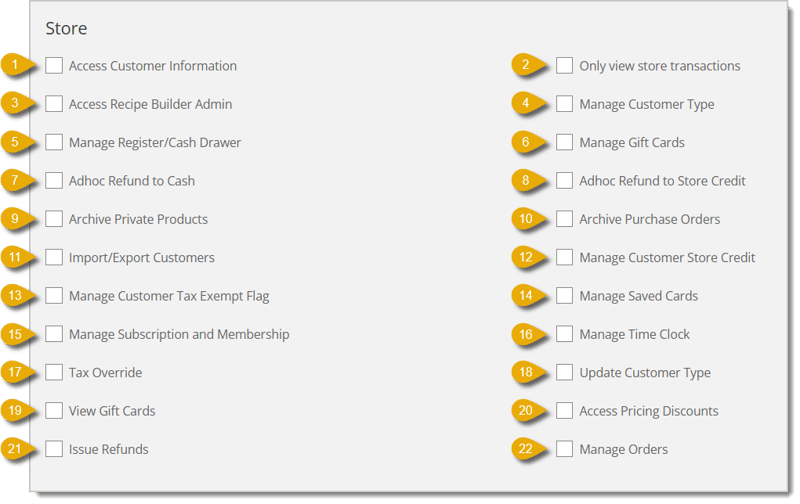
- Access Customer Information — This allows the role to view customer profiles and contact details.
- Only View Store Transactions — This limits the role to just viewing transactions for their assigned store.
- Access Recipe Builder Admin — This grants admin access to the recipe builder tool.
- Manage Customer Type — This allows the role to edit the customer type assigned to customers.
- Manage Register/Cash Drawer — This allows the role to open, close, and manage the cash drawer.
- Manage Gift Cards — This allows the role to create, edit, and process gift cards for payment.
- Adhoc Refund to Cash — This allows the role to issue a manual cash refund outside normal return flow.
- Adhoc Refund to Store Credit — This allows the role to issue a manual store-credit refund outside normal return flow.
- Archive Private Products — This allows the role to archive private products.
- Archive Purchase Orders — This allows the role to archive completed or old purchase orders.
- Import/Export Customers — This allows the role to bulk import or export customer data.
- Manage Customer Store Credit — This allows the role to add, change, or remove customer store credit.
- Manage Customer Tax Exempt Flag — This allows the role to mark customers as tax-exempt.
- Manage Saved Cards — This allows the role to view or edit customers' saved payment cards.
- Manage Subscription and Membership — This allows the role to administer customer subscriptions and memberships.
- Manage Time Clock — This allows the role to manage employee time clock records.
- Tax Override — This allows the role to override the default tax calculation on a transaction.
- Update Customer Type — This allows the role to change a customer's assigned category.
- View Gift Cards — This allows the role to view gift card balances and details.
- Access Pricing Discounts — This allows the role to apply discounts to pricing.
- Issue Refunds — This allows the role to issue customer refunds.
- Manage Orders — This allows the role to view and manage customer orders.
Warehouse
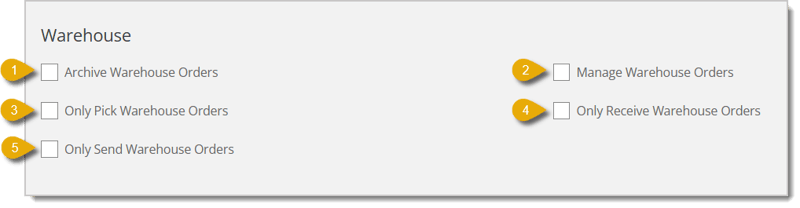
- Archive Warehouse Orders — This allows the role to archive completed warehouse orders.
- Manage Warehouse Orders — This allows the role to create and edit warehouse orders.
- Only Pick Warehouse Orders — This limits the role to only picking items for warehouse orders.
- Only Receive Warehouse Orders — This limits the role to only receiving warehouse orders.
- Only Send Warehouse Orders — This limits the role to only sending or shipping warehouse orders.
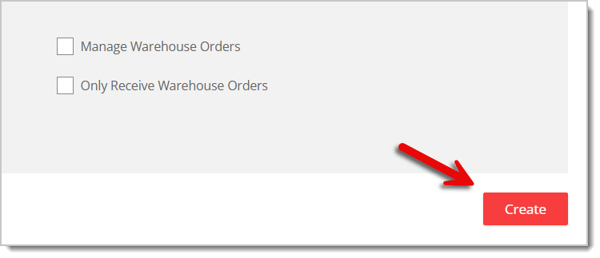
After you've set all permissions for the role, remember to click on the Create button in the bottom right of the page. If you are editing an existing Role, this button will read as Save instead. If you do not click this button, your role will not be saved.
Related Topics
Admins & Crews
Sales by Employee
Employees Report
Frequently Asked Questions
Q: What is the difference between the Role List page and a role's detail page?
A: The Role List page shows every role you've created along with how many users are assigned to each one. Clicking a role's name opens its detail page, which shows exactly which permissions are enabled for that role.
Q: How do I change the permissions on a role that already exists?
A: Click the role's name on the Role List page to open its detail page. Then click Edit. Check or uncheck any permissions, then click Save on the bottom of the page.
Q: Can one role have permissions from more than one category, like both Inventory and Reports?
A: Yes. You can check as many boxes as you need across the Admin, Inventory, Marketing, Reports, Store, and Warehouse sections when you create or edit a role.
Q: Can I limit a role to only see products or transactions for one store?
A: Yes. Check Only View Assigned Store's Products under Inventory and Only View Store Transactions under Store to restrict a role to just its assigned store's data.
Q: Is there a faster way to grant every reports permission instead of checking each one individually?
A: Yes. Check Select All Reports at the top of the Reports section to enable every report permission at once.
Q: What happens if I forget to click Create or Save?
A: Nothing gets saved — the role and its permissions are lost. Make sure you click Create (or Save, if you're editing) before leaving the page.
Q: I have a question, but I can't find my answer here. How do I get more assistance?
A: You can ask any question at the number listed here. Contact our support team at (323) 370-0738 for the U.S. and (888) 370-2363 for Canada.
access







 Aug 03, 2026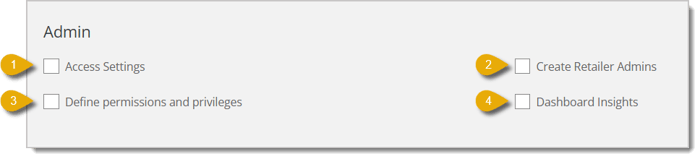
Is this page helpful?
×Help us improve our articles