






Email Report
📧 The Email Report in the eTailPet system will show you the activity of automated emails and emails
 Jul 15, 2026
In the area of Membership Reports of the eTailPet system, we have the Subscription Events Report. This report shows you every status change that happens to your customers' membership subscriptions, including purchases, renewals, pauses, and cancellations. See how you can use it to keep track of your subscription activity!
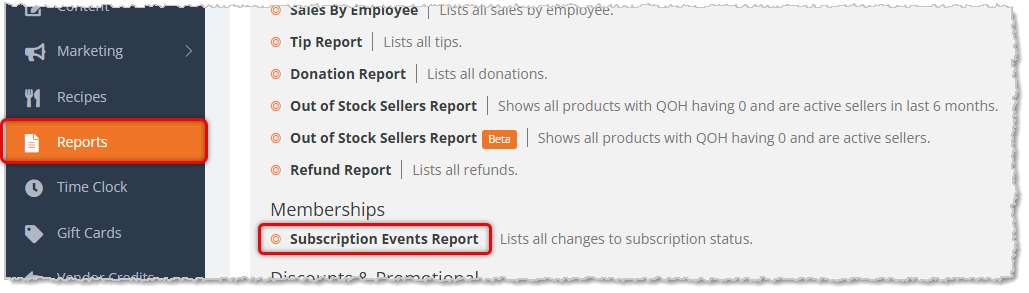
To work with your Subscription Events Report, go to Reports from the main menu on the left and in the Memberships section, click on the Subscription Events Report.
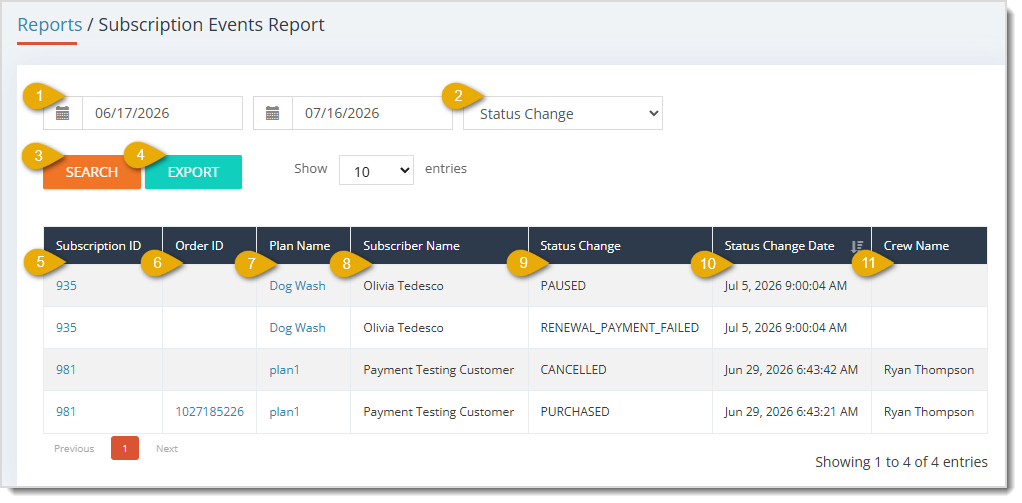
The Subscription Events Report has the following functions:
Q: Why is the Subscription Events Report the only report listed under Memberships?
A: Memberships currently has a single dedicated report, the Subscription Events Report, which covers every status change for your customers' Subscriptions in one place.
Q: What subscription events can I filter by?
A: You can filter by Purchased, Renewed, Redeemed, Paused, Resumed, Cancelled, or Expired using the Status Change drop-list.
Q: Will every Status Change row have an Order ID?
A: No. The Order ID column only shows a value when that particular status change is tied to an order, such as a purchase or renewal payment.
Q: Can I download the Subscription Events Report to work with it outside the system?
A: Yes. Click the Export button to download the current table's records as a CSV file.
Q: I have a question, but I can't find my answer here. How do I get more assistance?
A: You can ask any question at the number listed here. Contact our support team at (323) 370-0738 for the U.S. and (888) 370-2363 for Canada.
Is this page helpful?
×Help us improve our articles