The Gift Cards category of Reports gives you four dedicated reports for tracking gift card activity across your stores. Together, these reports let you monitor outstanding balances, purchases, redemptions, and store-level reconciliation for every gift card in your system. Take a look at what they can do for you!

You can get to your Gift Cards Reports by logging into the admin dashboard and clicking on Reports in the main menu. On the Reports page, scroll down to the Gift Cards section, as pictured below.
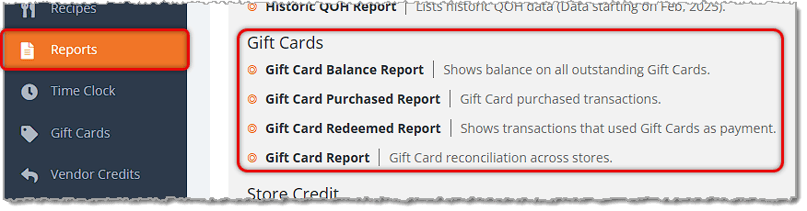
The Gift Cards section of Reports has the following:
The Gift Card Balance Report
The Gift Card Balance Report lists the current balance remaining on every Gift Card that has been issued across all of your stores. Unlike the other Gift Card reports, this report does not include a Date Range or Store field, so it always displays every outstanding gift card.
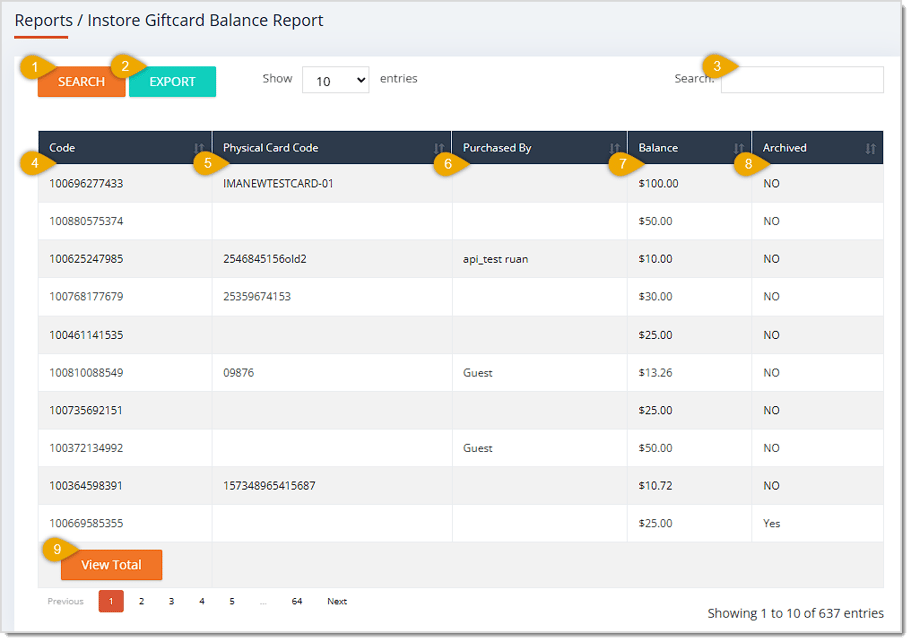
The Gift Card Balance Report has the following functions:
- Search — Click the Search button to refresh the table's results. Since this report has no Date Range or Store field, clicking Search simply reloads the full list of gift cards.
- Export — Click the Export button to download the table's data across all pages as a CSV file.
- Search Field — Enter text into this field to filter the table by matches in the Code, Physical Card Code, or Purchased By columns.
- Code — This column displays the unique code assigned to each gift card record. Click on the header to sort the results according to this column by numerical order, or click twice to reverse the sort.
- Physical Card Code — This column shows the number printed on each physical gift card, when one has been linked to a printed code. Click on the header to sort the results according to this column by numerical order, or click twice to reverse the sort.
- Purchased By — This column lists the name of the customer who purchased each gift card, when that information was captured at the time of sale. Click on the header to sort the results according to this column by alphabetical order, or click twice to reverse the sort.
- Balance — This column displays the dollar amount still available on each gift card. Click on the header to sort the results according to this column by numerical order, or click twice to reverse the sort.
- Archived — This column shows whether the gift card record has been archived, marked as either Yes or No. Click on the header to sort the results according to this column, or click twice to reverse the sort.
- View Total — Click this button to see the sum of the Balance column across data from all pages at the bottom of the table, as pictured below.

The Gift Card Purchased Report
The Gift Card Purchased Report lists every in-store Gift Card purchase transaction within a selected date range.
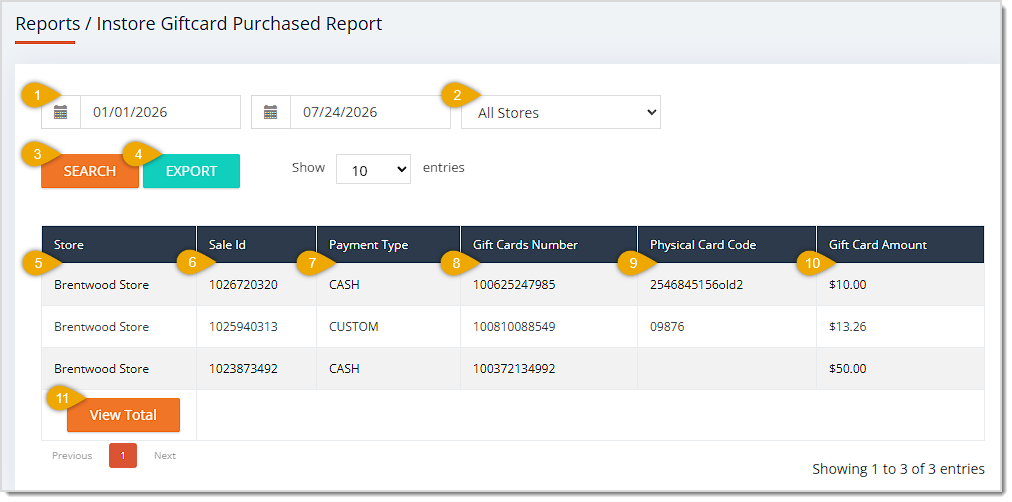
The Gift Card Purchased Report has the following functions:
- Date Range — Enter or select the Start Date and End Date of the range you want to search. This area defaults to today's date for Start Date and the following day for End Date.
- Store — This drop-list defaults to All Stores. Select an individual location to limit the results to Gift Card purchases made at that store.
- Search — Click the Search button after entering your filters to narrow down the table's records.
- Export — Click the Export button to download the table's data across all pages as a CSV file.
- Store — This column displays the Store location where you processed each Gift Card purchase.
- Sale ID — This column shows the internal Transaction ID associated with each Gift Card purchase.
- Payment Type — This column lists the payment method used to buy each Gift Card.
- Gift Card Number — This column displays the internal Gift Card number issued for each Gift Card.
- Physical Card Code — This column shows the Code printed on each physical Gift Card, when applicable.
- Gift Card Amount — This column lists the dollar amount loaded onto each Gift Card at the time of purchase.
- View Total — Click this button to see the sum of the Gift Card Amount column across data from all pages at the bottom of the table, as pictured below.

The Gift Card Redeemed Report
The Gift Card Redeemed Report lists every in-store transaction where a Gift Card was used as payment, filterable by date range and store, and searchable by keyword.
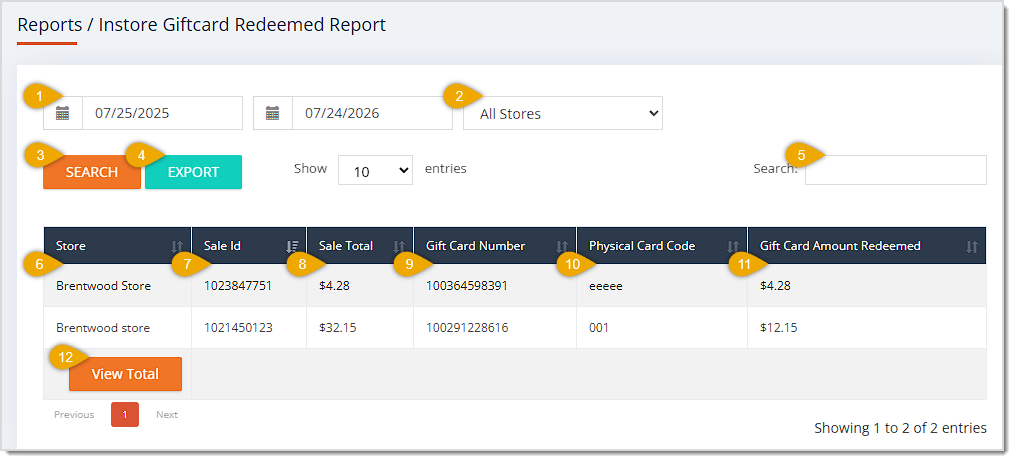
The Gift Card Redeemed Report has the following functions:
- Date Range — Enter or select the Start Date and End Date of the range you want to search. This area defaults to today's date for Start Date and the following day for End Date.
- Store — This drop-list defaults to All Stores. Select an individual location to limit the results to Gift Card redemptions made at that store.
- Search — Click the Search button after entering your filters to narrow down the table's records.
- Export — Click the Export button to download the table's data across all pages as a CSV file.
- Search Field — Enter search text into this field to filter the table by matching text found in the Store, Sale ID, Gift Card Number, or Physical Card Code columns.
- Store — This column displays the Store Name where each Gift Card was redeemed. Click on the header to sort the results according to this column, or click twice to reverse the sort.
- Sale ID — This column shows the unique internal Transaction ID in which each Gift Card was used as the payment method. Click on the header to sort the results according to this column, or click twice to reverse the sort.
- Sale Total — This column lists the Total Dollar Amount of the sale in which each Gift Card was used. Click on the header to sort the results according to this column, or click twice to reverse the sort.
- Gift Card Number — This column displays the internal Gift Card Number used for each payment. Click on the header to sort the results according to this column, or click twice to reverse the sort.
- Physical Card Code — This column shows the Code printed on each physical gift card, when applicable. Click on the header to sort the results according to this column, or click twice to reverse the sort.
- Gift Card Amount Redeemed — This column lists the Dollar Amount applied to the sale for each payment. Click on the header to sort the results according to this column, or click twice to reverse the sort.
- View Total — Click this button to see the sum of the Gift Card Amount Redeemed column across data from all pages at the bottom of the table, as pictured below.

The Gift Card Report
The Gift Card Report reconciles gift card activity across your stores, showing one summarized row per store for your selected date range.
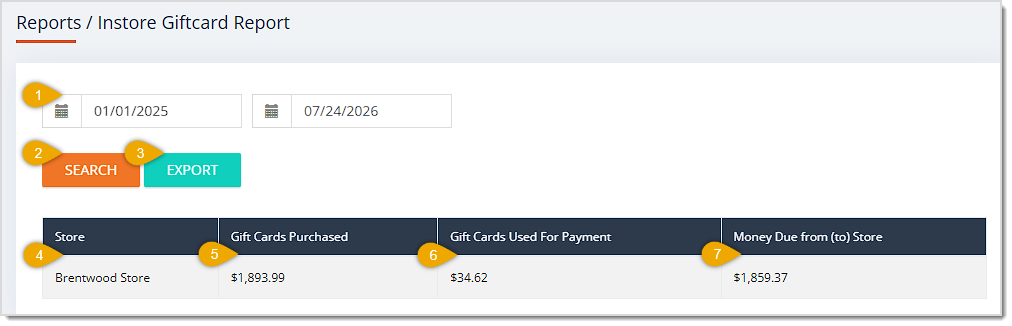
The Gift Card Report has the following functions:
- Date Range — Enter or select the Start Date and End Date of the range you want to reconcile. This area defaults to today's date for Start Date and the following day for End Date.
- Search — Click the Search button after entering your Date Range to refresh the table's records.
- Export — Click the Export button to download the table's data across all pages as a CSV file.
- Store — This column displays the Store Name of each location included in the reconciliation.
- Gift Cards Purchased — This column shows the total Dollar Amount of Gift Cards sold at each Store within the selected Date Range.
- Gift Cards Used For Payment — This column lists the total Dollar Amount of gift cards redeemed as payment at each Store within the selected Date Range.
- Money Due From / To Store — This column displays the net dollar amount owed between locations, based on the difference between the Gift Cards Purchased and Gift Cards Used For Payment columns for each store.
 Boss Quote
Make sure your human understands that keeping up with Gift Cards is important. There can be a big scary pile of liability after selling Gift Cards for years. No napping! At least not for your human, I'm going to nap for a while longer. Or a couple of whiles.
— Nubbins, Hazard, KY
Related Topics
Reports Overview
Customer Reports
Frequently Asked Questions
Q: Why doesn't the Gift Card Balance Report have a Date Range or Store field?
A: The Gift Card Balance Report is designed to show the current, real-time balance of every gift card across all stores at once, so it intentionally omits Date Range and Store fields. Use the text search box to find specific cards instead.
Q: How is the Gift Card Redeemed Report different from the Gift Card Purchased Report?
A: The Gift Card Redeemed Report tracks sales where a gift card was used as payment, showing the Sale Total and Gift Card Amount Redeemed, while the Gift Card Purchased Report tracks the original purchase of the gift card itself.
Q: Can I filter the Gift Card Report to see just one store?
A: No. The Gift Card Report is built for cross-store reconciliation, so it always lists every store together in one table for the selected Date Range rather than offering a Store field.
Q: I have a question, but I can't find my answer here. How do I get more assistance?
A: You can ask any question at the number listed here. Contact our support team at (323) 370-0738 for the U.S. and (888) 370-2363 for Canada.







 Jul 23, 2026
Is this page helpful?
×Help us improve our articles