💳 The Billing tab in the Settings area is where you can view your invoices from eTailPet, update payment details, and download statements. Billing is provided by StaxBill, so you have to be registered for their portal to connect your billing information to the eTailPet system. If you have not received registration information, contact billing@posinvoicing.com. See what you can do with your billing information!
Access the Billing Portal
Here is how to access the billing portal from the eTailPet system:
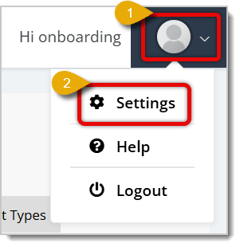
- Click on the User icon in the upper right corner of the page. This will open a menu.
- Click on Settings.
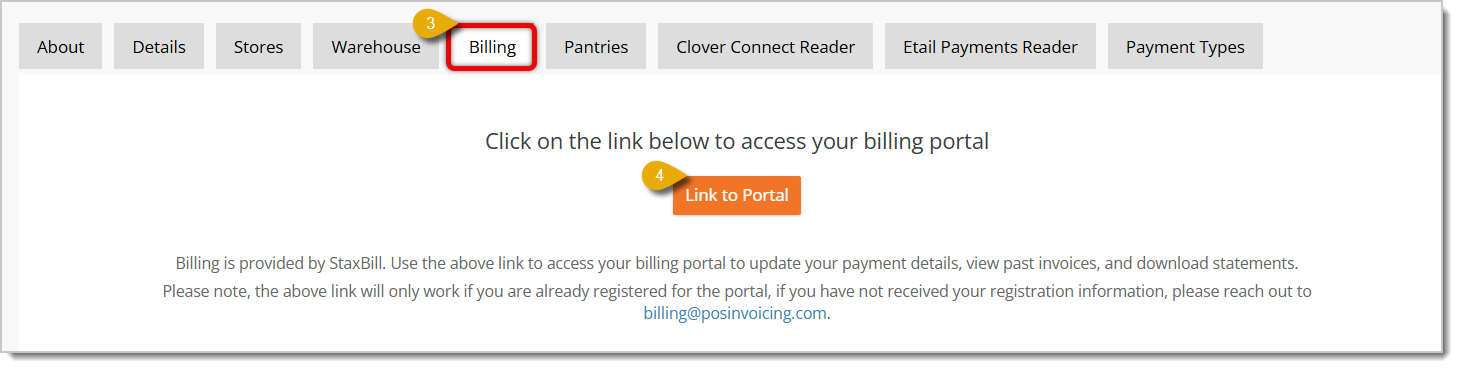
- Click on the Billing tab in the Settings area.
- Click on Link to Portal to access the billing portal.
- Enter your credentials and log into the portal.
Billing Portal Home Page
After you log into the Billing Portal, you'll see the portal's home page. Here is how to work with your Billing home page:
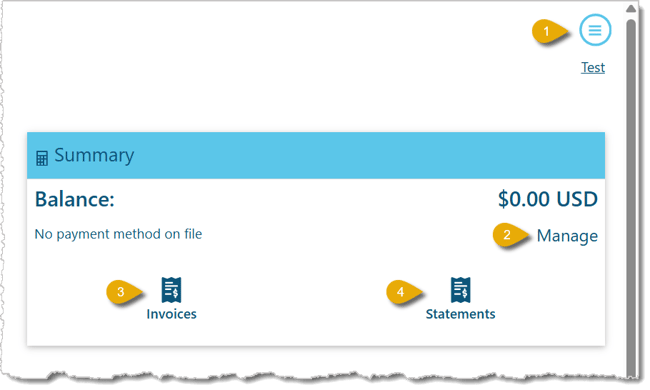
- Main Menu — Click on the Hamburger Stack icon in the upper right corner of the page to open the main menu. Options in the main menu include:
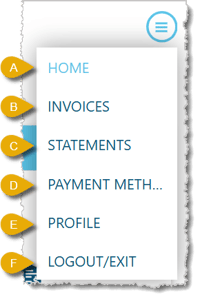
- Home — If you are on another page of the portal, click on Home to return to the home page.
- Invoices — Click on Invoices to view your past invoices. Click here to jump to the Invoices section of this article for more details.
- Statements — Click on Statements to view your billing statements. Click here to jump to the Statements section of this article for more details.
- Payment Methods — Click on Payment Methods to edit your payment methods for billing. Click here to jump to the Payment Methods section of this article to learn more.
- Profile — Click on Profile to edit your account information and addresses. Click here to jump to the Profile section of this article to learn more.
- Logout/Exit — Click on this to log out of the portal.
- Manage — Click on Manage to edit your payment methods for billing. Click here for the Payment Methods section to learn more.
- Invoices — Click on Invoices to view your past invoices. Click here for the Invoices section to learn more.
- Statements — Click on Statements to view your billing statements. Click here for the Statements section to learn more.
Invoices
Here is how to work with the Invoices page:
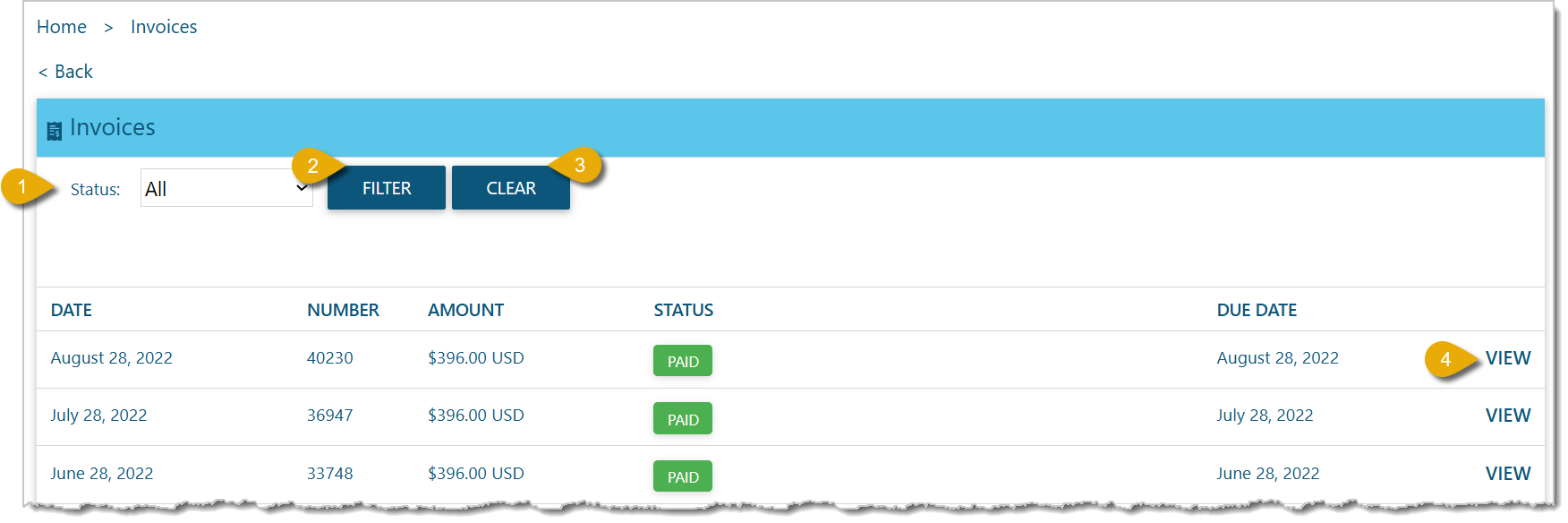
- Status Filter — Select a Status from the drop-list to filter the list of invoices. Statuses include All Outstanding, Overdue, Due Paid, Written Off, Disputed, and Void.
- Filter — After selecting a Status, click on the Filter button to update the invoices list.
- Clear — If you've applied a filter, click on Clear to remove the filter and see the full list of invoices again.
- View — Click on View in the same row as an invoice to view its details, which are explained below:
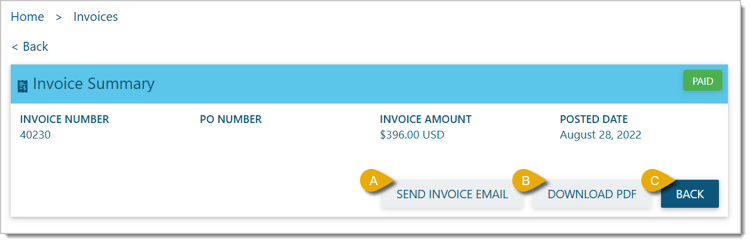
- Send Invoice Email — Click on this button to send a copy of the invoice to the email address associated with your account.
- Download PDF — Click on this button to download a copy of the invoice as a PDF file.
- Back — Click on this button to go back to the invoice list page.
Statements
Here is how to work with your Statements page:
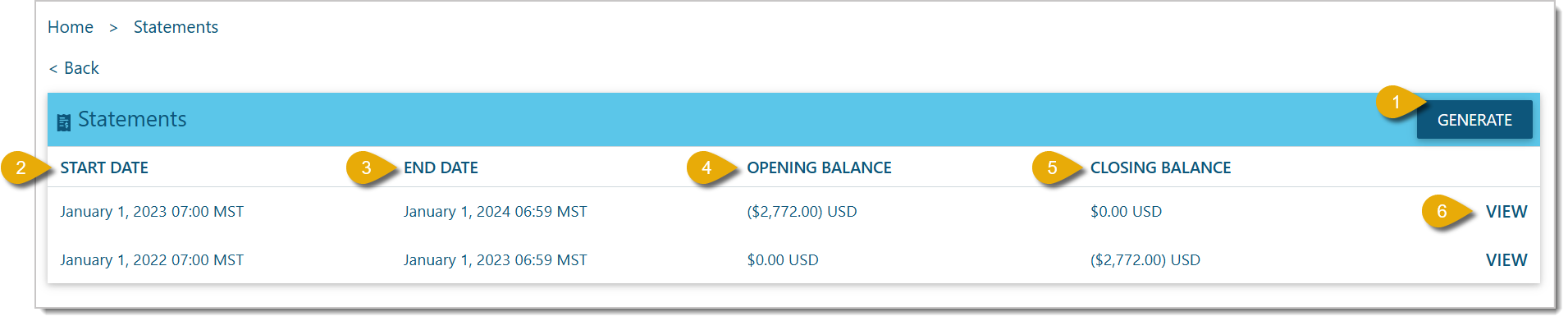
- Generate — Click on the Generate button to generate a statement for a specific time period or statement style. This will redirect you to the Generate Statement page, which is explained in the section below.
- Start Date — This column displays the start date of the billing statement's time period.
- End Date — This column displays the end date of the billing statement's time period.
- Opening Balance — This column shows the opening balance of the statement.
- Closing Balance — This column shows the closing balance of the statement.
- View — Click on View on the right of a statement to view its details.

- Send Statement Email — Click on this button to send a copy of the billing statement to the email address associated with your account.
- Download Statement PDF — Click on this button to download a copy of the statement as a PDF file.
- Back — Click on this button to go back to the statement list page.
Generate Statement Page

- Start Date — Enter a start date of the time period you want a statement for, or select a date by clicking on the Calendar icon.
- End Date — Enter an end date of the time period you want a statement for, or select a date by clicking on the Calendar icon.
- Statement Style — Select how you want the statement to be organized. The options are By Transaction, By Subscription, By Invoice, or Summarized.
- Back — Click on this button to go back to the Statements list page.
- Generate — Click on the Generate button to generate your statement. The generated Statement will include the following options:

- Send Statement Email — Click on this button to send a copy of the billing statement to the email address associated with your account.
- Download Statement PDF — Click on this button to download a copy of the statement as a PDF file.
- Back — Click on this button to go back to the statement list page.
Payment Methods
On the Payment Methods page, you'll see any credit cards you have previously saved. If you have multiple Payment Methods saved, you can Edit one and set it to be your Default Payment Method. You can also delete Payment Methods as long as you have a Default selected in addition to the one you are deleting.
You can add or edit credit card details for your eTailPet billing. Click on the Add button in the upper right corner of the table to add a payment method.
Here is how to Add / Edit a Credit Card:
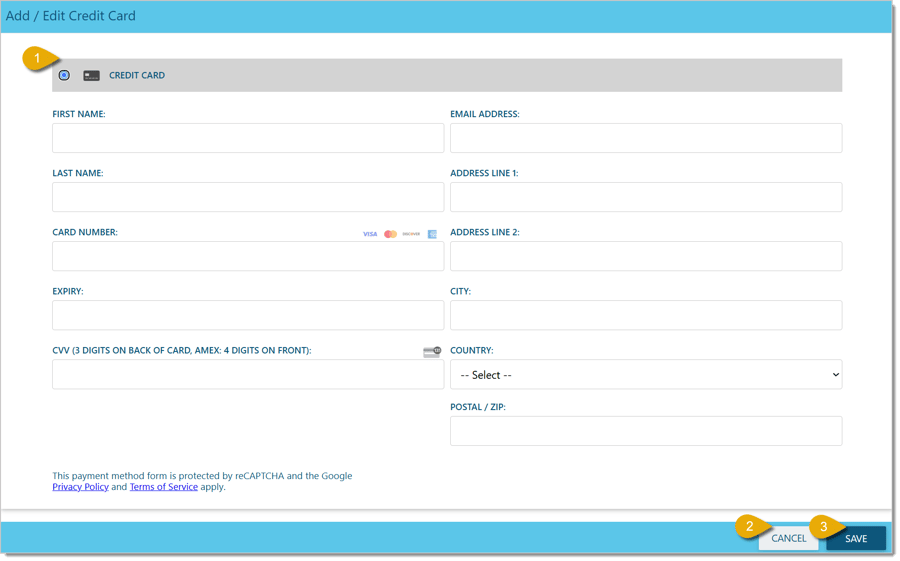
- Credit Card Information — All fields except for Address Line 2 are required. Enter the details for the credit card that will be added to your Payment Methods: Fields include First Name, Last Name, Card Number, Expiry Date, CVV, Email Address, Address Line 1, Address Line 2, City, Country, and Postal / ZIP Code.
- Cancel — Click on the Cancel button to discard your changes and go back to the Payment Methods page.
- Save — Click on the Save button to add the card to your payment methods.
Profile
The Profile page is where you can edit your billing portal account details and addresses. Here is what you can do:

- Edit (Profile) — Click on this button to edit profile details. More details about this page are in the Edit Profile section below.
- Change Password — Click on this button to change the account's password.
- Edit (Address) — Click on this button to edit the Billing Address and/or the Shipping Address.
Edit Profile
Here is how to work with the Edit Profile page:
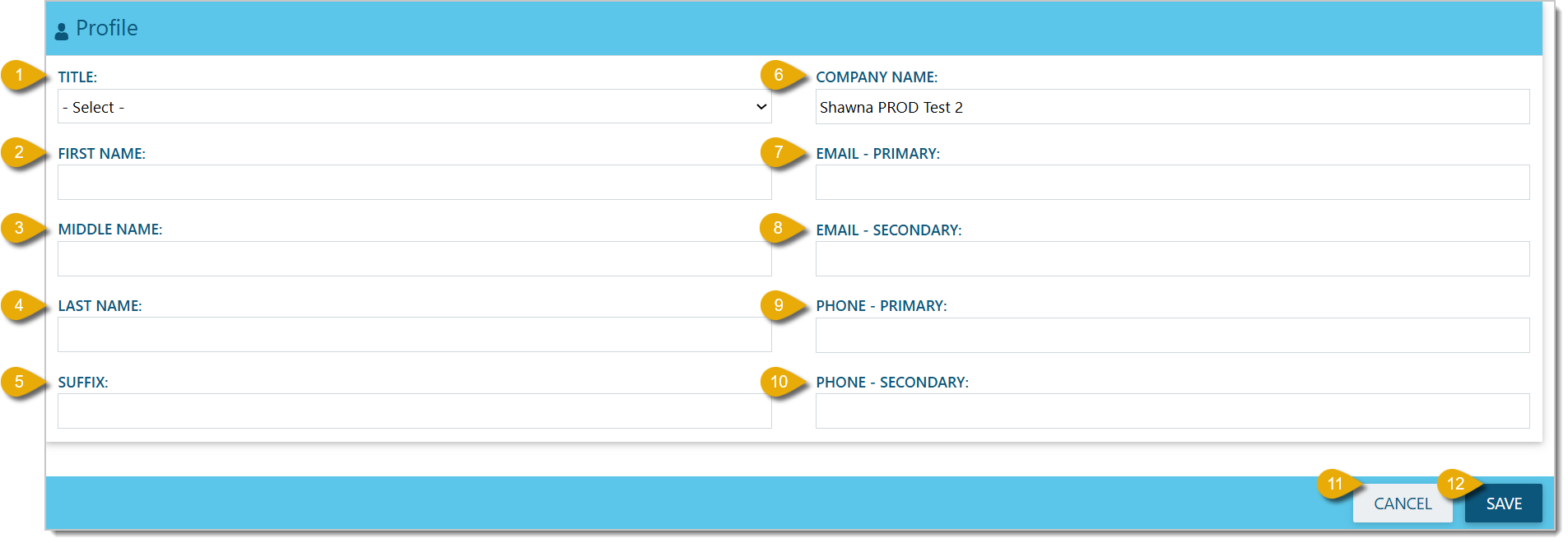
- Title — Select a title, such as Dr. or Mrs., for the profile owner from the drop-list.
- First Name — Enter your first name.
- Middle Name — Enter your middle name.
- Last Name — Enter your last name.
- Suffix — Enter the suffix for your name.
- Company Name — Enter the name of your company.
- Email - Primary — Enter the email address that will act as the primary point of contact.
- Email - Secondary — Enter the secondary email address for contact.
- Phone - Primary — Enter the phone number that will be the primary point of contact.
- Phone - Secondary — Enter the secondary phone number for contact information.
Change Password
Here is how to change your password:
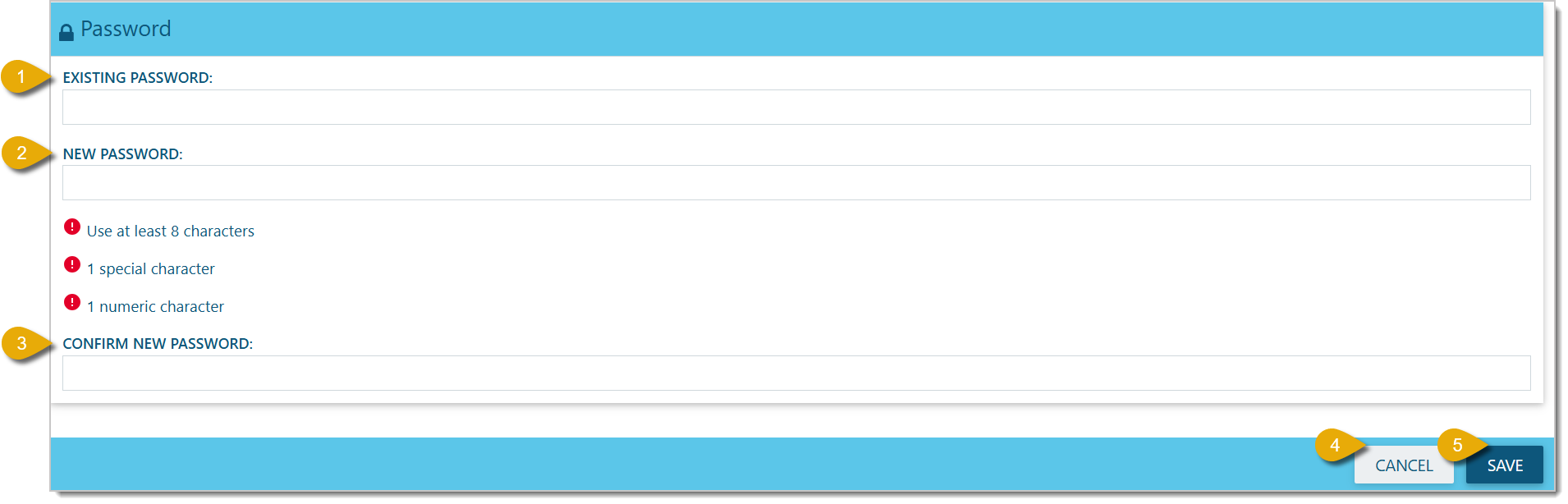
- Enter the existing password.
- Enter your new password. The new password requires at least 8 characters, 1 special character, and 1 numeral.
- Reenter your new password, making sure it matches the new one you just entered.
- If you don't want to change your password, click on Cancel to go back without saving.
- Click on Save to update your password.
Edit Address
Here is how you edit your Billing and Shipping Addresses:
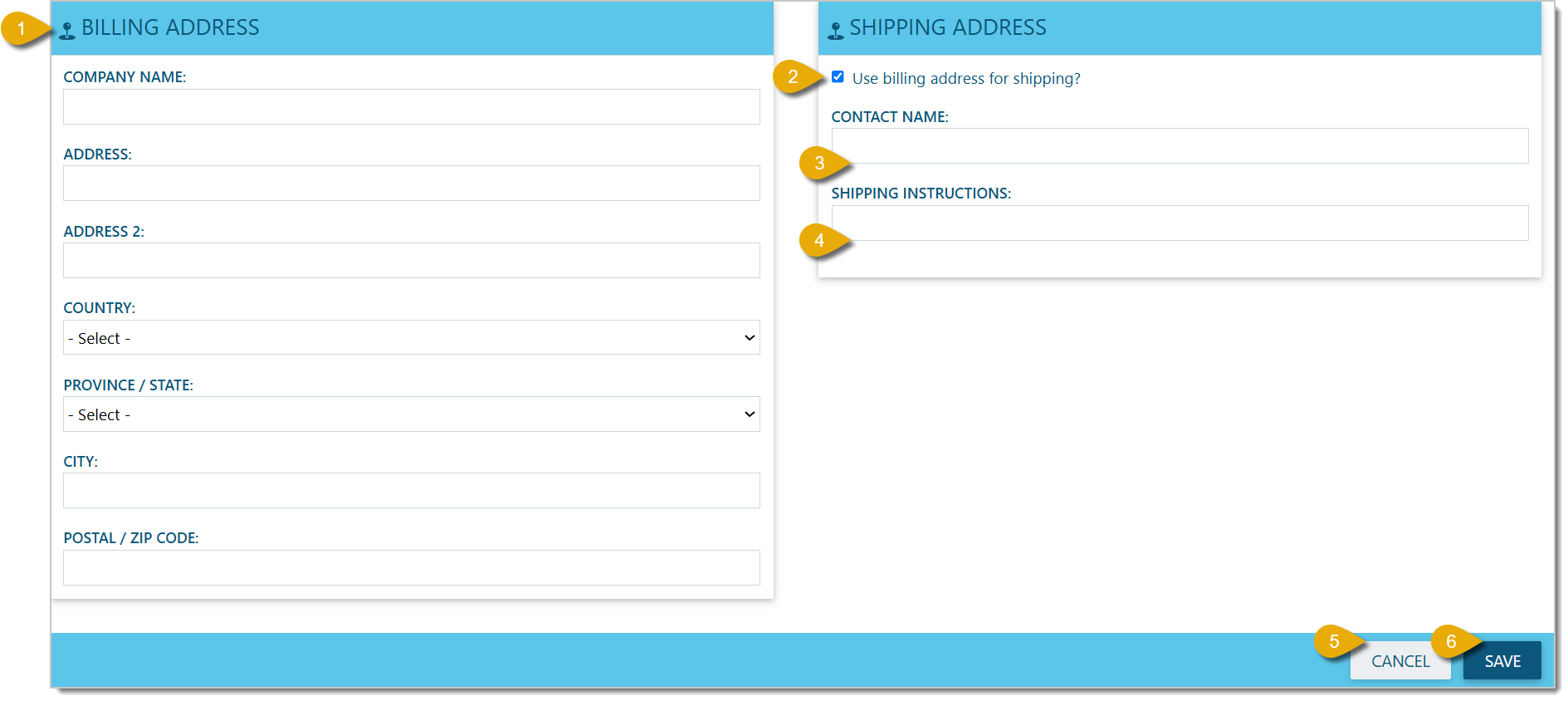
- Enter the billing address information under the Billing Address section. Enter the Company Name, Address, Address 2, Country, Province/State, City, and Postal / ZIP Code.
- Under Shipping Address, you can check the box for Use billing address for shipping? to have the shipping address match the billing address. Uncheck this box if you want to enter a different shipping address, then enter address details here as you did for the Billing Address section.
- Enter the Contact Name.
- Enter any Shipping Instructions, if needed.
- Click on Cancel to discard your changes and go back to the previous page.
- Click on Save to update your address information.
Related Topics
Settings: About User Tab
Settings: Details Tab
Settings: Stores Tab
Settings: Warehouse Tab
Settings: Pantries Tab
Settings: Payment Types Tab
Frequently Asked Questions
Q: How do I get access to the billing portal?
A: You need to register with StaxBill first. If you haven't received registration information, contact billing@posinvoicing.com.
Q: Can I delete all my saved payment methods?
A: No. You need to keep a Default Payment Method selected before you can delete any of the others.
Q: What information do I need to add a new credit card?
A: Everything except Address Line 2 is required: First Name, Last Name, Card Number, Expiry Date, CVV, Email Address, Address Line 1, City, Country, and Postal / ZIP Code.
Q: Can I download my invoices and statements as PDFs?
A: Yes. Open an invoice or statement and click Download PDF (or Download Statement PDF) to save a copy.
Q: Does my shipping address have to match my billing address?
A: No. Uncheck Use billing address for shipping? under Shipping Address to enter a different one.
Q: What are the password requirements if I need to change mine?
A: Your new password needs at least 8 characters, 1 special character, and 1 numeral.
Q: I have a question, but I can't find my answer here. How do I get more assistance?
A: You can ask any question at the number listed here. Contact our support team at (323) 370-0738 for the U.S. and (888) 370-2363 for Canada.







 Aug 06, 2026
Is this page helpful?
×Help us improve our articles