📭 With the eTailPet system, customers can opt in to auto-ordering so that they don't have to worry about remembering necessary orders, and your store gets a regular source of revenue. This article will cover auto-order set up, edits, cancellations, and payment processing. Read on to see everything you can do with auto-orders!

Enable Auto-Orders
You will first have to enable Auto-Orders for your stores so that customers have the option. Note that if you're handling multiple stores, you will have to enable auto-orders for each one you need. Here's how to enable auto-orders:
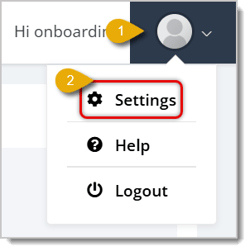
- Click on your profile picture in the upper right corner of the page to open account options.
- Click on Settings.
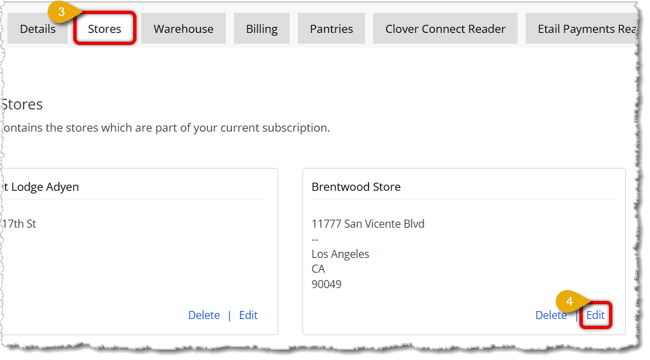
- In the Settings area, click on the Stores tab. You'll see all of your stores listed.
- In the bottom-right of a box showing a store's name and address, click on Edit. This will open a form where you can edit the store's details.
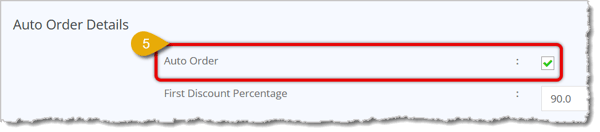
- Scroll down to Auto Order Details and check the box for Auto Order. This will enable your store to accept auto-orders.
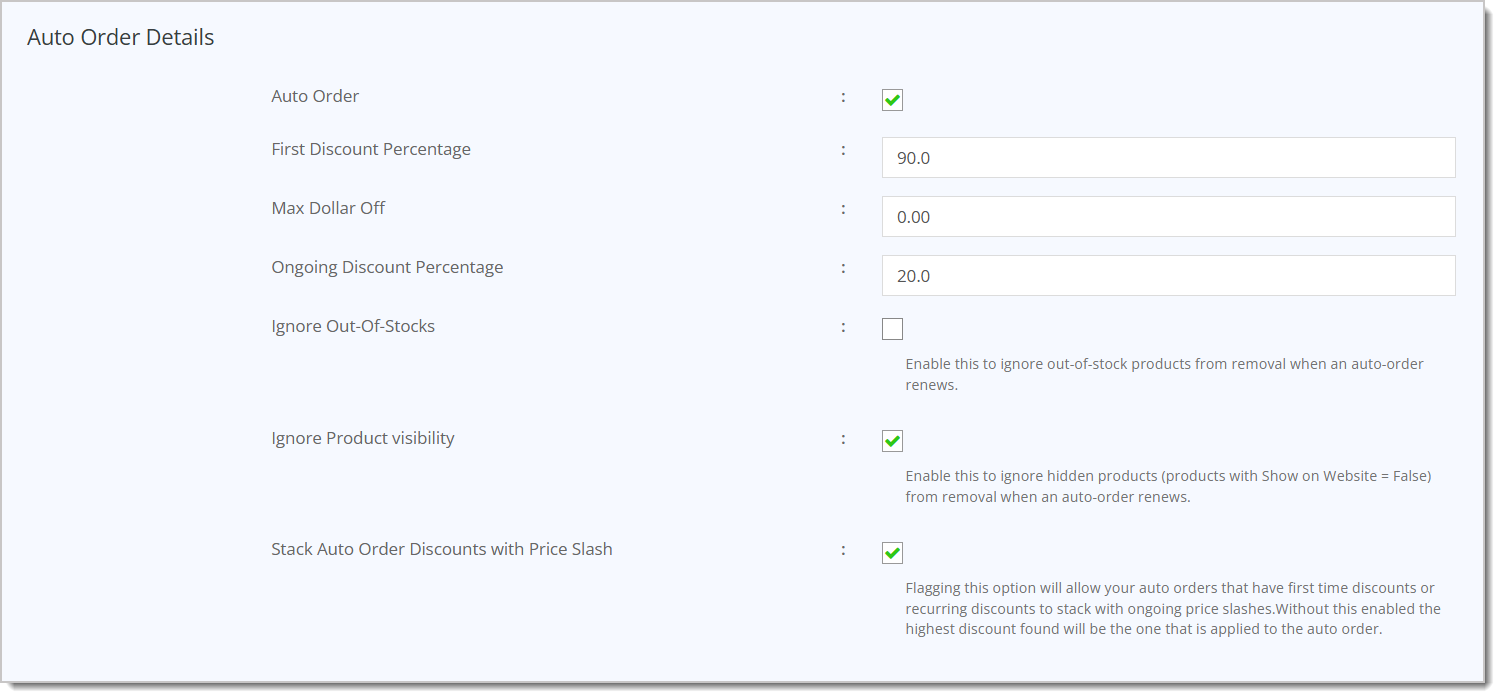
- Under the checkbox are more setup options for Auto-Orders. Here is everything you can configure:
- First Discount Percentage — Enter the percentage you would like to discount from a customer's first auto-order. Please Note: Auto-Order discounts can be set to 0%. This allows your customers to order on a recurring basis without a discount.
- Max Dollar Off — Enter the maximum dollar amount that the discount can be for the first auto-order, if any.
- Ongoing Discount Percentage — Enter the percentage you would like to discount from ongoing auto-orders after the first. Please Note: Auto-order discounts can be set to 0%. This allows your customers to order on a recurring basis without a discount.
- Ignore Out-Of-Stocks — If this box is checked, an auto-order at the store will continue to be processed even if its products are out of stock on your e-commerce site.
- Ignore Product Visibility — If this box is checked, an auto-order at the store will continue to be processed for products that do not appear on your e-commerce website, meaning products that have been marked False for Show On Website.
- Stack Auto Order Discounts with Price Slash — If this box is checked, auto-orders can stack the first-time discount or ongoing discount with applicable price slashes. If this is not checked, only the highest discount that will apply to the auto-order.
- In either the top-right or bottom-right of the page, click on Save.

Edit Auto-Orders
If your admin login Role has permissions to do so, you can edit Auto-Orders on behalf of customers if they request changes (note that customers can modify auto-orders on their own as well). This section covers how to change order quantities, frequency, products, card information, and shipping address, as well how to cancel an Auto-Order.
Here is how to manage and edit Auto-Orders from the Admin:
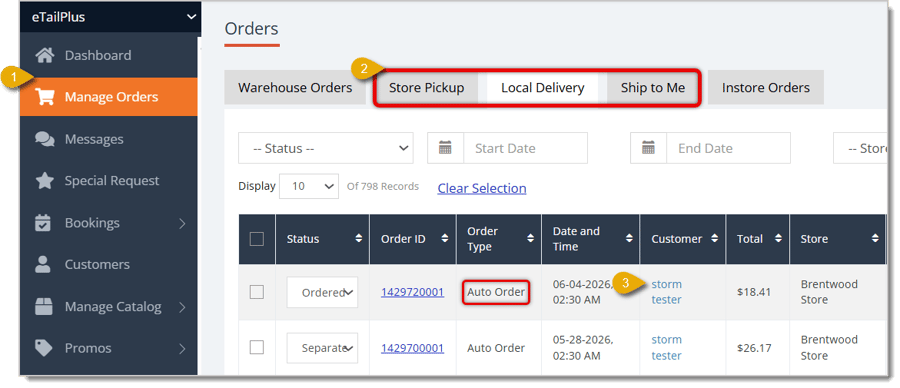
- Go to Manage Orders in the eTailPet main menu.
- Click on the Store Pickup, Local Delivery, or Ship to Me tab to view some of your Auto-Orders. Check if it's an Auto-Order by looking under the Order Type column.
- Click on the Customer name of the corresponding Auto-Order. This will direct you to their profile.
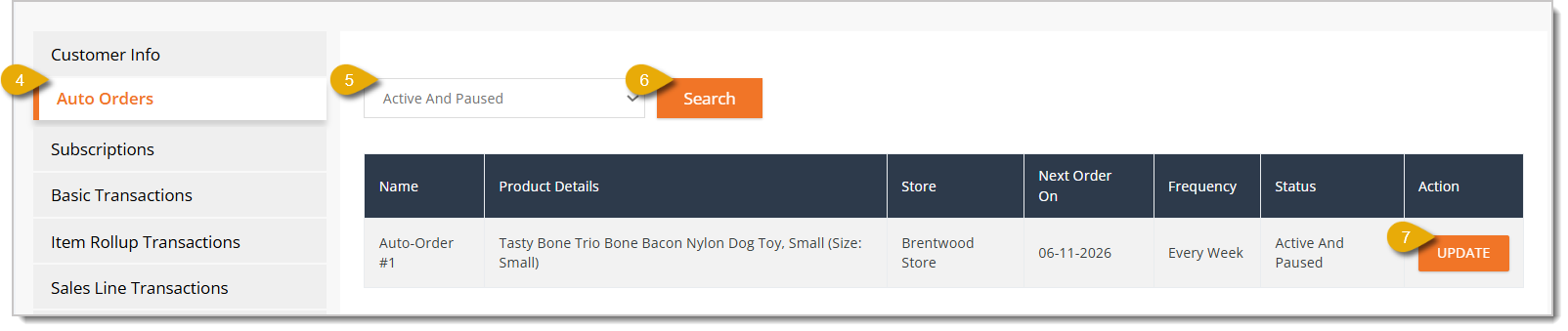
- Click on the Auto Orders tab on the left-side panel.
- You can filter the customer's Auto-Orders according to status: Active, Active and Paused, Inactive, Inactive and Paused, or Canceled.
- Click on Search after selecting a status filter to find matching results.
- When you find the Auto-Order you want to edit, click on the Update button on the far right of it. This will direct you to a form where you can edit the order's details.
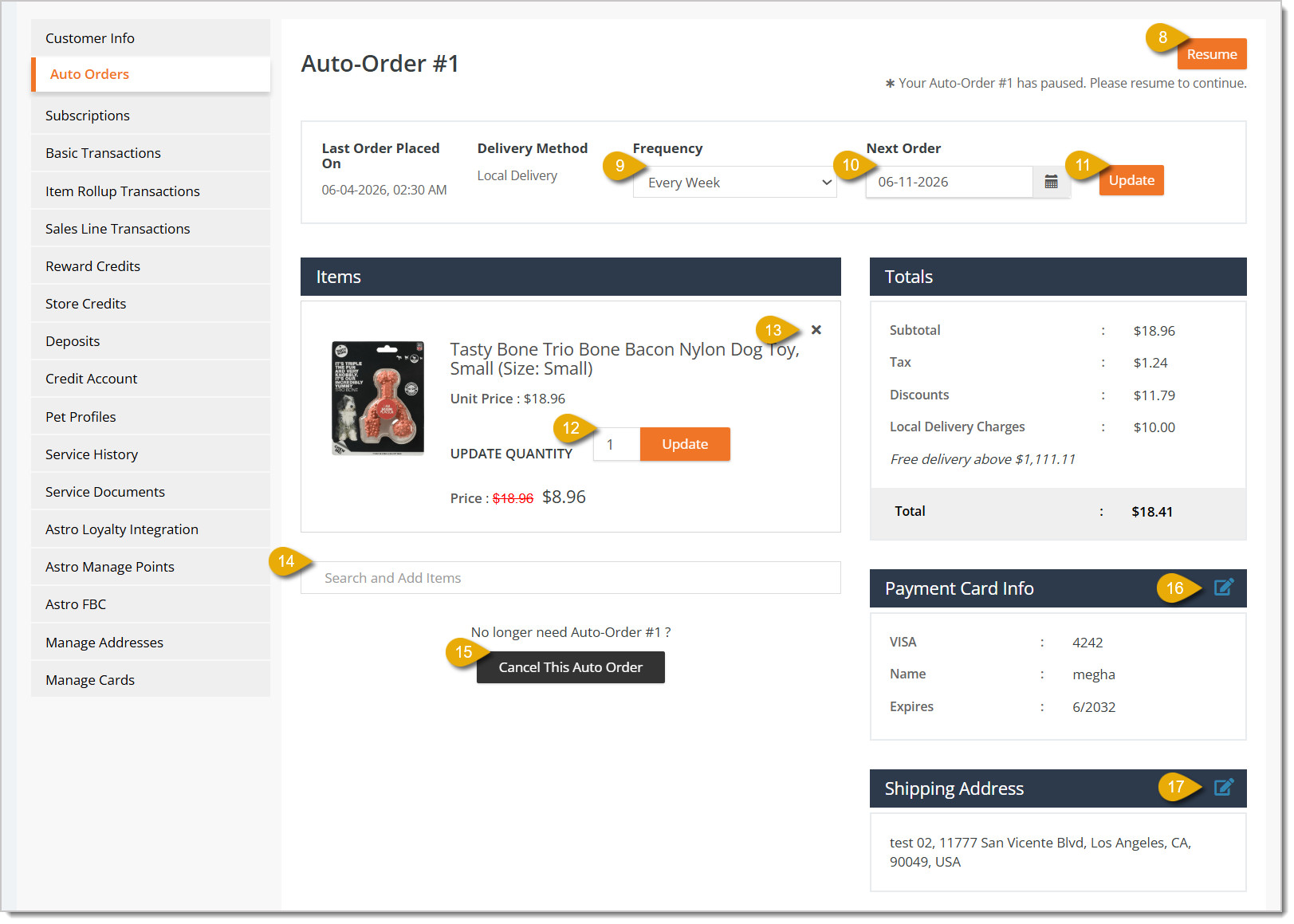
- If the Auto-Order has been paused, click on Resume in the upper right to continue the order.
- Edit the Frequency of the order by selecting it in the drop-list.
- You can edit the Next Order date by selecting one from the calendar.
- Click on Update to update the order's frequency or date of the next order.
- You can edit the Quantity of a product in the order by entering its new quantity and clicking Update.
- You can remove an item from the Auto-Order by clicking on the X in the upper right of an item's entry.
- If you want to add items to the Auto-Order, you can Search and Add Items. Enter the item name to find matching results and click on it in the drop-list.
- You can cancel the Auto-Order by clicking on Cancel This Auto Order.
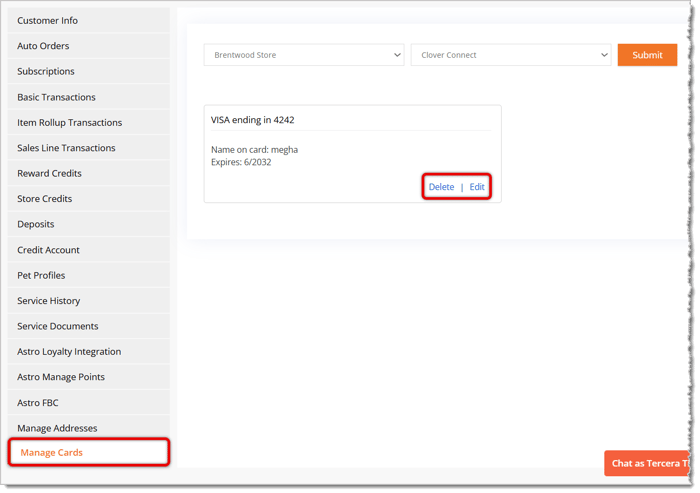
- You can view which card will be used to pay for the Auto-Order in the Payment Card Info section of an Auto-Order. Note that if you click on the Pencil Icon, this will only allow you to select another card that is already on file, but not edit the card information. To edit the card information, go to Manage Cards tab > Delete or Edit.
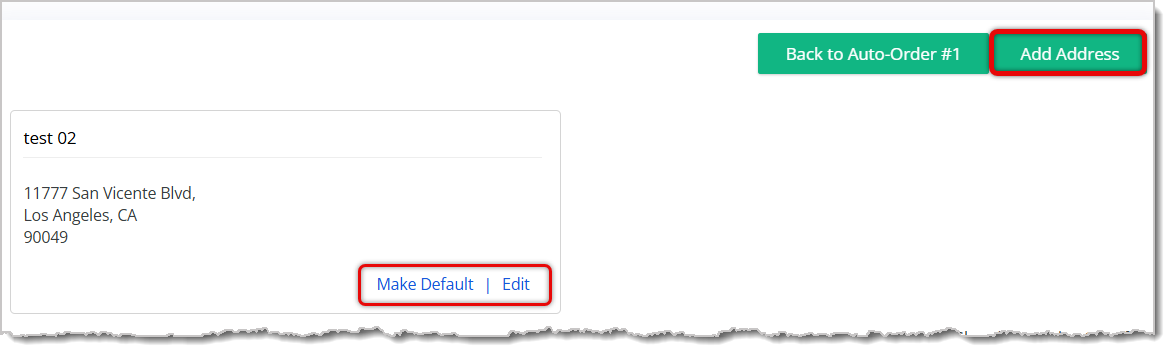
- You can view the shipping address that the auto-order will get sent to card in the Shipping Address section. To edit the address, click on the Pencil Icon. Here are important functions in the address editing form:
- Make Default — In an address entry, click on this to make it the default address that will receive the Auto-Order delivery.
- Edit — Click on Edit to update the shipping address for the Auto-Order.
- Add Address — Click on this in the upper right to add another shipping address.
Related Topics
In-Store Orders
Store Pickup
Local Delivery
Ship to Me
Frequently Asked Questions
Q: Can customers edit their auto-orders on their own?
A: Yes. As long as a customer has an online account with your e-commerce website, they are able to modify their auto-order frequency, items, address, quantities, and card payment information.
Q: What auto-order frequencies are available to customers?
A: Customers can choose essentially any frequency from every 1 to 16 weeks. They can also select from every 5 to 8 months.
Q: How can I edit a customer's card information for an auto-order?
A: You can view which card will be used to pay for the auto-order in the Payment Card Info section of an auto-order. Note that if you click on the Pencil Icon, this will only allow you to select another card that is already on file, but not edit the card information. To edit the card information, go to Manage Cards tab > Delete or Edit.
Q: I have a question, but I can't find my answer here. How do I get more assistance?
A: You can ask any question at the number listed here. Contact our support team at (323) 370-0738 for the U.S. and (888) 370-2363 for Canada.







 Jul 13, 2026
Is this page helpful?
×Help us improve our articles