






Export Products
In the eTailPet system, you can easily export your product data as a CSV or XLSX file. If you want t
 May 29, 2026
Expiries is a feature of the eTailPet POS that allows you to discount products that are close to expiring. It is a special type of item write-off that you create before the item expires. In this way, you can sell remaining quantity at a discount, and any items that were not sold by the expiration date will automatically be written off.
To create an Expiry for an item, you will start by creating a special kind of Item Write-Off. This will convert the existing Quantity on Hand (QOH) that is about to expire to a new item in your Private catalog. This item will only be available to sell at the location where it was created and cannot be sold online. During setup, you can add a discounted Retail Price for the item. The POS keeps track of how many are available and how many are sold. When the expiration date arrives, the system will automatically write off any remaining QOH.
Please Note: Expiry items are not available for sale online.
You can create Expiry items whenever your items get close to their expiration date. Here is how to create an Expiry:
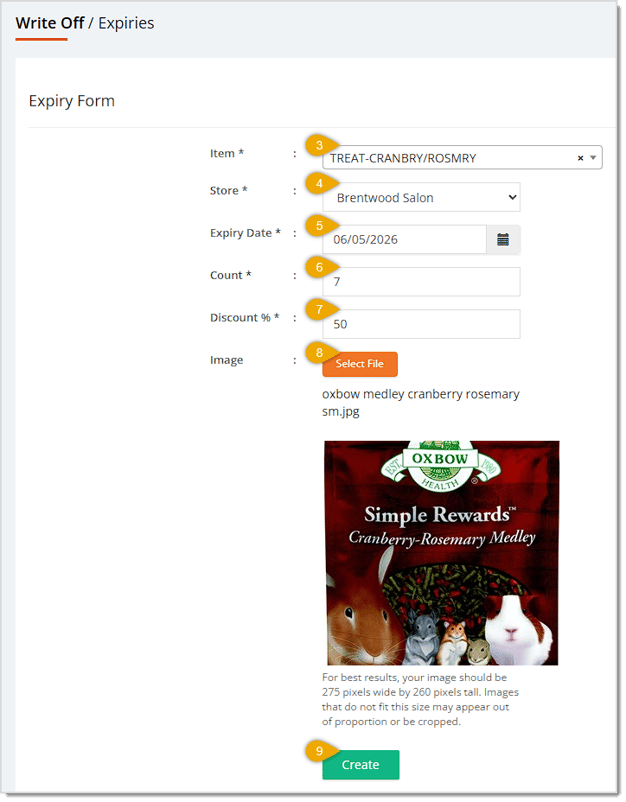
*Required item.
The new Product ID is in the upper left. You won't be able to use the UPC to look up the Expiry product.
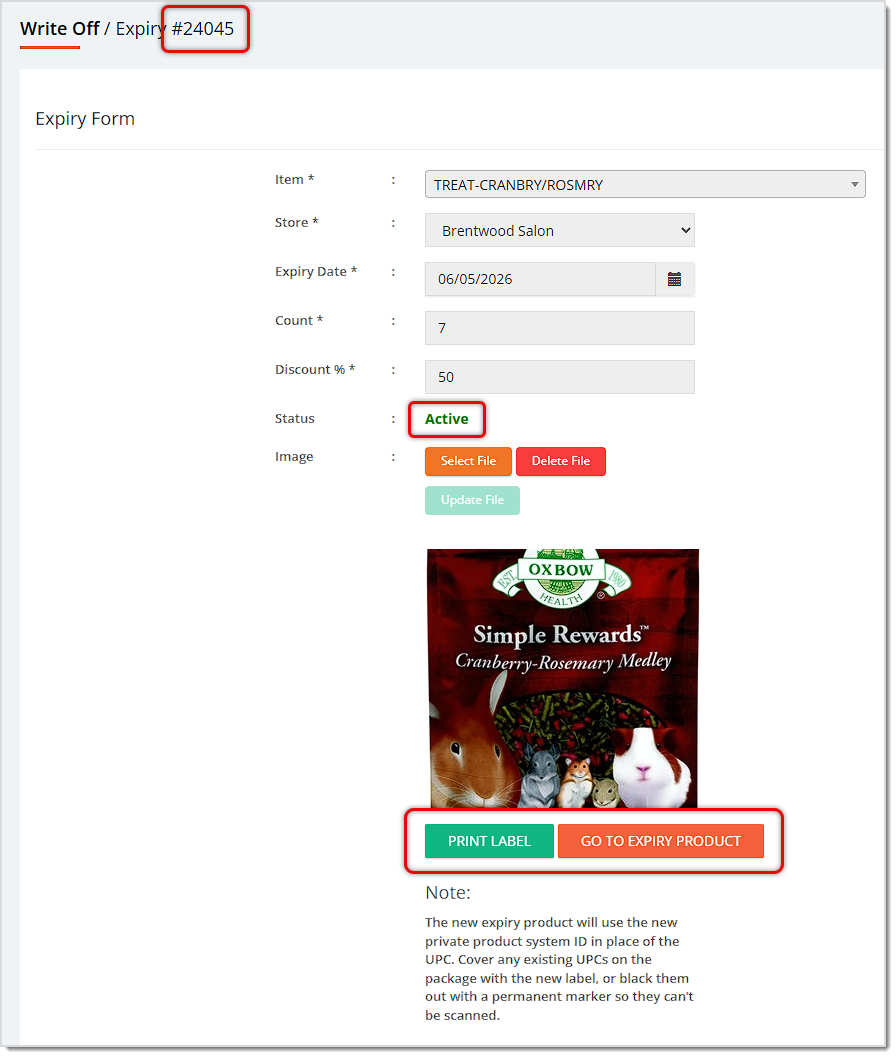
⚠️Important Note: The new expiry product will use the new Private Product system ID in place of the UPC. Cover any existing UPCs on the package with the new label, or black them out with a permanent marker so they can’t be scanned.
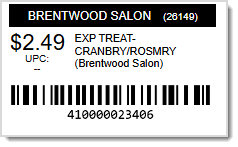
Print Label — Once you’ve submitted the expiry write-off, you've created a new Private Product. You will need to print a label using the Print Label button for each of the QOH you added. The new label will be scanned instead of the UPC so that you can apply the discount in the sales cart and also track the sales of the items in reporting. After you print the labels, be sure to place them over any existing UPC so that it isn’t accidentally scanned. Be sure to cover all existing UPCs with the new label or permanent marker. Here is what the label for the above Expiry product example looks like:
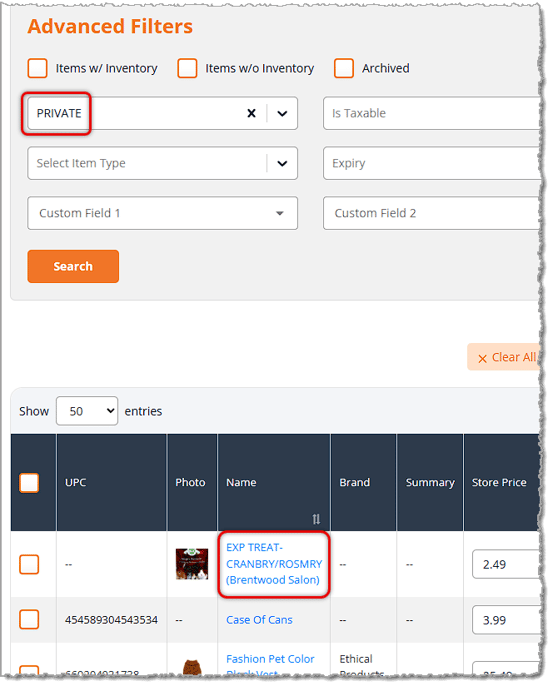
Viewing an Expiry Product — Expiry products are added to the private catalog with EXP added to the original description. To view them in the catalog, you can click the Go To Expiry Product button pictured above.
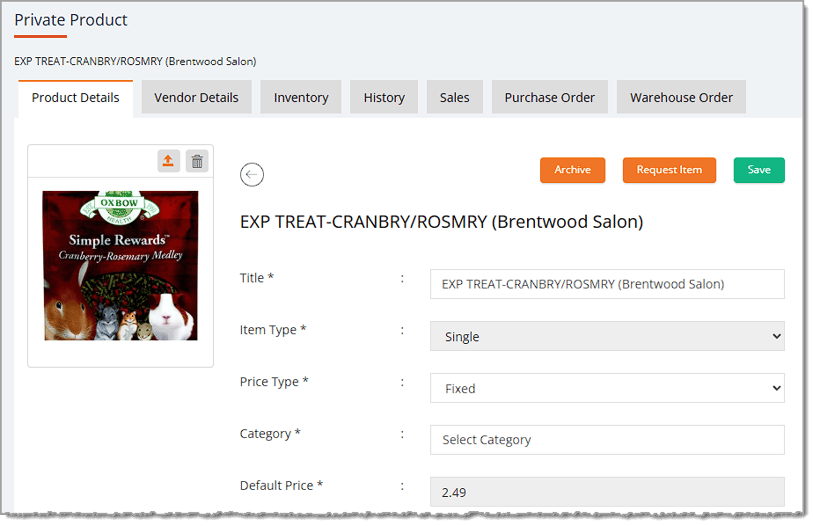
The product will have EXP at the beginning of the title, and (Store Name) at the end of the title. This makes it easier to identify expiry items in the cart. Also, it is easy to see which store the expiry belongs to in the private catalog, since all stores can see all private products. However, Expiry products will only be available for sale in the store where they were created. The private item will have all of the same attributes as the original item. For example, if the item is fractional, it will be a Fractional item.
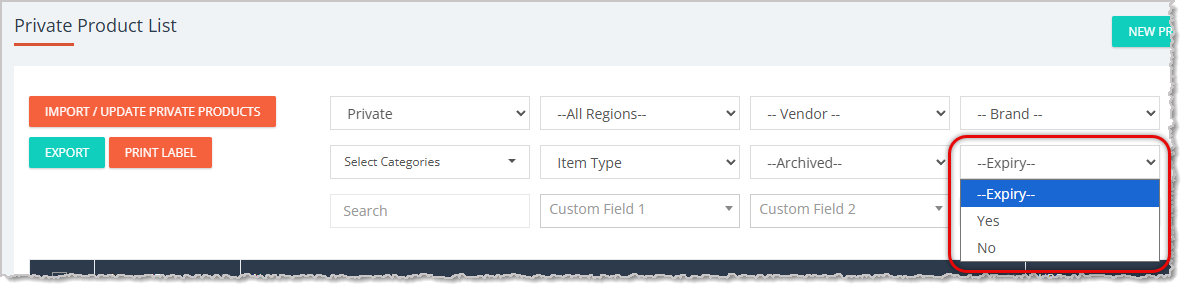
From the Private Product catalog page, you can use the Expiry drop-list to view all Expiry items, or to exclude them from your search, as pictured above.
There are two areas in the system to look up your Expiry items and see how they're selling: the Expiries tab of the Item Write-Off page, and the Item Write-Off and Adjustments Report.
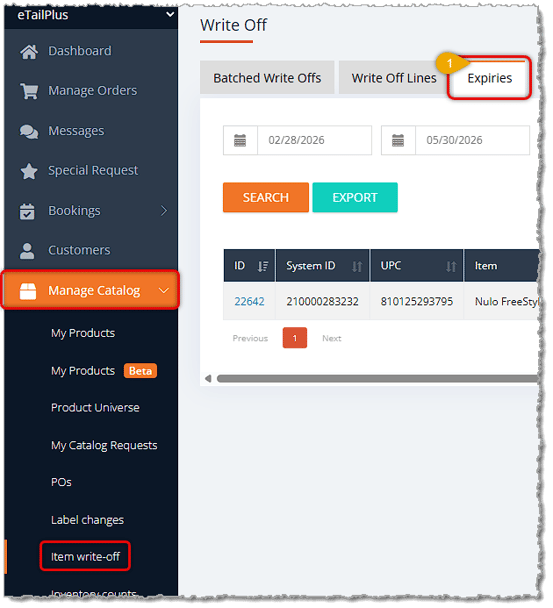
To view the Expiries tab, go to Manage Catalog > Item Write-Off and click on the Expiries tab.
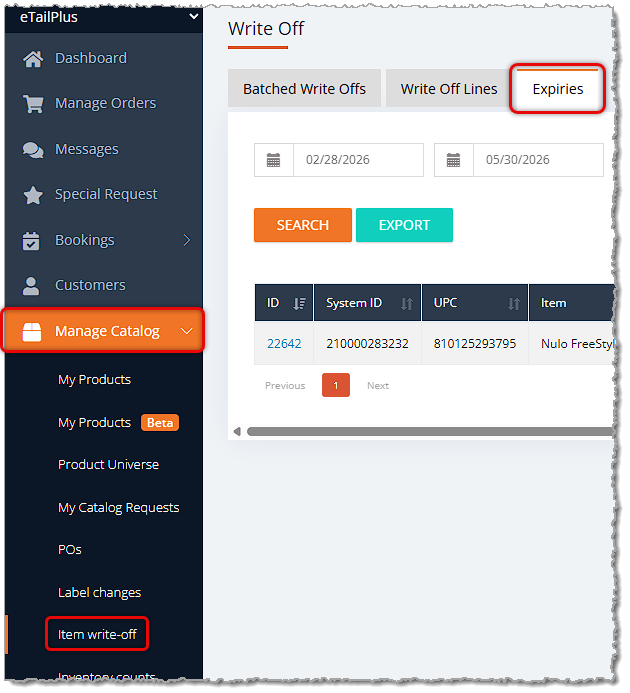
You can filter the list by date range, store, or status. This allows you to quickly see how many have been sold vs. how many expired. Additionally, you can export your filtered list to a spreadsheet.
You can also view your expiry items in the Item Write Off and Adjustments Report. You can get to this report in the main system menu under Reports in the Inventory section.
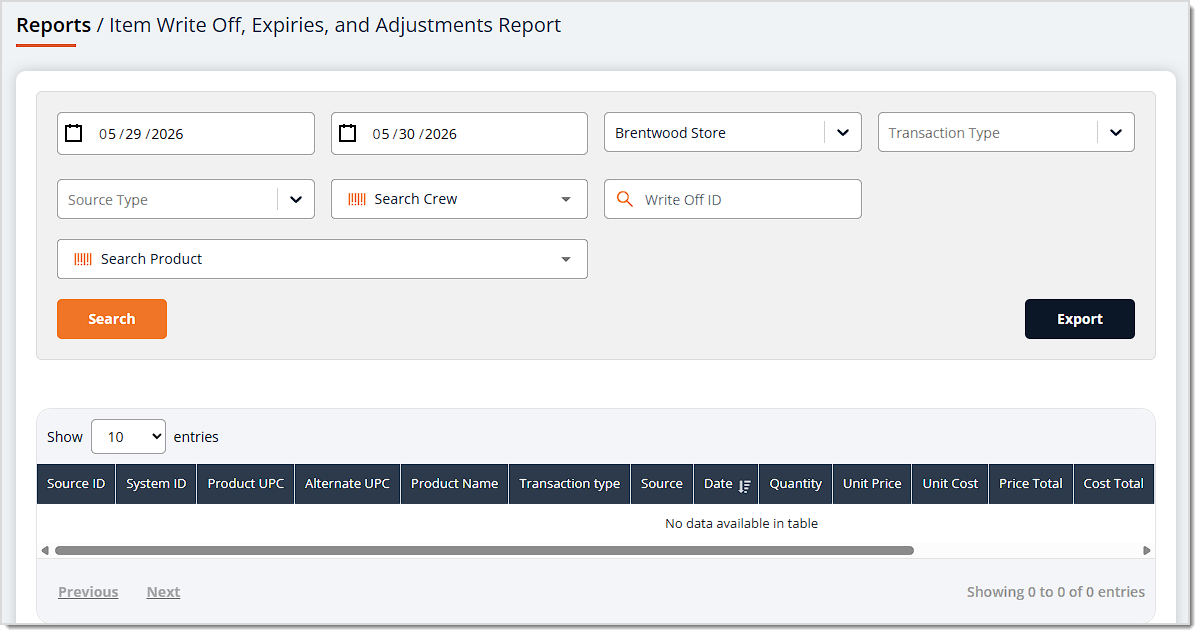
You can filter by Date, Store, Transaction Type (the Expiry types include Expiry Add, Expiry Out, and Expiry Write Off), Source Type (the Expiry types include Expiry and Write Off), Crew, Write Off ID, and Product Search.
Boss Quote
Encourage your human to create Expiry items for anything that hasn't sold out and is approaching its expiration date. Their customers love a bargain, just like anyone. Almost as much as I like being scratched behind the ears. Get to work, human!
— Sherman, Evanston, WY
Q: What is an Expiry, and how does it work?
A: Expiries is a feature that lets you discount products that are close to expiring. It's a special type of item write-off that you create before the item expires. It converts the Quantity on Hand (QOH) that is about to expire to a new item in your Private catalog, and you can set a discounted Retail Price for it. The POS keeps track of how many are available and how many are sold. When the expiration date arrives, the system automatically writes off any remaining QOH.
Q: How do I create an Expiry?
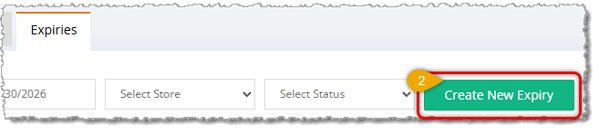
A: Go to Manage Catalog > Item Write-Off, click the Expiries tab, and click the Create New Expiry button on the right. On the Expiry Form page, scan the UPC or enter keywords in the Item field to find the item. Then set the Store, Expiry Date, Count of unsold Quantity on Hand, and Discount. All fields on the form are required except Image. Click the Create button to add the Expiry item to your Private Product catalog. You'll see a success message in the upper right.
Q: Can I edit an Expiry after I create it?
A: Not really. Once you submit the expiry form, a new private product is created and you can no longer edit the expiry details, except for the image. Make sure everything is correct before you click Create. The Image is optional and just for your internal reference. If you add one, crop it to exactly 275px tall x 260px wide, or it will be stretched or squashed.
Q: What do I do with labels and the original UPC on Expiry items?
A: Use the Print Label button to print a label for each of the QOH you added. The new label is scanned instead of the UPC, so you can apply the discount in the sales cart and track sales in reporting. The new Expiry product uses the new Private Product system ID in place of the UPC, so you can't use the UPC to look it up. Place each new label over any existing UPC, or black out the UPC with a permanent marker, so it isn't accidentally scanned.
Q: How do I find an Expiry product in the catalog?
A: Expiry products have EXP at the beginning of the title and (Store Name) at the end. To open one right after you create it, click the Go To Expiry Product button. From the Private Product catalog page, you can also use the Expiry dropdown to view all Expiry items or exclude them from your search.
Q: Can I sell Expiry items online or at my other stores?
A: No. Expiry items are not available for sale online, and Expiry products are only available for sale in the store where they were created. All stores can see all private products, which is why the store name is at the end of the title.
Q: How can I see how my Expiry items are selling?
A: There are two places. On the Expiries tab of Manage Catalog > Item Write-Off, you can filter by date range, store, or status to see how many were sold versus how many expired, and export your filtered list to a spreadsheet. You can also use the Item Write Off and Adjustments Report, which is under Reports in the Inventory section of the main system menu. It has filters for Date, Store, Transaction Type, Source Type, Crew, Write Off ID, and Product Search.
Q: I have a question, but I can't find my answer here. How do I get more assistance?
A: You can ask any question at the number listed here. Contact our support team at: (323) 370-0738 for the U.S., and (888) 370-2363 for Canada.
Q: I have a question, but I can't find my answer here. How do I get more assistance?
A: You can ask any question at the number listed here. Contact our support team at: (323) 370-0738 for the U.S., and (888) 370-2363 for Canada.
Is this page helpful?
×Help us improve our articles