






Holding and Resuming Transactions
Sometimes you have to put transactions on hold so the customer can come back later to complete it. T
 May 21, 2026
Throughout your workday as a sales associate, you will occasionally need to either add or pay out cash from the drawer. These functions are under the Register area of the Admin Dashboard main menu, and this article details them for you. See how to work with cash in the system!
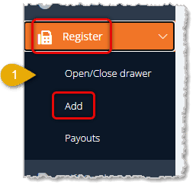
As you work through your shift, you'll occasionally have reason to open the cash drawer. For example, you might need to pay your window washer cash from the drawer, you might have extra cash you need to withdraw for security reasons, or you might need to swap cash of one type for a bill or coin denomination that's running short. For these operations, you'll go to the Register area of the main system menu on the left. Here is how to do cash operations in the Register:
If you are swapping out cash in equal amounts (e.g. if you need more $1 bills, take out one $20 bill, and add twenty $1 bills), you won’t need to record anything.
For example, you might be running low on quarters. Your manager gives you a roll of quarters for the drawer (40 quarters = $10), you go to Register, click Add, enter your PIN, then click Open Drawer and print the blank receipt. You take out two $5 bills and empty the roll of quarters into the tray and then give the $5 bills to your manager.
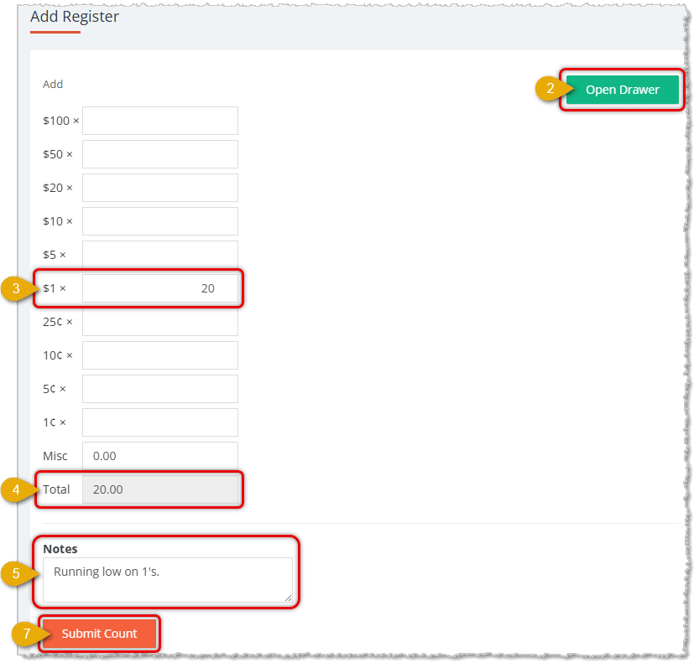
If you need to add additional cash to your register (e.g. you need to add twenty ones, but are not taking out an equal amount of other bills/change) during the day while the register is already open, then you will need to record the amount added.
You can make a cash payout at any time throughout the day for various reasons, like:
Regardless of the reason, the procedure is the same.
Opening and Closing Procedures
Q: Do I need to record it when I swap cash for equal amounts?
A: No. If you swap cash in equal amounts (e.g. one $20 bill for twenty $1 bills), you don't need to record anything. Go to Register > Add, enter your PIN, click Open Drawer, and print the blank receipt. Then swap out your cash in equal amounts and close the drawer.
Q: How do I add cash to the register if I'm not taking out an equal amount?
A: Record the amount while the register is already open. Click Register, then Add, and enter your PIN. On the Add Register page, click Open Drawer in the upper right and print the blank receipt. Enter the Quantity of each bill and/or coin you are adding, check that the Total Amount is equal to the Value of the cash you added, and add Notes. Place the cash in the drawer, close it, and click Submit Count.
Q: When can I make a cash payout, and what reasons can I choose?
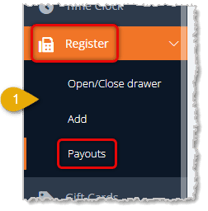
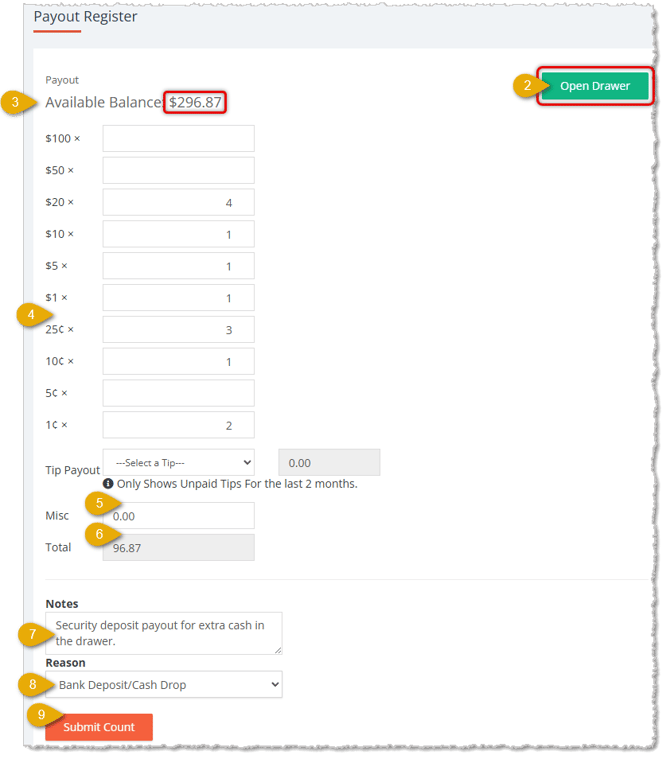
A: You can make a cash payout at any time throughout the day. Common reasons include petty cash (such as paying a local vendor), withdrawing extra cash during the day for safekeeping, and withdrawing cash at the End of Day for a final deposit. The procedure is the same for all of them. Go to Register > Payouts, enter your PIN, and click Open Drawer. Then select a Reason from the drop-list: Expense or Bank Deposit/Cash Drop.
Q: How do I know how much cash to withdraw for a bank deposit?
A: Use the Available Balance on the Payout Register page. It tells you how much cash to withdraw so you leave the correct cash in the drawer. For example, if you want to leave $200 in the drawer, you would remove $96.87 in the article's example. The best practice for the end-of-day deposit is to account for any discrepancies at this time.
Q: What do I do with checks I'm withdrawing for a deposit?
A: Use the Miscellaneous box on the Payout Register page to account for the withdrawal of checks for cash deposit.
Q: Do I get a receipt for a payout?
A: Yes. After you withdraw the cash, close the drawer, and click Submit Count, you'll be prompted to print a receipt of the Payout. You can also email it if your manager wants a copy.
Q: I have a question, but I can't find my answer here. How do I get more assistance?
A: You can ask any question at the number listed here. Contact our support team at: (323) 370-0738 for the U.S., and (888) 370-2363 for Canada.
Is this page helpful?
×Help us improve our articles