






Holding and Resuming Transactions
Sometimes you have to put transactions on hold so the customer can come back later to complete it. T
 May 21, 2026
The eTailPet system is easy to open and close. This article will detail what to do to start and end your shift. Take a look!
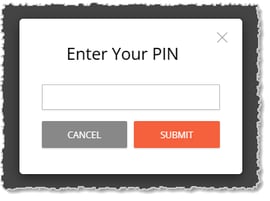
When you start your shift, the first thing you'll see in the system will be your PIN prompt. Ideally, you should memorize your PIN and keep it in a place where you can find it that's not in public view. As you enter your PIN, you won't see the numbers appear and will instead see them as dots. Click the Submit button when you're done.
After entering your PIN, you'll be taken to the Time Clock page. Click the Clock In button in the upper right.
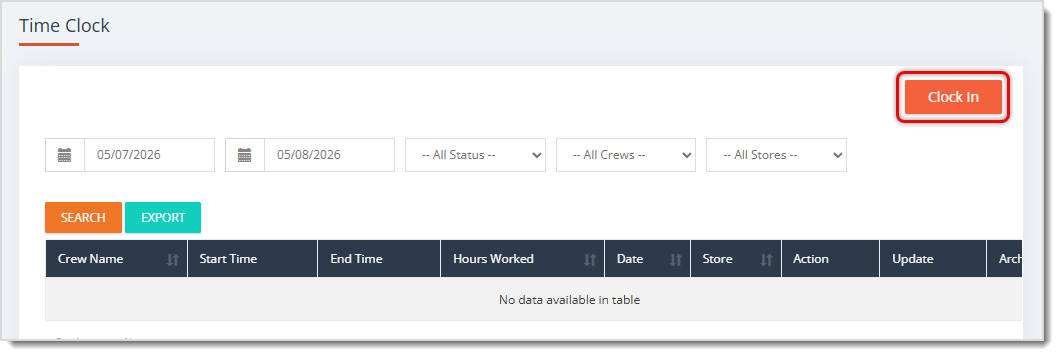
Your Clock In event will populate with details about when you clocked in, what store you're working in, and the day's date. Your manager can Update your details if needed. You'll come back here when it's time to Clock Out.

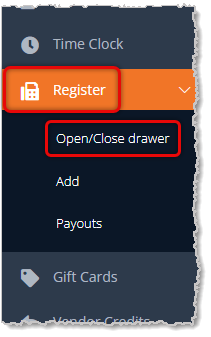
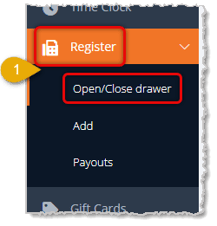
If you are on the first shift of the day, one of your tasks may be to open the Register. To do this, you'll go to Register in the main menu on the left and click to open Open/Close Drawer.
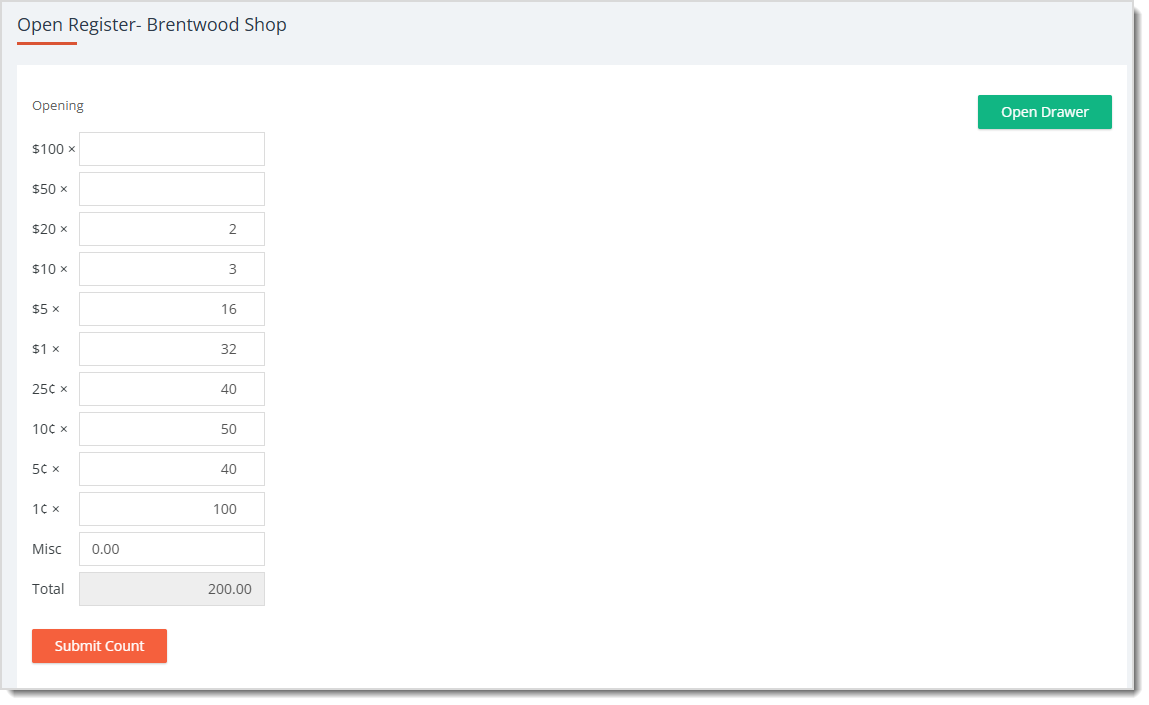
Many stores start with $200 in mixed bills (mainly small ones) and coins, as in our example below. Click the Open Drawer button in the upper right so you can add your drawer. You have fields to enter the cash drawer count for bills and coins in your drawer. Double check that the Total is what it should be, and when you're ready, click Submit Count to open the Register.
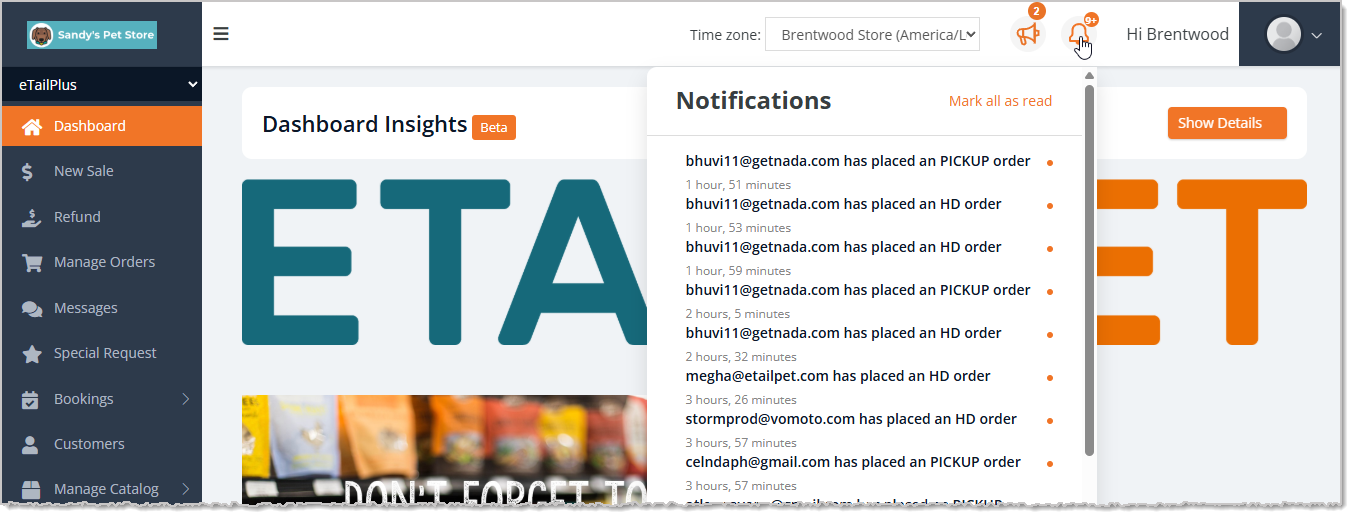
Depending on your duties, you might want to take a look at what's new by checking Notifications on the main Dashboard page. There may be Pickup orders for you to prepare or other work to do. Open Notifications by clicking on the Bell Icon in the upper right.
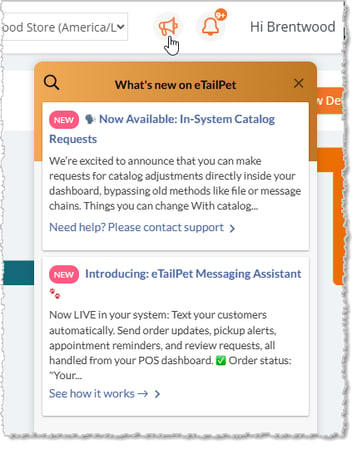
There may also be items in What's New about updated functionality in the eTailPet system. Click the Megaphone Icon to see what's new in the system.
At the end of the day, you will need to close your drawer and make a deposit that you'll leave in the drawer for the morning shift. If your shift is at the end of the day for the store, here is how to do your end of day deposit:
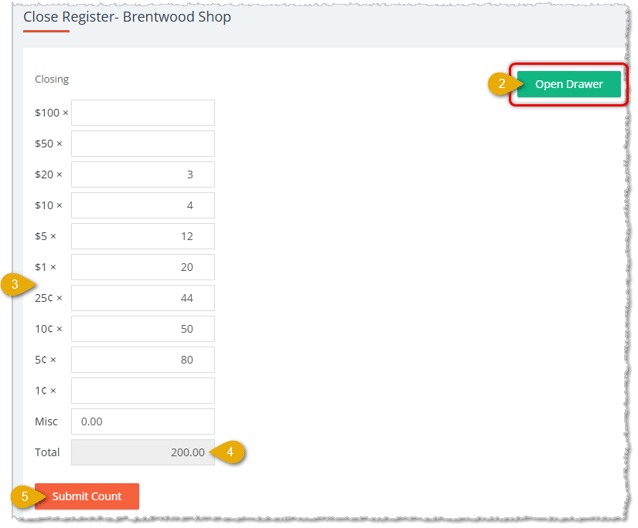
Your manager will get an email with your count for the drawer and will compare that to his or her own count.

Once you've done your drawer count, click on Time Clock in the main system menu on the left. You'll be prompted to enter your PIN. Find your time entry line for the day and click the Clock Out button. You'll enter your PIN again, then your clock out time will display for you with your Hours Worked for the shift.
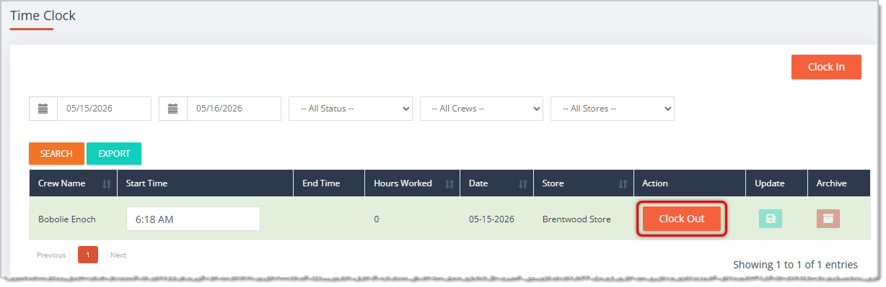
If someone else will be using your station for the next shift, just click on Time Clock again and don't enter your PIN; leave it for the next associate. Your work day is done! Great job!
Add-Ins and Payouts in the Register
Q: How do I sign in to the system at the start of my shift?
A: Enter your PIN at the prompt. The numbers appear as dots as you type. Click the Submit button when you're done.
Q: How do I clock in?
A: After you enter your PIN, you'll land on the Time Clock page. Click the Clock In button in the upper right. Your Clock In event fills in with the time you clocked in, your store, and the day's date. Your manager can update your details if needed.
Q: How do I open the Register?
A: Go to Register in the main menu on the left and click Open/Close Drawer. Click the Open Drawer button in the upper right, enter the count of bills and coins in your drawer, and check that the Total is correct. Then click Submit Count to open the Register.
Q: Where can I see new orders and system updates?
A: Click the Bell Icon in the upper right of the Dashboard page to open Notifications, where you may find Pickup orders to prepare. Click the Megaphone Icon to see What's New about updated functionality in the system.
Q: How do I close my drawer at the end of the day?
A: Click Register in the main menu, then Open/Close Drawer, and enter your PIN. On the Close Register page, click Open Drawer, enter the Quantity of bills and coins you're reserving for the next day, and check that the Total equals the Value. Then click Submit Count. Your manager will get an email with your count to compare with their own.
Q: How do I clock out?
A: After your drawer count, click Time Clock in the main system menu and enter your PIN. Find your time entry line for the day and click the Clock Out button. Enter your PIN again, and your clock out time will display along with your Hours Worked for the shift.
Q: Someone else is using my station for the next shift. What should I do?
A: Click Time Clock again and don't enter your PIN. That leaves the prompt ready for the next associate.
Q: I have a question, but I can't find my answer here. How do I get more assistance?
A: You can ask any question at the number listed here. Contact our 24/7 support team at (323) 370-0738 for the U.S. and (888) 370-2363 for Canada.
Is this page helpful?
×Help us improve our articles