





Crews

Aug 05, 2026Aug 05, 2026

Your Crews page is where you can view, add, edit, and manage the staff members who have PIN-based access to your point-of-sale and back-office tools. From here, you can search and filter your crew roster, assign roles that control permissions, and archive or delete crew members who no longer need access. Take a look at what's here for you!

casey - crews

Working With Your Crew Members

To get to the Crews page, click on Admins & Crews > Crews using the main menu on the left. This page displays a table of every crew member set up in your store, along with tools to search, filter, sort, and page through the list. Each section below covers a different part of this area.
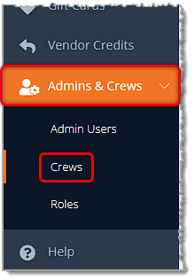
Image showing the Admin & Crews area of the main eTailPet menu with the Crews area highlighted.

Crew List

When you first open the page, you'll see the full Crew List table along with the controls used to manage it.
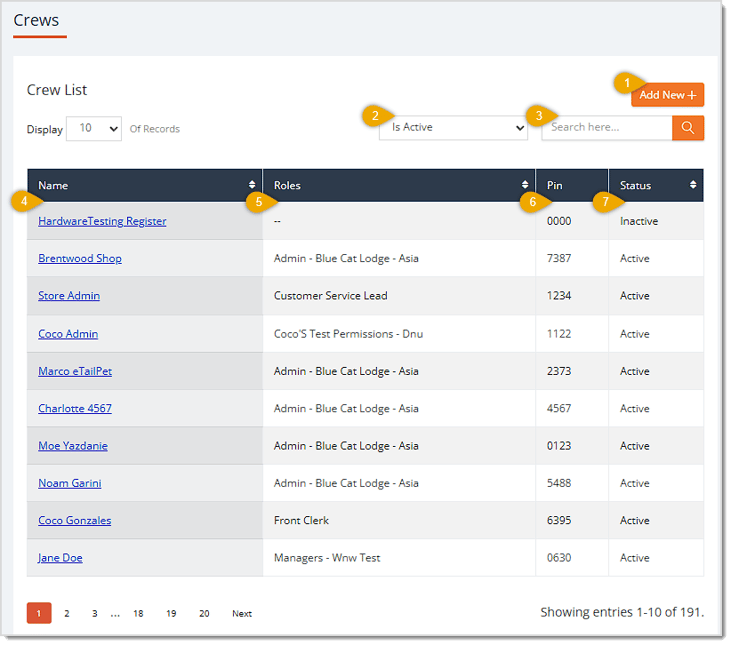
Image showing the Crews page in the eTailPet system with major functions highlighted.

Here is everything you can do on this page:

  1. Add New — Click this button to open the Create Crew form, where you can add a new crew member.
  2. Is Active — Select from the drop-list to filter the list by status: Is Active (all), Yes (active only), or No (inactive only).
  3. Search — Enter a crew member's name in this field, then click the search icon button to filter the list to matching results.
  4. Name — This column lists the Name of each crew member. Click on the Name to open the employee's Crew Details page.
  5. Roles — This column displays the Role of each crew member.
  6. PIN — This column shows the 4-digit numeric PIN code each crew member has to use to log in or clock in.
  7. Status — This column lists the Status (Active or Inactive) of each crew member.


Add a New Crew Member

When you click Add New from the Crew List, you'll be able to enter information for the new crew member.
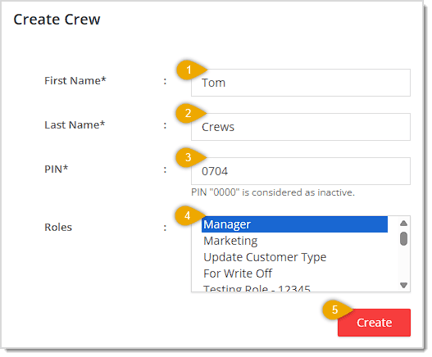
Image showing the Create Crew page in the eTailPet system with major functions highlighted.

Here is everything you can configure on this form:

  1. First Name* — Enter the crew member's First Name in this field.
  2. Last Name* — Enter the crew member's Last Name in this field.
  3. PIN* — Enter the numeric 4-digit PIN code this crew member will use to log in or clock in. Note that a PIN of "0000" is treated by the system as inactive.
  4. Roles — Select a Role from the list to assign the permissions this crew member should have.
  5. Create — Click the Create button to save the new crew member and add them to the Crew List.

*Required Item


Crew Detail

Clicking on a crew member's name from the list opens their Crew Detail page. You'll see their Name and current Status at the top of the page, as pictured below.
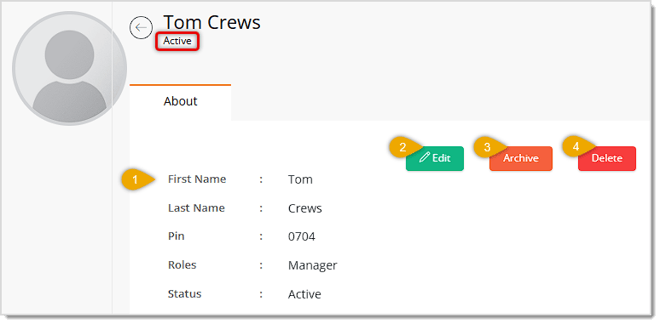
Image showing the Crew Detail page in the eTailPet system with major functions highlighted.

Here is everything you can do on this page:

  1. Crew Information — This area displays the crew member's First Name, Last Name, PIN code, assigned Role, and current Status (Active or Inactive) for reference.
  2. Edit — Click the Edit button to open the Edit Crew form for this crew member. You will be able to edit all of the Crew Information data points.
  3. Archive — Click the Archive button to deactivate this crew member. A confirmation window appears asking "Are you sure you want to archive this crew PIN?" with No and Yes options. This button only appears for currently active crew members.
  4. Delete — Click the Delete button to permanently remove this crew member. A confirmation window appears asking "Are you sure you want to delete this crew PIN?" with No and Yes options.


Related Topics

Admin Users

Roles

Sales by Employee

Time Clock

Time Clock Reports


Frequently Asked Questions

Q: What is the difference between the Archive and Delete buttons on the Crew Detail page?

A: Archive deactivates the crew member so they can no longer log in but still keeps their record on file. Delete permanently removes the crew member's record instead.


Q: Can a crew member have more than one role?

A: Yes. The Roles list on the Create Crew and Edit Crew forms allows you to select multiple roles for a single crew member.


Q: Why don't I see an Archive button on some crew members' detail pages?

A: The Archive button only appears for crew members who are currently Active. Once a crew member is archived (Inactive), that button is no longer shown.


Q: I have a question, but I can't find my answer here. How do I get more assistance?

A: You can ask any question at the number listed here. Contact our support team at (323) 370-0738 for the U.S. and (888) 370-2363 for Canada.

Need Help?

Can't quite find the answer you're looking for? Our support team is just a call away.