The Messaging Assistant from eTailPet is an AI-powered tool that helps you with your SMS messaging to customers. Take a look at what it can do for you!
Activate the Messaging Assistant
If you already see the orange Chat controls in the lower right of your screen and the Messages item in the main menu on the left, you can skip this section because the Messaging Assistant is already active for you. If you are not seeing those items, do the following steps to activate them:
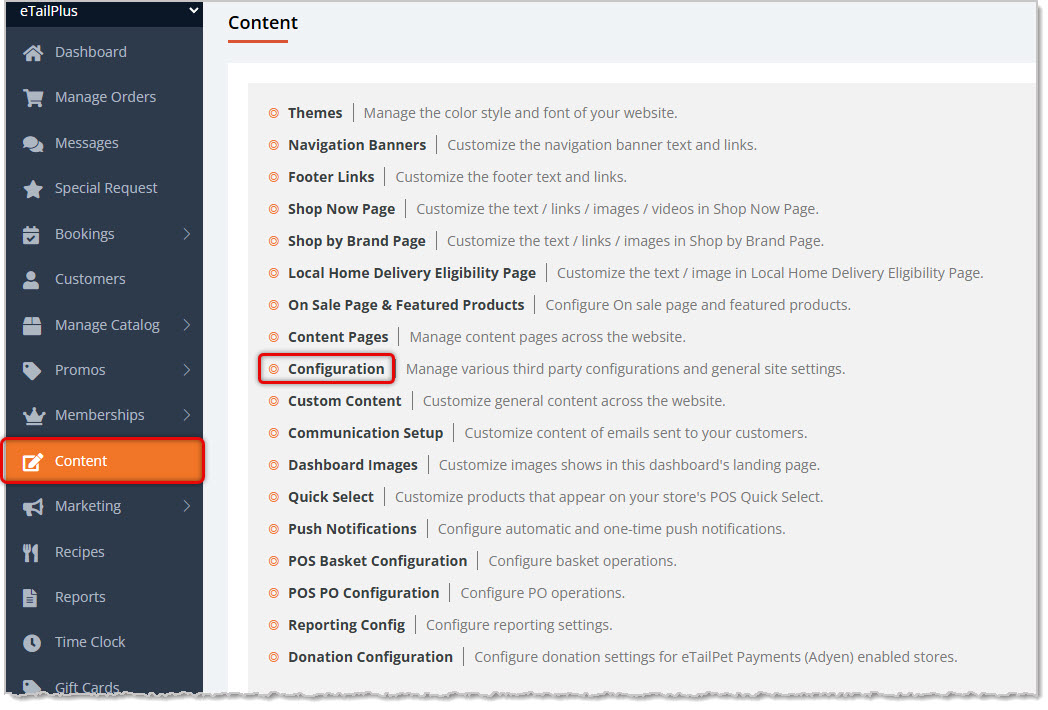
Go to Content in the eTailPet main menu. Find Configuration and click on it, as pictured above.
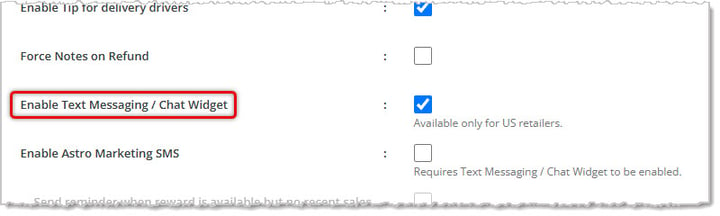
Scroll down the page until you see the setting to Enable Text Messaging / Chat Widget. Check the box on the right to activate the Messaging Assistant. Please note, this feature is available only for our U.S. retailers. Once you're finished adjusting your settings, scroll to the bottom of the page and click the Save button to save your changes.
Working With Your Messaging Assistant Chat

The eTailPet Chat is called the Messaging Assistant. The Chat controls are in the lower right of every page of the system, so you can always communicate with customers as needed.
- Chat Toggle Icon — Click the round orange icon in the lower right corner of the page to open or close the Chat panel.
- Chat As [Store Name] — Please Note: When logged into the Register, users will only see the Chat Toggle Icon. The Chat As Store function is only for Admin users. Select a store location from this drop-list if you want to send and receive customer messages under a different store identity.
- Search Conversations and Contacts — When you open the Chat window, you can enter a customer's name or phone number in this field to find an existing conversation or start a new one.
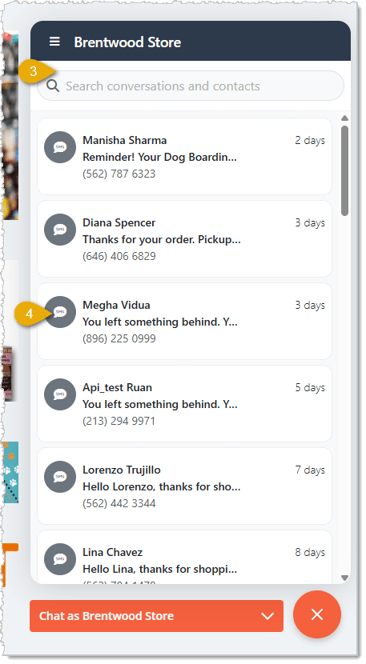
- Conversation List — This list shows your recent text message conversations with customers, including each customer's name, phone number, a preview of the latest message, and how long ago it was sent. Click a conversation to open it and reply.
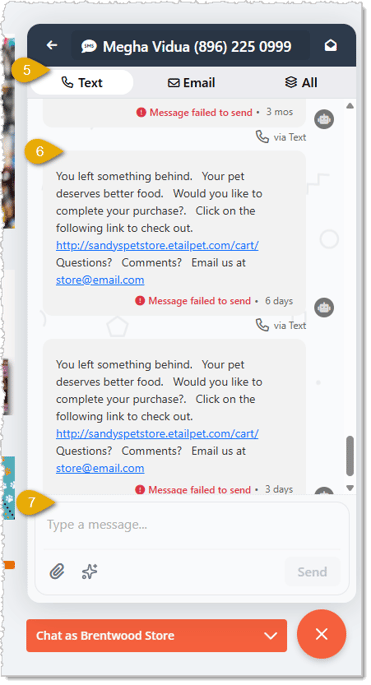
- Message Mode — You can can message by Text (default), Email, or both methods by selecting All.
- Message History — Each message you've sent or received from the contact is listed here for your reference along with how long ago it was sent.
- Compose Message — Enter your message here. You can click the Paperclip Icon to attach a file, which will be sent as a link the contact can click. Click the AI Icon (sparkles icon) to have the AI compose a message for you. Click Send to send the message to the customer once you're finished composing.
Configure Automated Messages
The Messaging Assistant allows you to work with Templates for automated system emails. This section will give you an overview of this functionality, but you can find full details on all features here.
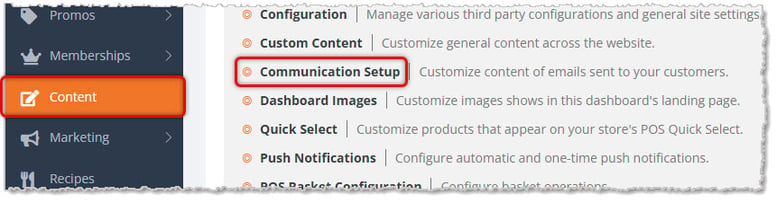
To begin working with the Messaging Assistant’s automated functionality, go to the Content area of the main eTailPet menu, then go to Communication Setup.
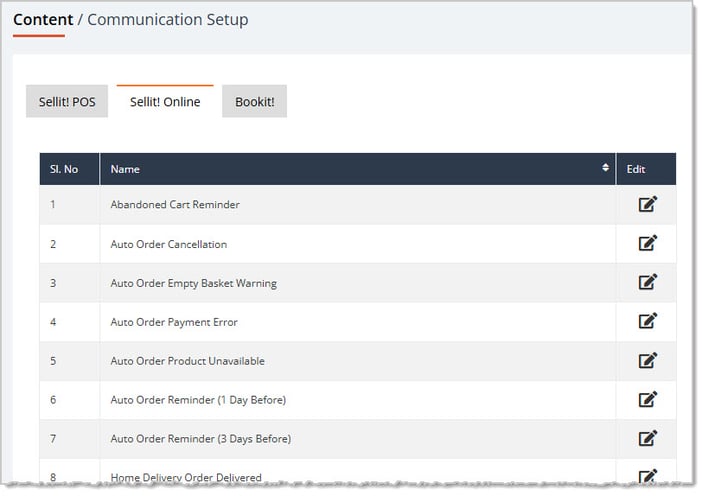
You can configure automated messages for your POS, online store, and bookings. By default, the Sellit! Online tab will load and you can see the automated system messages for that area. There are three major areas for your automated messages, SellIt! POS, SellIt! Online, and BookIt! Click on an Edit icon (pencil icon) on the right to configure a message.
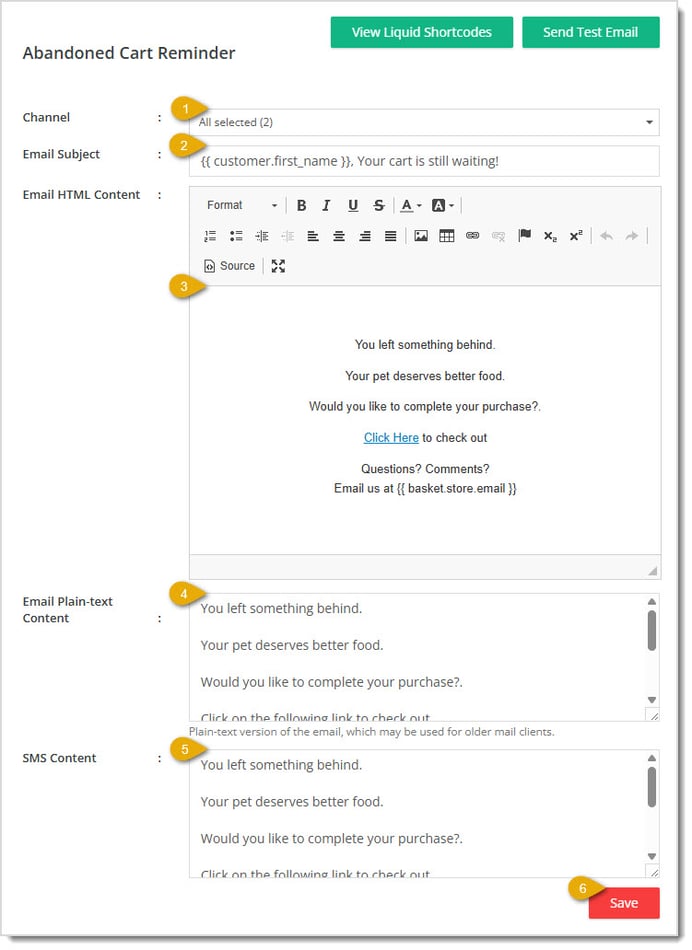
💡Please Note: The system can merge in data about your customers or system elements as needed using our Liquid Shortcodes. To view the full list, you can click the View Liquid Shortcodes button at the top of the page.
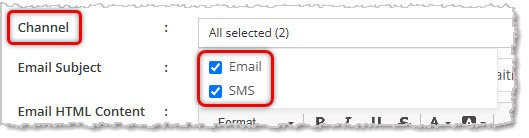
- Channel — Make sure the message has both Email and SMS channels enabled, as pictured here:
- Email Subject — This will be the title of the SMS message or the email subject line.
- Email HTML Content — For your normal email messages, the content in this editor is what the customer will see in the body of the message.
- Email Plain-Text Content — This text is what the system will send for older email clients that don’t support full HTML functionality. When you activate the SMS Message channel, the content from this area is copied into the SMS Content area for use with your text messages.
- SMS Content — This text is what the system will use for the automated message when sent via SMS. Adjust the text to whatever you need.
- Save — Click the Save button when you have finished configuring your message.
Working With Messages
The Messages area of the system gives you your full message history with your customers and allows you to send and receive messages as needed. Here is how to use the Messaging Assistant page for Messages:
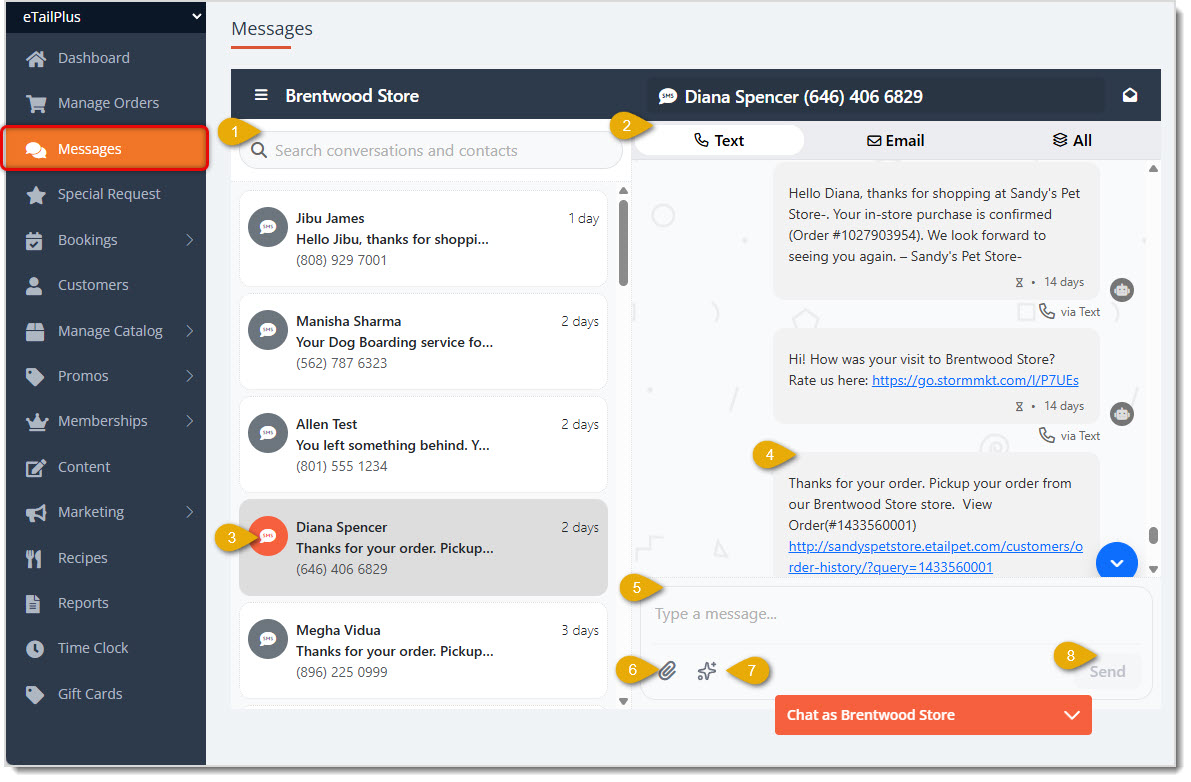
In your main eTailPet menu on the left, click on Messages to work with the Messaging Assistant. You’ll see the full system history of your messages. Here is how the page works:
- Search — You can search by customer name, number, email address, or keywords from conversations.
- Message Type — By default Text message history will load, but you can also view Email history here, or All at once.
- Customer Conversation — The text message history of the store’s conversation with each customer will load based on whichever customer is selected here. You’ll see the customer’s name and the mobile number used for the conversation as well as the time frame for the most recent message.
- Messages — Automated system messages will display a Robot icon to the right of the message. Manually composed messages will have a User icon to the right (not pictured). All message content will display, including active links. The Status of the message, whether it failed to send as pictured above or whether it was successful, will also display along with how long ago it was sent.
- Compose Message — Enter text for a message to communicate directly via SMS with the customer.
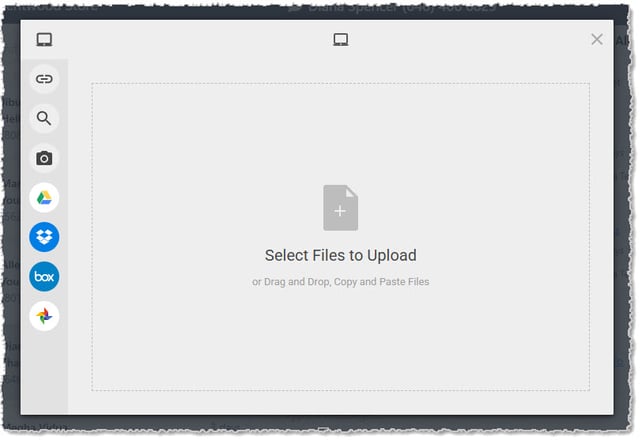
- Attachment — You can use any of the media buttons on the left to upload files or links you want to include in the message. You can drag and drop files or copy and paste them into the file selection area. The system will make links to the files in your message.
- AI Message — You can click the Sparkles icon to have the system AI compose a message appropriate for your conversation, as in this example:
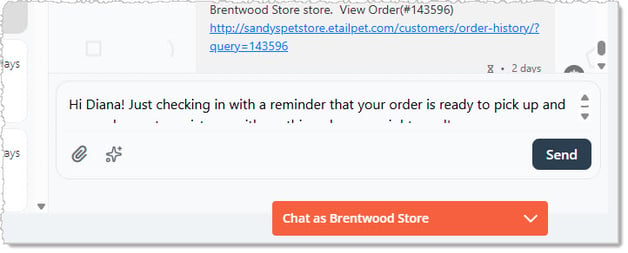
- Send — Once you have everything in place for your message, click the Send button to send it to the customer.
Related Topics
Content Configuration
Communication Setup
Frequently Asked Questions
Q: I have a question, but I can't find my answer here. How do I get more assistance?
A: You can ask any question at the number listed here. Contact our support team at (323) 370-0738 for the U.S. and (888) 370-2363 for Canada.







 Feb 23, 2026
Is this page helpful?
×Help us improve our articles