






SMS Campaigns
 Aug 21, 2026
The SMS Campaigns page of the eTailPet system lets you view, filter, and manage the SMS text campaigns you send to your customers. You can also write and send a brand new campaign from here, and configure whether you want to send it right away or schedule it for later. This article covers the Bulk SMS list page as well as the steps for creating a new campaign. Let's get your next campaign out the door!
SMS Campaigns Page
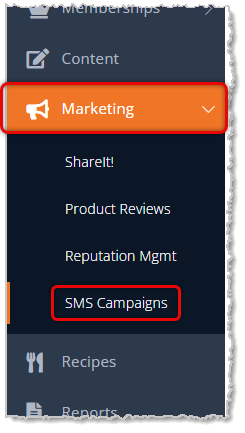
To get to this page, in the main system menu on the left, click on Marketing, then on the Marketing menu, click on SMS Campaigns.
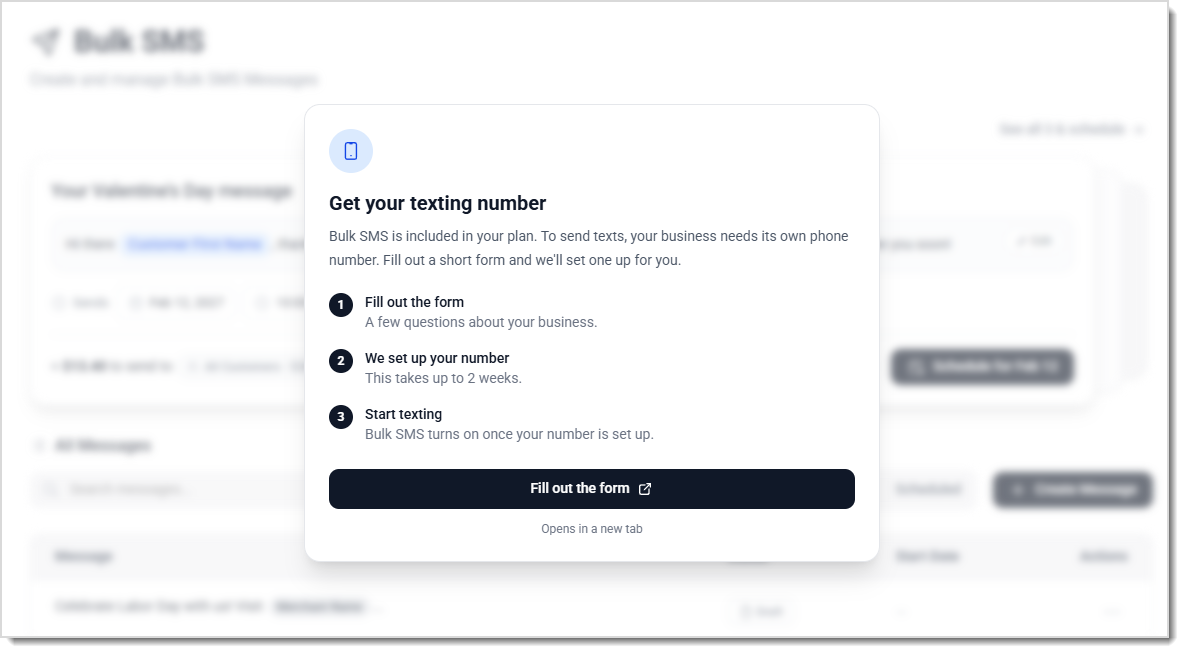
Initial Texting Phone Number Setup
If you have not yet set up a phone number to use for the Bulk SMS texting, the window pictured below will open for you to walk you through setting it up. Click on the Fill Out the Form button near the bottom to get started.
⚠️Please Note: This process can take up to 2 weeks.
You'll be taken to a Form page like the one pictured below. Fill out the form and submit it, and we will set up your texting phone number and let you know when it's ready to use.
Working With Bulk SMS
At the top of the Bulk SMS page, you'll see five tabs you can use to filter your list, plus a search bar and a button for starting a new campaign. Here is how to work with your Campaigns:
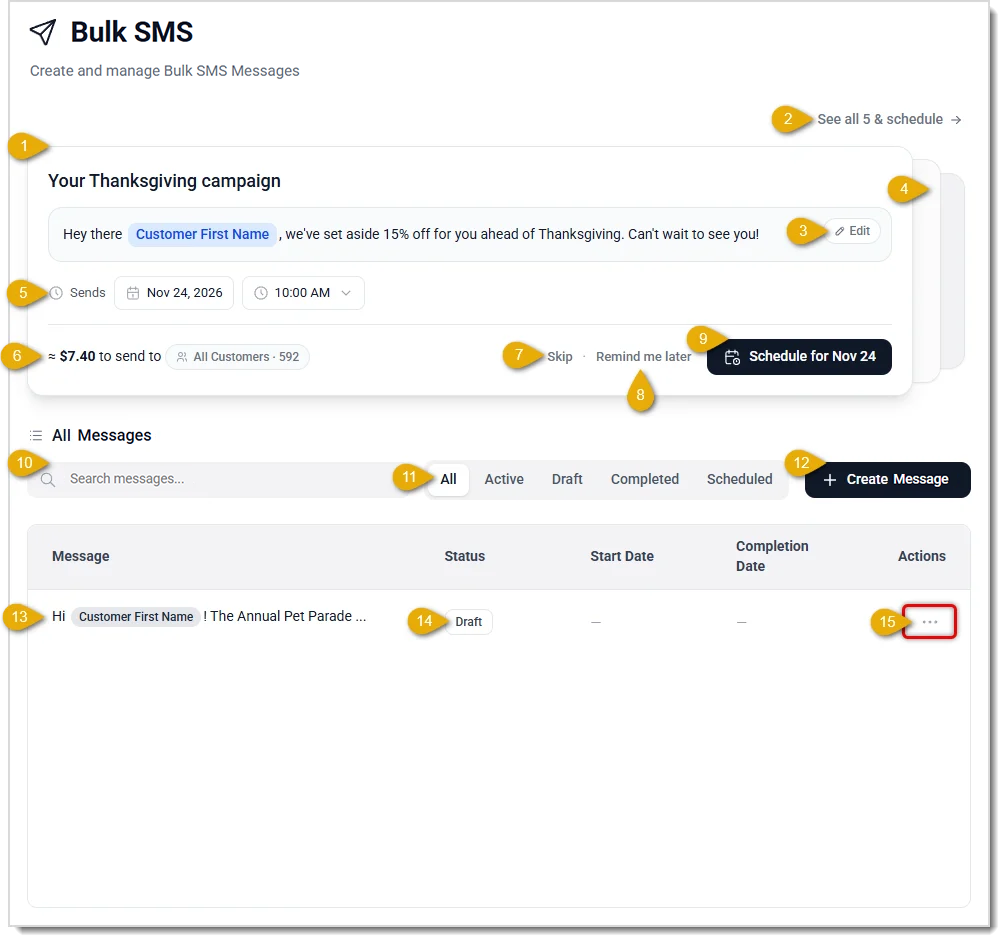
- Starter Campaign — We have created several Starter Campaigns for you at the top of your Campaigns page. These are templates for popular promotional event dates you can customize for your needs.
- Starter Campaign List — Click this link to see the list of your Starter Campaigns. The Starter Campaigns page will open, and you'll see the full list. As pictured below, you can Edit or Remove the messages (if you click to Remove, a popup will ask for confirmation that you really want to permanently delete the Campaign). You are able to adjust the Send Date and Time, but all are configured for a few days before the holiday. In the bottom right, you can click to Schedule All Messages. If you just want to schedule one, click to Edit it.
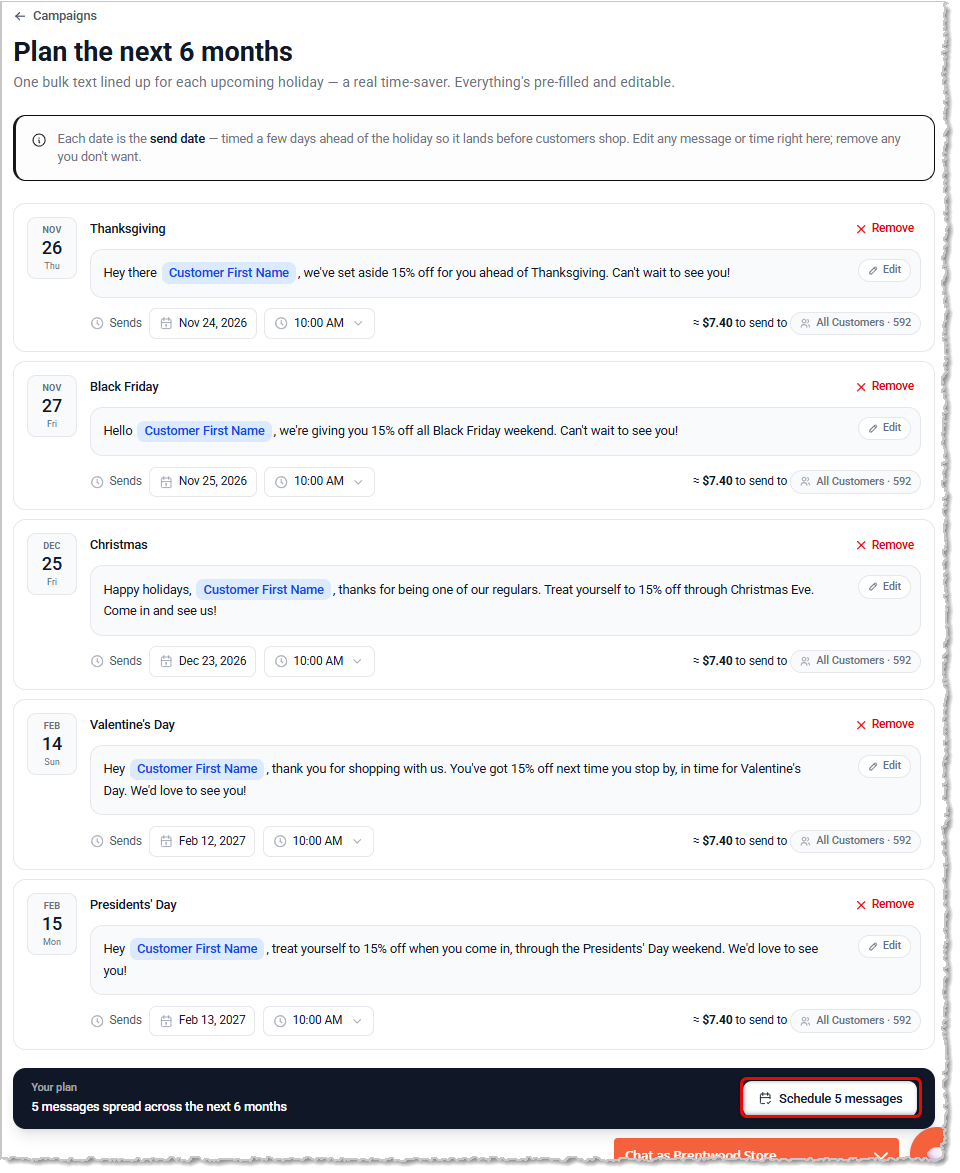
- Edit Campaign — If you click to Edit the campaign, you'll be taken to the first step in the Campaign Composition wizard, as described below in #12, Create Message.
- View Next Starter Campaign — Click in this area to see the next Starter Campaign in the list.
- Send Date and Time — Use this area to set the Date and Time you want the system to send the message.
- Estimated Campaign Cost — As you compose your message, the system will keep a running estimate of what it will cost to send to your recipients.
- Skip — If you are not ready to schedule or send your message, you can click Skip and wait until later.
- Remind Me Later — If you want the system to remind you about your SMS Campaign, click this button.
- Schedule Campaign — Click the Schedule for [Date] button when you have finished composing and configuring the campaign to finalize the draft and set it to be scheduled.
- Search Messages — Enter a keyword from your message text here to filter the list down to campaigns that contain that keyword.
- Message Status Filter — Click a tab to filter the list to campaigns in that status. All shows every campaign regardless of status, while the other tabs narrow the list to campaigns that are currently sending (Active), saved as a draft, finished sending (Completed), or scheduled for a future date (Scheduled).
- Create Message — Click this button to write and send a new campaign. See the section below on Create a Campaign for details.
- Message — This column shows a preview of the text you're sending to customers.
- Status — In the Status column, you'll see whether the campaign is Active, Draft, or Scheduled. In the Start Date Column, if a Campaign is scheduled, you'll see the date the campaign is scheduled to start sending, or the date it already started. In the Completed column, if a Campaign has completed sending, you'll see the date the campaign finished sending. It displays a dash until the campaign is complete.
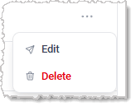
- Actions — Click the … menu (Ellipsis, or Three-Dot menu) to Edit or Delete the message. When you click Edit, the system opens the campaign in the message editor so you can review or update it before it sends. Each of the details are explained in the section below, Create a Message. When you click Delete, the system removes the campaign from your list.
Create a Message
When you click Create Message (or Edit on an existing campaign), the system walks you through two steps: Write Your Message and Review & Send.
Write Your Message
Here is how to write the message for your campaign:
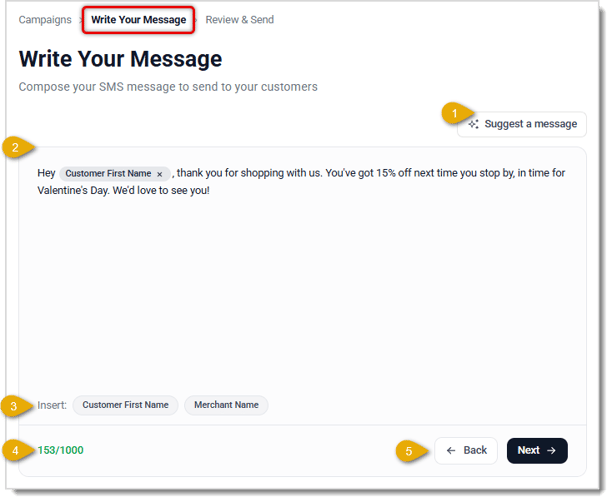
- Suggest a Message — Click this button to open a window where you describe what your message is about, such as a birthday message, a sale announcement, or an appointment reminder.
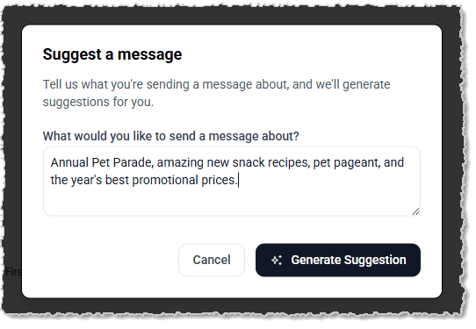
Enter your description, then click Generate Suggestion to let the system AI draft message options for you to use or edit, like those pictured below.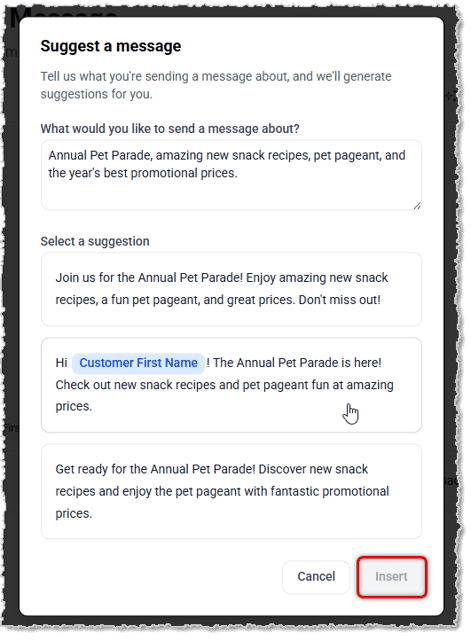
Click on a message you like, then click the Insert button and that message will populate in the Write a Message page Message Box. - Message Box — Enter the text of your SMS message here or use Suggest a Message to give you starter text, then edit as desired. This is the message your customers receive.
- Insert: Customer First Name / Merchant Name — Click either tag to insert it into your message at the cursor's location. The system replaces these tags with each customer's actual First Name and your store's Location Name when it sends the message.
- Character Counter — This shows how many characters you've used out of the 1000 character limit. A message can have up to three 'segments,' which are basically divided messages sent simultaneously. The color of the Character Count text indicates how many segments the Campaign is using, and the more you use, the more it costs, so keeping your messages concise is wise. In the example above, one segment can have up to 160 characters, including spaces and punctuation, and single-segment messages will appear in green.
From 161 characters up to 350 characters, the Campaign will need two segments, and text will appear in yellow.
From 351 characters up to the 1,000 character limit, the Campaign will require three segments and text will appear in red. - Back / Next — Click the Back button to leave the message editor and return to the Campaigns list. Click the Next button once you're ready to move on to the Review & Send page.
Review & Send
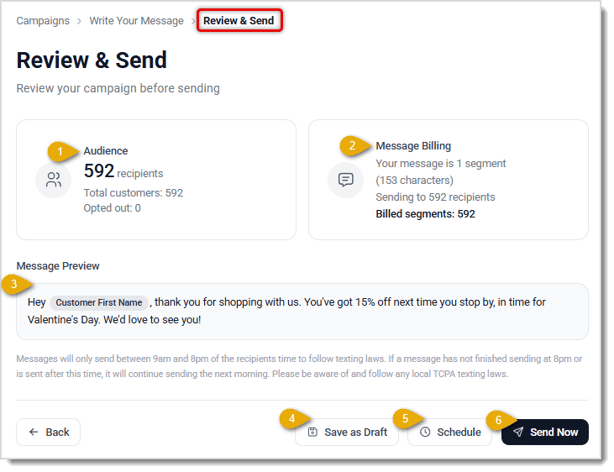
Here is how to review and send your campaign:
- Audience — This shows how many recipients will receive this campaign, along with your total customer count and how many customers have opted out of texts.
- Message Billing — This shows how many text segments your message uses, its character count, and the total number of segments you'll be billed for based on your recipient count.
- Message Preview — This shows a preview of the message you composed, exactly as your customers will receive it.
- Save as Draft — Click this button to save the campaign without sending or scheduling it. You can find it later on the Draft tab of the Campaigns page.
- Schedule — Click this button to open a window where you set a Date and Time for the campaign to send. Enter the date and time you want, then click Schedule Send to confirm. Your campaign then appears on the Scheduled tab until it sends.
- Send Now — Click this button to send the campaign to your audience right away.
Messages only send between 9am and 8pm of each recipient's time zone to follow texting laws. If a campaign hasn't finished sending by 8pm, or you send it after that time, it continues sending the next morning. Be sure to follow any local texting laws that apply to your store.
Related Topics
Frequently Asked Questions
Q: What's the difference between the Active, Draft, Completed, and Scheduled statuses?
A: Active campaigns are currently sending, Draft campaigns are saved but not yet sent or scheduled, Completed campaigns have finished sending, and Scheduled campaigns are set to send at a future date and time.
Q: Can I send a campaign to a specific group of customers instead of everyone?
A: The Audience section on the Review & Send page shows your full customer count and how many have opted out of texts. The campaign sends to all opted-in customers.
Q: How do I schedule a campaign to send later instead of right away?
A: On the Review & Send page, click Schedule, choose your Date and Time, then click Schedule Send.
Q: Can I edit a campaign after I've saved it?
A: Yes. On the Campaigns page, click the … (ellipsis) menu next to the campaign and select Edit to open it in the message editor.
Q: How long can my SMS message be?
A: Your message can be up to 1000 characters, but if you keep it shorter, it will not be as expensive to send. The Message Billing section on the Review & Send page shows how many text segments your message uses for billing.
Q: Is there a way to get help writing my campaign message?
A: Yes. On the Write Your Message page, click Suggest a Message, describe what your message is about, and click Generate Suggestion for a drafted message.
Q: I have a question, but I can't find my answer here. How do I get more assistance?
A: You can ask any question at the number listed here. Contact our support team at (323) 370-0738 for the U.S. and (888) 370-2363 for Canada.
Is this page helpful?
×Help us improve our articles