In the eTailPet system, customers can purchase Gift Cards to be used as payment at checkout. They are not assigned to a specific customer so they can easily be gifted to others for any special occasion. This article will show you how to manage Gift Cards and how they work in the system. Take a look at what you can do!
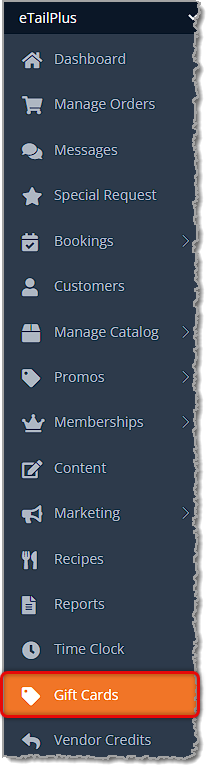
To begin working with your Gift Cards, in the main system menu on the left, go to Gift Cards.
The Gift Cards List Page
On the Gift Cards List page, you can do the following:
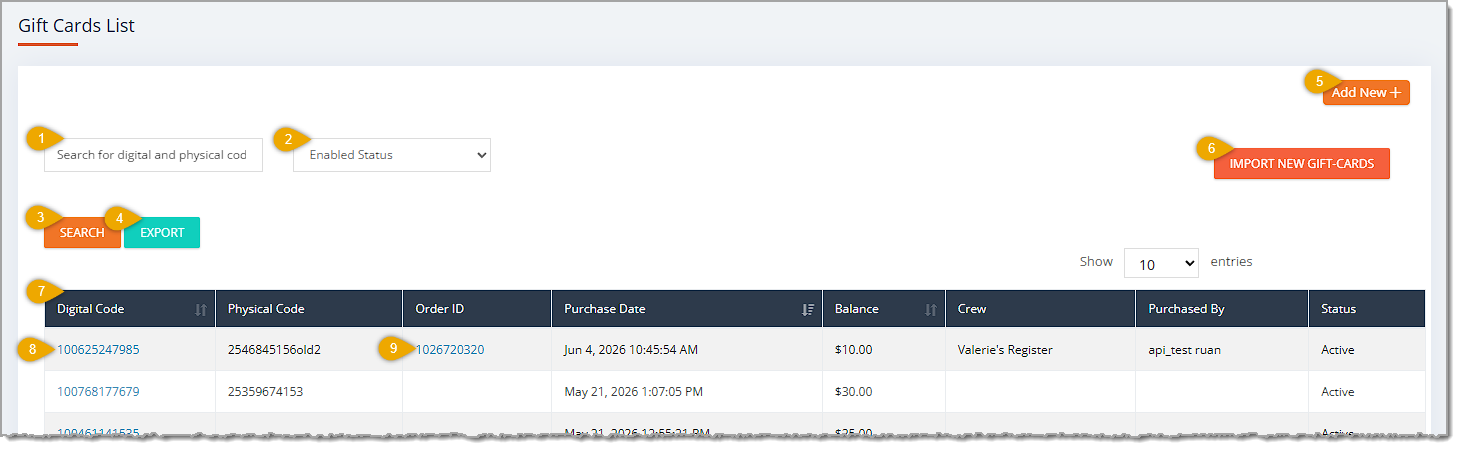
- Search Field — You can enter a Digital Code for a Gift Card or the Physical Code printed on the card to look up the one you want. You cannot search by any other data in this field.
- Status Filter — You can use this filter to view only Enabled cards (Yes in the drop-list) or cards that are Disabled (No in the drop-list).
- Search Button — After entering a Search or adjusting the Status Filter, click the Search button to load the results into the data table.
- Export — Click the Export button to download a CSV file of the currently-filtered data across all pages.
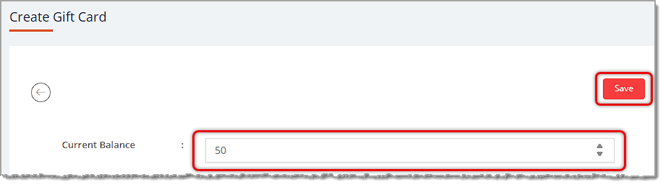
- Add New + — Click the Add New + button to go to the Create Gift Card page and manually create a new pre-loaded Gift Card. This area can be useful for creating promotional Gift Cards for store events, rewards for employees, friends, or family, or just to have pre-loaded cards ready for sale. Care should be taken for this function, as the Gift Cards are a liability because creating them this way does not require customer payment to put funds on the card. Enter the amount you want to add to the card into the Current Balance field, then click the Save button. You'll see a success notification pop up in the upper right and then you'll be returned to the Gift Cards List page.
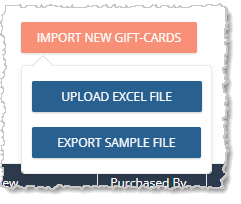
- Import New Gift Cards — Click this button if you want to import Gift Cards that are new to the eTailPet system so they can be used in your POS. When you click this button, you'll open a drop-list and you can click the Export Sample File button to download an Excel file for your import. The file has two columns: one for the Physical Code on the cards and the other for the remaining Amount for each. Once you have your bulk Gift Card data saved in the file, open the drop-list again and click Upload Excel File button. You'll see a success popup in the upper right, and the uploaded Gift Cards will be in your list and Active in the system.
- Data Table — The Gift Cards page Data Table has columns for each card's Digital Code (the internal system code), Physical Code (the code printed on the card, if any), the Order ID in which the card was purchased, the Purchase Date, the current Balance on each card, the Crew member who sold the card, the customer the card was Purchased By, and the gift card's current Status (Active or Disabled). By default, the table is sorted by the Purchase Date column to show the most recently purchased cards at the top, but you can click column headers to sort by Digital Code or Balance, and you can click again to reverse-sort.
- Digital Code — You can click a Gift Card's Digital Code to open its Gift Card Detail page. This page shows the full history of the card, including its purchase transaction, and any transactions in which it has been used, with the most recent at the top, as in the example below. You can click to Print the card's Digital Code Barcode, if needed. You can click to Disable the card. Click the Edit button to adjust the Physical Code, if needed. You can click to Add Money to the card, but you must be logged into New Sale so you can take the payment. You can click to Adjust Gift Card Balance where you can enter an amount, either positive or negative, to adjust the current card balance. You can also click on any of the Order IDs to see details about those transactions.
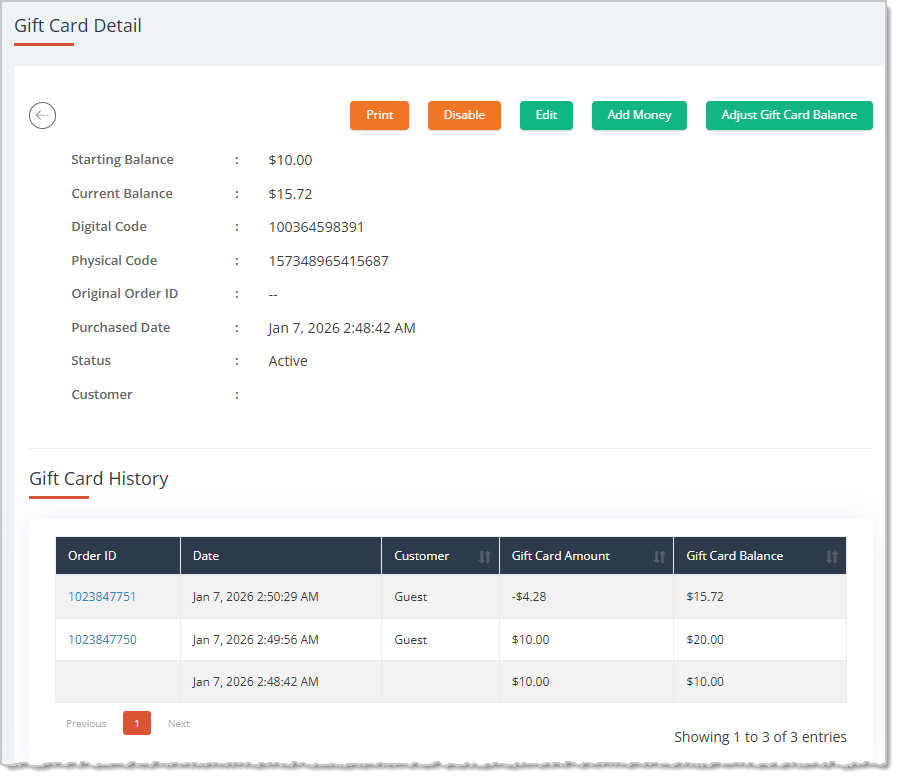
- Order ID — You can click a Gift Card's Order ID to view the transaction in which it was purchased by a customer. Gift Cards that don't have an Order ID were manually created in the system.
Setting Up a Gift Card as a Product
In order to sell a gift card, it must be added to your catalog as a product. Your Gift Cards can be sold in-store or through your store's website, and you will create it as a Private Product. It is similar to other Private Products; however its Item Type is Gift-Card and it has unique functionality.
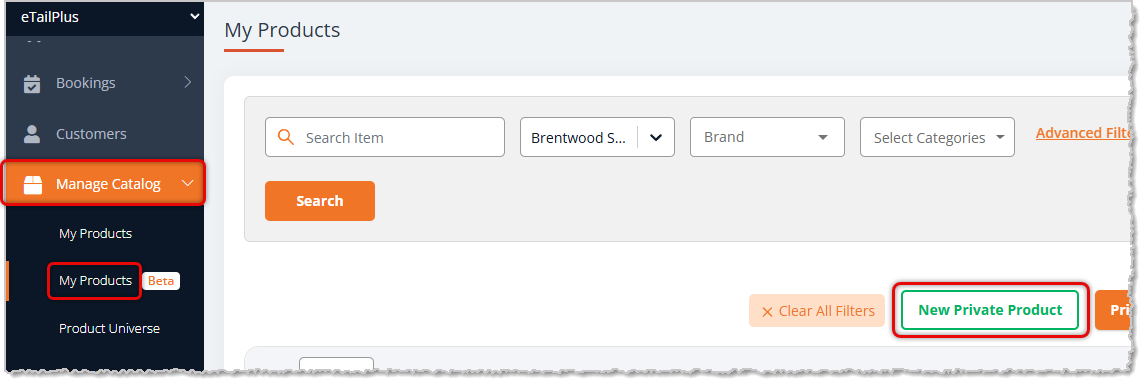
To add a Gift Card product to the system, go to Manage Catalog in the main menu on the left and click on My Products, then click the New Private Product button. The new Private Product page will load for you and you can configure the product using the following steps:
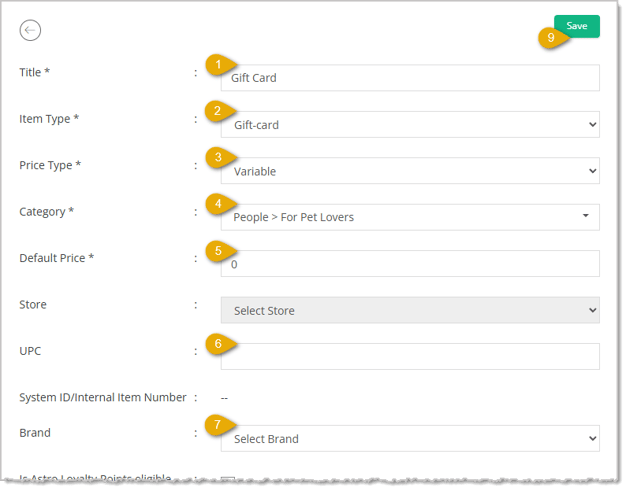
- Title* — Enter a card name that will be displayed at checkout and on receipts.
- Item Type* — Select Gift-Card from the drop-list menu.
- Price Type* — Click to open the drop-list and choose the Price Type you need:
- Fixed — Use this if you want to set up cards for different denominations to sell, like $10 Gift Card, $25 Gift Card, $50 Gift Card, etc. For this, you will need to create a private product for each denomination. These can only be sold in the denominations that you preset.
- Variable — Use this if you want to assign an dollar amount to the card at checkout.
- Default Price* — Enter the Default Price you will need for the Price Type you selected:
- For the Fixed price type, enter the exact dollar amount of the card. This price will not be adjustable at checkout.
- For the Variable price type, enter the minimum default amount you want. This price is able to be changed at checkout.
- UPC — If you have a generic UPC for Gift Cards, enter it here. Otherwise, leave this blank.
- Brand — Select a brand you would like to assign to your gift card (create a brand in Manage Catalog > Private Brands) or leave it blank.
- Description (Not Pictured) — Enter a detailed description of the product or leave it blank.
- Click the Save button.
You will now be able to add that new product into the New Sale page as an item for sale.
* Required field. The system will not save the product if you don't fill in this field.
Sell a Gift Card in a Transaction
To sell a new gift card:
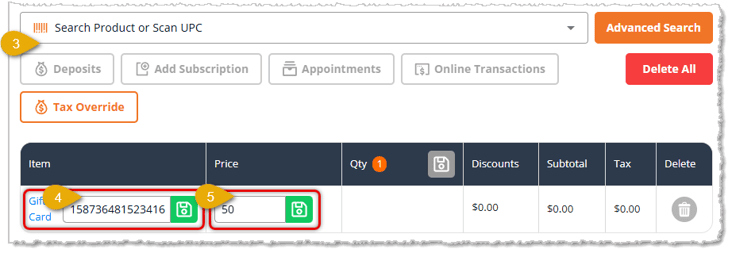
- Go to the New Sale page.
- Search for a customer or continue as Guest. The customer will appear on the receipt and on the Gift Card's record.
- Use the Search field to find and add the Gift Card to the cart.
- Physical Card Code — You can enter or scan the the code from the card you are selling, or enter your own code (for example, a name or number) or leave it blank. If you enter a Physical Code, be sure to click the Save button next to the code. The system will create a Digital Code for internal use for the Gift Card either way.
- Price — If the gift card has an editable field in the Price column, it has been set up as a Variable price item. Enter the cash value you are assigning to the card as pictured in the example above. If the Price is not adjustable, the price type is Fixed. Be sure to click the Save button next to the price to update the amount in the cart.
- Complete the transaction as normal, and the Gift Card digital code and physical code, if added, will be usable in transactions moving forward.
Paying With a Gift Card
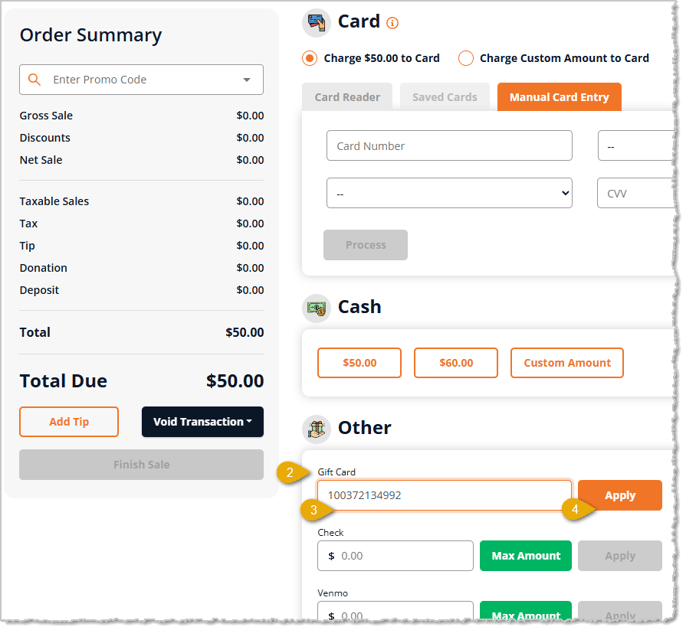
- After you have added all the items for the transaction, click Payment in the lower right.
- Gift Card is in the Other section of the payment area. Depending on the size of your screen, you may need to scroll down for this section to be visible.
- You will scan or enter either the Physical Code (this is the Number on the Physical Card if you assigned the gift card to one) or the Digital Code that the system automatically creates.
- Click the Apply button.
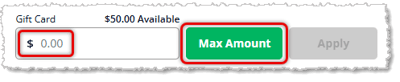
- You will then see an available amount at the top of the entry field. You will click the Max Amount button or enter a custom amount in the entry field. After entering an amount, click Apply.
- The customer then can pay the rest of their Total Due with another payment method, or you can click Finish Sale if the total is $0.00.
 Boss Quote
Make sure your human understands that Gift Cards you create in the system that are not purchased represent liability for the store. It is outstanding and can be used any time. It's like when I give my human a mouse I have worked hard to hunt; that food can be used any time or thrown away if your human is particularly foolish.
— Hemingway, Frankford, DE
Related Topics
My Products Overview
Private Products
New Sale Tour
Payment Types in New Sale
Frequently Asked Questions
Q: Can I order Gift Cards through eTailPet?
A: eTailPet does not offer physical Gift Cards for purchase at this time. We encourage you to reach out to a local print shop in your area for the best pricing options. Local options will also provide you with the ability to easily reorder and to reach out if you encounter any difficulty. If local printing is not an option, there are print shops online that can assist with gift card ordering, such as Duracard.
Q: How many Private Products that are Gift Cards can I have?
A: You can have as many as you desire. You can create one Gift Card product with a variable price, or you can create multiple gift cards with preset values like $10, $25, $50, etc.
Q: I have a question, but I can't find my answer here. How do I get more assistance?
A: You can ask any question at the number listed here. Contact our support team at (323) 370-0738 for the U.S. and (888) 370-2363 for Canada.







 May 21, 2026
Is this page helpful?
×Help us improve our articles