







Export Products
In the eTailPet system, you can easily export your product data as a CSV or XLSX file. If you want t
 Jun 22, 2026
The eTailPet system allows you to order by the case or by single units from your vendors as needed. This article shows how to order the way you need and how to troubleshoot difficulties that may arise. See how it works!

In this article you will learn the following:
Case Data in the Product Details
Order Quantities in Purchase Orders
Set the Order in Multiples Quantity
Private Product Setup for Case Ordering
Problem 1: The email I sent to my vendor has the wrong UPCs.
Solution 1: Your vendor is likely set to Order In Cases = True, but you must have included the single-unit UPCs. See the Overview section for more details.
Problem 2: The order quantity I emailed to my vendor is a fraction instead of a whole number.
Solution 2: Your vendor is set to Order In Cases = True, and you have ordered a quantity that is less than the case quantity. See Order Quantities in the PO section for more details.
Problem 3: Some of my items have a Case UPC and I do not want to order in cases. My order quantity I emailed to my vendor is a fraction instead of a whole number, but there are other items that I want to order in cases.
Solution 3: As mentioned in Solution 2, your vendor is set to Order In Cases = True, and you have ordered a quantity that is less than the case quantity. You have two options:
Option One: Set Order In Cases = False for the Vendor, and for all items you want to order in cases, set their Order in Multiples to the Case QTY and order by the single-unit UPC.
Option Two: Create two vendors, and set the first to Order in Cases = True; this is for items you want to order in cases only. Set the vendor to Order in Cases = False; this is for items you want to order in single units.
Problem 4: I have a product that my vendor allows me to order as either a single item or as a case, but the PO won’t let me order the single item.
Solution 4: Remove the item from your public catalog and create a private product. See the section below on private products before attempting this so that you can avoid potential issues.
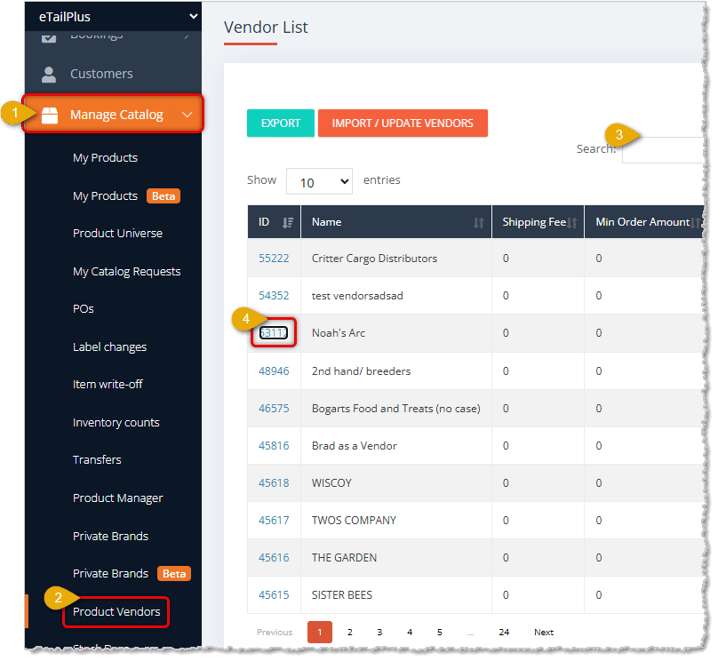
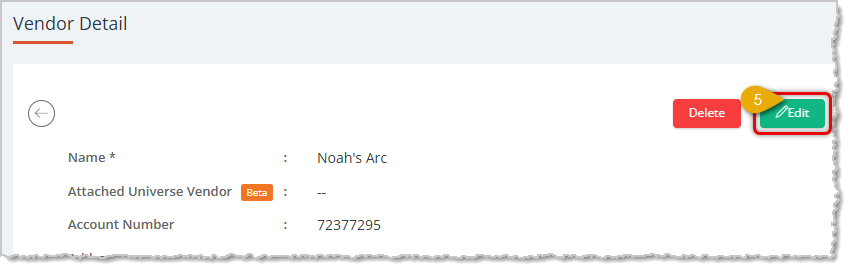
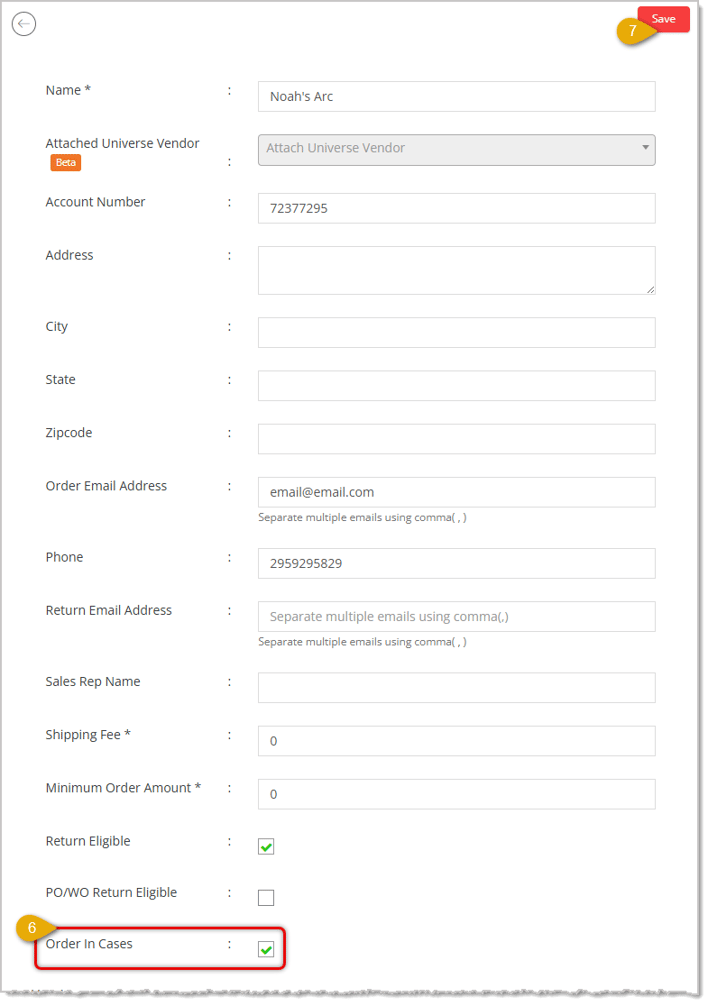
Case vs. Each ordering starts with the Vendor setup. There is a checkbox when you're editing the Product Vendor Details page that sets ordering in cases or in single units from that vendor. The setting is called Order in Cases, and it is either True or False. When this box is checked, POs created for this vendor will have two extra columns. These columns contain the Case UPC and the Case Count, or number of items in a case for the product.
To order by the case, you will need to set the order quantity to the order in multiples based off the case quantity. For example, if a case has 12 cans, then you will order 12 in the order quantity. When you submit the order, the email will convert the UPC to the Case UPC, and the order quantity will be converted to the case quantity. In this example, if you ordered 24 cans instead, it would convert to two cases in the emailed order.
💡Please Note: The eTailPet system does not differentiate between a case, a pack, etc. Any item that you can order in multiples and sell individually is referred to and handled the same way as a case.
Follow these steps to adjust Case vs. Each ordering:
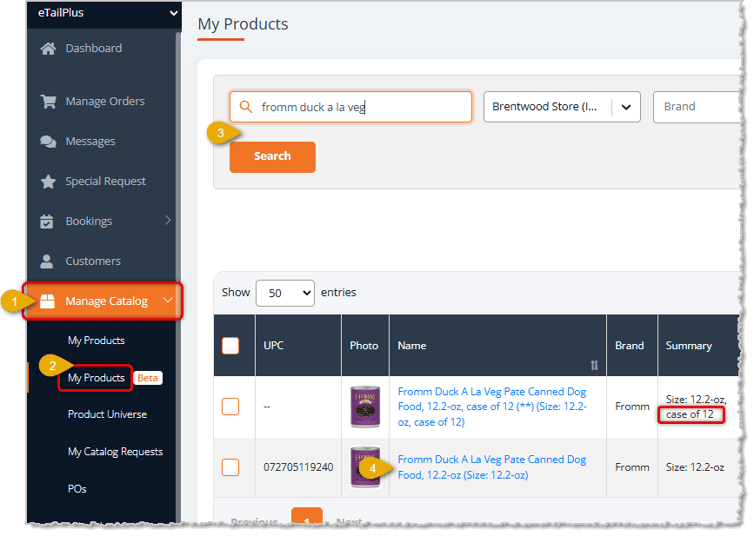
If you need to look up a Case UPC or the Case Pack quantity for an item, use the following steps:
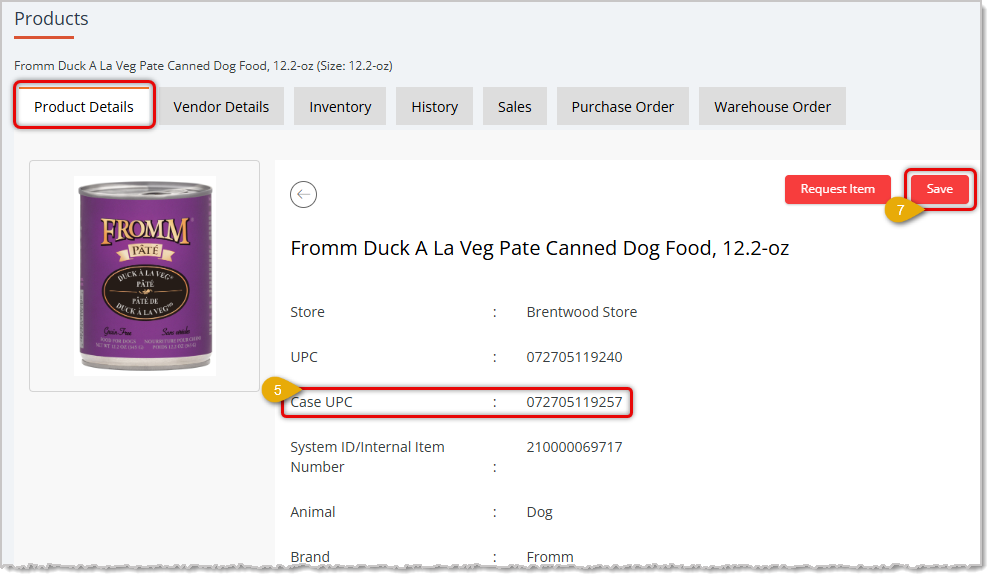
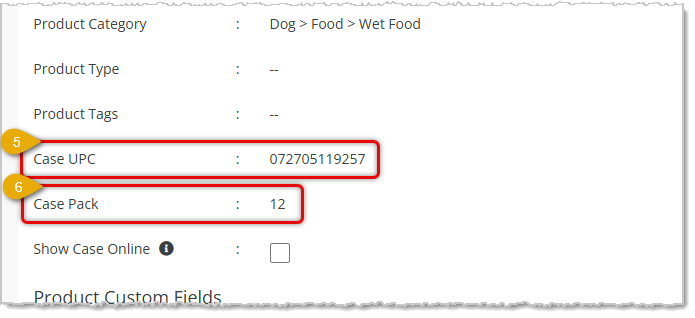
If the Case UPC is scanned at checkout or into a Purchase Order, then it will pull up the Single Unit product multiplied by the number of units in the Case Pack quantity. For example:
Name: Sandy’s Dog Food Can, 3-oz
Individual UPC: 000000000123
Case UPC: 000000000321
Case Pack: 12
In your vendor Purchase Orders, if ordering from a vendor in single units, you can set whatever quantities you need. But if you're ordering by the Case, you will need to be more careful. Here are some examples (refer to the image below):
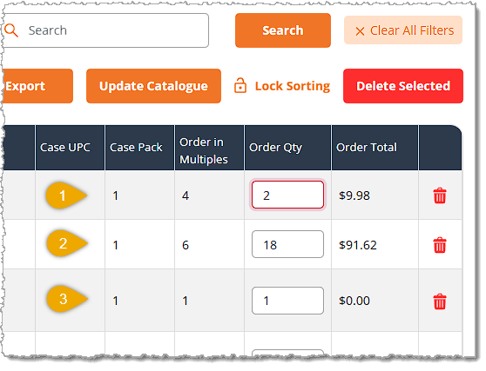
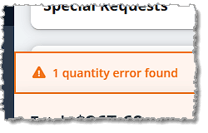
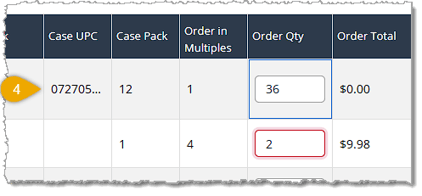
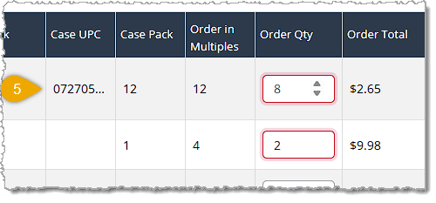
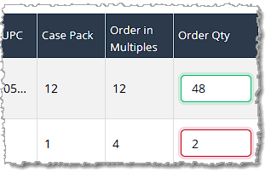
Order In Multiples is a setting in the product vendor relationship that allows you to set the case-ordering quantity. Items that don’t have a Case UPC are items that don’t have any case requirements, so you will order them in whatever quantities you need as single items. Your order quantity is not limited by the Case Order Qty, so you can order multiples of whatever number you set here. For example, if your Order in Multiples is set at 8, you could order 16, 24, or 32.
Items that DO have a Case UPC should have the Order In Multiples quantity set to match the Case Pack quantity. In the example above, the last two items do not match: one is 48, the other is 2.
Setting the Order In Multiples quantity to match allows you to use the Round Up / Round Down feature to automatically adjust the Order Quantity by the Case Pack quantity. So using the buttons pictured below, if your Smart Order PO set some item quantities too low, you could click the Round Up button to round all items or selected line items up to the nearest multiple of the Case Pack quantity, as long as all the items have their Order in Multiples quantities set to match the Case Pack. The reverse is true for Round Down; for the selected or for all items, you can round down to the nearest Case Pack multiple if the products have their Order in Multiples set to the same quantity as the Case Pack.
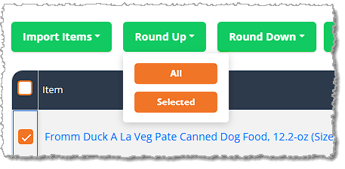
For example, you might have several items that were automatically set to an Order Quantity of 14 by the Smart Ordering system. In this example, they all have a Case Pack count of 8. If you select the checkboxes for the items and click the Round Up button, then in the drop-list click Selected, those items will all have their Order Quantity adjusted to 16, which is the next multiple of 8 up from 14.
You can set the Order In Multiples quantity either Manually for a single product, through the Product Manager in bulk, or by Import in bulk.
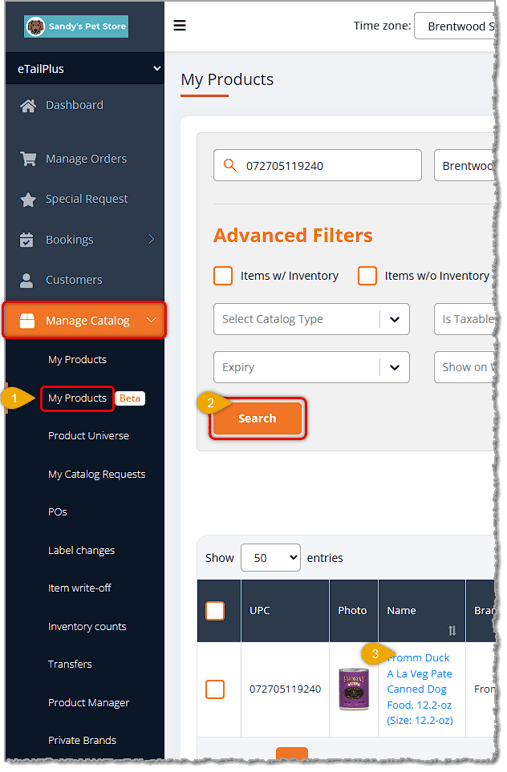
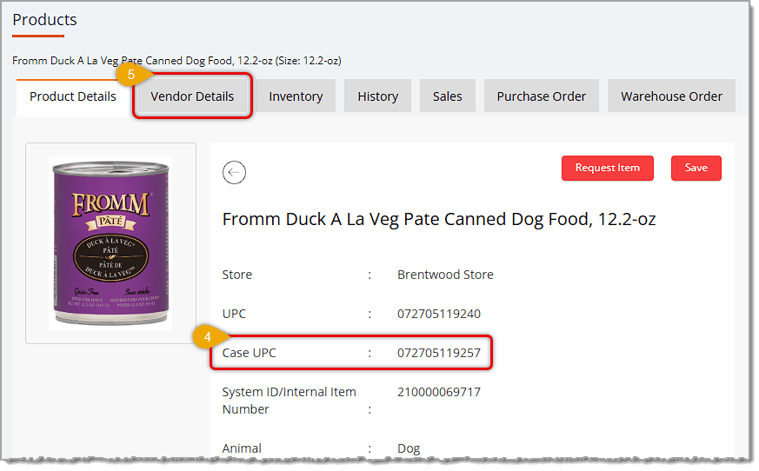
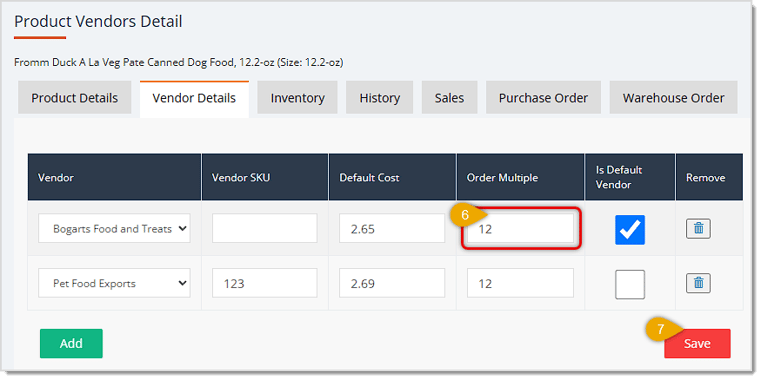
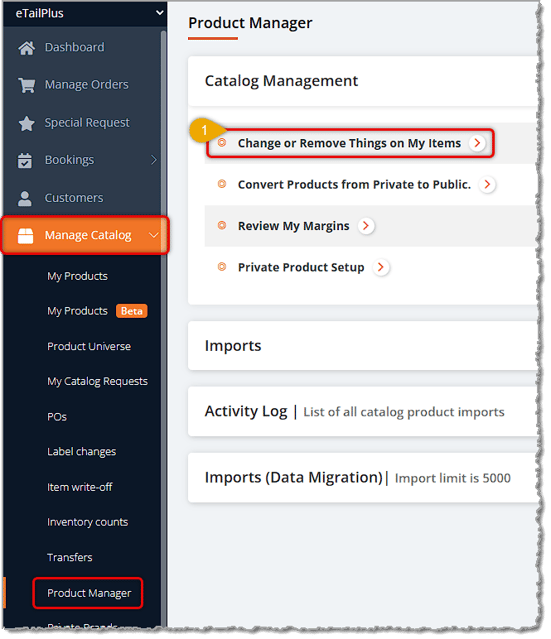
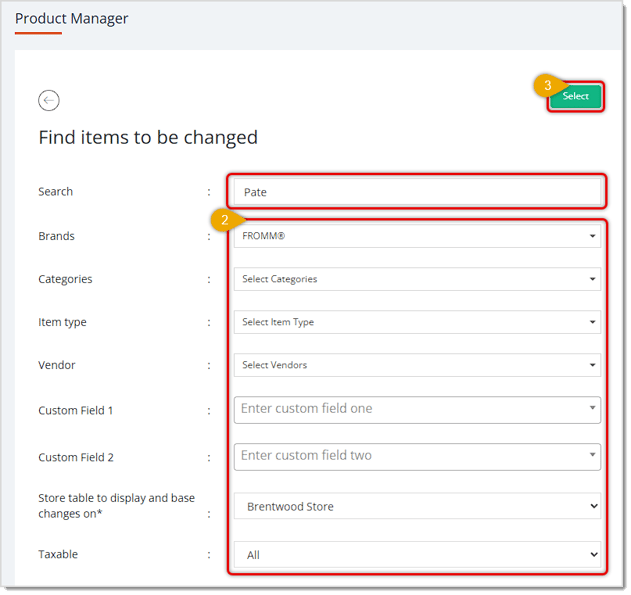
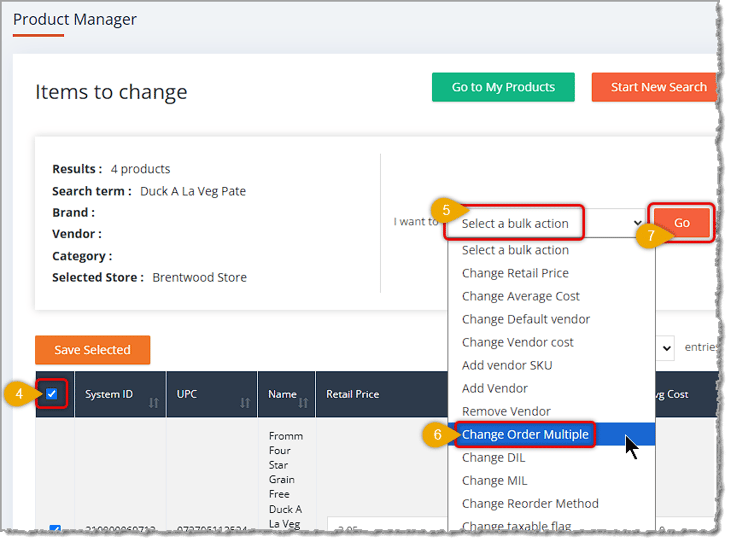
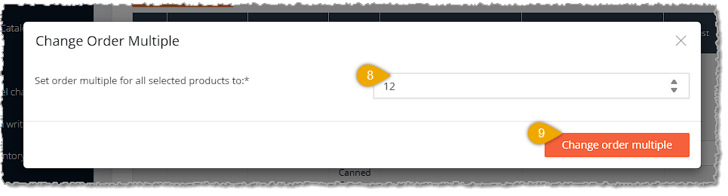
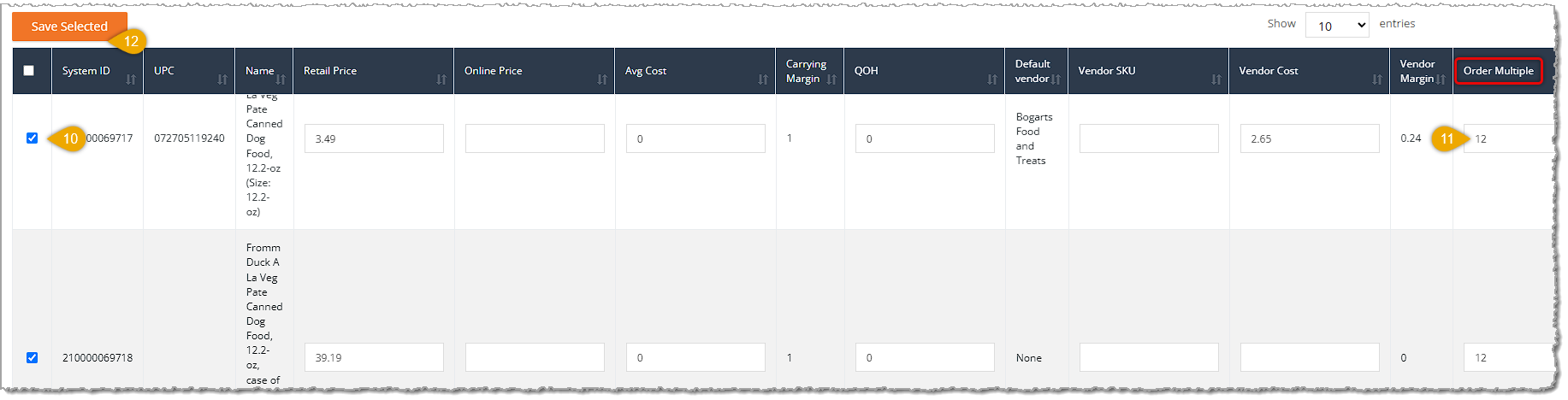
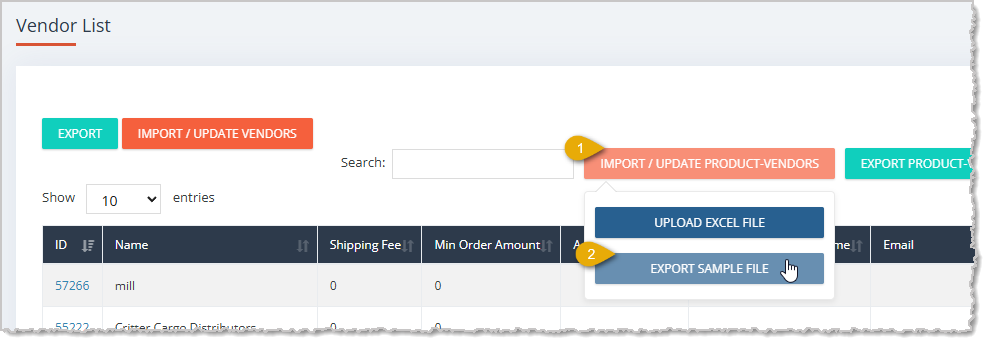
Step 1: Export Vendor Template File
In order to import Order in Multiples for the Products for a vendor, you first need to download the import template file. Click on Manage Catalog in the main menu on the left, then go to Product Vendors and follow these steps:
Step 2: Fill Out the Vendor Import Template
Open the file so you can add information in the Order in Multiples column and any other columns as needed for however many products you want to update. Make sure to save your changes. Here is an example of how the template's columns look in Microsoft Excel:
Please Note: When working with data in spreadsheets, it is good to be familiar with our Tips and Tricks article for data work, since Excel can drop leading zeroes from UPCs and render long numbers as scientific notation (as shown below) instead of actual numbers.

Step 3: Import the Vendor Product Spreadsheet
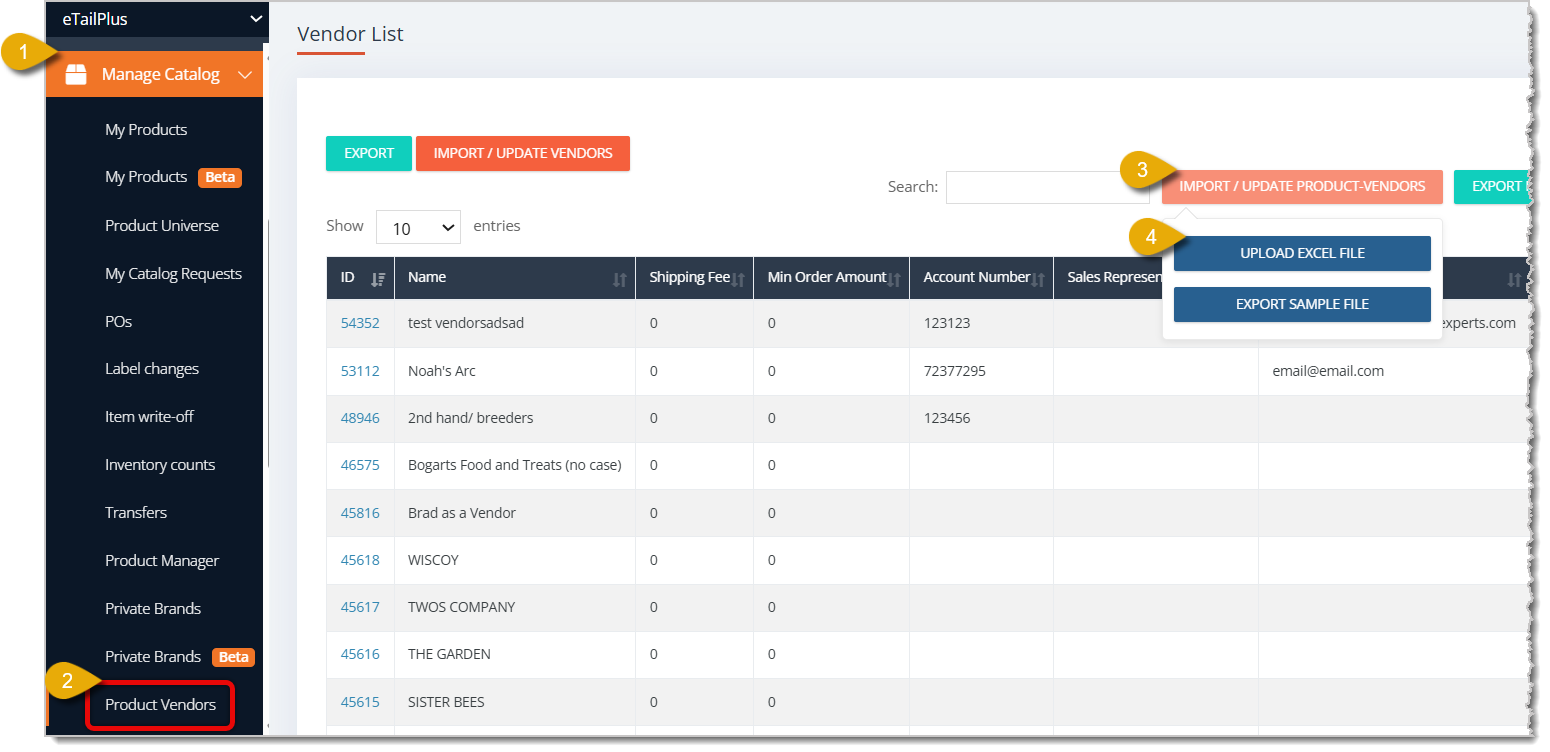
After you've finished filling out the Vendor Products spreadsheet, you can upload it into the eTailPet system. Here's how:
If you have products that are not in the Product Universe, you can set the Case UPC, Case Pack quantity, and Order in Multiples in the Product Details tab (for Case UPC and Case Pack) and in the Vendor Details tab of the product (for Order in Multiples, adjust this as described above). For Private Products, the Case UPC and Case Pack fields are editable (they are not editable for Public Products that are in the Product Universe).

💡Please Note: You DO NOT need to create a private product for the case UPC for items in the Product Universe. The system is designed to automatically do the conversion between case vs. each products when they are scanned in during PO check-in or when scanning into the New Sale screen.
Occasionally, you may have a product that your vendor allows you to order as either a single item, or as a package with multiple items (case quantity). In this case, you may want to create a private product as a workaround. Be aware that you can’t have the same UPC in both your public and private catalog at the same time, including all of your locations. In order to avoid issues, you would need to first remove the product from ALL locations in your public catalog. Then you can create the item as a private product without the case vs. each settings.
Boss Quote
Make sure your human gets the Order in Multiples numbers in the system before ordering. And setting up for Smart Ordering is the best way for them to stay ahead on inventory management. Even a kitten knows that. If they give you any flack, just remind them that you have to catch your mouse before you can eat it. Then they'll understand.— Adrian, Wenatchee, WA
Q: I have a question, but I can't find my answer here. How do I get more assistance?
A: You can ask any question at the number listed here. Contact our support team at: (323) 370-0738 for the U.S., and (888) 370-2363 for Canada.
Is this page helpful?
×Help us improve our articles