If you're selling a public product from eTailPet's Product Universe on your e-commerce site, you can override and change its pre-loaded details. For example, if you have reason to change the category, brand, or image of the product online, you can edit them yourself. This article explains how to enable Localized Product Variants and customize selected public product details for a product. Take a look at what you can do!
Please Note: Local overrides change the product details shown on your e-commerce website, but they do not change how the product appears in reports. Brand and category reporting will continue to use the details that are defined in the Product Universe.

Enable Localized Product Variants
To change a public product's details, you'll first have to enable variants for it. Here's how:

- Click on Content in the main menu on the left.
- Open Configuration.
- Scroll down and check the box for Enable Localized Product Variants.

- Scroll down and click on Save.

After you enable this, a section for Local Overrides will appear at the bottom of each product details page.
Apply Local Overrides to Products
Use the Local Overrides section to update the following product details:
- Brand
- Categories
- Ingredients
- Guaranteed Analysis
- Product Photos
Here's how to apply a local override to a public product and descriptions of what you can override:
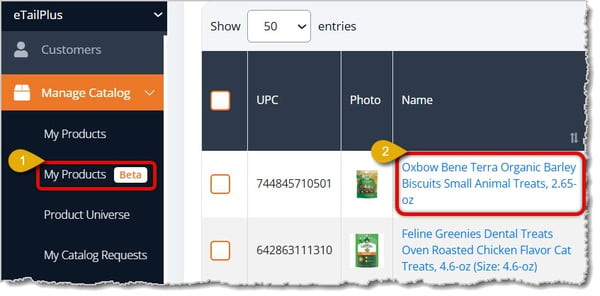
- Go to Manage Catalog > My Products using the main menu on the left.
- Click on a Product Name to open the product's details page.
- Scroll to Local Overrides.
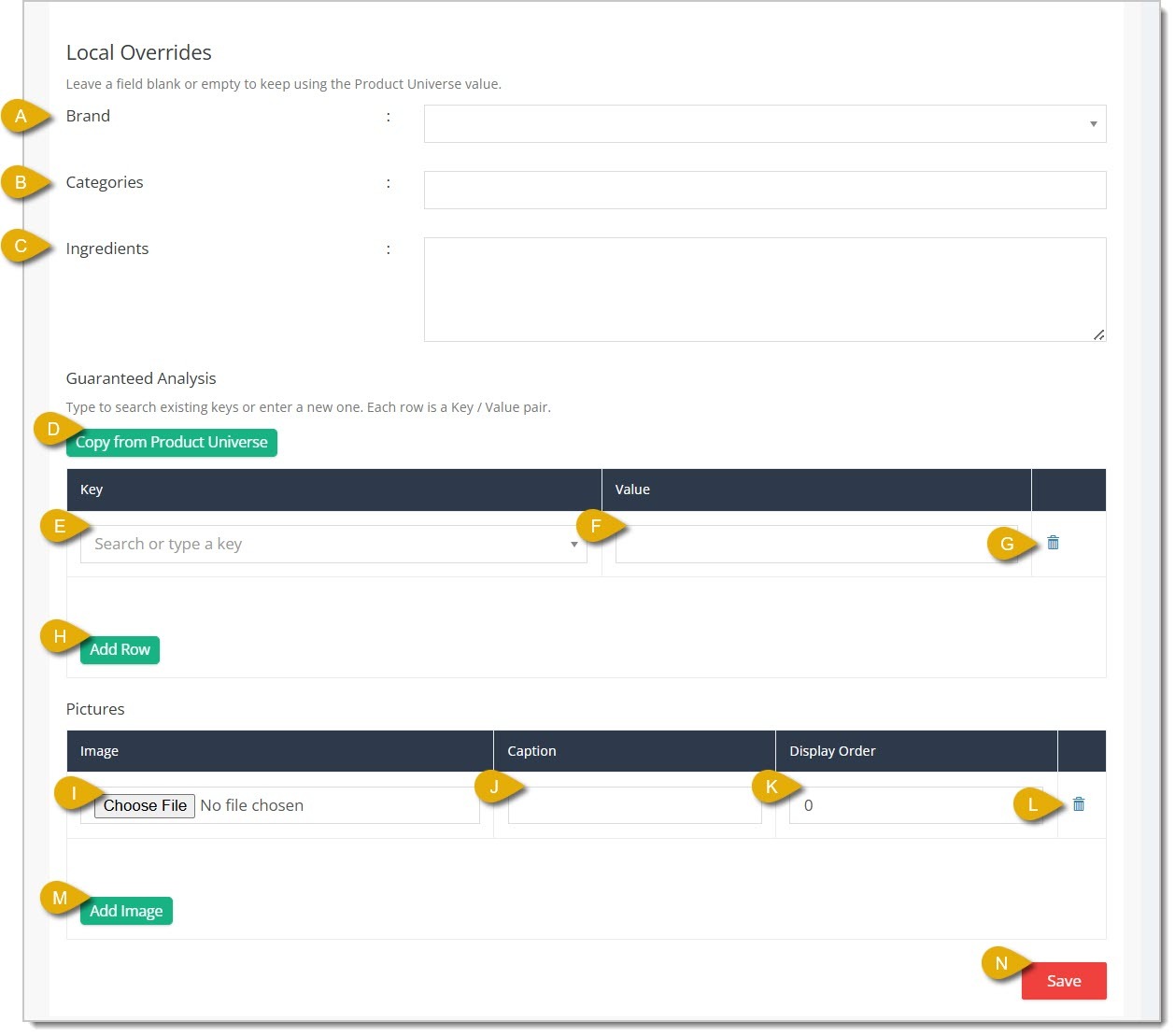
- Brand — Select the brand of the product from the drop-list. You can enter the brand name in the search area and select the one you want from matching results.
- Categories — Select the categories you want the product to be in from the drop-list. You can enter the category name in the search area and select the one you want from matching results. You can select as many Categories as you need.
- Ingredients — Enter the ingredient details you want to show for the product.
- Copy from Product Universe — Under Guaranteed Analysis, you can fill in the nutrition analysis (percentage of crude fat, fiber, carbs, etc.). If you click on this button, the nutrition analysis information already in the Product Universe will automatically fill out the fields.
- Key — Enter the nutritional key name, like Crude Fat, Crude Fiber, Crude Protein, Moisture, etc.
- Value — Enter the percentage values of the nutritional analysis keys, like 7.0% min, 10.0% max, etc.
- Delete Key and Value — Click on the Trash Can icon on the right of an analysis field to remove it.
- Add Row — Click on this button to add a row for analysis information.
- Choose File — Click on this button to upload an image for the product.
- Caption — Enter the caption you want associated with the product image, if needed.
- Display Order — Enter a number to indicate the display order for the product image. For example, enter 1 if you want an image to appear first, 2 for second, 3 for third, and etc.
- Delete Image — Click on the Trash Can icon on the right of an image row to remove the image.
- Add Image — Click on this button to add a row so you can upload another image for the product. Please Note: Image files should be JPG or PNG and the file size should be 1MB or less.
- Save — Click on the Save button when you're finished editing product details.
What Customers Will See
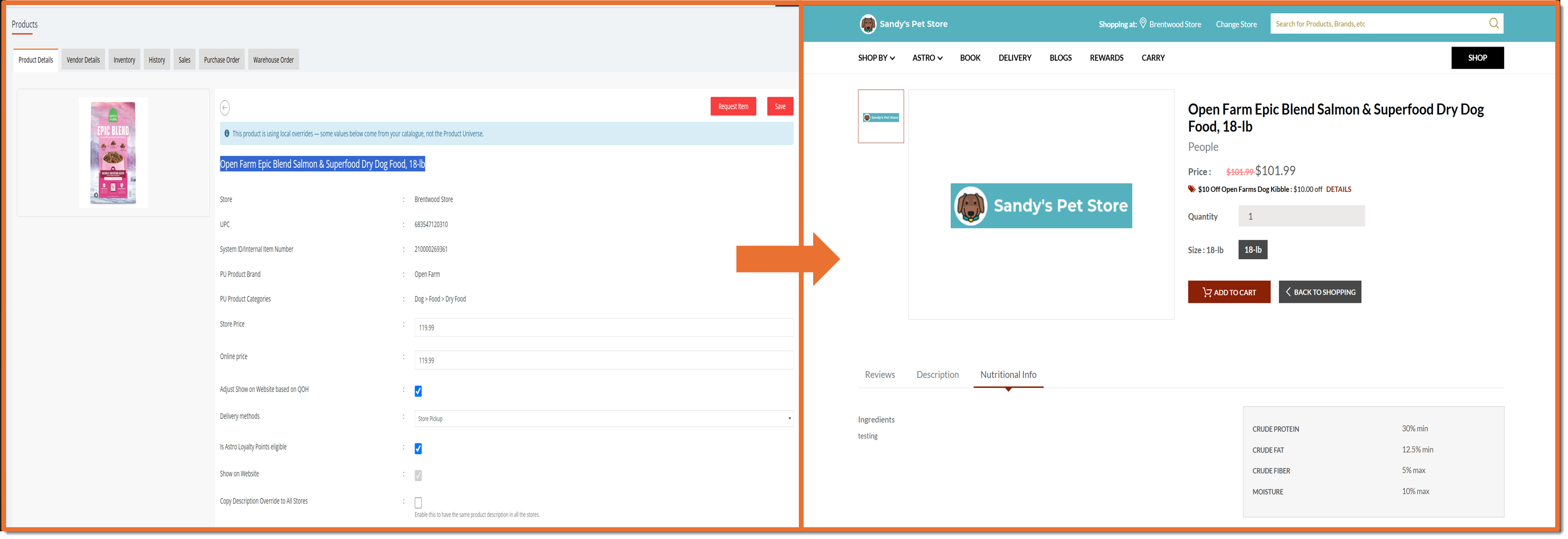
After you save the overrides, the product details page displays the localized values and product photos on your website. The original product universe values remain unchanged in your sales reports.
Related Topics
Product Universe
Private Products
Private Product Setup
Private Brands
Request a Catalog Addition or Change
My Catalog Requests
Frequently Asked Questions
Q: Does enabling the feature update existing product data automatically?
A: No. Enabling the feature makes the Local Overrides section available. You must update and save each product individually.
Q: Do local brand and category overrides change reports?
A: No. Reports continue to use the brand and category from the Product Universe.
Q: Which product details can be overridden?
A: You can override Brand, Categories, Ingredients, Guaranteed Analysis, and product Images.
Q: I have a question, but I can't find my answer here. How do I get more assistance?
A: You can ask any question at the number listed here. Contact our support team at (323) 370-0738 for the U.S. and (888) 370-2363 for Canada.







 Sep 17, 2026
Is this page helpful?
×Help us improve our articles