






Payments Bank Account Update
If the need to change the bank account that your payouts are deposited in a new bank account can be
 Aug 12, 2026
Integrating with your Google Merchant Center allows you to promote your products and stores across Google platforms—like Search, Shopping, Maps, and Lens. This visibility helps drive traffic to your business, both online and in-store. This article will show you how to integrate the eTailPet system with your Google Merchant Center account. Get started now!
These are two different major services and require separate account setups. Here are the purposes of each service:
💡Please Note: If you have already set up for the Local Inventory on Google, you are already set up with your Google Merchant Center, as that is one of the services offered in the Merchant Center. This article will show you the other features of the Merchant Center in which you may be interested.
You will want to make sure all of the products you intend to sell online are set to Show On Website. If you need to change multiple products to that level of visibility, you can do so by going to Manage Catalog > My Products.
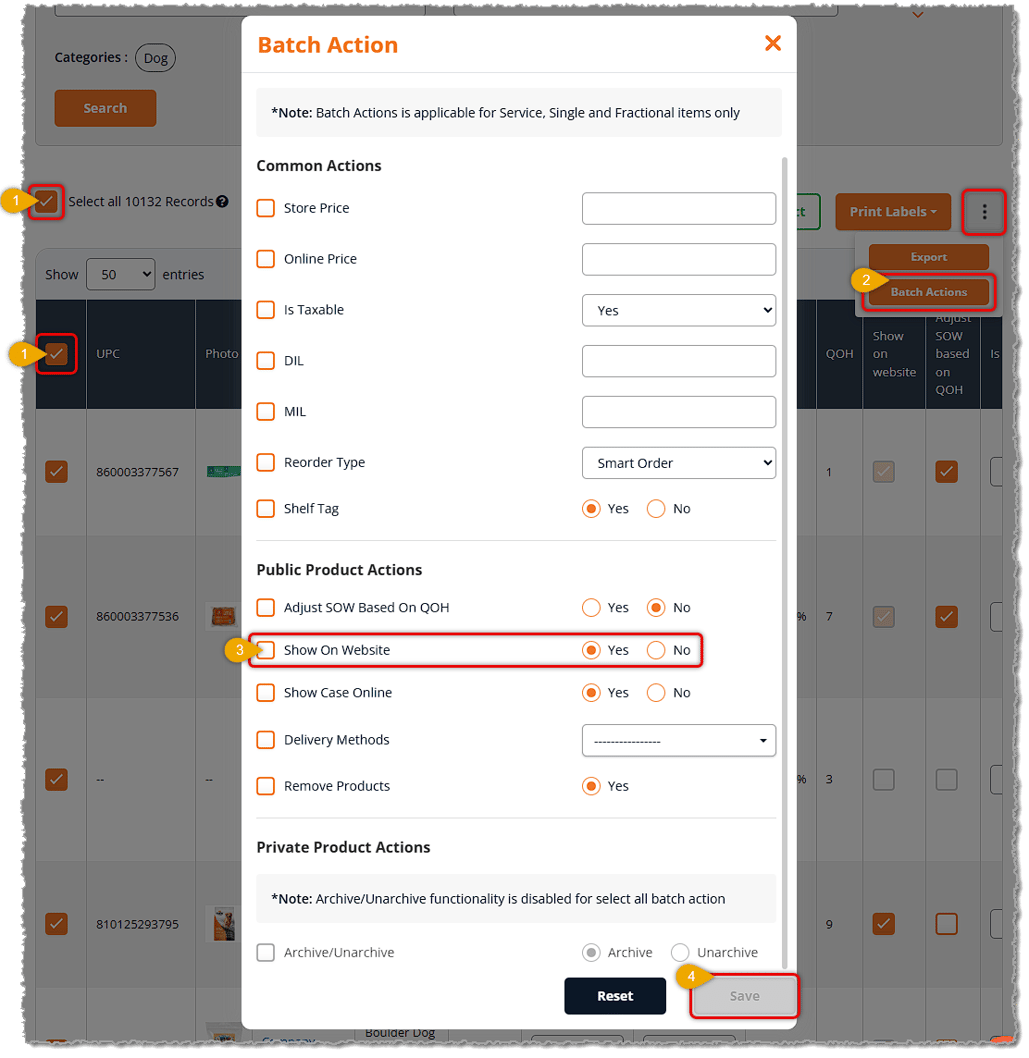
On the page you'll want to filter to the products you want to change, then do the following:
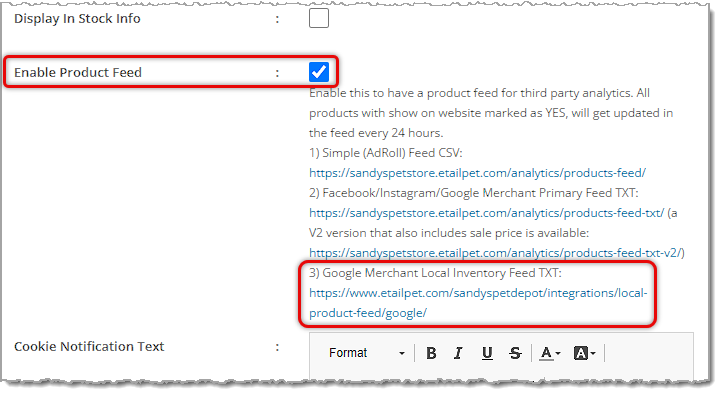
Before you start working on your Google Merchant Center, you will need to go to Content > Configuration and scroll down to the Enable Product Feed setting and make sure the box is checked. If you make a change, be sure to click Save. Later in the process, you will need to the link for the Google Merchant Local Inventory Feed TXT, which is used for Local Inventory and for your regular product listings with Google, highlighted below.
Go to Google Merchant Center Sign-Up and create your account by clicking here.
Fill out your business details and submit.
Choose the services you'd like to enable; Google will walk you through this.
After entering your website URL, Google will request verification.

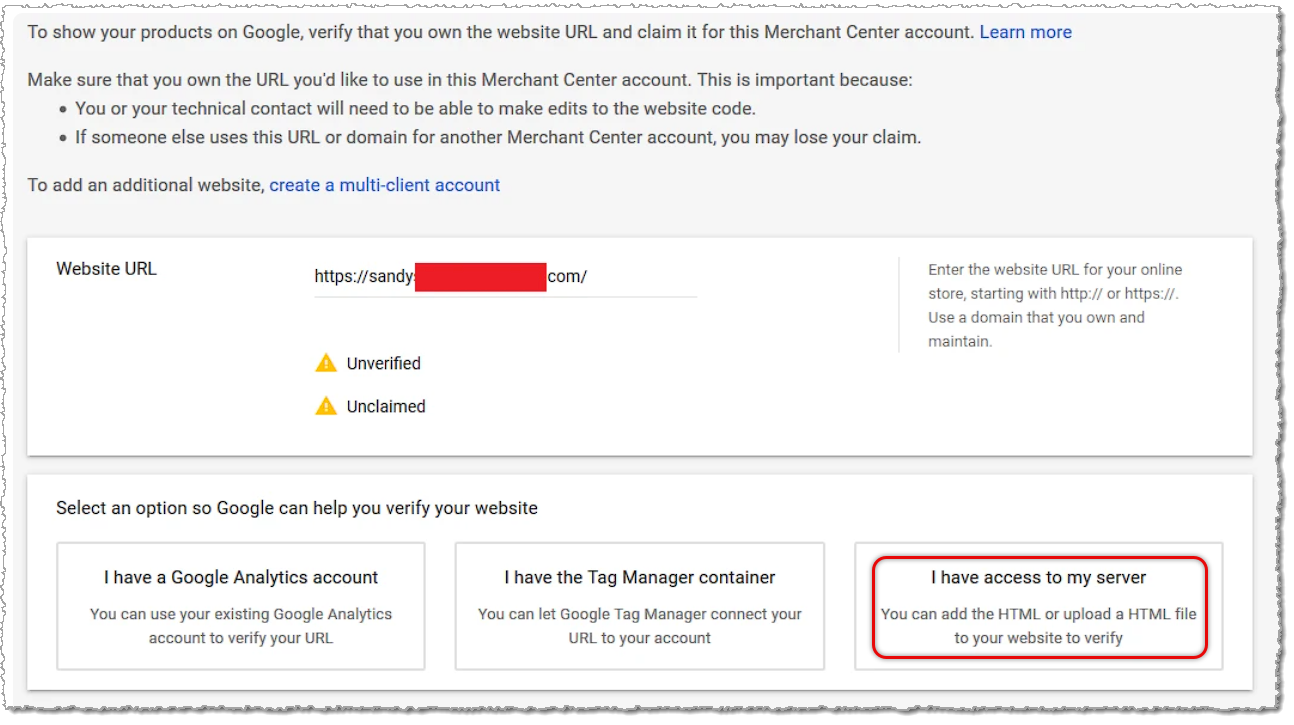
To add the meta tag:
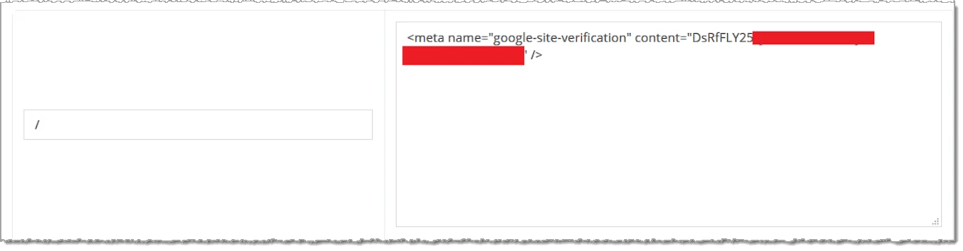
After verification, click Claim URL to complete this step.
Go to Products > Feeds > Add Product Feed.
Enter the following details:
| Field | Value |
| Target Country | United States (or your country/territory, if different) |
| Language | English |
| Feed Name | Your preference; for example, "Store Daily Feed" |
| Input Method | Schedule fetch |
| Field | Value |
| File Name | product_feed.txt |
| Fetch Frequency | Daily |
| Fetch Time | After 8:45 AM UTC (e.g., 9:15 AM UTC / 2:15 AM PST recommended) |
| File URL | Go to Content > Configuration and scroll down to the Enable Product Feed setting and copy the URL for the Google Merchant Local Inventory Feed TXT and paste it in this field. |
| Username / Password | Leave blank |
To avoid listing issues related to Tax:
Local Inventory on Google Integration
Q: I have a question, but I can't find my answer here. How do I get more assistance?
A: You can ask any question at the number listed here. Contact our support team at (323) 370-0738 for the U.S. and (888) 370-2363 for Canada.
Is this page helpful?
×Help us improve our articles