






Payments Bank Account Update
If the need to change the bank account that your payouts are deposited in a new bank account can be
 Aug 10, 2026
Your Google Analytics and Tags give you critical feedback on your storefront website traffic. You can see how many people visit your product pages, where they come from, and how long they stay on your pages. This article will show you how to set up your Google Analytics and Tags. Get started now!

This article instructs you in areas that are partially outside of the eTailPet system. Your Google Analytics and Tags require that you have a Google Business Profile. Our integration with your Google Business Profile allows you to easily connect your store to valuable Google services:
⚠️Please Note: This information is provided for your convenience only. eTailPet doesn’t provide technical support for third party applications. While we do not provide any custom HTML code or troubleshooting as part of your service, Google does provide detailed information on how to do what is needed in this area, as well as support for their services.
For this process, you will use Google Tags, which are snippets of code that sit on your web pages and report your analytics data back to your Google Analytics hub. First you will generate your Tags in the Google Tag Manager, and then you'll copy and paste them into the eTailPet system as described below.
To get started, you must first have your Google Business Profile in place. If you haven't yet created that, click here to learn how to do so. Once you have your Profile in place, click here to get started with your Google Tag Manager. For a detailed walk-through of using Google Tag Manager, click here for steps and videos.
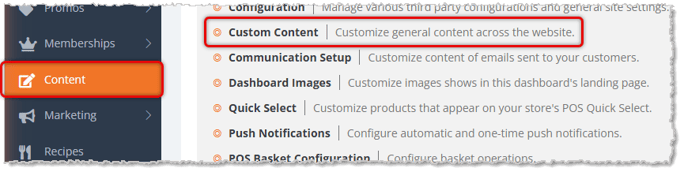
Once you have your Google Tags, in the eTailPet admin dashboard go to Content > Custom Content.
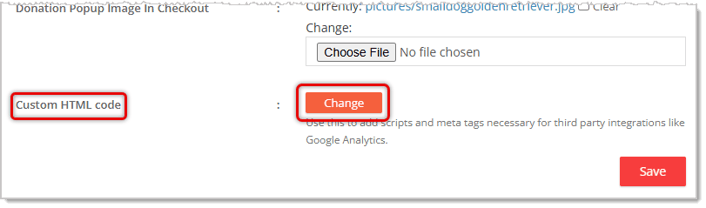
Scroll to the bottom of the page and find the Custom HTML Code area. Click the Change button to open the Custom Code window.
In the Trailing URL Path column, you will just enter a forward-slash character, as pictured below: /
In the Custom HTML Code Inside <head> Tag column, you will paste in the Head tag from your Google Tag Manager. You'll do the same thing for the Customer Code Inside <body> Tag column for the Body tag from your Google Tag Manager (not shown).
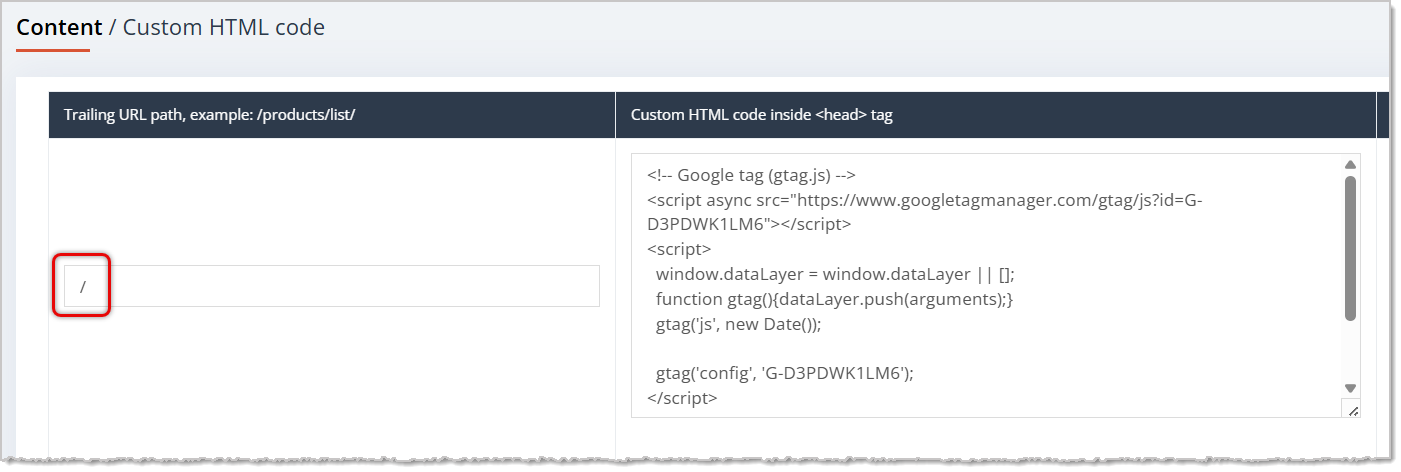
image needs alt text
Once you're finished, click the Save button at the bottom of the page, and you're all set!
Local Inventory on Google Integration
Q: I have a question, but I can't find my answer here. How do I get more assistance?
A: You can ask any question at the number listed here. Contact our support team at (323) 370-0738 for the U.S. and (888) 370-2363 for Canada.
Is this page helpful?
×Help us improve our articles