⭐ The eTailPet system's Astro Loyalty integration enables customers to earn loyalty points on their online purchases and redeem offers. This article covers Astro setup for your e-commerce website so that customers can get benefits for shopping online. Read to find out how you can connect a loyalty program so your store gets repeat customers!

Connect Astro Loyalty
😸 Please Note: You first need to create an account with Astro Loyalty. Click here to sign up.
To use Astro Loyalty, you'll first need to connect it to your online store. The sections below cover both single-store and multiple-store setup.
Single Store Setup
Follow these steps if you have just one store for which you're setting up Astro Loyalty:
- Click on your Profile in the upper right corner, as highlighted in the image below. This will open a menu below it.
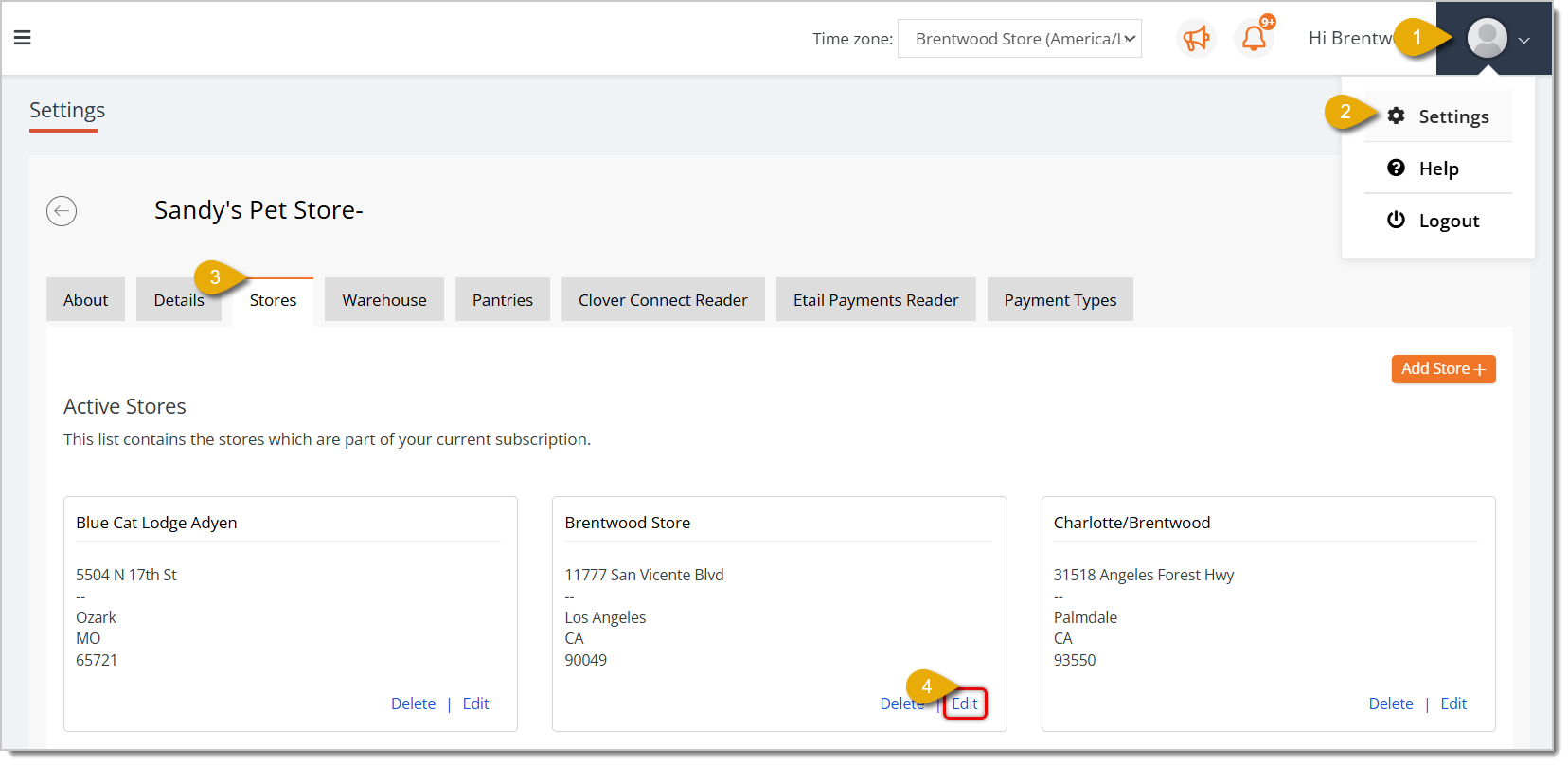
- Click on Settings in the menu.
- In Settings, click on the Stores tab.
- Click on Edit in the bottom right corner of the store's entry.
- Scroll down to the Astro Loyalty Details section, which is pictured below.
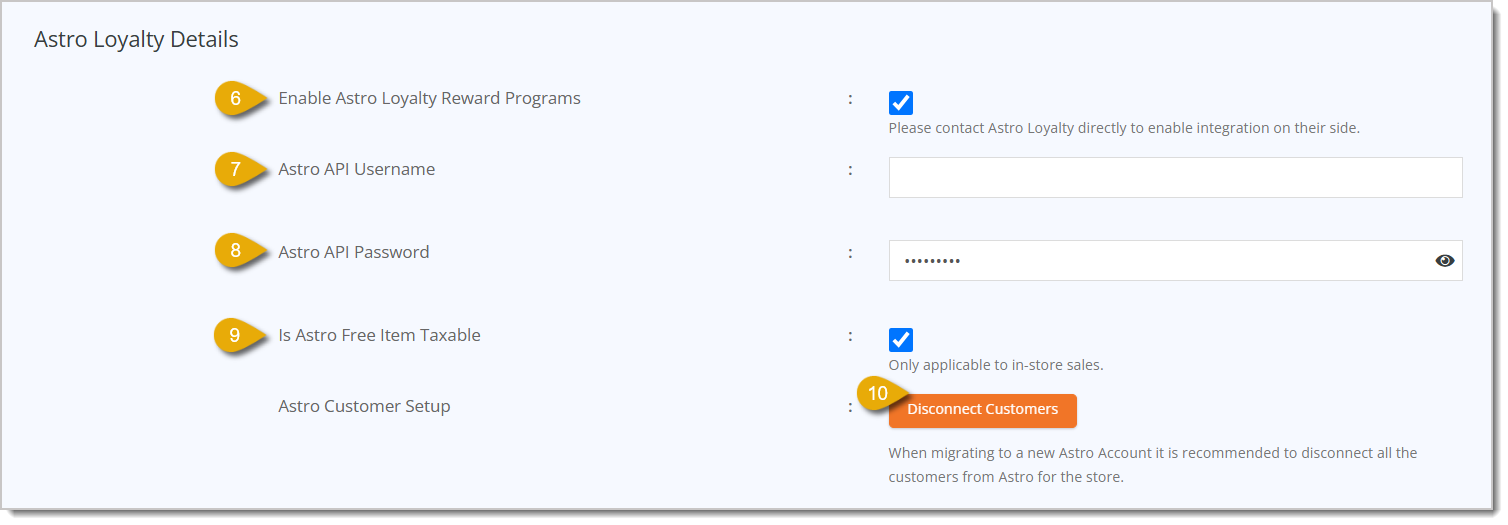
- Check the box next to Enable Astro Loyalty Reward Programs. Please Note: Make sure to also contact Astro Loyalty directly so they can connect the integration on their end.
- Enter your Astro API Username. This is the username you use to log into Astro Loyalty.
- Enter your Astro API Password. This is the password you use to log into Astro Loyalty.
- If you plan on also using Astro Loyalty for in-store sales, you can check the box next to Is Astro Free Item Taxable.
- If you want to migrate to a new Astro Loyalty account, you can click on Disconnect Customers to disconnect them from your previous Astro account.
- Scroll down to click on Save on the bottom right of the page.

Multiple or Regional Store Setup
If you have multiple stores you want to set up with Astro Loyalty, do the following:
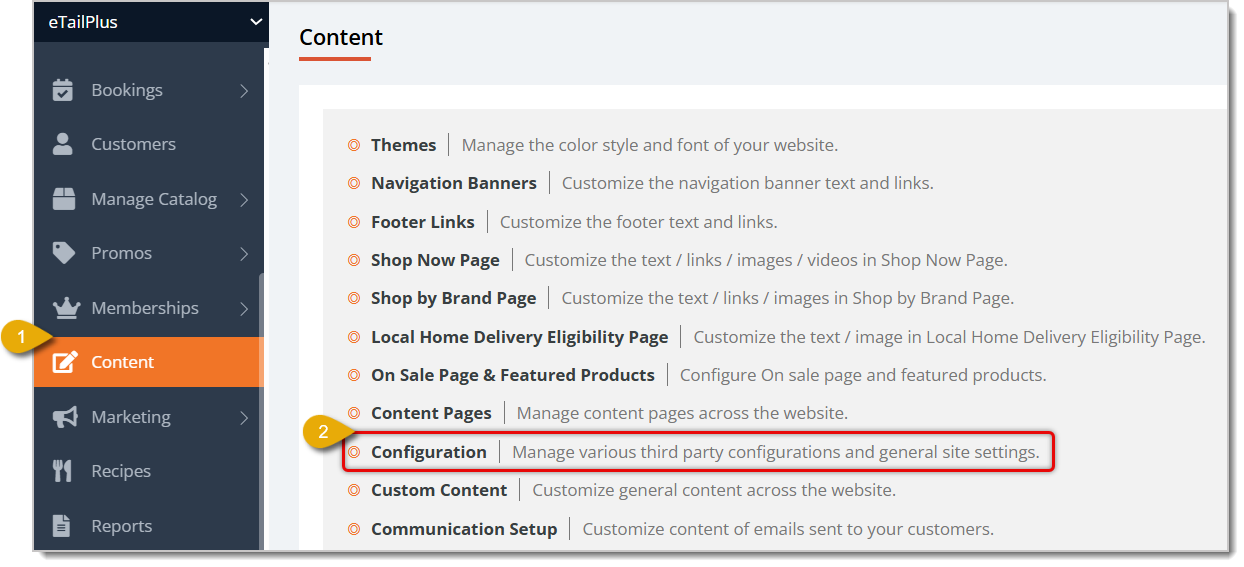
- Go to Content in the main menu.
- Click on Configuration on the Content page.
- Check the box next to Enable Astro Loyalty Reward Programs, as shown in the image below. Please Note: Make sure to also contact Astro Loyalty directly so they can connect the integration on their end.
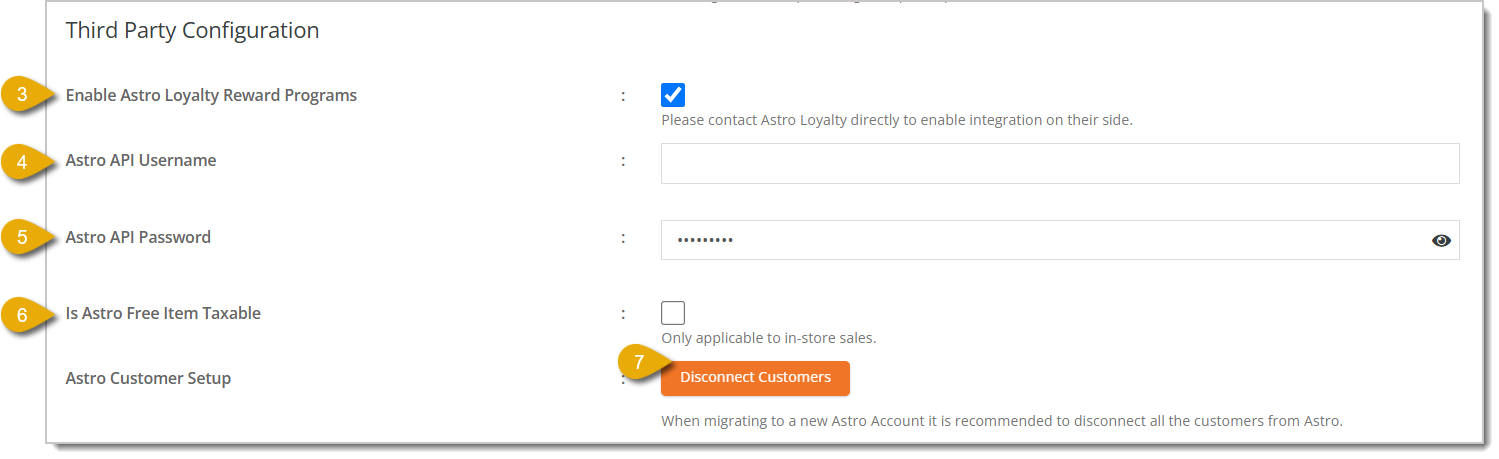
- Enter your Astro API Username like in the image above. This is the username you use to log into Astro Loyalty.
- Enter your Astro API Password. This is the password you use to log into Astro Loyalty.
- If you plan on also using Astro Loyalty for in-store sales, you can check the box next to Is Astro Free Item Taxable.
- If you want to migrate to a new Astro Loyalty account, you can click on Disconnect Customers to disconnect them from your previous Astro account.
- Scroll down to click on Save on the bottom right of the page.
Create a Navigation Banner Link for Astro Loyalty
Your navigation links are placed on the top of your website so customers can navigate to different pages. For example, in the image below, Shop By, Book, Delivery, Blogs, etc. are navigation links in your Navigation Banner.

We recommend you make a navigation link for Astro Loyalty so customers can view their points and available offers. Here is how to make your navigation link:
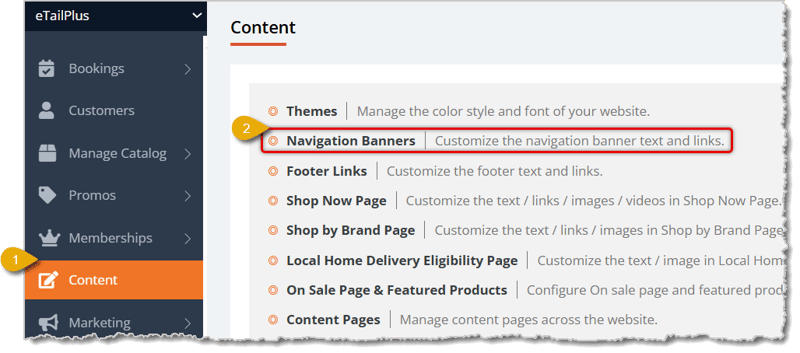
- Go to Content in the main menu.
- Click on Navigation Banners on the Content page.
- In the Navigation Banners editing page, under the Display Name column, enter the link name you want to give your Astro Loyalty page.

- Enter /accounts/login/?next=/customers/loyalty-rewards/offers/ in the Path column.
- In the Display Order column, enter a number for the position of the link on your website. The order starts from the left. For example, 1 is the left-most link, while 8 is the right-most.
- You can select if the link is a Category Dropdown, Custom Dropdown, or Not a Dropdown. Go with Not a Dropdown in this case.
- Click on Save in the bottom right to save changes and update your website.
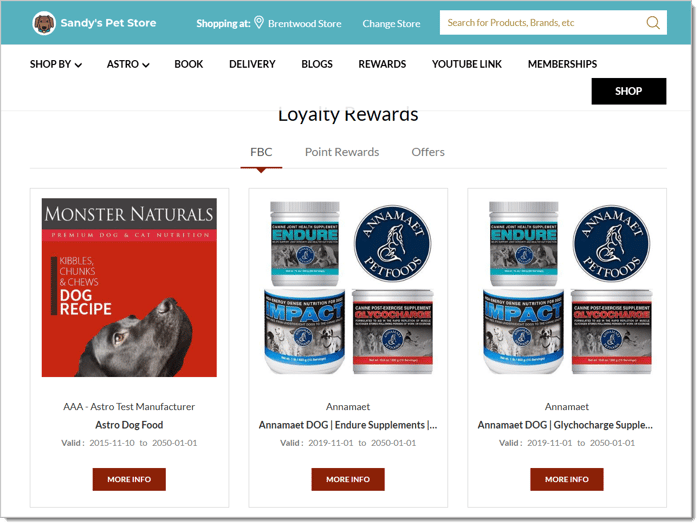
- Customers who are already logged in can now click on the banner and view their Astro Loyalty Rewards. This page is made up of three tabs:
- Frequent Buyer Cards (FBC) — Customers can click on this tab to view available Frequent Buyer Cards. These are cards that the customer can get "punched" for each time they buy an eligible product. When the customer gets enough punches, they can redeem something. For example, a customer can have an FBC that gives them a free bag of kibble when they buy 12 bags of a specific brand's kibble.
- Point Rewards — Customers can click on this tab to view rewards they can redeem in exchange for loyalty points.
- Offers — Customers can click on this tab to view offers they can redeem for being loyalty members. For example, this could be a Buy One Get One coupon.
View a Frequent Buyer Card Online
Customers can use Frequent Buyer Cards (FBC), which are cards that the customer can get "punched" for each time they buy an eligible product. When the customer gets enough punches, they can redeem something. For example, a customer can have an FBC that gives them a free bag of kibble when they buy 12 bags of a specific brand's kibble.
Customers can view and redeem their FBCs on your website. If a customer is unsure how to access that online, tell them to do the following:
- Click on their profile name at the top of the website. This will open a menu below it.
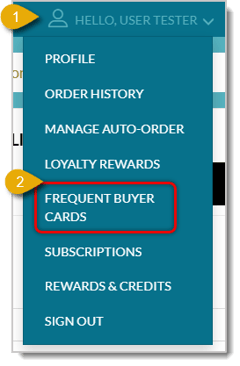
- Click on Frequent Buyer Cards in the resulting menu.
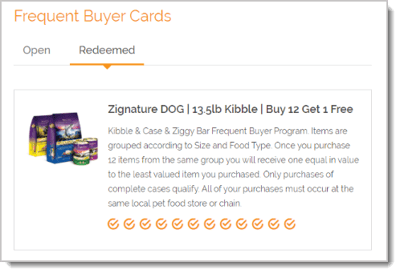
- Customers can view either their Open or Redeemed FBCs by clicking on their respective tabs.
Redeem a Loyalty Reward Online
When a customer has accumulated enough Astro Loyalty points, they can redeem a reward in exchange for points. Here is how they can do so online:
- After a customer opens their cart, they can click on Proceed to Checkout to purchase the order.
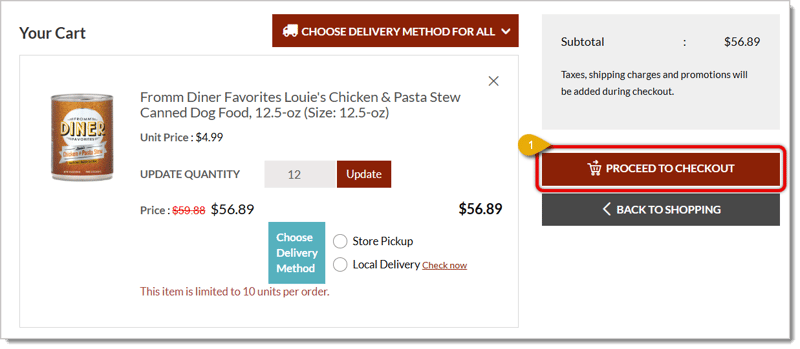
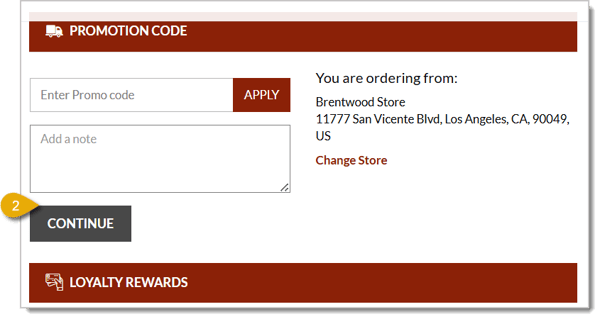
- The checkout page will automatically open the Promotion Code section first. Click on Continue to proceed to the Loyalty Rewards section.
- Click on the FBC, Point Rewards, or Offers tab to view available rewards. In the case of the image below, it is opened on the Point Rewards tab, which also shows the number of available loyalty points.
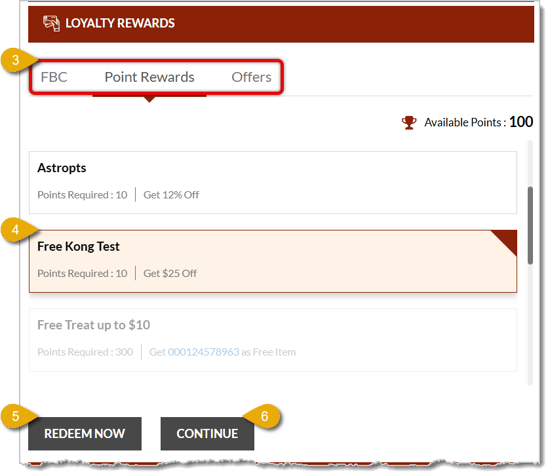
- The customer clicks on the reward they want.
- Click on Redeem Now.
- Click Continue to proceed with the rest of the online transaction.
Related Topics
Astro Loyalty Overview
Astro Loyalty Integration
Astro Loyalty Customer Connection
Astro Loyalty Points Events
Astro Loyalty Programs
Astro Loyalty Redemption
Astro Frequent Buyer Cards
Frequently Asked Questions
Q: How can a customer sign up to be an Astro Loyalty member?
A: As long as your eTailPet store is integrated with Astro Loyalty, and you add a customer's email address and phone number, any new customers will be automatically connected to the loyalty program. Click here to learn how to connect an existing customer.
Q: What's the difference between Frequent Buyer Cards, Point Rewards, and Offers?
A: FBCs are "punch cards" redeemed after enough qualifying purchases. Point Rewards get redeemed using accumulated loyalty points. Offers are perks — like a Buy One Get One coupon — available to loyalty members.
Q: Can a customer redeem a reward during checkout, or only from their account page?
A: Both work. Customers can view and redeem FBCs anytime from their profile menu, or redeem Point Rewards and Offers directly in the Loyalty Rewards section at checkout.
Q: Do I need to set up Astro Loyalty separately for each store?
A: It depends on your setup. Use Single Store Setup for one location, or Multiple or Regional Store Setup to enable Astro Loyalty for all your stores at once.
Q: Does Astro Loyalty work for in-store purchases too, or only online?
A: Both. If you also plan to use Astro Loyalty for in-store sales, check the Is Astro Free Item Taxable box during setup.
Q: I have a question, but I can't find my answer here. How do I get more assistance?
A: You can ask any question at the number listed here. Contact our support team at (323) 370-0738 for the U.S. and (888) 370-2363 for Canada.







 Jul 15, 2026
Is this page helpful?
×Help us improve our articles