





Add-On Services

Jul 31, 2026Jul 31, 2026

The Add-On Services page of the eTailPet Booking  Configuration area allows you to view and manage the extras that customers can add on to services they book, such as a nail trim during a grooming appointment. You can also create new Add-On Services from this page. Explore all of the options that are available here for you!
memphis - add-on services

Add-On Services Page

To get to this page, go to Booking > Configuration using the main system menu on the left. Click on Add-On Services under Add-on Configurations.
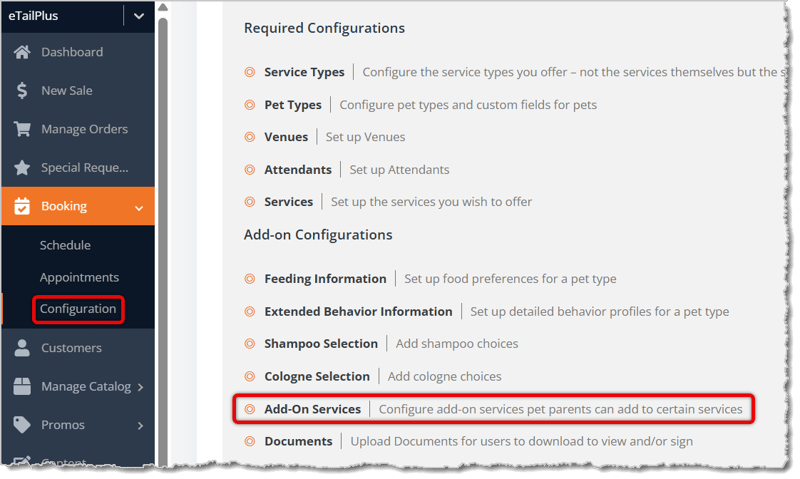
Image highlighting the main selections to open the Add-On Services page.

Here is how to work with your Add-On Services:
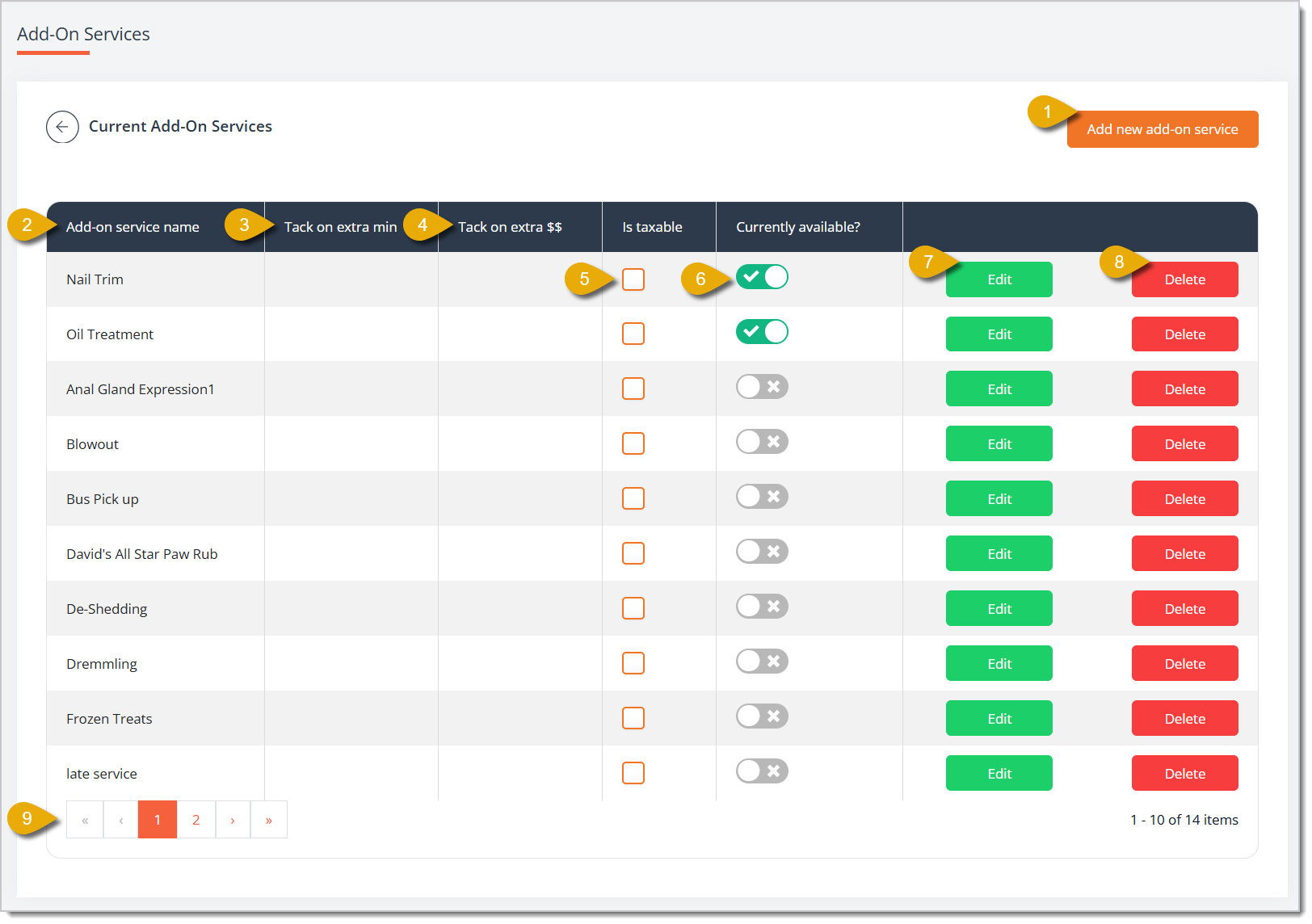
Image of the Add-On Services page, with major functions and fields highlighted.

  1. Add New Add-On Service — Click this button to create a new Add-On Service. A new field will appear above the table. See the Create an Add-On Service section below to learn more about this.
    Image highlighting the new field above the table after someone clicks on the Add New Add-On Service button.
  2. Add-On Service Name — This column displays the name of each Add-On Service. 
  3. Tack On Extra Min — This column shows the extra minutes added to an appointment when a customer selects this Add-On Service. 
  4. Tack on extra $$ — This column shows the extra charge applied when a customer selects this Add-On Service. 
  5. Is taxable — Check this box to mark the Add-On Service as taxable. You must first click Edit on the right of this to make this checkbox editable.
  6. Currently available? — Toggle this to enable or disable the Add-On Service for customer booking. You can change this without clicking Edit first.
  7. Edit / Save — Click Edit to make the fields for Add-On Service name, extra minutes, extra charge, and is taxable in that row editable. Once you click Edit, the button changes to Save. After you make changes, click on Save to update your changes.
    Image highlighting the Save button that appears after you click on the Edit button in the Add-On Services configuration page.
  8. Delete — Click this button to permanently remove the Add-On Service from the list.
  9. Page Navigation — If your Add-On Services span more than one page, click the page number buttons at the bottom of the list, or click the arrow buttons, to browse between pages.


Create an Add-On Service

Here is how to create a new Add-On Service after you click on the Add New Add-On Service button:

Image showing the Add New Add-On Service field on the Add-On Services page.

  1. Name — Enter the name for the new add-on service.
  2. Add — Click this button to save the new add-on service.
  3. Note that you only add the name of the add-on service here. To set the extra minutes, extra charge, taxable status, and availability, click on Edit in the service's row, as described above in the Add-On Services Page section.
    Image highlighting the Edit button in a row of the table in the Add-On Services configuration page.

Your new Add-On Service will now appear in the list on the Add-On Services page and will be available to customers for service bookings if you made it available.


Related Topics

Booking Appointments

Checking Out a Booking Appointment

Shampoo and Cologne Selection

Attendants

Service Types

Services


Frequently Asked Questions

Q: Can a customer add more than one add-on service to a booking?

A: Yes. As long as each add-on service is marked as Currently Available, a customer can select any of the available add-on services for a qualifying booking.


Q: How do I temporarily stop offering an add-on service without deleting it?

A: Click the Currently available? toggle switch on that add-on service's row to turn it off. You can click the switch again later to turn it back on.


Q: Why can't I check the Is taxable box for an add-on service?

A: You must click Edit on that row first. Once the row is in edit mode, the Is taxable checkbox becomes clickable. Remember to click on Save to apply the change.


Q: Does adding extra minutes to an add-on service change the appointment length automatically?

A: Yes, the value you enter in Tack on extra min is added to the appointment's total length whenever a customer selects that add-on service.


Q: I have a question, but I can't find my answer here. How do I get more assistance?

A: You can ask any question at the number listed here. Contact our support team at (323) 370-0738 for the U.S. and (888) 370-2363 for Canada.

Need Help?

Can't quite find the answer you're looking for? Our support team is just a call away.


