🛀The Service list page in the Booking area shows every bookable service you offer, so you can view the details of each one in a table. You can also add a new service from this page. Read on to see how to configure your services!

Services
The table displays the Service Name, Service Type, Pet Type, Service Duration, Taxable status, and Payment Type for each service. Here is how to work with your Services:
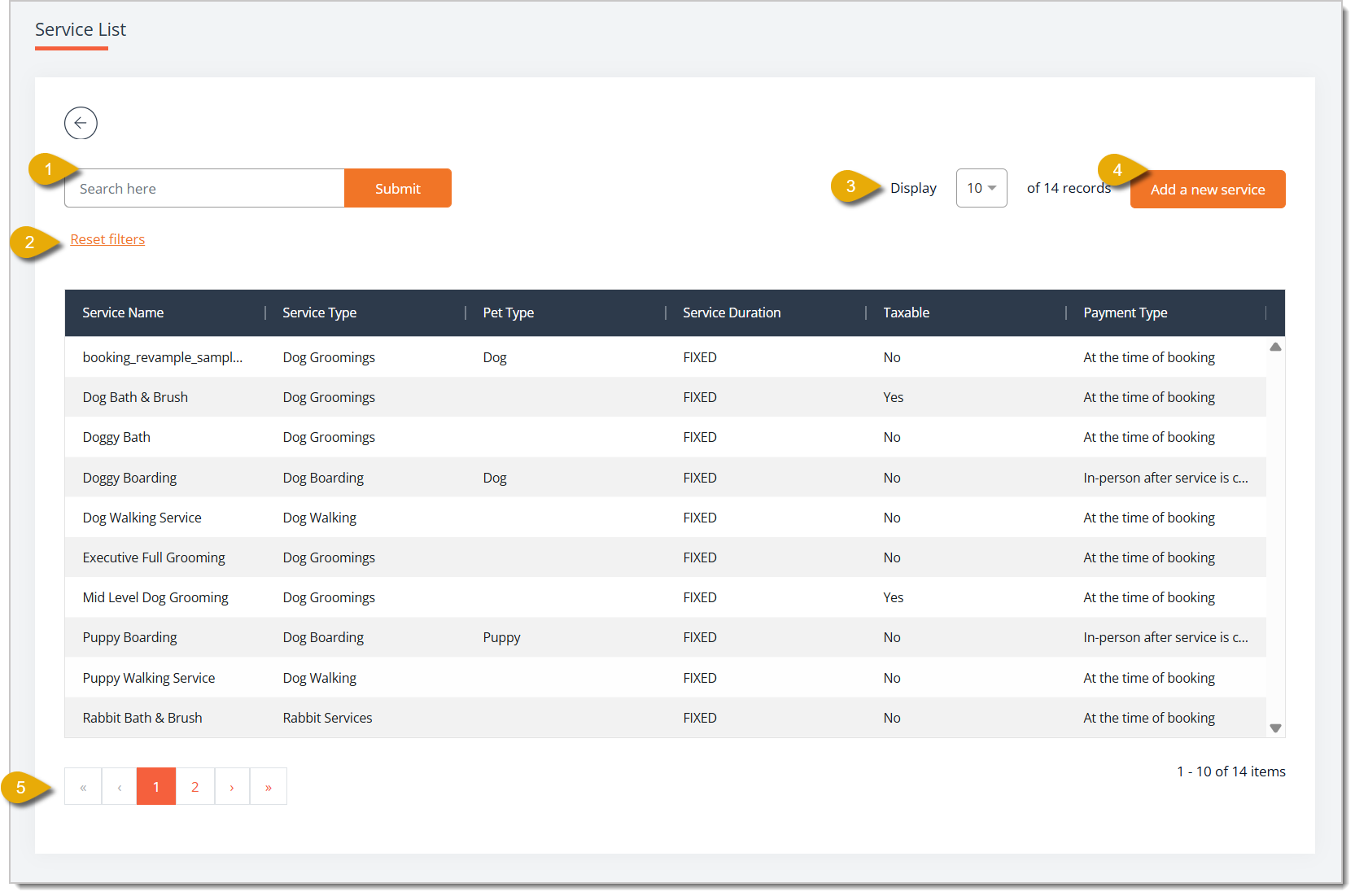
- Search — Enter a keyword and click Submit to filter the service list.
- Reset Filters — Click this link to clear the filters and display all services again.
- Display — Select how many records will display per page from this drop-list.
- Add A New Service — Click this button to open the Add New Service page and build a new service using the fields below. Please Note: The Add a New Service page is described in its own section below.
- Navigate Pages — Click on the Arrow Buttons on the bottom of the page to navigate between pages. You can also click on the Page Number Buttons to skip to certain pages.
Add a New Service
Here is how to configure a new service for your store:
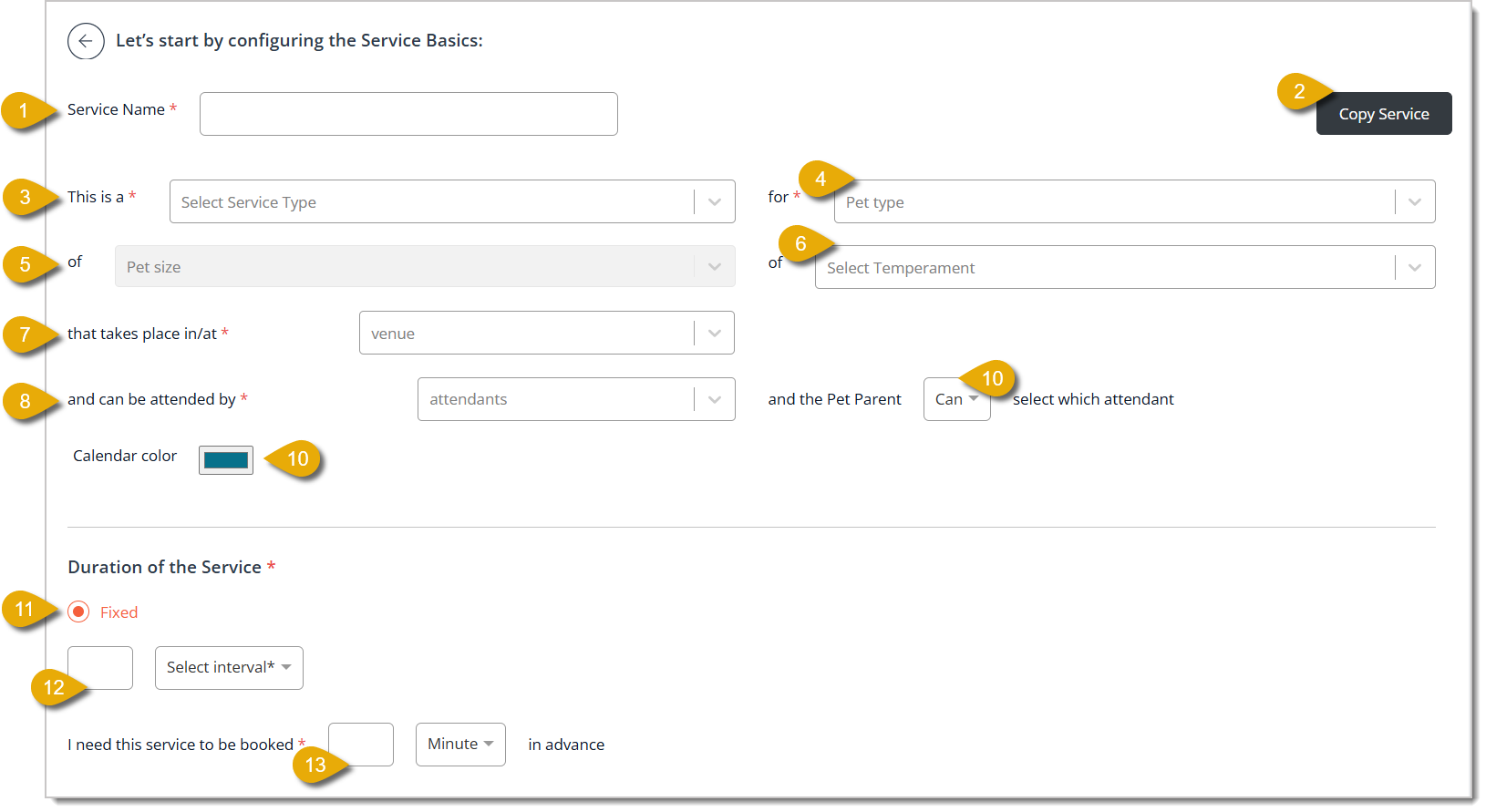
- Service Name* — Enter the name of the service.
- Copy Service — Click Copy Service if you would rather duplicate an existing service's settings as a starting point.
- This is a / Select Service Type* — Select the Service Type from this drop-list.
- For / Pet Type — Select the applicable Pet Type from the drop-list.
- Of / Pet Size — Select a Pet Size from the drop-list if this service should be limited to pets of a certain size.
- Of / Select Temperament — Select a Temperament from the drop-list if this service should be limited to pets of a certain temperament.
- Venue* — Select the Venue where this service is performed using the drop-list to the right of That Takes Place In/At.
- Possible Attendants* — Select which Attendants can perform this service using the drop-list to the left of Can Be Attended By.
- Parent Attendant Selection — Select Can or Can't from the drop-list to choose whether or not the pet parent can select the pet's attendant.
- Calendar Color — Click the color swatch to choose the color that represents this service on the booking calendar.
- Duration of the Service* — You can select Fixed to indicate that the service should take a set amount of time. For example, you can fix a dog walk to 30 minutes.
- Duration* — Enter a number and select an interval from the Time Unit drop-list to set how long the service takes, either Minutes, Hours, or Days.
- Booking in Advance* — Enter a number and select Minutes , Hours, or Days from the drop-list to require a minimum amount of notice before the appointment.
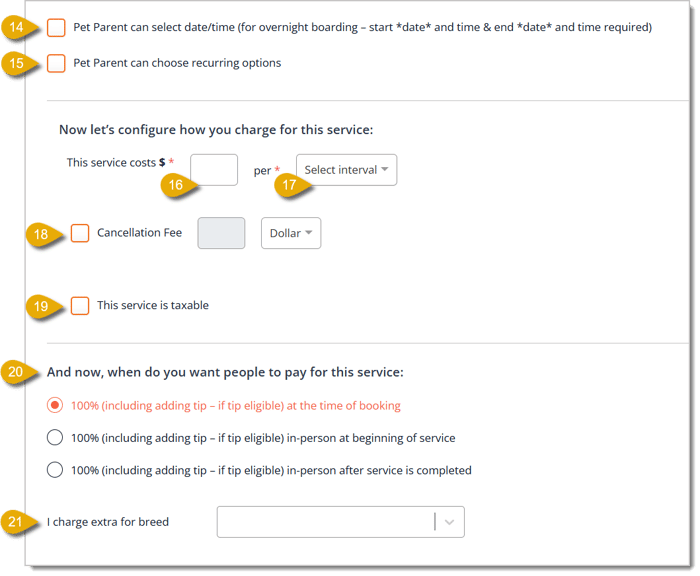
- Pet Parent Can Select Date/Time — Check this box for services such as overnight boarding that require the customer to choose a start date and time, as well as an end date and time.
- Pet Parent Can Choose Recurring Options — Check this box to let customers set up this service as a recurring booking.
- This Service Costs* — Enter the Price you charge for the service.
- Per / Select Interval* — Select an interval from the Select Interval drop-list to set how you charge for the service. Choices include charging per Event, Hour, or Day.
- Cancellation Fee — Check Cancellation Fee to charge a fee for an amount you enter (in Dollar or Percent) if the booking is canceled.
- This Service Is Taxable — Check this box if sales tax applies to the service.
- Payment Timing — Under And now, when do you want people to pay for this service, select when you want to collect payment. Your options are at the time of booking, in-person at beginning of service, or in-person after service is completed.
- I Charge Extra for Breed — Select a breed from the drop-list if this service carries a breed-based surcharge.
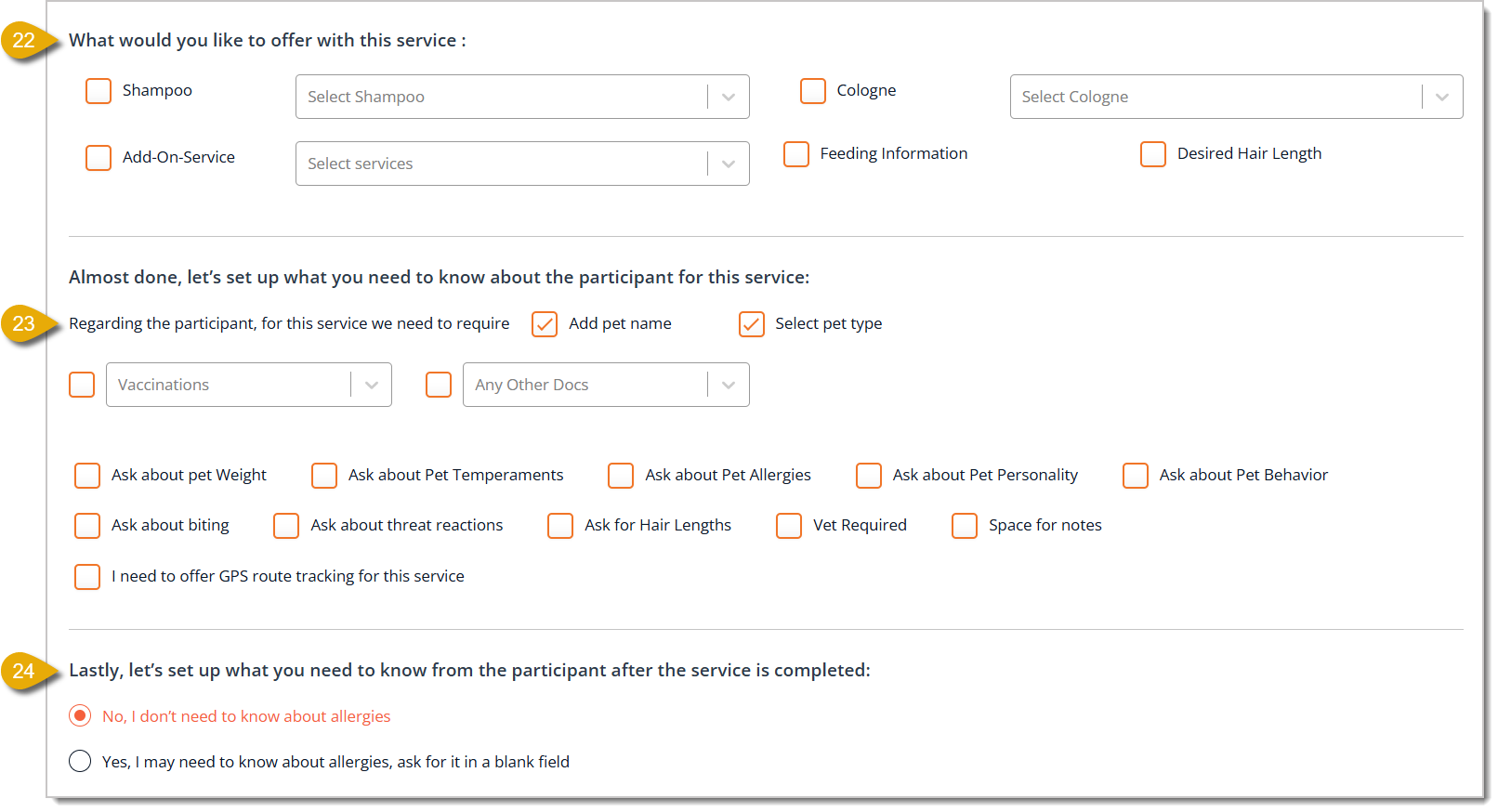
- What Would You Like to Offer With This Service — Check any combination of Shampoo, Cologne, Add-On-Service, Feeding Information, and Desired Hair Length, selecting the specific options from each paired drop-list.
- Regarding the Participant, For This Service We Need to Require — Check Add Pet Name and Select Pet Type as needed, along with any combination of Vaccinations and Any Other Docs from their drop-lists. You can also check boxes for Ask About Pet Weight, Ask About Pet Temperaments, Ask About Pet Allergies, Ask About Pet Personality, Ask About Pet Behavior, Ask About Biting, Ask About Threat Reactions, Ask for Hair Lengths, Vet Required, Space for Notes, and I Need to Offer GPS Route Tracking for This Service.
- Allergy Follow-Up — Choose No, I don't need to know about allergies or Yes, I may need to know about allergies, ask for it in a blank field to determine if the attendant records allergy details after completing the service.
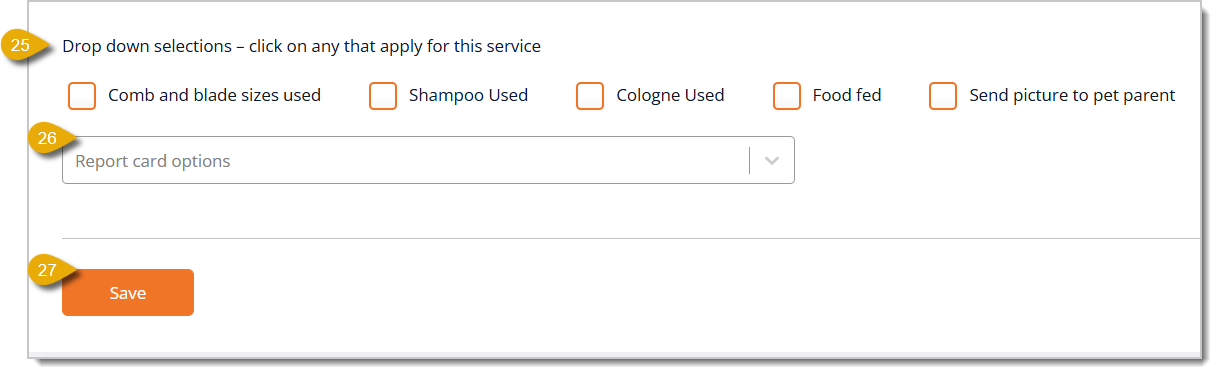
- Drop Down Selections — Check boxes for Comb and Blade Sizes Used, Shampoo Used, Cologne Used, Food Fed, and Send Picture to Pet Parent to allow customers to get this information after the appointment.
- Report Card Options — In the drop-list, select which options attendants can use to describe the pet's behavior during the service.
- Save — Click on the Save button once you have finished configuring the service.
* Required Field
Related Topics
Service Types
Pet Types
Booking Schedule
Booking Appointments
Checking Out a Booking Appointment
Frequently Asked Questions
Q: What is the difference between Service Types and Services?
A: Service Types are broad categories, like Dog Grooming or Dog Boarding, while Services are the more specific bookable offerings from those types, complete with pricing, duration, venue, and attendant assignments.
Q: Do I have to build every service from scratch?
A: No. Use Copy Service to duplicate an existing service's settings as your starting point, then adjust from there.
Q: Can customers pick which attendant works with their pet?
A: That's up to Parent Attendant Selection — choose Can or Can't to control whether pet parents get to select the attendant.
Q: Can I charge extra for certain dog breeds on a service?
A: Yes. Use I Charge Extra for Breed to select which breeds carry a surcharge for that service.
Q: Can customers book a service as a recurring appointment?
A: Only if you check Pet Parent Can Choose Recurring Options when setting up the service.
Q: When can I collect payment for a service?
A: Under Payment Timing, choose whether to collect payment at the time of booking, in-person at the start of the service, or in-person after the service is completed.
Q: I have a question, but I can't find my answer here. How do I get more assistance?
A: You can ask any question at the number listed here. Contact our support team at (323) 370-0738 for the U.S. and (888) 370-2363 for Canada.







 Aug 10, 2026
Is this page helpful?
×Help us improve our articles