






WisePOS E / S700 Card Reader Setup
💳 eTailPet Payments The WisePOS E / S700 card reading terminal is a wireless countertop reader for
 Aug 21, 2026
With Split Payments, your customers can use up to 2 debit/credit cards per transaction. Customers can also use cash and all other payment types under the Other section of the payment screen if they have a remaining balance after processing 2 credit cards.
For example, let's say your customer has a total of $125. You can process $30 on Credit Card 1, $35 on Credit Card 2, $40 with cash, and the remaining balance with Gift Card. This article will guide you on how to split payments to more than one kind of payment method for a transaction.
Please Note: This is ONLY available to eTailPet Payment (Adyen). This is NOT available for Clover Connect, Stripe, and eTail Payments (Stripe) users, as these processors are not capable of handling split payments.
If you are currently utilizing Stripe or eTail Payments (Stripe) and would like to use split payments, please contact our support line.
Canadian Users: Interac cards will NOT have the ability to process split payments.
Split Payments ONLY work with the same card processing type. For example:
Type A:
Credit Card 1 and Credit Card 2: Both Card Present
Using the credit card reader at all is considered as Card Present, so card insert, swipe, tap-to-pay, and phone tap all count.
Type B:
Credit Card 1 and Credit Card 2: Both Manual Entry
Type C:
Credit Card 1 and Credit Card 2: Both Saved Card
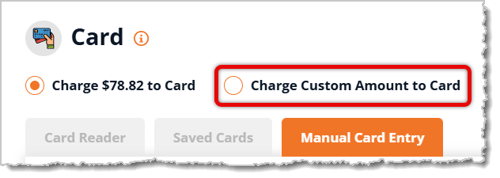
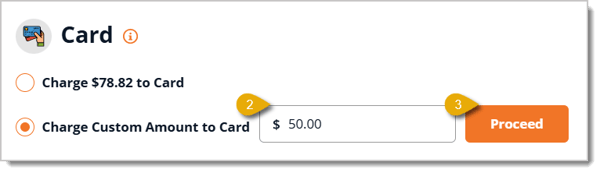
Once you're in the Payments window of New Sale, here is what to do to split payments:

When refunding split payments, the amount refunded to each card and other payment methods used during the transaction will auto-populate. These fields cannot be edited.
Example 1: If you are refunding the entire order, it will refund to each payment the exact amounts that were charged at the time of sale.
Example 2: If you are refunding a partial amount of the order, it will automatically populate which card and payment type will be refunded in the order it was charged. For example, let's say you are refunding $121.55, but Credit Card 1 was charged $150. The entire $121.55 refund will go to Credit Card 1.
Working With Products in Transactions
Q: Can I process 2 different credit cards for the same transaction?
A: Yes, but only if they're processed the same way. For example, you can't process one card as one that's present (card reader) and another with manual entry in the same transaction.
Q: Can I split a transaction using 2 different payment types like credit card and cash?
A: Yes. If one of the payment methods is a card, charge the first part of the total to the card so you can Charge Custom Amount to Card, process the card, and then process the other payment method.
Q: I have a question, but I can't find my answer here. How do I get more assistance?
A: You can ask any question at the number listed here. Contact our support team at (323) 370-0738 for the U.S. and (888) 370-2363 for Canada.
Is this page helpful?
×Help us improve our articles