💲If your store employs customer membership subscriptions, a customer can purchase the subscription both in-store and online. This article will cover how you can ring up a subscription in the register (New Sale page) for in-store purchases, as well as how a customer can buy one themselves from your e-commerce website. Keep reading to learn how to help your customers buy subscription plans!

Ring Up a Subscription In-Store in New Sale
After you've opened the New Sale page from the main menu, here is how you can ring up a subscription on the register for a customer:
-
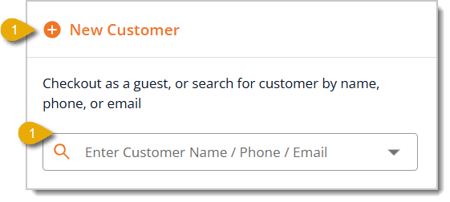
Add a customer to the transaction. Either click on New Customer to add a new customer record, or enter the customer's name, phone number, or email address in the search field if they're an existing customer, then click on their name in the drop-list. For more information about adding a new customer, click here to read Customers in New Sale.
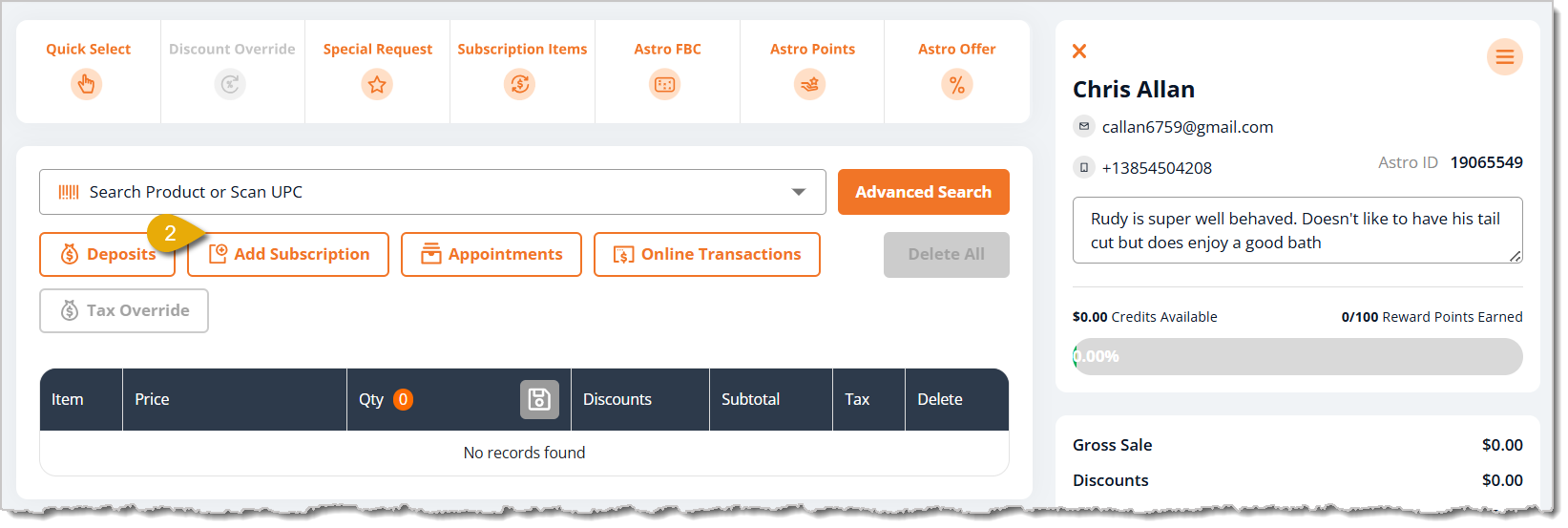
- After adding the customer, click on Add Subscription in the New Sale, as highlighted in the image below. This will open the Create Subscription area.
- In the Subscription Plan section, select the plan by entering its name and selecting it from the drop-list. This is highlighted in the image below.
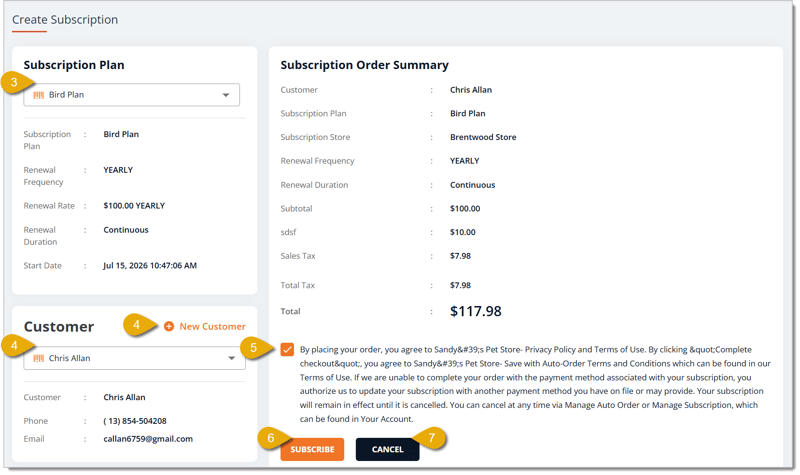
- If you need to change the customer for the transaction, go to the Customer section. Click on New Customer or enter the customer's name, phone number, or email address in the search field. Both are highlighted in the image above.
- Below the subscription order summary are the terms and conditions. Check the box to confirm that the customer has read and agreed to them. To learn how to add terms and conditions, click here.
- Click on Subscribe to move onto payment.
- Click on Cancel if you will not move forward with this order.
Process the Payment in New Sale
After clicking on Subscribe in the Create Subscription area, you will be directed to the Card Payment screen. Please note that customers can only pay for their subscriptions using a card. There are three options to take a card payment:
- Card Reader — An attached card reader device will take the card information.
- Saved Cards — If the customer has at least one card saved in their record, they can use it to complete the payment.
- Manual Card Entry — If the card reader doesn't work and the customer doesn't have any cards on file, you can manually enter their card information.
Card Reader
If you want to use your attached card reader, here is what to do:
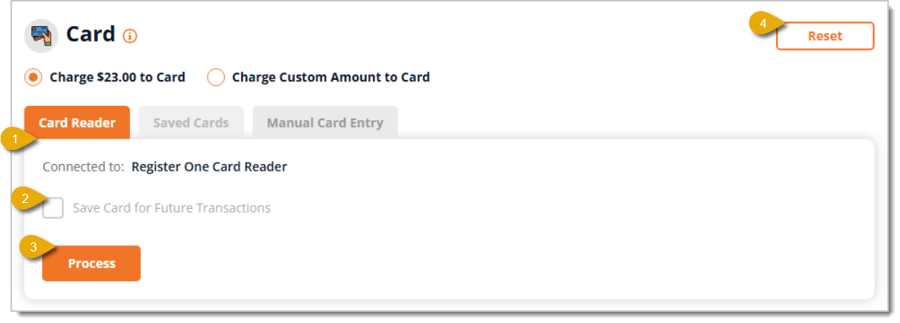
- Click on the Card Reader tab. You'll see what card reader is connected to your system.
- If the customer wants to save this card for the future, check the box for Save Card for Future Transactions.
- Click on Process to send the transaction amount to the card reader and take the payment.
- You can click on Reset to start the payment over if something goes wrong.
Saved Cards
If a customer wants to pay for their subscription using a saved card on their record, here is how to process it:
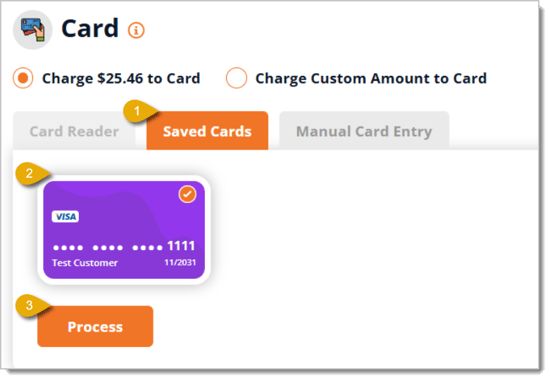
- Click on the Saved Cards tab.
- Click on the card the customer wants to use. This will only show the last 4 digits of the card.
- Click on Process.
Manual Card Entry
If your card reader isn't working, you can also enter the customer's card information manually. Here's how:
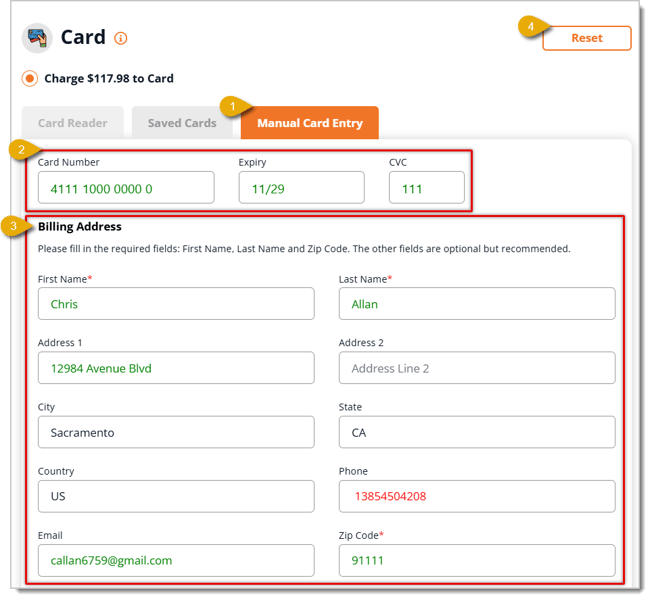
- Click on the Manual Card Entry tab.
- Enter the customer's Card Information: Card Number, Expiry Date, and CVC.
- Enter the customer's Billing Address: First Name, Last Name, Address, City, State, ZIP Code, Country, Phone Number, and Email Address.
- Click on Reset if you want to clear all of the fields and start over.
Purchase a Subscription Online
Customers are also able to buy a subscription plan from your e-commerce website. Here's how a customer can do that:
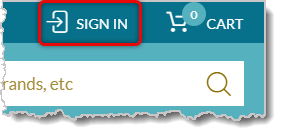
- Sign into your customer account.
- Click on the Navigation Item for your Memberships page.
- If your site doesn't yet have this, you can create the Navigation Banner by going to Content > Navigation Banners > Enter Navigation Banner information > Copy and paste this under the Path column: /customers/plans/ > Save.

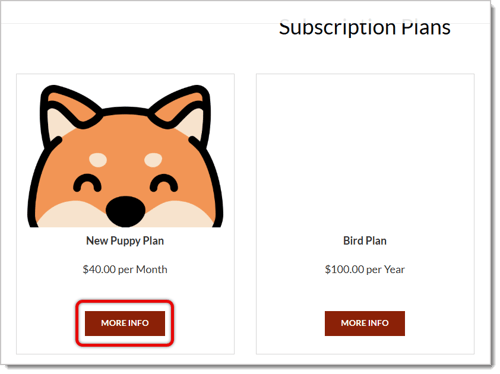
- Click on More Info for the plan you want.
- Check the box to confirm that you agree to the plan's terms and conditions.
- Admins can add terms and conditions by going to Memberships > Plans > Click on Plan Name > Scroll to Online Content > Terms and Conditions.
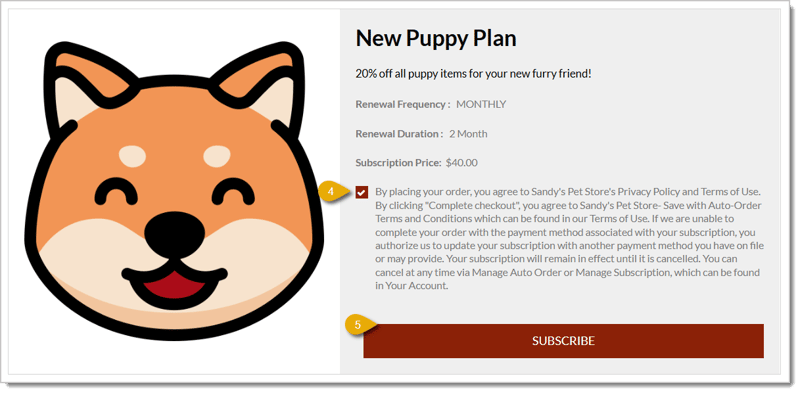
- Click on Subscribe to move to checkout.
- Enter your card information: Card Number, Expiry Date, and CVC.
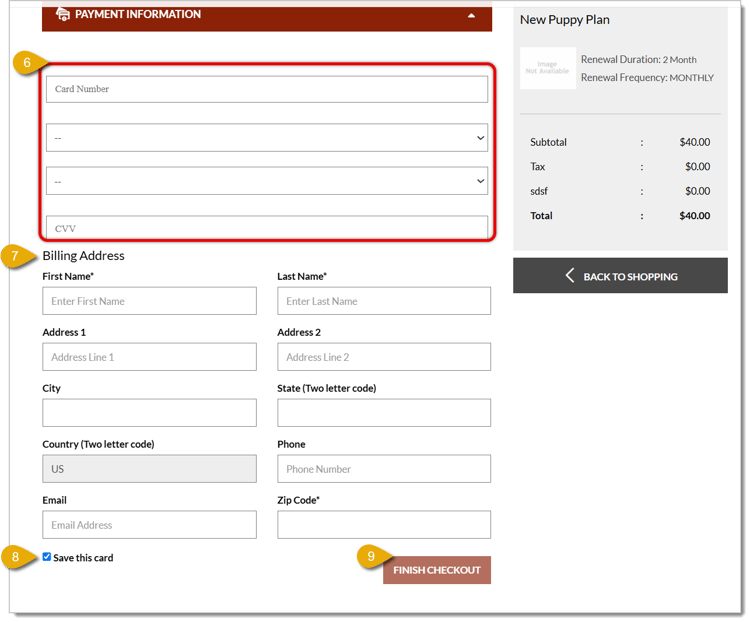
- Enter your Billing Address: First Name, Last Name, Address 1, Address 2 (if needed), City, State (use the 2-letter code, like CA or UT), Country (use the 2-letter code, like US), Phone Number, Email Address, and ZIP Code.
- Check the box for Save this card if you want this card saved to your customer profile for future transactions.
- Click on Finish Checkout to process the payment and finalize the subscription.
Related Topics
Plans
Subscriptions
Subscription Emails
Online Subscriptions
Frequently Asked Questions
Q: Can a customer pay for their subscription with cash or check?
A: No. Subscriptions can only be paid by card, whether the customer buys in-store or online.
Q: Can I save a customer's card for future subscription payments?
A: Yes. In-store, check Save Card for Future Transactions when using the card reader. Online, the customer checks Save this card at checkout.
Q: What do I do if the card reader isn't working during an in-store sale?
A: Use Manual Card Entry instead. You can enter the customer's card and billing information directly.
Q: What if my website doesn't have a Memberships page yet?
A: Go to Content > Navigation Banners, add a new banner with the path /customers/plans/, and click Save.
Q: Does a customer need an account to buy a subscription online?
A: Yes. They need to sign into their customer account before they can subscribe.
Q: I have a question, but I can't find my answer here. How do I get more assistance?
A: You can ask any question at the number listed here. Contact our support team at (323) 370-0738 for the U.S. and (888) 370-2363 for Canada.







 Jul 14, 2026
Is this page helpful?
×Help us improve our articles