Venues

Jul 28, 2026
🏬 The Venues configuration page allows you to view, search, and manage the venues where you do your bookable services, such as grooming rooms, boarding suites, or mobile service locations. Each venue controls how many participants a service can accommodate, and whether certain ones carry extra charges. This article shows you how to add new venues and search for existing ones. Explore everything you can do with venues!

The Venues List Page
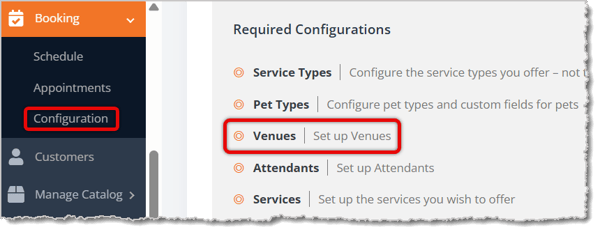
To get to this page, in the main system menu on the left, go to Booking > Configuration > Venues.
Here is how to work with the settings on the Venue List page:
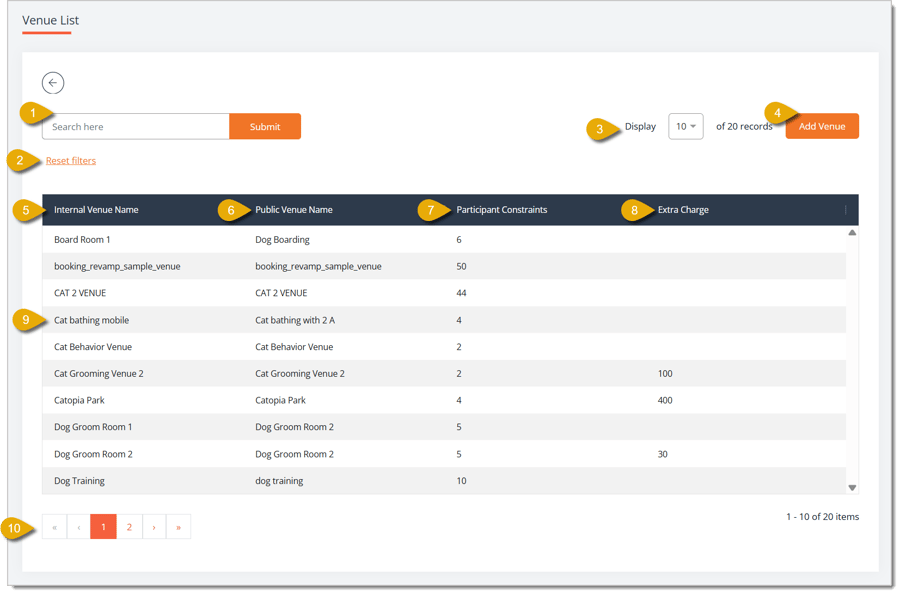
- Search — Enter a venue name here, then click Submit, to find a specific venue.
- Reset Filters — Click this link to clear your search filter and go back to the full list of venues.
- Display Number of Entries — Select how many venues you want to view on one page from the drop-list.
- Add Venue — Click this button to create a new venue. Learn more about this window in the Add or Edit a Venue section below.
- Internal Venue Name — This column shows the name you use internally to identify the venue.
- Public Venue Name — This column shows the name of the venue as it's displayed to customers when they book a service.
- Participant Constraints — This column shows the maximum number of pets the venue can service at one time.
- Extra Charge — This column shows the additional dollar or percentage charge applied when a customer books this venue, if you've set one. This column is blank for venues that do not have an extra charge.
- Click Venue — Click on a venue's table entry to view and edit its full details. Learn more about editing in the Add or Edit a Venue section below.
- Page Navigation — Click a page number, or use the arrow buttons, at the bottom of the list to move between pages of venues.
Add or Edit a Venue
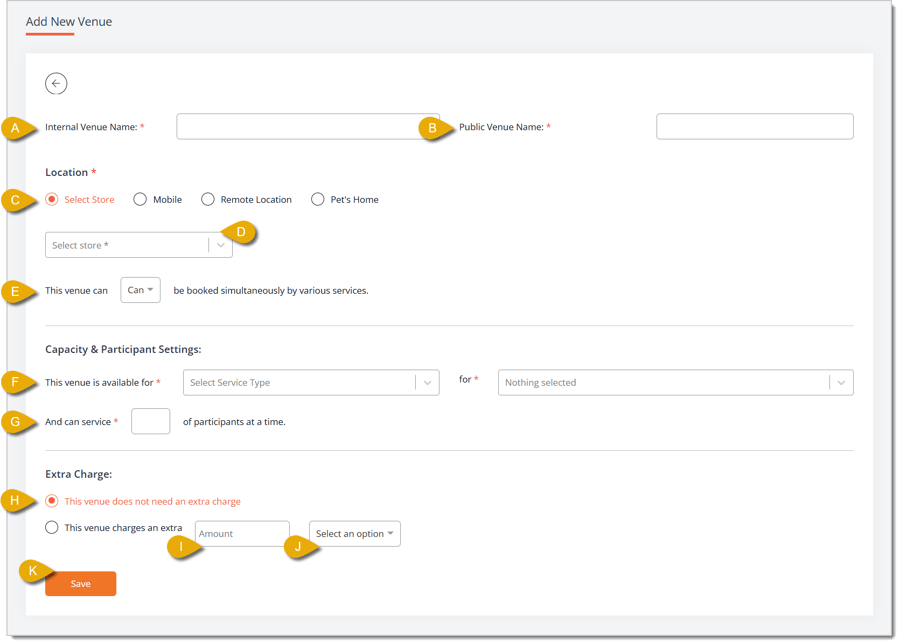
- Internal Venue Name* — Enter the name your staff will see for this venue.
- Public Venue Name* — Enter the name customers will see for this venue when booking an appointment online.
- Location* — Click the radio button for Select Store, Mobile, Remote Location, or Pet's Home to describe the location of your services.
- Store Drop-List — When you choose Select Store in Location, also choose the specific location from the Store drop-list.
- This Venue Can Be Booked Simultaneously — Select Can or Can't from the drop-list to control whether this venue can be booked for more than one service at the same time.
- This Venue Is Available For* — Select a Service Type from the first drop-list, as well as the related Pet Type or option from the second drop-list, to define which services can be done for which pets at this venue. You can select as menu Service Types and Pet Types as needed. Once you select your Service Types and Pet Types, you'll be able to select Sizes you can handle in the venue and pet Temperaments, as needed.
- And Can Service* — Enter the number of participants this venue can handle at one time.
- Extra Charge — Select whether This venue does not need an extra charge or This venue charges an extra amount.
- Amount — If you are adding an extra charge, enter the Amount.
- Select an Option — If you are adding an extra charge, you can choose here for the Amount above to be a Dollar value or a Percentage of the total you'll charge for the services.
- Save — Click this button once you have finished making changes. When editing a venue, this button will read Update.
* Required Field
Related Topics
Booking Schedule
Booking Appointments
Booking Configuration 1
Booking Configuration 2
Frequently Asked Questions
Q: What is the difference between the Internal Venue Name and the Public Venue Name?
A: The Internal Venue Name is for your own reference and is not shown to customers. The Public Venue Name is what customers see when they are booking a service at this venue.
Q: How do I edit an existing venue?
A: Click the venue's entry in the table to open the Edit Venue page, where you can update details or delete it.
Q: Can I search for a venue by its public name instead of its internal name?
A: Yes. The Search here field looks across venue names, so you can enter either the internal or public venue name to find it.
Q: I have a question, but I can't find my answer here. How do I get more assistance?
A: You can ask any question at the number listed here. Contact our support team at (323) 370-0738 for the U.S. and (888) 370-2363 for Canada.
If a customer changes their mind and doesn't want to complete a transaction, you can easily clear it
🐶 The eTailPet system enables you to offer customers discounts by overriding the original price. Re
💲The eTailPet Dashboard gives you multiple ways to find a transaction and process it for a refund o







Is this page helpful?
×Help us improve our articles