Update Card on File for Your Service Subscription

Aug 14, 2026
If you need to change your card on file with eTailPet for your POS service subscription, it is easy to do so. This article will show you where to go and how to update your billing information. Take a look!

Update Your Payment Method
Follow these steps to update your billing information:
- Log into your eTailPet Admin Dashboard.
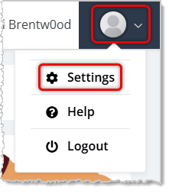
- Click on the User Icon in the upper right to open the Admin Menu and go to Settings.
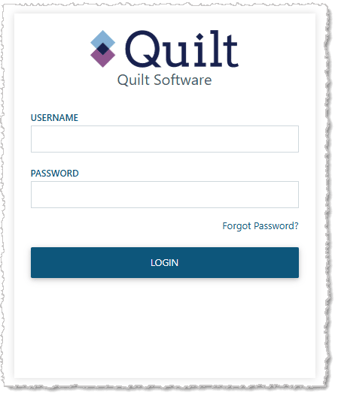
- Go to the Billing tab and click on Link to Portal. The Quilt Software billing login will load (eTailPet is a Quilt Software brand).
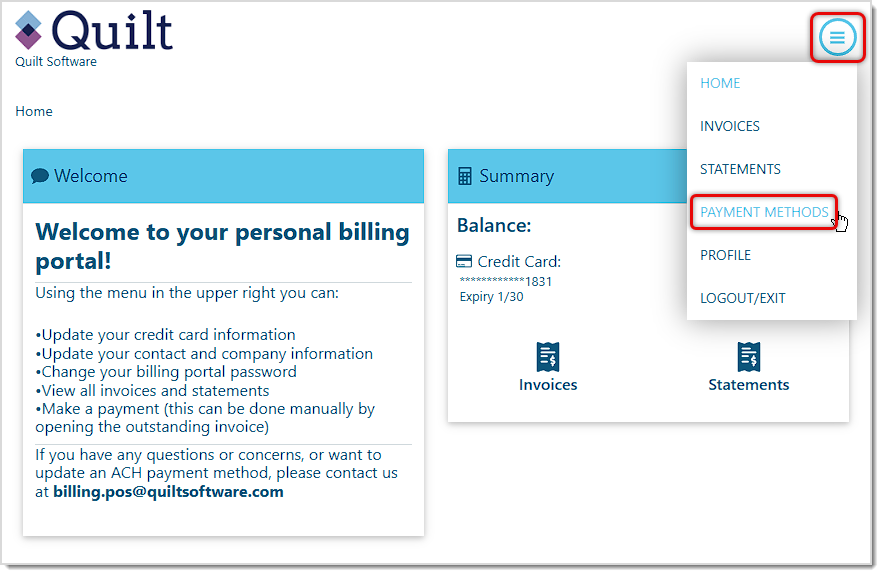
- In the upper right of the Billing Portal home page, click on the Menu button (hamburger stack), and in the drop-list, click on Payment Methods, as pictured below.
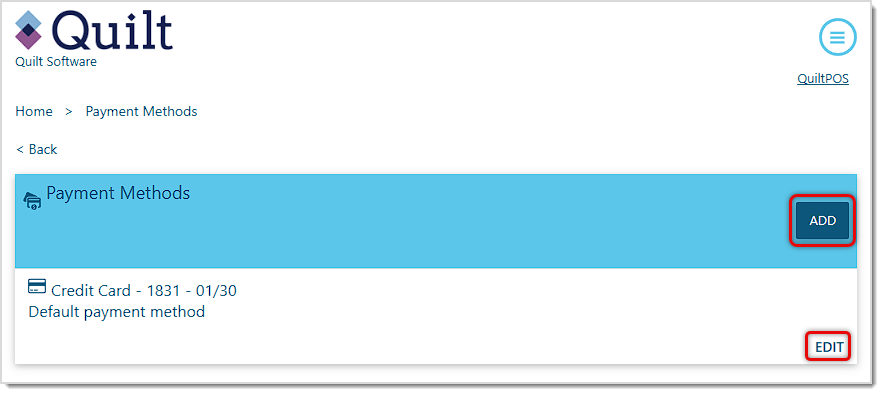
- You'll see a list of all of your saved Payment Methods. You can either click the Add button to add a new card, or you can click an Edit link to update an existing card on file.
- On the Add/Edit Credit Card page, enter or adjust the information as needed. If you are adding a new card on file, you can click the Yes radio button to use your existing address and auto-populate that information in the form, if your Billing Address hasn't changed.
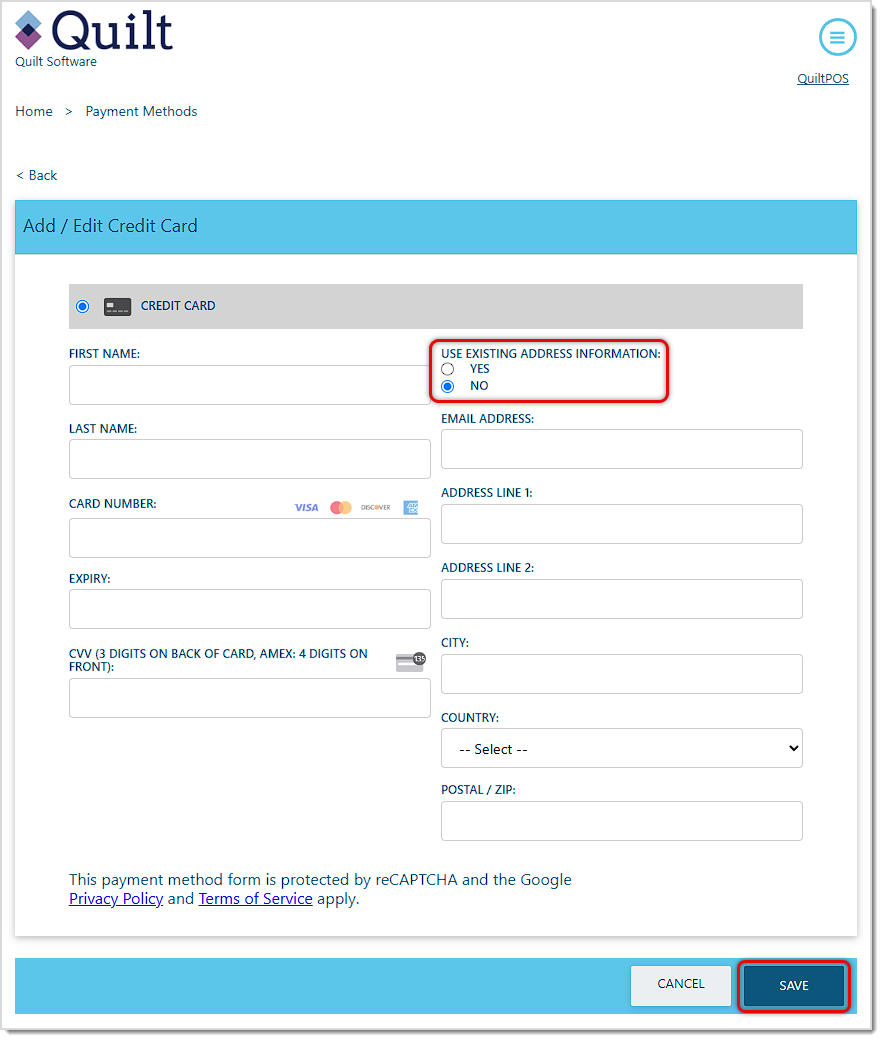
- Once your information is complete, click the Save button in the lower right.
- If you are adding a new card, you will have an options menu on the right in your list of Payment Methods (three-dot stack, not pictured) to specify the card on file that is the default one for your monthly billing.
That's it. You're all set!
Related Topics
Settings: About Tab
Settings: Details Tab
Settings: Stores Tab
Frequently Asked Questions
Q: I have a question, but I can't find my answer here. How do I get more assistance?
A: You can ask any question at the number listed here. Contact our support team at (323) 370-0738 for the U.S. and (888) 370-2363 for Canada.
⭐ If you're running into problems with the Astro Loyalty integration, there are ways to troubleshoot
The Knowledge Base has been a dependable resource, but it was time to build a new one with better fu
The Dashboard is your admin interface for the eTailPet system. This article covers the navigation el







Is this page helpful?
×Help us improve our articles