





Admin Dashboard

Jul 14, 2026Jul 14, 2026

The Dashboard Insights page of the eTailPet system gives you an at-a-glance view of your store's sales performance, including net sales, transactions, new customers, and refunds. This article shows you how to use the elements on this page and how to post informative images for your crew. Get a real-time pulse on your business!

lillian - dashboard

Dashboard Insights

To get to this area, click on Dashboard in the main system menu on the left.
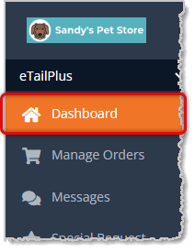
Image showing the main menu of the eTailPet system with the Dashboard area highlighted.

Here is how to work with the elements on this page:
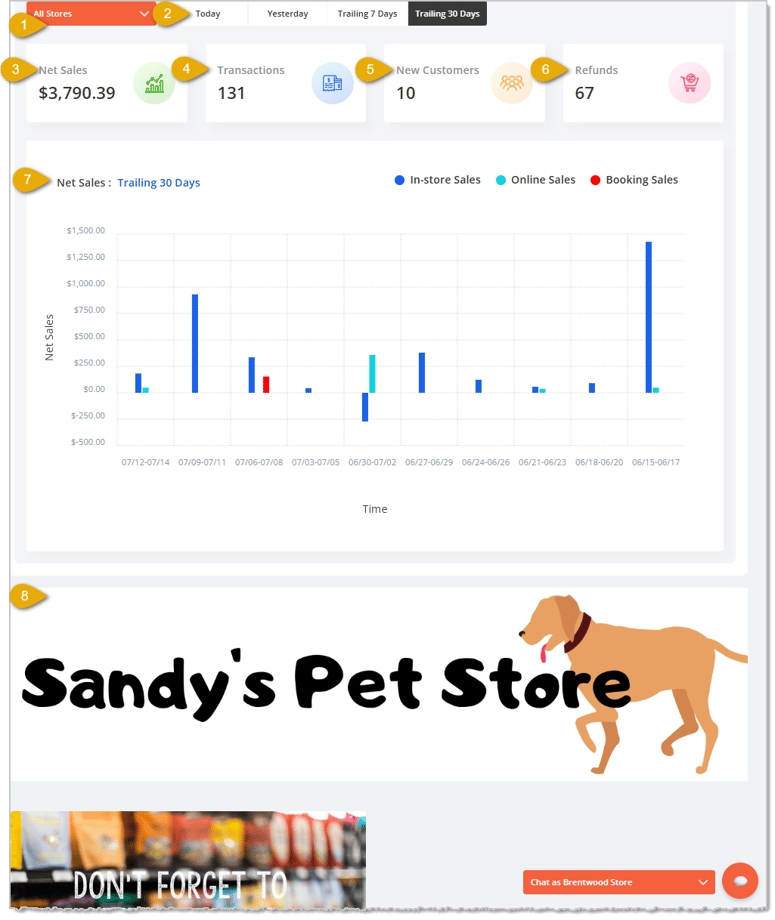
Image showing the admin dashboard page with key features highlighted in the eTailPet system.

  1. Stores — Select a specific store from the drop-list, or leave it set to All Stores to view combined data across every store.
  2. Sales Timeframe — Click one of these buttons to change the date range shown in the summary cards and sales chart. Options include Today (default), Yesterday, Trailing 7 Days (today and the previous 6 days), and Trailing 30 Days (today and the previous 29 days, shown in the view above).
  3. Net Sales — This area displays your total Net Sales for the selected date range and store. Click this card to open the Sales by Shop Report.
  4. Transactions — This area displays your total number of Transactions for the selected date range and store(s). Click this card to open the Sales by Shop Report.
  5. New Customers — This area displays how many New Customers you gained across all stores during the selected date range. Click this card to go to your Customers page.
  6. Refunds — This area displays your total number of Refunds for the selected date range and store(s). Click this card to open the Refund Report.
  7. Net Sales Chart — This graph shows your Net Sales broken down by hour (or by day, depending on the date range you select). Use the In-store Sales, Online Sales, and Booking Sales legend items to identify each sales channel on the chart.
  8. Dashboard Images — You are able to add images to your Dashboard for your stores. You can do so in the main system menu by going to Content > Dashboard Images. Whichever image is first will be a large banner that spans the width of the page, and the others will display on the left half of the page. For full details on configuring your Dashboard images, click here for the article on Dashboard Images.


Related Topics

Sales by Shop Report

Customers

Refund Report

Dashboard Images


Frequently Asked Questions

Q: Can I view Dashboard Insights for just one of my stores?

A: Yes. Select the specific store you want to view from the store drop-list instead of leaving it set to All Stores.


Q: Can I view quarterly net sales on the Dashboard page?

A: No. You can click Today, Yesterday, Trailing 7 Days, or Trailing 30 Days to change the date range shown across the summary cards and chart. On the Sales by Shop Report page, you are able to enter a custom date range that can go back up to a year.


Q: Does the New Customers card only reflect the store I have selected?

A: No. The New Customers card always shows new customers across all of your stores, regardless of which store you select in the drop-list.


Q: Can I click through from a summary card to see more detail?

A: Yes. Click the Net Sales, Transactions, New Customers, or Refunds card to open its related detailed report.


Q: I have a question, but I can't find my answer here. How do I get more assistance?

A: You can ask any question at the number listed here. Contact our support team at (323) 370-0738 for the U.S. and (888) 370-2363 for Canada.

Need Help?

Can't quite find the answer you're looking for? Our support team is just a call away.