






Payments Bank Account Update
If the need to change the bank account that your payouts are deposited in a new bank account can be
 Aug 05, 2026
The Admin and Crews area of the eTailPet system allows you to create and manage every back-office and point-of-sale user who needs access to your stores. From here, you can add new admin or register users, set up crew logins secured with a PIN, and assemble Roles that bundle together specific permissions across inventory, marketing, reporting, and more. Take a look at what you can do!
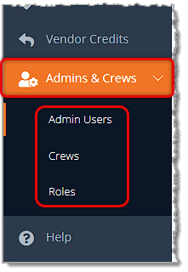
To get to this area, click on Admin & Crews using the main menu on the left, then choose Admin Users, Crews, or Roles.
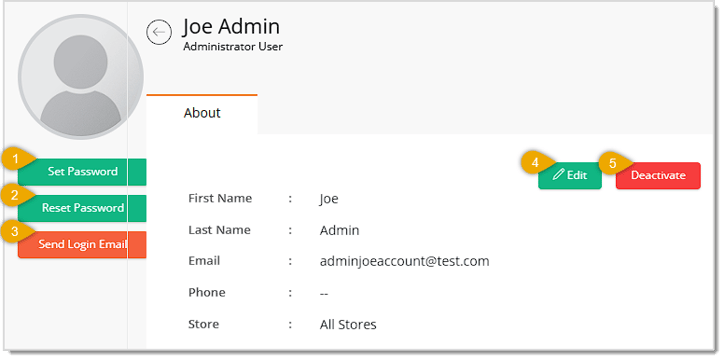
The Admin Users page lists every full back-office user account on file, including Administrators, Restricted users, and Register users. From this list, you can search or filter by user type, add a new admin with the Add New button, and click into any user's name to view their details. On a user's details page, you can edit their info, set or reset their password, send them a login email, and activate or deactivate their account. Depending on the Profile Type chosen when creating or editing a user, the form will also ask for a Store, a PIN, and one or more Roles.
For this article, we have fully detailed the Admin Users page, and we've provided summary information about the Crews and Roles pages.
When you first open the Admin Users page, you'll see a searchable list of every user account.
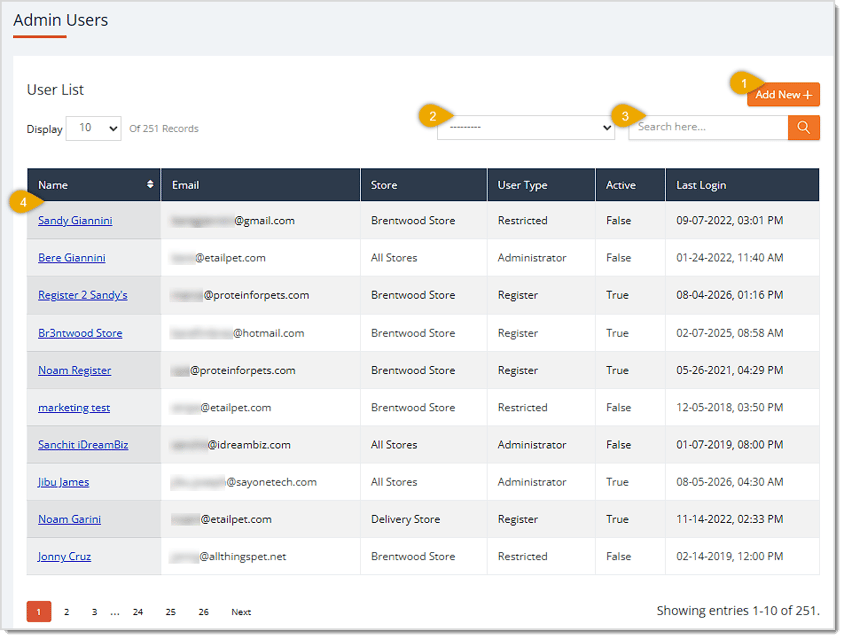
Here is everything you can do on this page:
When you click the Add New button, you'll be able to enter information about the new user. The form dynamically reveals a Store field and a Crew Details section depending on the Profile Type you choose:
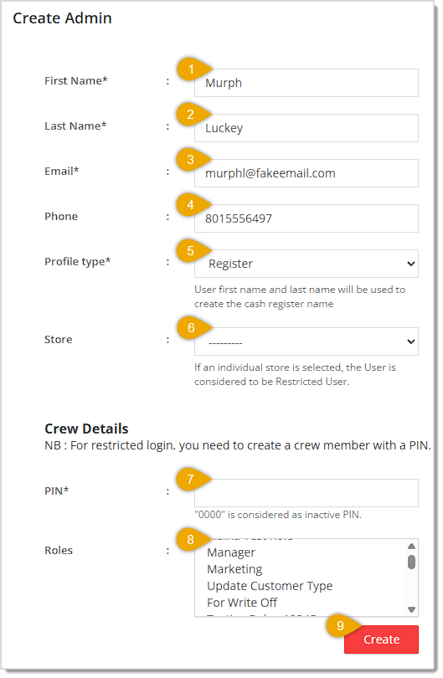
* Required Item
Clicking on a user's name opens their details page, where you can review their information and manage their account.
The Crews page lists PIN-based staff logins used at the register and time clock.
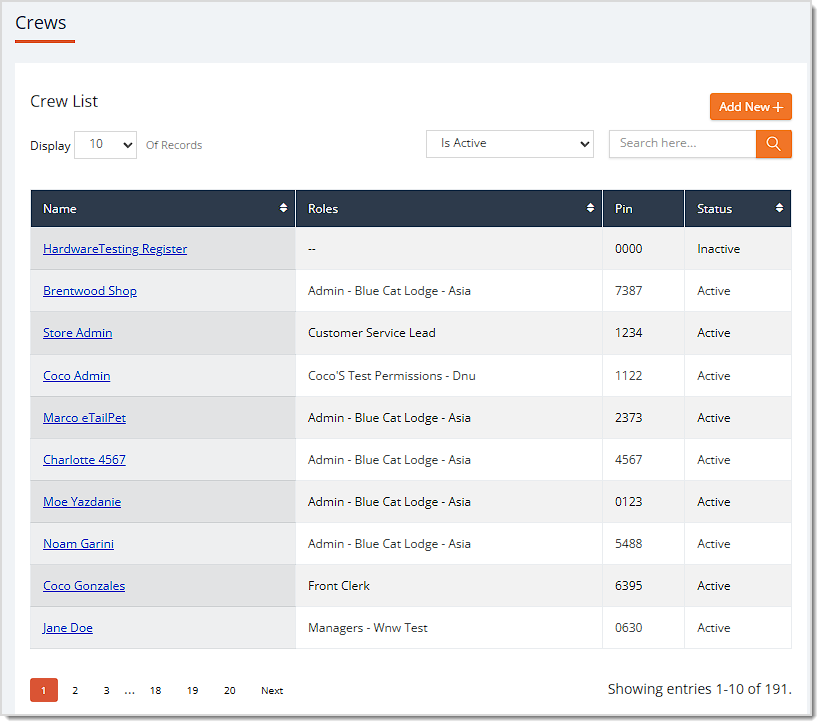
From this list, you can search or filter by active status, add a new crew member with the Add New button, and click into any crew member's name to view their details. Each crew member is set up with a name, a numeric PIN, and a Role. From their details page, you can edit their information, archive them to disable their login, or delete their record entirely.
Click here to learn how to work with your Crews.
The Roles page lets you build custom permission sets that can be assigned to Admin Users and Crew members.
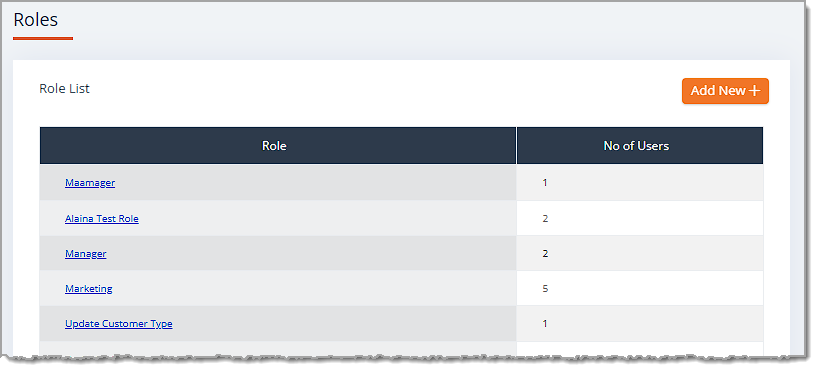
The list shows each existing role along with how many users are currently assigned to it. Clicking Add New or clicking into an existing role opens a permissions form where you name the role and check the boxes for the specific permissions it should grant, grouped into categories like Admin, Inventory, Marketing, Reports, Store, and Warehouse.
Click here to learn how to work with your Roles.
Q: What is the difference between an Administrator, Restricted, and Register Profile Type?
A: Administrator accounts have full access across all stores. Restricted and Register accounts are tied to a single store, and both require a PIN and at least one Role to be set up under Crew Details.
Q: What is the difference between Archiving and Deleting a crew member?
A: Archiving deactivates the crew member's login so they can no longer access the register, but keeps their historical record intact. Deleting permanently removes the crew member's record instead.
Q: Can I assign more than one Role to a crew member or admin user?
A: Yes. The Roles field is a multi-select list, so you can select as many roles as you need for that user's account.
Q: I have a question, but I can't find my answer here. How do I get more assistance?
A: You can ask any question at the number listed here. Contact our support team at (323) 370-0738 for the U.S. and (888) 370-2363 for Canada.
Is this page helpful?
×Help us improve our articles