






Portal Virtual Terminal Page
 Aug 21, 2026
The Virtual Terminal (VT) is a page in your eTailPet Payment Portal that allows you to process card transactions outside of the point-of-sale (POS) card terminal. Its primary purpose is intended to be a backup if the POS goes down or is otherwise inaccessible. This can be a great if you are on the road, have computer issues and want a backup, or you have remote teams that need to be able to enter payments but may not have access to the POS hardware.
💡Please Note: This page is disabled by default for new merchants and will automatically be enabled once certain conditions are met through consistent sales activity, usually within the first 30 days after activation.
Working With Your Virtual Terminal
Once you have logged into your Portal page, click on the Virtual Terminal option in the upper left.
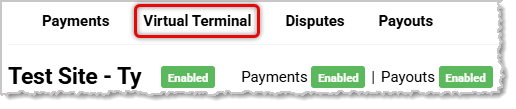
You'll need to provide the following information on this page for transaction processing:
-
Transaction Amount
-
Full Name on the Card
-
Postal or Zip Code for the Card's Billing Address
-
Full Card Number
-
Expiration Date
-
Security Code (CVC/CVV Code)
-
Notes (This is where you can list inventory, transaction details, discounts, and other information for later use in your POS.)
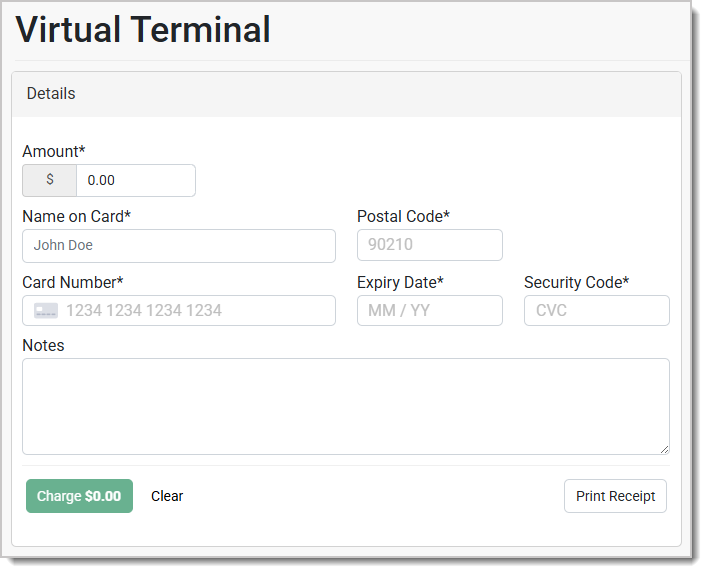
All fields are required. Here is what the Virtual Terminal looks like:
Charging a Card in the Virtual Terminal
-
Enter the information for the card being charged in the Virtual Terminal. All fields, including Amount, Name on Card, Postal Code (for billing), full Card Number, Expiration Date, and Security Code are required. In the Notes field it is highly recommended to enter the names, prices, and quantities of the items being purchased. You should also include information about any discounts, taxes, or other important details for reference so you can later recreate the transaction in your Point of Sale system. The reason this is important is because the transaction will NOT reduce inventory or log the sale in your POS reporting, so this note will be your only record of what you sold the customer.
-
Confirm that everything is correct. If you need to start over, the Clear button will clear the page.
-
Click the green Charge button to process the charge.
-
Click the Print Receipt button for a simple transaction receipt you can use for your records. This will include the full details of the transaction, as well as the Note.
Fees
Virtual Terminal transactions are considered Manual Entry and the associated Card Not Present (CNP) rates will be applied.
Compatibility
As mentioned above, the Payment Portal does not feed data for completed Virtual Terminal transactions back to the eTailPet system, so transactions done through your Virtual Terminal will NOT show up in the POS software and inventory will NOT be updated. You will need to manually make adjustments in your POS software for these data points.
This is intended to be used only as a backup. It should not be your primary use of manual entry since it does not update anything in your POS and will incur card-not-present processing fees.
Related Topics
Frequently Asked Questions
Q: I have a question, but I can't find my answer here. How do I get more assistance?
A: You can ask any question at the number listed here. Contact our support team at (323) 370-0738 for the U.S. and (888) 370-2363 for Canada.
Is this page helpful?
×Help us improve our articles